
I recently helped a colleague from a non-technical department who needed a simple way to send a sensitive contract to a client. They were worried about email interception and wanted to ensure only the intended recipient could open the file. This is a common problem, and the solution lies in robust PDF encryption, which acts as a digital lockbox for your information.
Choosing the right tool can feel overwhelming. Some are built directly into software you already use, while others are dedicated applications with advanced features. The goal is to find a balance between security, ease of use, and cost that fits your specific needs, whether you're securing a single file or an entire archive of corporate documents.
Table of Contents
Why PDF Encryption Is Non-Negotiable
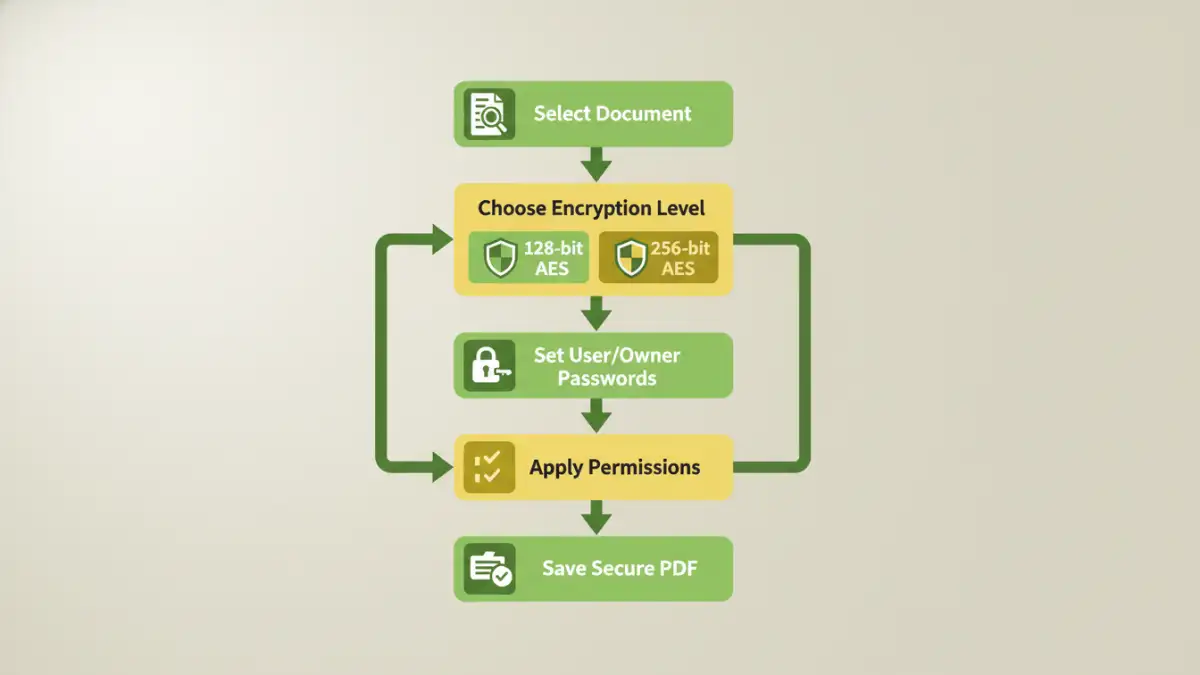
PDFs are the standard for sharing documents, from legal contracts and financial reports to personal records. Without protection, this sensitive data is vulnerable if it falls into the wrong hands. Encryption converts the document's content into an unreadable format that can only be deciphered with the correct password or key. It's the first line of defense against unauthorized access.
Beyond simple confidentiality, encryption is often a requirement for regulatory compliance. Standards like GDPR, HIPAA, and CCPA mandate the protection of personal and health information. Using secure PDF software helps meet these legal obligations, protecting your organization from hefty fines and reputational damage. It ensures that even if a data breach occurs, the compromised files remain unreadable and useless to attackers.
Key Features to Look for in PDF Security Software
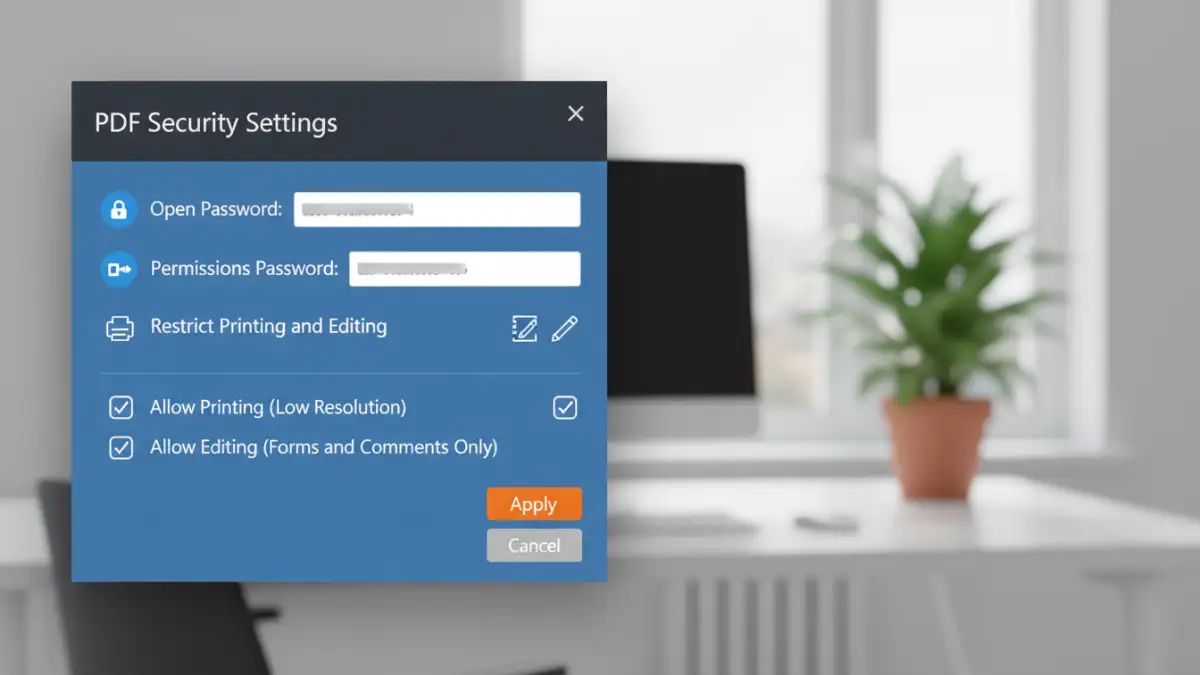
When evaluating different tools, it’s easy to get lost in a long list of features. From my experience, a few core capabilities are essential for effective PDF security. Focusing on these will help you select a tool that provides real protection without unnecessary complexity.
Encryption Strength and Standards
The most crucial feature is the level of encryption. Look for software that supports Advanced Encryption Standard (AES) with 256-bit keys. This is the industry standard used by governments and financial institutions worldwide and is considered virtually unbreakable by brute-force attacks. Avoid tools that use older, weaker standards like 40-bit RC4, as they are no longer secure.
Granular Permission Controls
Good encryption software doesn't just lock a file; it lets you control what others can do with it after they open it. Look for the ability to set a separate 'permissions' password that restricts actions like printing, copying text and images, editing the document, or adding comments. This layered approach ensures that even authorized viewers can't misuse the content.
User Experience and Workflow Integration
The most secure tool is useless if it's too complicated for people to use. The software should integrate smoothly into your existing workflow. Features like batch processing (encrypting many files at once), right-click context menu integration in your file explorer, and a clean, intuitive interface are signs of a well-designed product. The goal is to make security a seamless part of document handling, not a cumbersome extra step.
Reviewing Top Document Encryption Tools
There are many options available, but a few stand out for their reliability and feature sets. The best PDF encryption software for you will depend on your budget, technical comfort, and specific security requirements. Here’s a breakdown of some leading contenders.
Adobe Acrobat Pro DC
As the creator of the PDF format, Adobe offers the most comprehensive and native set of security tools in Acrobat Pro. It provides robust 256-bit AES encryption, detailed permission controls, and even allows for certificate-based security, which is a step above simple passwords. It's the gold standard for corporate environments but comes with a subscription cost.
PDFelement
PDFelement by Wondershare is a powerful and more affordable alternative to Adobe Acrobat. It offers a full suite of editing and security features, including 256-bit AES password encryption and permission settings. Its user interface is modern and often compared to Microsoft Office, making it easy for new users to adopt. It's an excellent choice for small businesses and individuals who need professional-grade features without the premium price tag.
AxCrypt
While not exclusively a PDF tool, AxCrypt is a fantastic file encryption software that works seamlessly with PDFs and any other file type. It integrates directly into the Windows right-click menu, making it incredibly easy to encrypt or decrypt a file. It uses 256-bit AES encryption and offers both a free version for basic use and a premium version with more advanced features like cloud storage awareness and password management. It's a great general-purpose tool for overall file encryption review.
Free vs. Paid Encryption Solutions
The choice between free and paid software often comes down to a trade-off between convenience, features, and trust. Free online tools can encrypt a PDF quickly but pose a significant privacy risk, as you are uploading your sensitive document to a third-party server. I generally advise against this for anything truly confidential.
Paid desktop software, on the other hand, processes your files locally on your machine, ensuring your data never leaves your control. These tools also offer stronger encryption, batch processing, customer support, and more reliable performance. For business or highly sensitive personal use, a paid solution is a worthwhile investment in your data's security.
Best Practices for Securing Your PDFs
Using the right software is only half the battle. How you use it matters just as much. Always use a strong, unique password for each document—a mix of upper/lowercase letters, numbers, and symbols. Never send the password in the same email as the encrypted document; communicate it through a separate, secure channel like a phone call or an encrypted messaging app.
Regularly review who has access to your encrypted files and revoke permissions when they are no longer needed. For long-term storage, consider archiving encrypted files in a secure location and backing them up. By combining powerful software with smart security habits, you can create a robust defense for your most important digital documents.
Comparison of Top PDF Encryption Software
| Software | Key Feature | Best For | Price Model |
|---|---|---|---|
| Adobe Acrobat Pro DC | Native PDF security & certificate encryption | Corporate environments and professionals | Subscription |
| PDFelement | Comprehensive features at a lower cost | Small businesses and power users | Subscription or Perpetual License |
| AxCrypt | Simple right-click file encryption | General-purpose security for all file types | Freemium |
| Smallpdf (Online Tool) | Browser-based convenience | Non-sensitive, one-off tasks | Free with limitations / Subscription |
| 7-Zip | Creates encrypted archives (ZIP/7z) | Archiving multiple files together securely | Free (Open Source) |