I recently helped a colleague who was in a panic. He had a final, signed contract saved as a password-protected PDF, but the password he'd noted down just wasn't working. The deadline was looming, and he was completely locked out. This is a situation I've seen play out many times; a security measure designed to protect a document ends up preventing legitimate access.
Losing access to an important file is stressful, but it's often solvable. The key is to approach the problem systematically and understand what kind of protection you're dealing with. Not all PDF passwords are created equal, and the right recovery method depends entirely on the type of lock you're facing.
Table of Contents
Understanding PDF Passwords: Not All Are the Same
Before you try to unlock a secure PDF, it's crucial to know what you're up against. PDF security generally comes in two flavors, and identifying which one is protecting your file will guide your recovery strategy. From a technical standpoint, the encryption applied for each is different, which is why the solutions vary.
User Password vs. Owner Password
A 'User Password,' sometimes called an 'Open Password,' is the first line of defense. It encrypts the entire file and is required simply to open and view the document. If you don't have this password, you can't see the contents at all. This is the tougher nut to crack.
An 'Owner Password,' also known as a 'Permissions Password,' is different. It doesn't prevent you from opening the file, but it restricts actions like printing, copying text, editing, or adding comments. If you can open the PDF but can't print it, you're dealing with an owner password. This is generally much easier to bypass.
The Role of Encryption Strength
The security of a PDF password also depends on the encryption algorithm used when it was created. Older PDFs might use 40-bit RC4 encryption, which is now considered weak and can be broken relatively quickly by modern computers. However, newer PDFs often use 128-bit or 256-bit AES encryption, which is the same standard used by banks and governments. Trying to 'brute force' a strong password on a file with AES-256 encryption can take an astronomical amount of time.
First Steps for Document Access Recovery

Before you download any software or upload your file to a website, take a deep breath and run through the basics. More often than not, the solution is simpler than you think. I've seen these simple checks resolve the issue without any technical intervention.
First, check your password manager if you use one. It's easy to forget that you saved a password there months ago. Next, try common variations of passwords you frequently use. Did you add a specific project name, a year, or a special character? Also, consider case sensitivity—make sure Caps Lock isn't on. If someone else sent you the file, the most direct approach is to simply ask them for the password again. They may have a record of it you don't.
Practical PDF Password Recovery Methods
If the simple checks don't work, it's time to move on to more technical methods. The right approach depends on whether you're dealing with an owner or user password.
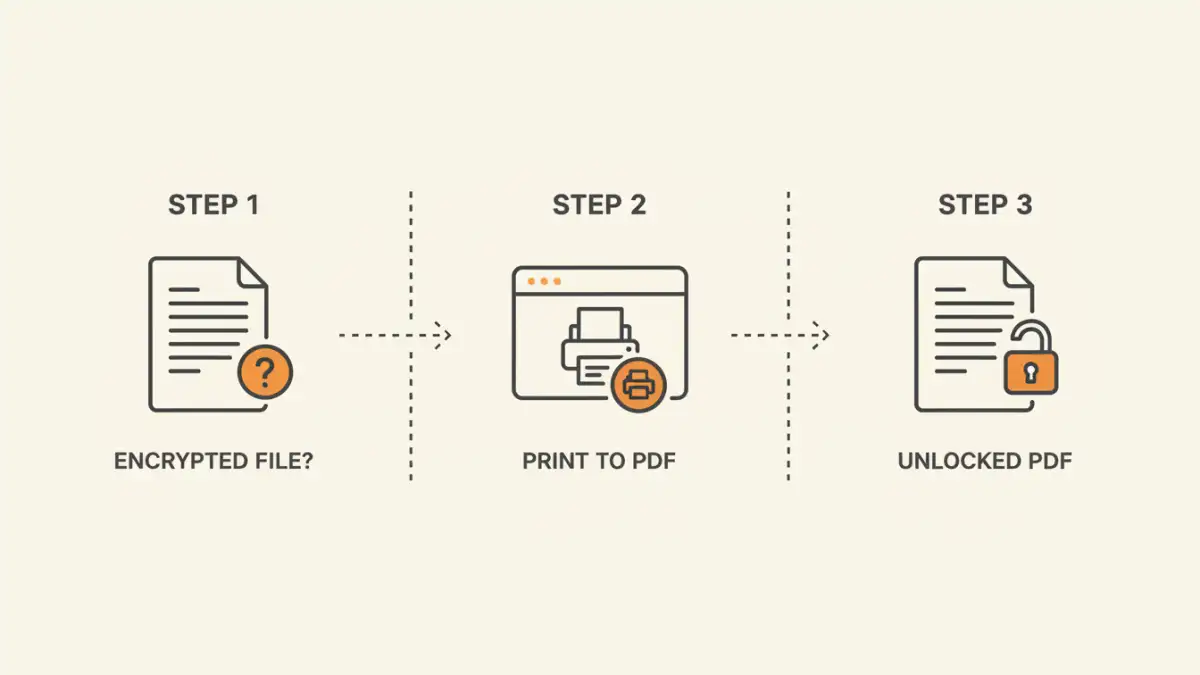
Method 1: The Browser 'Print to PDF' Trick (Owner Passwords Only)
This is my go-to first step if I'm dealing with an owner password (meaning, I can open the file but can't edit or print). It's simple, free, and doesn't require any special software. Most modern web browsers like Chrome, Firefox, and Edge have a built-in PDF reader.
- Drag and drop the locked PDF file into an open browser window.
- The file will open, as the owner password doesn't prevent viewing.
- Go to the 'Print' menu (usually Ctrl+P or Cmd+P).
- In the print destination dialog, instead of selecting a physical printer, choose 'Save as PDF'.
- Save the new file. This newly created PDF will be an identical copy of the original but with no printing or editing restrictions.
This works because the browser's print function essentially re-renders the document into a new, unrestricted PDF, stripping away the permissions metadata in the process.
Method 2: Using Online Unlocking Tools
Numerous websites offer free PDF password recovery services. You upload your file, their servers attempt to remove the password, and you download the unlocked version. While convenient, I offer a strong word of caution here: never upload sensitive or confidential documents to these sites. You have no control over what happens to your data once it's on their servers. For non-sensitive files, like a public report or a manual, they can be a quick fix for removing owner passwords.
Method 3: Dedicated Desktop Software
When you've forgot a PDF password of the 'user' variety and can't open the file at all, desktop software is your most powerful option. These tools run locally on your machine, ensuring your data remains private. They work by attempting to guess the password using several techniques:
- Brute-Force Attack: Tries every possible combination of letters, numbers, and symbols. This can take forever for long, complex passwords.
- Dictionary Attack: Tries words from a dictionary list. This is faster if the password is a common word.
- Mask Attack: If you remember parts of the password (e.g., 'it started with ProjectX and ended in 23'), you can configure the software to focus its attempts, dramatically speeding up the process.
While some of these tools are paid, they are the most effective solution for recovering a lost file password when the document is completely inaccessible.
Best Practices to Prevent Future Lockouts
Recovering passwords is a reactive measure. A better long-term strategy is to prevent losing them in the first place. The single most effective tool for this is a reputable password manager. These applications generate strong, unique passwords for you and store them in a secure, encrypted vault.
When you create a password for a PDF, save it in your password manager immediately. Add a descriptive name like 'Q4 Financial Report Contract PDF' so you can easily find it later. For team environments, consider using a shared vault within the password manager for project-related documents, ensuring everyone who needs access has the key without it being written on a sticky note.
PDF Recovery Method Comparison
| Method | Pros | Cons | Best For |
|---|---|---|---|
| Browser 'Print to PDF' Trick | Free, secure (file stays local), no software needed. | Only works for Owner (permissions) passwords. | Quickly removing restrictions on printing or copying. |
| Online Unlocking Tools | Fast, convenient, and often free for simple tasks. | Major privacy and security risk; not for sensitive data. | Non-confidential files with Owner passwords. |
| Desktop Recovery Software | Highly effective, works on User passwords, secure (offline). | Often requires payment, can be slow for strong passwords. | Critical, sensitive documents when you forgot PDF password. |
| Password Manager | Prevents the problem, securely stores all passwords. | Requires setup and forming a new habit. | Proactive, long-term document security management. |