
A few years ago, a colleague was about to email a multi-million dollar proposal to a new client. On a whim, I asked if he'd checked the document's properties. He hadn't. We opened it up and found the names of everyone who had edited it, a full revision history with deleted clauses, and internal comments like "Client is concerned about pricing here." It was a near-disaster that highlighted a risk many people completely ignore.
Every time you create a document, a photo, or a spreadsheet, the file saves more than just the content you see. It creates a digital fingerprint called metadata, and this hidden information can be a significant security liability if not managed correctly. Understanding this is the first step toward better document metadata security.
Table of Contents
What Exactly Is Document Metadata?
Metadata is simply "data about data." Think of it like the label on a food package; it doesn't tell you what the food tastes like, but it gives you crucial information like ingredients, nutritional facts, and the expiration date. In the digital world, this data is automatically generated and embedded within your files.
This information is often useful for organizing and searching for files on your own system. However, when you share that file, all that contextual data travels with it, which can lead to unintentional and often sensitive disclosures.
Common Types of Hidden Data
The amount and type of metadata vary by file format, but common examples include:
- Author Information: Your name, username, initials, and company or organization.
- File History: Dates and times of creation, last modification, and last access.
- Device & Software Details: The computer name, network server, software used (e.g., Microsoft Word 2021, Adobe Photoshop CC), and even the printer details.
- Revision History: Tracked changes, comments, and previous versions of the content can remain embedded, even if they appear to be deleted.
- Location Data: For photos taken with smartphones or GPS-enabled cameras, this includes precise GPS coordinates of where the photo was taken.
The Alarming Risks of Exposed Metadata
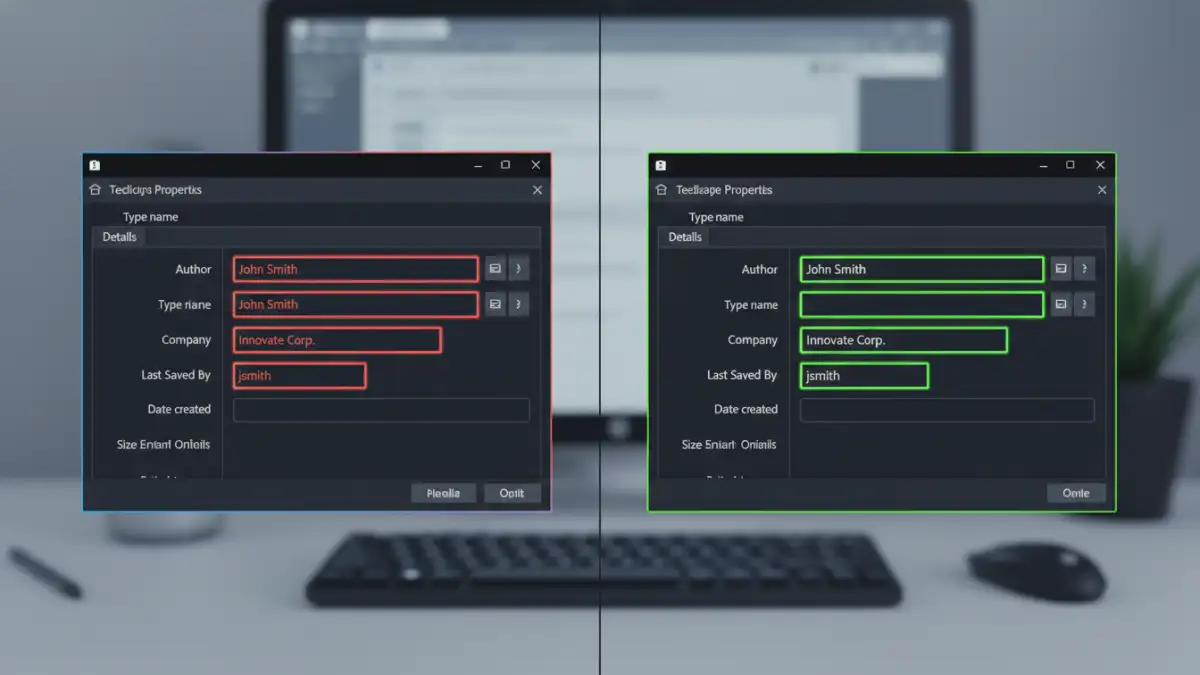
Ignoring file properties security can have severe consequences, ranging from professional embarrassment to serious legal and financial repercussions. The risk is not theoretical; it has impacted legal cases, business negotiations, and personal privacy.
A significant pdf metadata risk, for example, is when a legal document shared as a PDF still contains comments from the drafting phase. This could reveal legal strategy or points of contention to the opposing counsel. It's a silent data leak that most people never even think to look for.
Real-World Consequences
Consider a few scenarios. In a corporate merger, a spreadsheet containing financial projections might have metadata revealing the author's name and the date it was created, tipping off competitors to the timeline of the deal. In journalism, a photo sent from a confidential source could contain GPS data, exposing their location and putting them in danger.
In less dramatic cases, it can simply appear unprofessional. Sending a proposal that lists another client's name in the metadata or shows edits from three years ago undermines confidence and suggests a lack of attention to detail.
How to Check Document Metadata Before Sharing
Fortunately, you don't need to be a forensics expert to check document metadata. Most modern software includes built-in tools to view and manage this information. Making this a routine check is a critical habit for secure document sharing.
For Microsoft Office Documents (Word, Excel, PowerPoint)
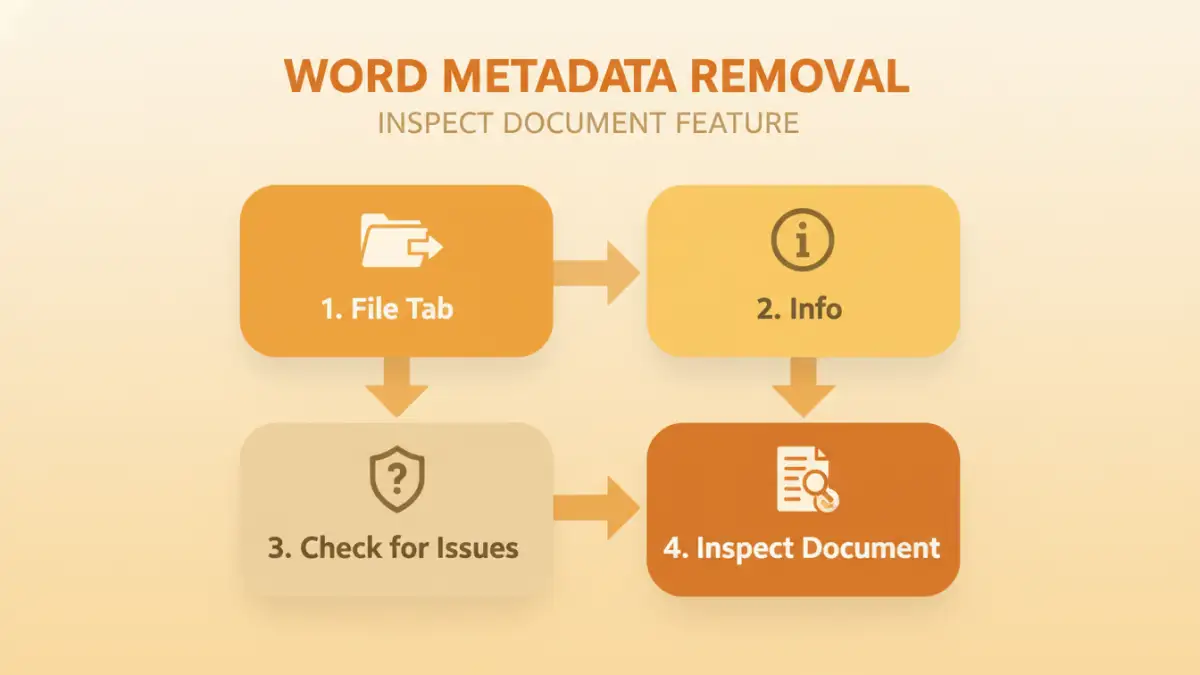
Microsoft Office has a powerful built-in tool called the Document Inspector.
- Go to File > Info.
- Click on Check for Issues and select Inspect Document.
- The tool will scan for various types of hidden data, including comments, document properties, author names, and more.
- You can review the findings and click Remove All for each category of data you wish to scrub.
For PDF Files
In Adobe Acrobat Pro, you can view and remove metadata easily.
- Open the PDF and go to File > Properties. The Description tab will show basic metadata like author, subject, and keywords.
- To remove it, search for the Sanitize Document tool. This feature removes all sensitive hidden information, including metadata, comments, and hidden layers, creating a clean file.
For Image Files (Windows & macOS)
Operating systems provide a straightforward way to view image metadata (often called EXIF data).
- On Windows: Right-click the image file, select Properties, and go to the Details tab. You'll see an option to "Remove Properties and Personal Information."
- On macOS: Open the image in the Preview app. Go to Tools > Show Inspector, and click the (i) tab and then the EXIF tab. While macOS doesn't have a simple built-in removal tool like Windows, third-party apps can strip this data.
Best Practices for Secure Document Sharing
Being proactive is key. Instead of trying to remember to clean files every time, it's better to build a secure workflow. This approach transforms document metadata security from an afterthought into a standard operational procedure.
First, educate your team about the risks. Many people simply aren't aware that this data exists. A little training can go a long way in preventing accidental leaks. Establish a clear policy that any document intended for an external audience must be scrubbed of metadata before being sent.
Second, consider using templates that have been pre-cleaned of any identifying author or company information. When creating new documents from these templates, less sensitive data is generated from the start. Finally, for maximum safety, make it a habit to convert final documents to a clean PDF. Using the "Print to PDF" function often creates a new file with far less metadata than a direct "Save As PDF" conversion, as it essentially flattens the document's content.
Metadata Removal Method Comparison
| Method | Ease of Use | Cost | Effectiveness |
|---|---|---|---|
| MS Office 'Inspect Document' | Easy | Free (with Office) | Very effective for Office files. Removes comments, properties, and more. |
| Adobe Acrobat Pro 'Sanitize' | Easy | Paid (Acrobat Pro subscription) | Excellent for PDFs. Comprehensive removal of all hidden data. |
| OS Built-in Tools (e.g., Windows Properties) | Moderate | Free | Good for basic metadata on images and some documents, but not as thorough. |
| Third-Party Scrubbing Tools | Varies | Free to Paid | Can be very powerful and support multiple file types, but requires installing new software. |
| 'Print to PDF' Trick | Easy | Free | Often effective at flattening a file and removing complex metadata, but not foolproof. |