A colleague recently asked me why their 'password-protected' PDF could still be opened by anyone in the department. They were sure they had secured it, but the password only seemed to prevent printing and editing. This common scenario perfectly illustrates the confusion between the two distinct types of PDF passwords: the User Password and the Owner Password.
Understanding this difference is not just a technical detail; it's fundamental to ensuring your sensitive documents are protected exactly how you intend. One password grants access, while the other controls what can be done *after* access is granted. Let's break down how they work and when to use each one.
Table of Contents
The Two-Lock System: Understanding PDF Passwords
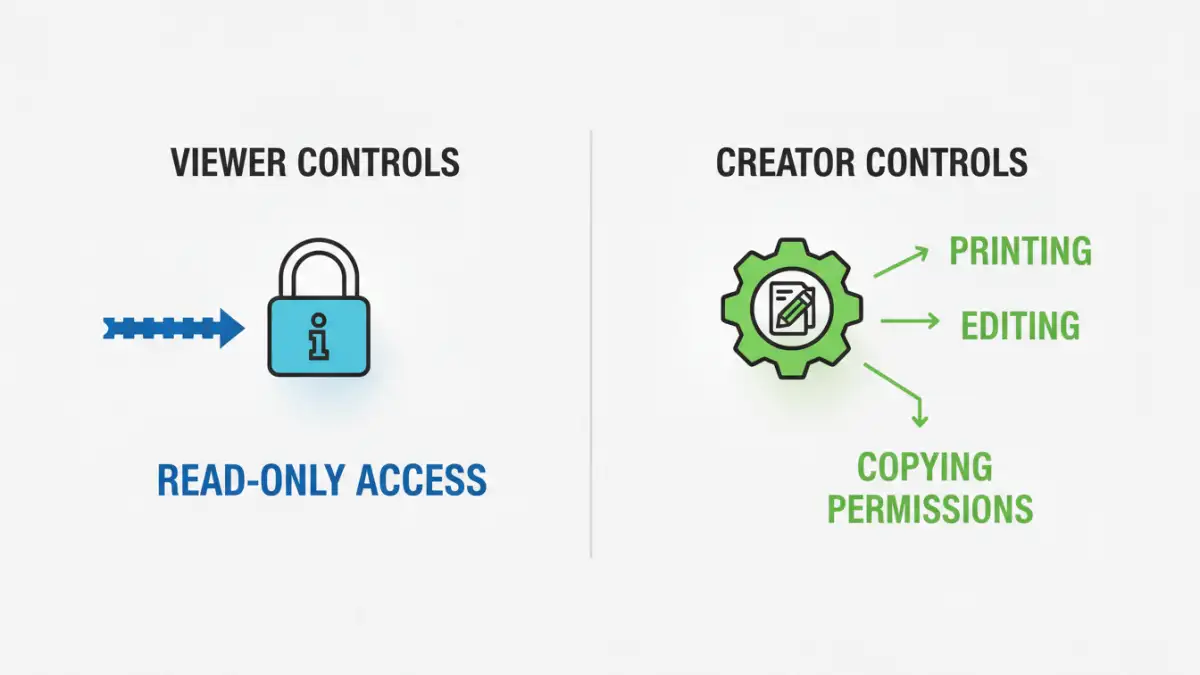
Think of PDF security as a room with two different locks. The first lock is on the door itself, controlling who can enter. The second lock is on a cabinet inside the room, controlling what someone can do with the contents. These are your User and Owner passwords, respectively.
The User Password: Your Key to Entry
The PDF User Password, often called the 'open password,' is the more straightforward of the two. Its sole purpose is to control access. If a PDF has a User Password, no one can open and view its contents without entering the correct passphrase. It's the front door lock.
When you set a User Password, the entire document's content is encrypted. This is your first line of defense for confidential information. If you send a financial report or a legal contract protected this way, the recipient absolutely needs the password just to see page one.
The Owner Password: The Master Key for Permissions
This is where things get more granular and powerful. The pdf owner password, also known as a 'permissions password' or 'master password,' doesn't prevent someone from opening the file. Instead, it locks down specific actions. You can set an Owner Password to restrict users from printing, editing the text, copying content, filling out form fields, or adding comments.
A document can have an Owner Password without having a User Password. This is the exact situation my colleague encountered. Anyone could open the document, but they couldn't do anything with it unless they knew the Owner Password to unlock those permissions. It's an effective way to distribute information for viewing only, like a company-wide memo or a read-only manual.
Strategic Application: When to Use Each Password
Choosing the right password type depends entirely on your security goal. There's no one-size-fits-all answer, so you need to assess the sensitivity of the information and how you want others to interact with it.
Use a User (Open) Password when the content itself is highly confidential and should not be seen by unauthorized individuals. Examples include legal documents, internal financial projections, or personal records. The primary goal is secrecy.
Use an Owner (Permissions) Password when you want to share information widely but maintain control over its integrity and usage. This is perfect for intellectual property like training materials, copyrighted reports, or official forms that shouldn't be altered. The primary goal is control.
For maximum security, you can use both. A user would need the User Password to open the file, and if they wanted to print or edit it, they would also need the separate Owner Password to unlock those functions. This layered approach is ideal for the most sensitive documents.
How to Set User and Owner Passwords
Most modern PDF editing software provides tools to set these passwords. The process is generally similar across different applications, focusing on the security or properties section of the tool.
Using Adobe Acrobat
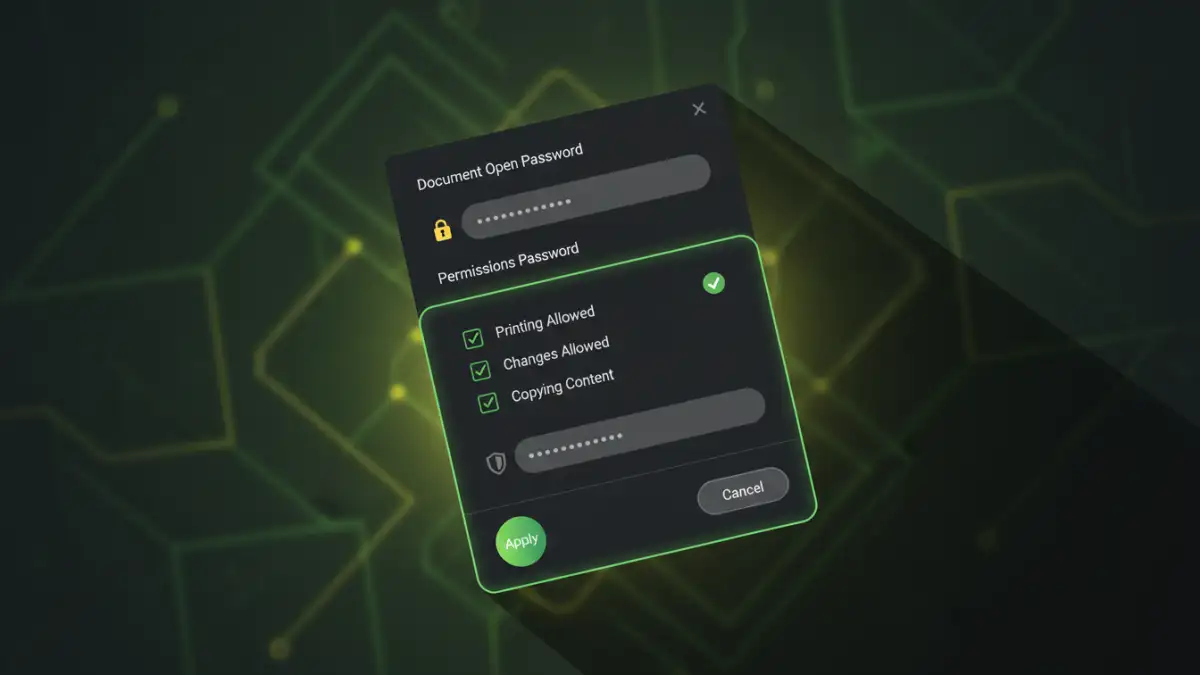
In my experience, Adobe Acrobat offers one of the most robust interfaces for this. You can navigate to 'File' > 'Properties' > 'Security'. In the Security Method dropdown, select 'Password Security'. A dialog box will appear with clear options to set a 'Document Open Password' (User) and a separate section for 'Permissions', where you can set the document permissions password (Owner) and check the specific actions you want to restrict.
Using Preview on macOS
For Mac users, the built-in Preview app also handles this well. After opening your PDF, go to 'File' > 'Export'. In the export dialog, check the 'Encrypt' box. You'll then see two fields: one to set the main password (User Password) and a 'Verify' field. Crucially, there's also a 'Permissions' button. Clicking this allows you to set a separate Owner Password and define what actions are restricted.
Common Pitfalls and Security Best Practices
Simply setting a password isn't enough; how you manage them is equally important. A weak password is as good as no password at all. I've seen many instances where a simple password like '12345' was used, completely defeating the purpose of the encryption.
Always use strong, unique passwords for both User and Owner roles. A combination of upper and lowercase letters, numbers, and symbols is essential. Furthermore, never send the password in the same email as the document itself. Communicate it through a separate, secure channel like a phone call or an encrypted messaging app.
Finally, remember that no security is foolproof. Determined individuals with specialized software can sometimes attempt to crack weak passwords. Therefore, the strength of your PDF's protection is directly tied to the strength of the passwords you choose. Always opt for higher levels of encryption (like 256-bit AES) when your software provides the option.
Password Type Functionality Comparison
| Function | User (Open) Password | Owner (Permissions) Password |
|---|---|---|
| Primary Goal | Restrict viewing access | Restrict actions (print, edit, copy) |
| Is it Required to Open? | Yes, always | No, unless a User Password is also set |
| Encryption Level | Encrypts the entire document content | Encrypts the permission settings |
| Common Use Case | Confidential legal contracts, financial reports | Read-only manuals, copyrighted material, forms |
| Can it be used alone? | Yes | Yes |
| Can they be used together? | Yes, for layered security | Yes, for layered security |