
A client recently came to me with a common but critical business need: they had to automate the signing of hundreds of contracts daily. Manually opening each PDF, applying a signature, and saving it was a huge bottleneck. This is a perfect scenario where programmatically signing documents becomes not just a convenience, but a necessity for scaling their operations.
Automating this process ensures consistency, enhances security, and saves an incredible amount of time. It involves using a digital certificate and a programming library to embed a cryptographically secure signature into the PDF file, guaranteeing both the signer's identity and that the document hasn't been altered since it was signed.
Table of Contents
Why Digital Signatures Matter More Than You Think
Before jumping into the code, it's crucial to understand what a digital signature actually is. It's not just an image of your handwritten signature pasted onto a document. A true digital signature is a cryptographic mechanism that provides three key guarantees for your documents.
The Pillars of Document Integrity
First, there's Authenticity, which confirms the identity of the person who signed the document. Second is Integrity, ensuring the document has not been tampered with since the signature was applied. Any change, even a tiny one, will invalidate the signature. Finally, Non-repudiation prevents the signer from later denying that they signed the document. These pillars are what make digital signatures legally binding in many jurisdictions.
Getting Started: The Prerequisites
To programmatically sign a PDF, you need a few key components. Think of it like needing a key, a lock, and something to install the lock with. In our case, these are the digital certificate, the PDF document, and a software library to do the heavy lifting.
Your primary tool will be a digital certificate, often an X.509 certificate in a .pfx or .p12 file. This file contains your private key (the 'pen' you sign with) and your public key certificate (what others use to verify your signature). You can obtain these from a Certificate Authority (CA) or generate a self-signed one for testing purposes. You'll also need a library capable of PDF manipulation. For this example, I'll use iText (formerly iTextSharp) for .NET, a robust and widely-used library for PDF tasks.
A Practical Code Example for Digitally Signing a PDF Document
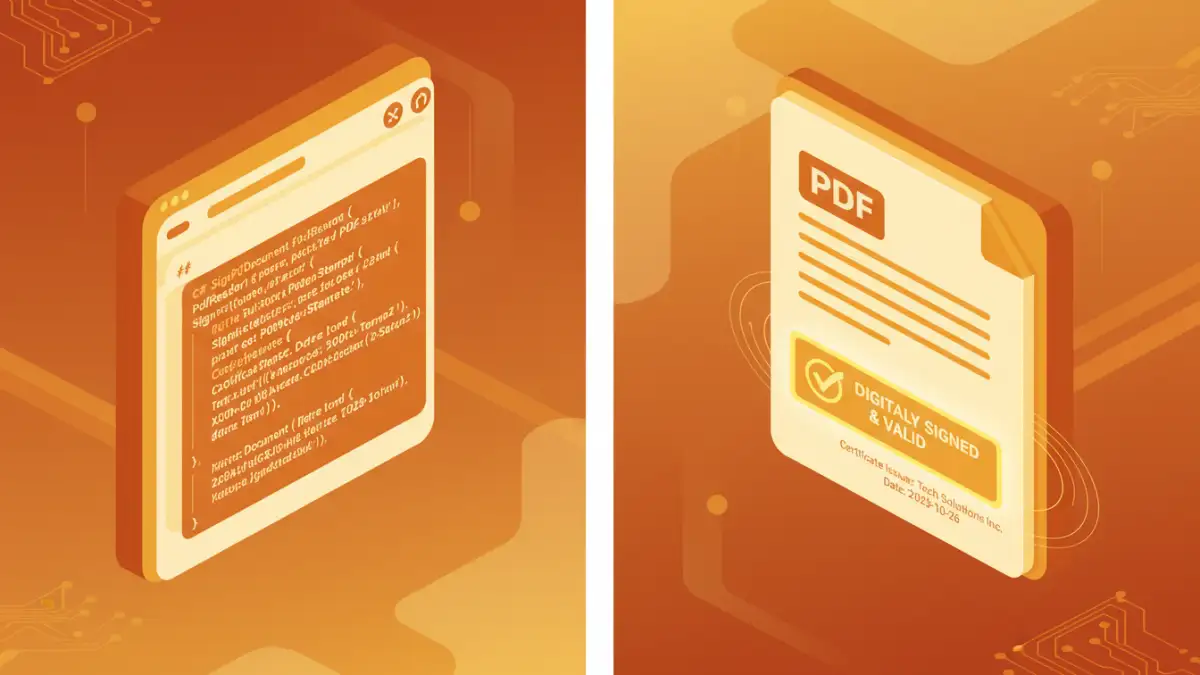
Let's get to the core of the task. The following C# code snippet demonstrates how to apply a digital signature to an existing PDF file. This e-signature code example assumes you have the iText 7 library added to your project and a .pfx certificate file ready.
Setting Up Your Project
First, ensure you have the iText 7 library installed in your .NET project. You can typically do this via the NuGet Package Manager with the command `Install-Package itext7`. Once that's set up, you have access to the necessary classes for PDF manipulation and signing.
The Signing Code Explained
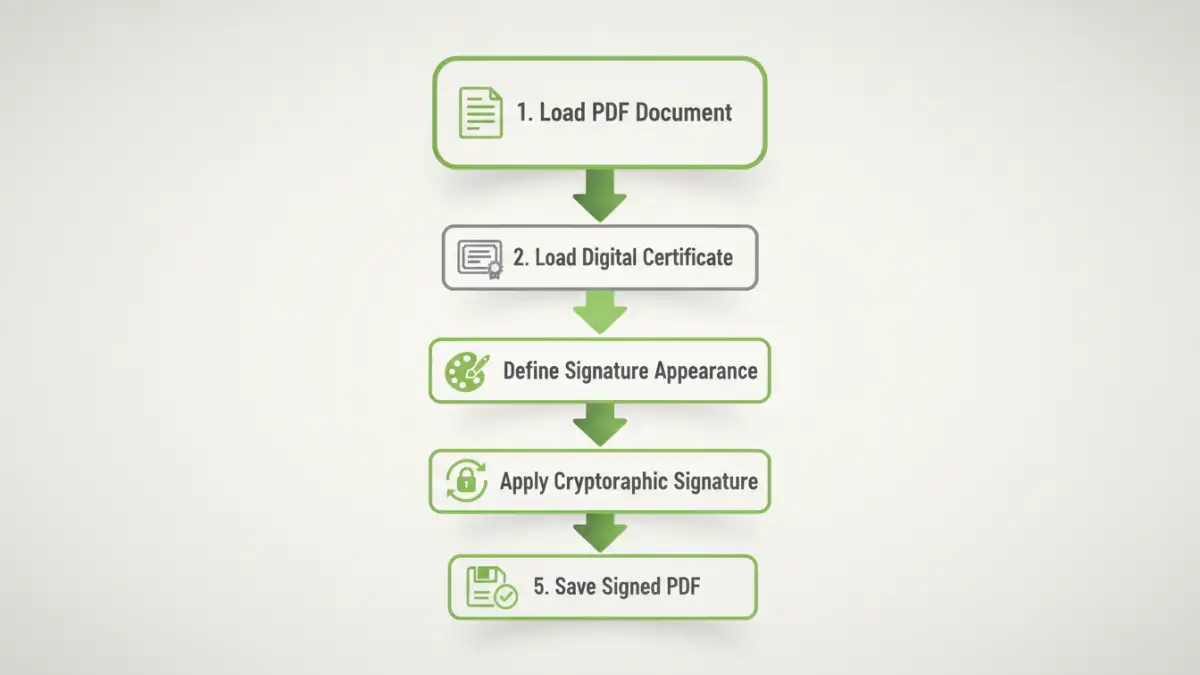
Here is a breakdown of the logic. We'll read the source PDF, load the certificate, define the signature's appearance and properties, and then apply it to create a new, signed PDF.
The process involves several steps within the code:
- Load the Certificate: The code first needs to access your digital certificate. It reads the .pfx file and extracts the private key and certificate chain. The private key is essential for creating the signature hash.
- Prepare the PDF: We open the source PDF and a destination file for writing. The `PdfSigner` class from iText is the main engine for this process.
- Define Signature Appearance: You can choose to have a visible signature (an image or text box on the page) or an invisible one. For a visible signature, you define its location, size, and what it should display, such as signer name, date, and reason for signing.
- Apply the Signature: The `signer.SignDetached()` method performs the cryptographic operation. It calculates a hash of the document, encrypts it with your private key, and embeds this signature, along with your public certificate, into the PDF file. This completes the process, ensuring document integrity.
Verifying the Signature: Did It Work?
After you programmatically sign a PDF, the easiest way to verify it is to open the resulting file in a PDF reader like Adobe Acrobat Reader. You should see a signature panel or a banner at the top of the document indicating that it has been signed. Clicking on the signature will show details about the certificate, the signer's identity, and whether the document has been modified since it was signed. A valid signature will confirm that the document is authentic and its integrity is intact.
Advanced Considerations
While this example covers the basics, real-world applications often require more. You might need to handle Time Stamping, where a trusted third-party timestamp is embedded to prove when the signature was applied. Another advanced topic is Long-Term Validation (LTV), which includes all necessary certificate revocation information within the PDF so the signature can be validated years later, even if the original CA is no longer active.
PDF Signing Library Comparison
| Library | Language | Pros | Cons |
|---|---|---|---|
| iText 7 | .NET, Java | Very powerful, feature-rich, good documentation. | Requires a commercial license for closed-source projects. |
| PDFBox | Java | Open-source (Apache License), actively developed. | API can be lower-level and more complex than iText. |
| Bouncy Castle | .NET, Java | Excellent for cryptography, often used with other libraries. | Not a full PDF library; focused on the crypto layer. |
| Spire.PDF | .NET, Java | Comprehensive feature set, offers a free version with limitations. | Commercial license needed for full capabilities. |