
A few years ago, I worked on a project for a financial services client that needed to automatically generate and email thousands of monthly statements as PDFs. The key requirement was that each PDF had to be encrypted with a unique password for security. Handling this manually was impossible, and building an encryption library from scratch was too complex and time-consuming. This is a perfect scenario where a dedicated API shines.
Instead of wrestling with low-level libraries, using a PDF password protection API allows you to integrate robust security into your existing applications with a simple HTTP request. It abstracts away the complexity of encryption algorithms and file manipulation, letting you focus on your core business logic.
Table of Contents
Why Use an API for PDF Encryption?
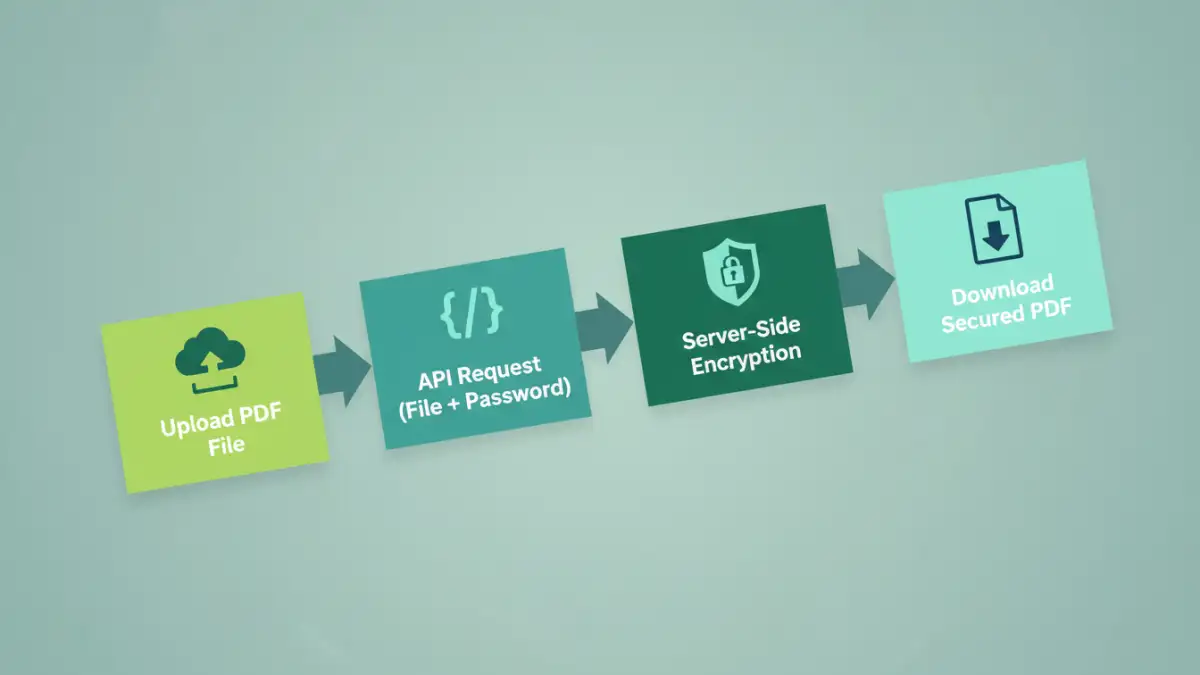
When you need to secure documents at scale, an API-driven approach offers significant advantages over manual tools or standalone software. It’s all about automation, integration, and reliability. For developers, this means you can build security directly into your workflows.
Imagine an invoicing system that automatically generates a PDF, encrypts it with the client's account number as the password, and emails it without any human intervention. That's the power of an API. It's scalable for handling one document or one million, and it ensures a consistent security protocol is applied every single time, reducing the risk of human error.
Key Benefits of an API Approach
- Automation: Integrate password protection directly into your document generation workflows.
- Scalability: Effortlessly handle large volumes of documents without performance bottlenecks.
- Consistency: Apply uniform security standards across all generated documents.
- Simplicity: Avoid the complexities of cryptographic libraries and PDF file structure manipulation.
Getting Started: Your First API Call

Before you can programmatically add a password to a PDF file, you need to interact with the API endpoint. This typically involves two simple prerequisites: obtaining an API key for authentication and understanding the endpoint's structure.
Most APIs use a bearer token or a simple API key sent in the request headers for authentication. Once you sign up for the service, you'll find this key in your developer dashboard. The API endpoint for adding a password usually accepts a multipart/form-data request, where you send the PDF file and the desired password as parameters.
Authentication and Endpoints
Your API requests will need an `Authorization` header. For example: `Authorization: Bearer YOUR_API_KEY`. The endpoint might look something like `https://api.example.com/v1/pdf/protect`. The API documentation is always your best friend here, as it will specify the exact headers and parameters required for a successful request.
Code Examples: Programmatic PDF Encryption
Let's get practical. Here’s how you can use our API to encrypt a PDF with a password using two popular languages: Node.js and Python. These examples assume you have a PDF file named `invoice.pdf` and you want to protect it with the password `s3curePassw0rd!`.
Node.js Secure PDF Example
In Node.js, you can use a library like `axios` to handle the multipart/form-data request. This code reads the file from your local system and sends it to the API.
const axios = require('axios');
const fs = require('fs');
const FormData = require('form-data');

async function protectPdf() {
  const form = new FormData();
  form.append('file', fs.createReadStream('invoice.pdf'));
  form.append('password', 's3curePassw0rd!');

  try {
    const response = await axios.post('https://api.example.com/v1/pdf/protect', form, {
      headers: {
        ...form.getHeaders(),
        'Authorization': 'Bearer YOUR_API_KEY'
      },
      responseType: 'stream'
    });

    response.data.pipe(fs.createWriteStream('protected-invoice.pdf'));
    console.log('PDF protected successfully!');
  } catch (error) {
    console.error('Error protecting PDF:', error);
  }
}

protectPdf();
Python Add Password Example
With Python, the `requests` library makes this process straightforward. The logic is similar: open the file, prepare the data payload, and send the request.
import requests

api_key = 'YOUR_API_KEY'
api_url = 'https://api.example.com/v1/pdf/protect'

headers = {
    'Authorization': f'Bearer {api_key}'
}

files = {
    'file': ('invoice.pdf', open('invoice.pdf', 'rb'), 'application/pdf')
}

data = {
    'password': 's3curePassw0rd!'
}

response = requests.post(api_url, headers=headers, files=files, data=data)

if response.status_code == 200:
    with open('protected-invoice.pdf', 'wb') as f:
        f.write(response.content)
    print('PDF protected successfully!')
else:
    print(f'Error: {response.status_code} - {response.text}')
Advanced Features and Customization
Basic password protection is just the beginning. A robust PDF security API often provides more granular control over document permissions. You can specify what a user can and cannot do with the document even after they open it with the correct password.
For instance, you can restrict printing, copying text and images, or modifying the document. This is achieved by setting additional parameters in your API call. These permissions are useful for protecting intellectual property or ensuring document integrity, especially for contracts, research papers, or digital books.
Best Practices for Implementation
When integrating any security API, it's crucial to follow best practices. First, never hardcode your API keys directly in your source code. Use environment variables or a secrets management service to store them securely. Second, implement robust error handling. Your code should gracefully manage API failures, such as network issues or invalid credentials, and provide useful feedback.
Finally, consider the user experience. If you are generating passwords for users, ensure they are strong and communicated securely. For automated systems, use cryptographically secure random generators to create passwords for each document, and store them safely or associate them with the user's account in your database.
PDF Encryption Strength Comparison
| Encryption Level | Key Length | Pros | Cons |
|---|---|---|---|
| 40-bit RC4 | 40 bits | Compatible with very old PDF readers. | Considered insecure and easily breakable. Avoid using. |
| 128-bit RC4 | 128 bits | Widely compatible with most PDF readers. | Weaker than AES and deprecated in modern standards. |
| 128-bit AES | 128 bits | Strong security, good balance of performance and protection. | Requires Adobe Reader 7 or newer. |
| 256-bit AES | 256 bits | Extremely strong, military-grade encryption for maximum security. | Slightly more computational overhead; requires Adobe Reader 9 or newer. |