I once spent half a day debugging a data processing pipeline that kept failing silently. The culprit? A single, password-protected PDF in a batch of thousands. The script wasn't built to handle it, and it brought the whole operation to a halt. This experience highlighted a crucial need for any developer working with documents: you must be able to verify a file's status before you try to process it.
Automating this check is not just about convenience; it's about building robust, error-tolerant systems. Whether you're building a document management system, an e-discovery platform, or a simple file converter, knowing how to programmatically check if a PDF file is encrypted is a fundamental skill.
Table of Contents
Why Programmatic Checks Are Essential
In automated workflows, you can't manually inspect every file. A script that attempts to read, modify, or extract text from an encrypted PDF without the password will inevitably throw an exception. This can cause a range of problems, from a single failed job to a complete system crash.
By implementing a pre-check, you can gracefully handle these files. You could flag them for manual review, move them to a separate queue, or alert an administrator. This proactive approach ensures your application remains stable and reliable, providing a much better user experience and saving you from tedious debugging sessions.
Common Use Cases
Validating document security is critical in many scenarios. For instance, a system ingesting legal documents must identify protected files to comply with handling procedures. Similarly, a data extraction tool needs to skip encrypted files to avoid processing errors. Building this check into your code from the start is a mark of a well-architected system.
Understanding PDF Encryption Internals
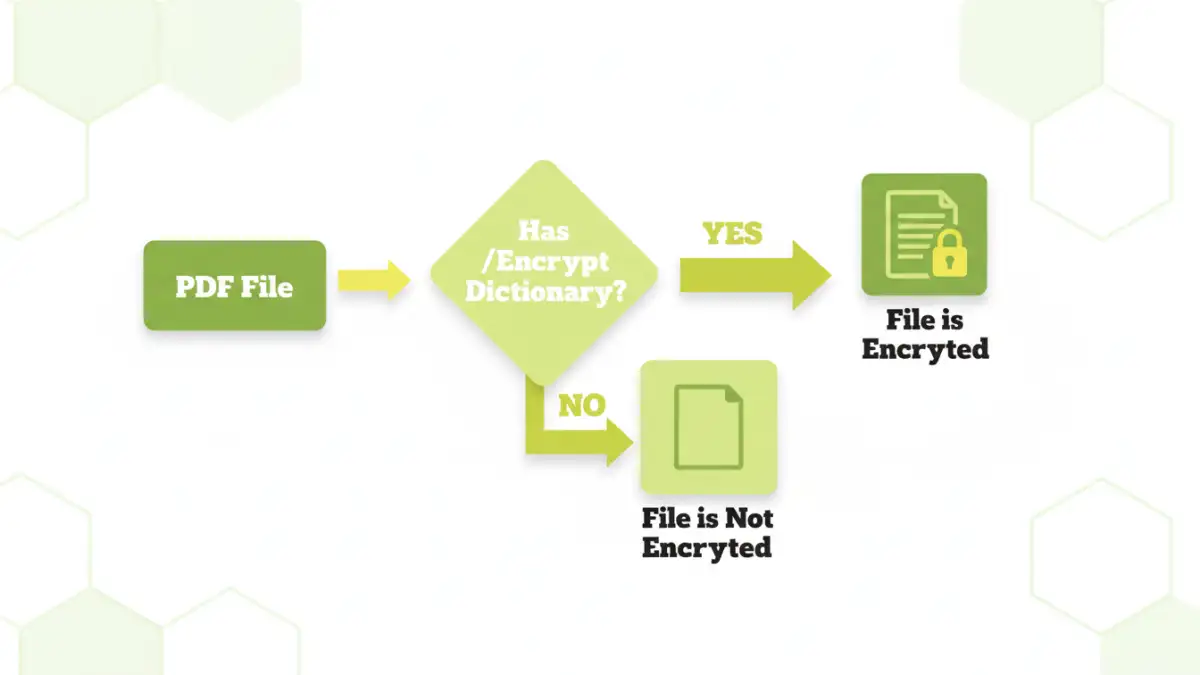
To understand how to check for encryption, it helps to know a little about the PDF file structure. A PDF is not a monolithic block of text; it's a complex object-based file. When a PDF is encrypted, a special entry called the `/Encrypt` dictionary is added to its file trailer.
This dictionary contains all the information a PDF reader needs to handle the decryption process, such as the encryption algorithm used and other necessary metadata. Our programmatic check doesn't need to decrypt the file; it simply needs to look for the presence of this `/Encrypt` dictionary. If it exists, the file is encrypted. If it doesn't, the file is not.
Methods to Check PDF Encryption with Python
Python offers several excellent libraries for working with PDF files. For our task, we can use a couple of popular ones to determine a PDF's encryption status. This is a common requirement, and fortunately, the libraries make it quite straightforward.
Using the `pypdf` Library (Recommended)
The `pypdf` library is the modern, actively maintained successor to `PyPDF2`. It's the recommended choice for new projects. The process is simple: you try to open the file and then check the `is_encrypted` property.
Here's a simple Python function to do this:
from pypdf import PdfReader

def is_pdf_encrypted(file_path):
    try:
        with open(file_path, 'rb') as f:
            reader = PdfReader(f)
            if reader.is_encrypted:
                return True
            else:
                return False
    except Exception as e:
        print(f"An error occurred: {e}")
        return False # Or handle error as needed

# Example usage
file_is_protected = is_pdf_encrypted('my_secure_document.pdf')
if file_is_protected:
    print("The PDF is password protected.")
else:
    print("The PDF is not encrypted.")
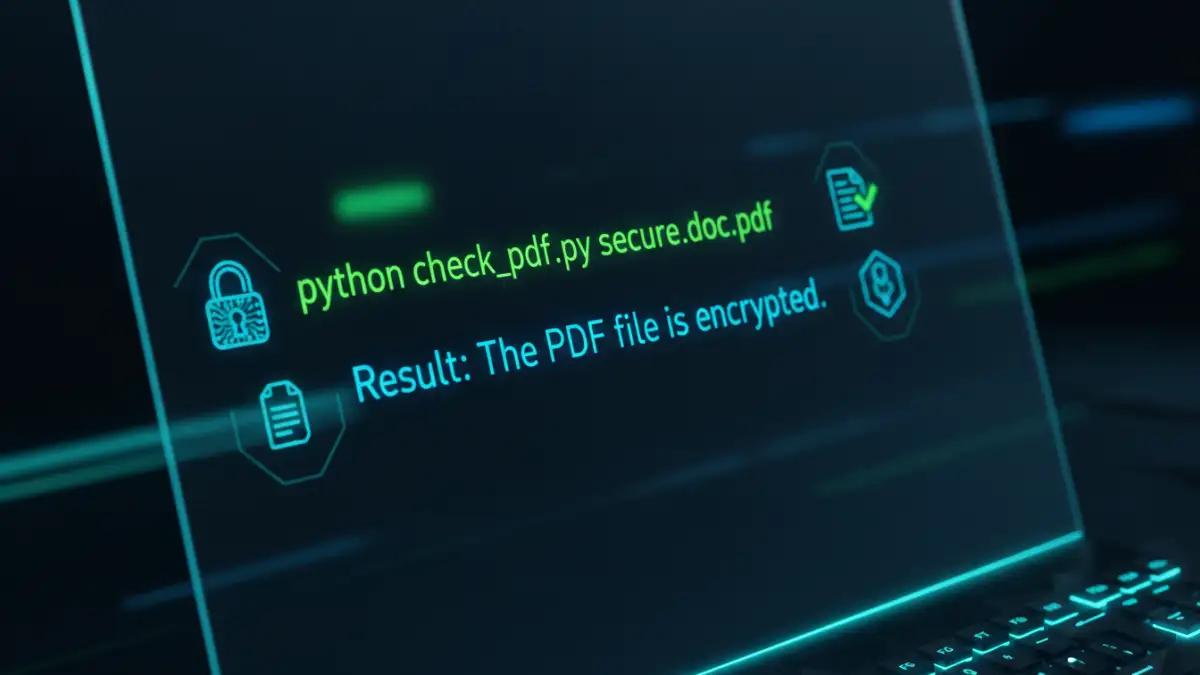
This `python check pdf encryption` method is clean and efficient. It encapsulates the logic in a reusable function, making your main application code easier to read and maintain.
Using the Older `PyPDF2` Library
If you are working with a legacy system that uses `PyPDF2`, the process is identical. The `is_encrypted` attribute has been part of the library for a long time. The code is virtually the same, just with a different import statement.
from PyPDF2 import PdfFileReader

def check_encryption_legacy(file_path):
    try:
        with open(file_path, 'rb') as f:
            reader = PdfFileReader(f)
            return reader.isEncrypted
    except Exception:
        return False # Assuming error means not a valid/readable PDF
Note the slight difference in the property name (`isEncrypted` vs. `is_encrypted`). While functional, it's best to migrate to `pypdf` for access to the latest features and security updates.
Beyond Local Scripts: Using a PDF Encryption Status API
For large-scale, distributed systems or applications where installing local dependencies like `pypdf` is undesirable, a `pdf encryption status api` can be a great alternative. These APIs allow you to upload a file or provide a URL, and they return a JSON response with the file's metadata, including its encryption status.
Using an API decouples the check from your main application logic. This is particularly useful in microservices architectures. You can have a dedicated service for document validation, which can be scaled independently. The primary trade-off is the reliance on a third-party service, potential costs, and the need to handle network latency and API failures.
Comparison of PDF Encryption Check Methods
| Method | Primary Advantage | Main Drawback | Best For |
|---|---|---|---|
| `pypdf` Library | Modern, actively maintained, and easy to use. | Requires a Python environment and installation. | New Python projects and general-purpose scripting. |
| `PyPDF2` Library | Functional for existing legacy systems. | No longer actively developed; potential bugs. | Maintaining older codebases that already use it. |
| PDF Encryption Status API | Language-agnostic and good for distributed systems. | External dependency, potential costs, and network latency. | Web applications, microservices, and non-Python environments. |
| Command-Line Tools (e.g., `qpdf`) | Fast, scriptable, and powerful. | Steeper learning curve; requires shell access. | System administrators and complex batch processing scripts. |