I recently helped a colleague who was stuck. They had the password to an important, encrypted PDF report but couldn't copy text from it or print it for a meeting. The file was protected by a 'permissions' password, and they needed a way to remove those restrictions for easier collaboration. This scenario is surprisingly common; you have the key but are still limited by the lock.
The good news is that if you know the password, removing these restrictions is straightforward. The process essentially involves creating a new, decrypted copy of the document. Let's walk through the most effective ways to do this, from simple, no-cost tricks to more robust programmatic solutions for developers.
Table of Contents
Understanding PDF Passwords
Before we dive into the methods, it's crucial to understand that PDF files can have two different types of passwords. The method you use depends on which type of password is protecting your document. Mistaking one for the other is a common point of confusion.
User vs. Owner Passwords
A User Password (or 'Open Password') is what most people think of. It's required to open and view the file. Without it, you can't access the content at all. This article assumes you can already open the file, meaning you either know the user password or there isn't one.
An Owner Password (or 'Permissions Password') is different. It doesn't prevent you from opening the file, but it restricts what you can do once it's open. This includes actions like printing, copying text and images, editing the document, or adding comments. Our goal is to remove these specific restrictions, assuming we know this owner password.
Manual Methods for Unlocking PDFs

For one-off tasks, you don't need complex software. A couple of simple, manual methods work perfectly for removing owner password restrictions when you have the password.
The 'Print to PDF' Browser Trick
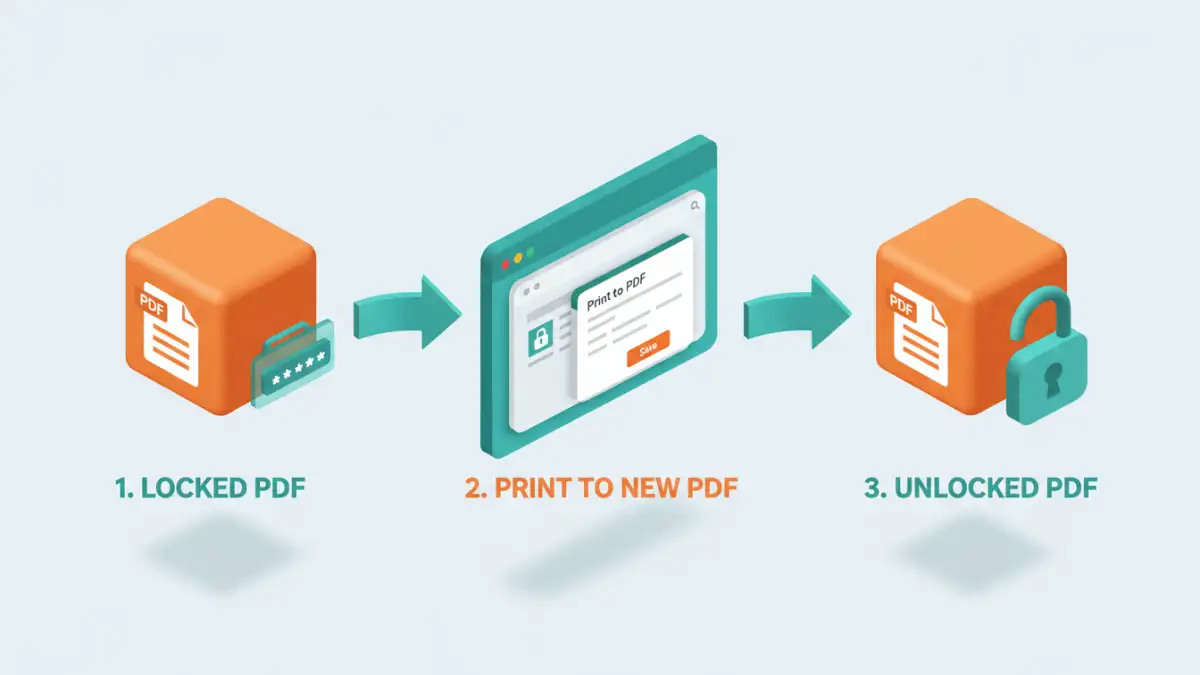
This is my go-to recommendation for a quick fix. It's free, requires no special software, and works on any operating system with a modern web browser like Chrome, Firefox, or Edge. The logic is simple: if you can print the document, you can 'print' it to a new, unrestricted PDF file.
- Open the password-protected PDF in your web browser. You can usually do this by dragging and dropping the file into an open browser window.
- If prompted for a password to open the file, enter it.
- Once the document is displayed, open the print dialog (usually Ctrl+P on Windows or Cmd+P on Mac).
- In the 'Destination' or 'Printer' dropdown menu, select 'Save as PDF' or 'Microsoft Print to PDF'.
- Click 'Save' and choose a name and location for your new file. This newly saved PDF will be a clean copy with no printing or copying restrictions.
Using Adobe Acrobat Pro
If you have a subscription to Adobe Acrobat Pro, you can remove the security settings directly. This is the most official method and provides more control.
- Open the protected PDF in Adobe Acrobat Pro.
- Enter the password if prompted.
- Go to File > Properties, or use the shortcut Ctrl+D (Cmd+D on Mac).
- In the 'Document Properties' window, navigate to the Security tab.
- In the 'Security Method' dropdown, select No Security.
- You will be prompted to enter the owner password to confirm the change. Enter it and click OK.
- Save the document. The permission restrictions will now be removed.
Programmatic Solutions for Developers
Sometimes, you need to handle this process in an automated or bulk fashion. As a developer, I've had to build systems that process hundreds of locked reports daily. In these cases, manual methods aren't feasible. This is where you need a programmatic solution.
Using Java Libraries like Apache PDFBox
For developers working in the Java ecosystem, libraries like Apache PDFBox offer robust tools to manipulate PDF documents. You can write a simple script to `decrypt pdf programmatically`. The core idea is to load the document using the known password and then save it without the encryption settings.
Here’s a conceptual look at what the `pdf password remover code` might involve with PDFBox:
// Load the protected document with the password
PDDocument document = PDDocument.load(new File("locked.pdf"), "the_password");

// Remove all security from the document
document.setAllSecurityToBeRemoved(true);

// Save the document as a new, unlocked file
document.save("unlocked.pdf");
document.close();
This `java unlock pdf` approach is powerful for backend processes, allowing you to integrate PDF unlocking directly into your applications.
Leveraging a Remove PDF Password API
If you don't want to manage the underlying libraries and dependencies yourself, using a dedicated API is an excellent alternative. A `remove pdf password api` abstracts away the complexity. Typically, you would make a secure HTTP request to an endpoint, providing the protected file and the password.
The API service processes the file on its servers and returns the unlocked version. This is great for web applications or microservices where you want to offload specialized tasks. It reduces your codebase's complexity and ensures you're using a well-maintained tool for the job. Just be mindful of the privacy implications of sending documents to a third-party service.
Choosing the Right Approach
Deciding which method to use depends entirely on your context. For a single document, the browser 'Print to PDF' trick is almost always the fastest and easiest solution. It's free and universally available.
If you work with PDFs professionally and already have Adobe Acrobat Pro, using its built-in security features is a reliable and direct option. For developers or businesses needing to automate this process for many files, writing code with libraries like PDFBox or integrating a specialized API is the only scalable path forward. Consider the volume, security requirements, and technical resources available when making your choice.
Comparison of PDF Unlocking Methods
| Method | Pros | Cons | Best For |
|---|---|---|---|
| Browser 'Print to PDF' | Free, no extra software needed, fast. | May not preserve all metadata or interactive elements. | Quickly removing restrictions from a single document. |
| Adobe Acrobat Pro | Official method, preserves document integrity. | Requires a paid subscription. | Professionals who regularly work with secured PDFs. |
| Programmatic (Java/PDFBox) | Full control, ideal for automation and batch processing. | Requires coding knowledge and environment setup. | Integrating into custom software or backend systems. |
| Third-Party API | Easy to integrate, offloads processing complexity. | Potential privacy concerns, may have costs. | Web applications needing to unlock password protected pdf files on demand. |