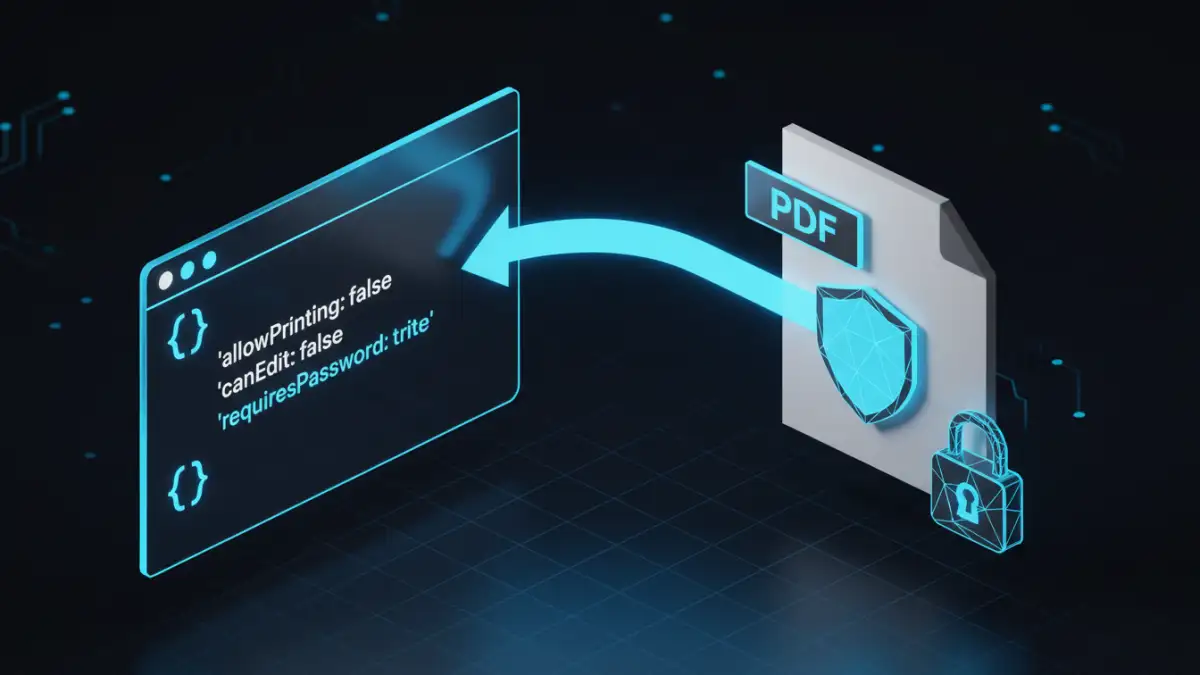
A client recently came to me with a common but critical business need: they had to distribute sensitive research reports to partners but wanted to prevent the documents from being printed or having their contents copied. Manually setting these permissions on hundreds of files just wasn't scalable. This is a perfect scenario where automating document security through an API becomes not just a convenience, but a necessity.
Instead of relying on desktop software, we can use a simple API call to enforce these rules, integrating security directly into their document generation workflow. This approach provides consistent, reliable protection for intellectual property without manual intervention.
Table of Contents
Why Programmatically Control PDF Permissions?
In many business workflows, documents are generated automatically. Think of invoices, contracts, or reports created by a system. Applying security settings manually to each one is inefficient and prone to human error. A forgotten password or incorrect permission setting can lead to a data breach or intellectual property theft.
Using an API to set document restrictions solves this by integrating security directly into the application logic. Every document generated by the system can automatically have the correct permissions applied. This ensures consistency, enhances security, and saves a significant amount of time, allowing development teams to focus on core features rather than manual security tasks.
Understanding PDF Security: Owner vs. User Passwords
Before diving into the API, it's essential to understand the two types of passwords in the PDF standard. Many people don't realize there's a distinction, but it's fundamental to how permissions work.
The User Password (Open Password)
This is the password most people are familiar with. It's the one required to simply open and view the document. If a PDF has a user password, you can't see its contents without it. However, it doesn't control what you can *do* with the content once it's open.
The Owner Password (Permissions Password)
This is the key to our goal. The owner password protects the document's *settings*. It allows someone to change the permissions, such as enabling or disabling printing, copying, and editing. When we use an API to restrict PDF printing, we are essentially setting these permissions and protecting them with a strong, randomly generated owner password that is never shared with the end-user.
Implementing PDF Restrictions with a PDF User Permissions API
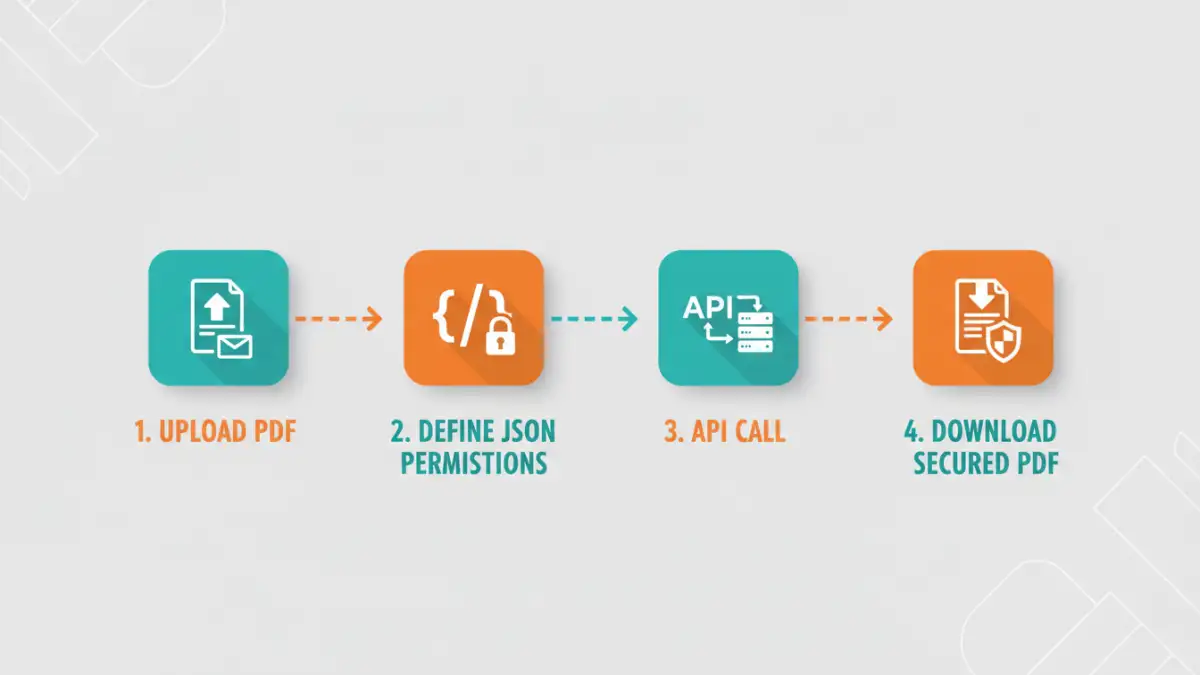
Using an API to manage PDF security settings is surprisingly straightforward. Most services follow a similar pattern: you make a request to an endpoint with your file and a set of instructions, and the API returns the modified, secured file. Let's walk through a hypothetical example.
Imagine we have an API endpoint at https://api.example.com/v1/secure-pdf. We would typically send a POST request containing the PDF file and a JSON payload specifying the desired restrictions.
Crafting the API Request Body
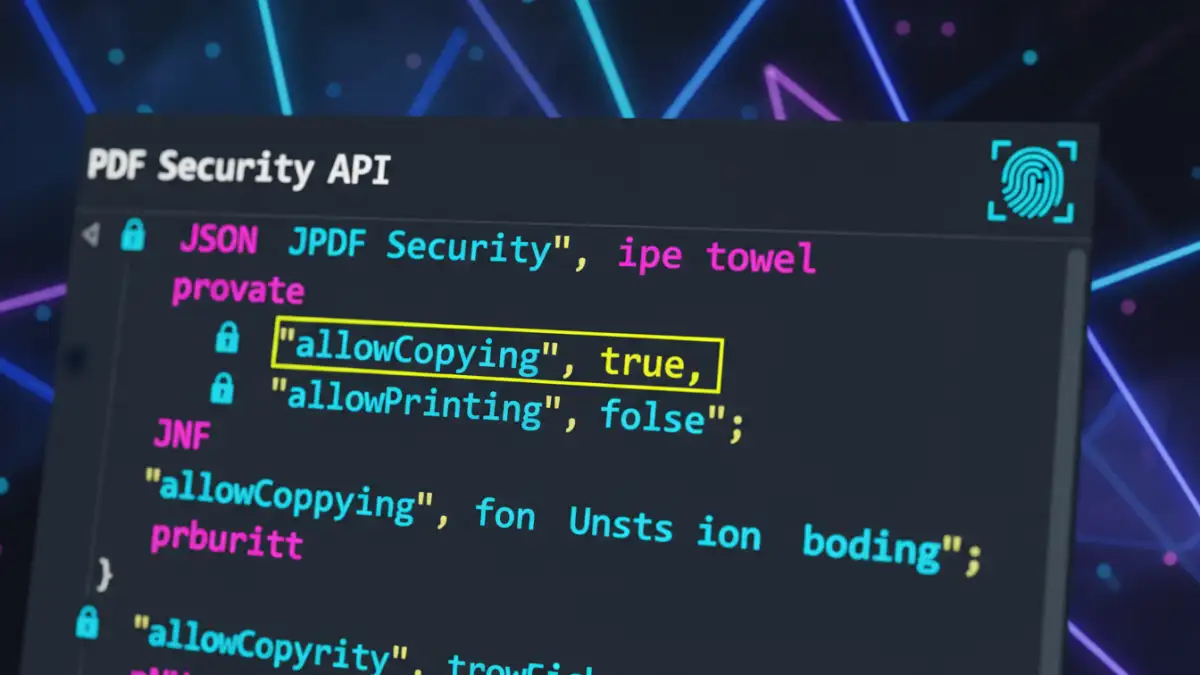
The core of the operation lies in the JSON configuration. This is where we define what a user can and cannot do. A typical payload might look like this:
{
  "owner_password": "a-very-strong-secret-password",
  "user_password": "",
  "permissions": {
    "allow_printing": "none",
    "allow_copying": false,
    "allow_modification": false,
    "allow_annotations": false
  }
}
In this example, we've set a strong owner password to lock the settings. We've left the user password blank so anyone can open the file. Most importantly, we've explicitly set flags to disable PDF copy paste functionality, prevent modifications, and block printing entirely. The allow_printing value could also be set to `low_resolution` or `high_resolution` for more granular control.
Making the API Call
Using a tool like cURL, the request would look something like this. Here, we're sending our source document (`report.pdf`) and the JSON configuration (`config.json`) to the service.
curl -X POST https://api.example.com/v1/secure-pdf \
-H "Authorization: Bearer YOUR_API_KEY" \
-F "file=@report.pdf" \
-F "options=@config.json" \
--output secured_report.pdf
The API processes the file, applies the restrictions defined in `config.json`, and returns the newly secured PDF as `secured_report.pdf`. This new file can be opened by anyone, but the print and copy options will be grayed out in their PDF reader.
Best Practices for API-Based Document Security
While an API simplifies the process, it's important to follow best practices to ensure the security is effective. Simply applying a setting isn't always enough.
First, always use a strong, randomly generated owner password for each document. Hardcoding a single password across all your documents is a significant security risk. Your application should generate a unique one for every API call.
Second, understand the limitations. These permission settings are honored by most standard PDF viewers like Adobe Acrobat Reader. However, they don't prevent a user from taking a screenshot of the document or using Optical Character Recognition (OCR) software to extract text. For highly sensitive information, consider combining permission restrictions with other techniques like dynamic watermarking to deter unauthorized sharing.
Finally, ensure your API provider is reputable and has a clear privacy policy. Since you are uploading documents to their servers for processing, you need to be confident that your data is handled securely and deleted promptly after the operation is complete.
PDF Permission Settings Comparison
| Permission Flag | Description | Use Case | Potential Risk |
|---|---|---|---|
allow_printing | Controls whether the document can be printed. Options often include 'none', 'low_res', 'high_res'. | Preventing uncontrolled physical distribution of sensitive reports or manuals. | Users can still take screenshots and print the resulting image. |
allow_copying | Determines if text and images can be selected and copied from the document. | Protecting intellectual property, source code, or proprietary text from being easily reused. | OCR tools can bypass this by converting the document image back to text. |
allow_modification | Controls whether the document can be edited, such as filling forms or altering pages. | Ensuring the integrity of legal documents, contracts, or official records. | Does not prevent a user from exporting and editing in another format. |
allow_annotations | Governs the ability to add comments, highlights, or other annotations. | Distributing a final, non-editable version of a document for review only. | Minimal risk, as annotations don't alter the source content. |