Securing sensitive documents before they leave your control is paramount in today's digital landscape. Whether you're sharing confidential reports, client data, or personal information, ensuring that your files are protected from unauthorized access is a critical step. This is especially true when dealing with cloud storage or transmitting files via APIs.
Many times, the built-in security features of standard document formats are overlooked. PDF files, in particular, offer robust encryption capabilities that can significantly bolster your security posture. Understanding how to leverage these features, especially when integrating with other systems through APIs, is key to maintaining data integrity and privacy.
Table of Contents
Understanding PDF Encryption
PDF encryption is a process that scrambles the content of a PDF document, making it unreadable to anyone without the correct decryption key, typically a password. This ensures that even if the file falls into the wrong hands, the data remains confidential. There are different levels of encryption, with newer standards like AES-256 offering much stronger protection than older algorithms.
Why Encrypt PDFs?
The primary reason to encrypt PDFs is to protect sensitive information. This includes financial records, legal documents, personal identification, proprietary business data, and any other content that should not be publicly accessible. Encryption acts as a vital layer of defense against data breaches and unauthorized viewing, especially when files are stored in the cloud or sent over networks.
Methods for Encrypting PDFs
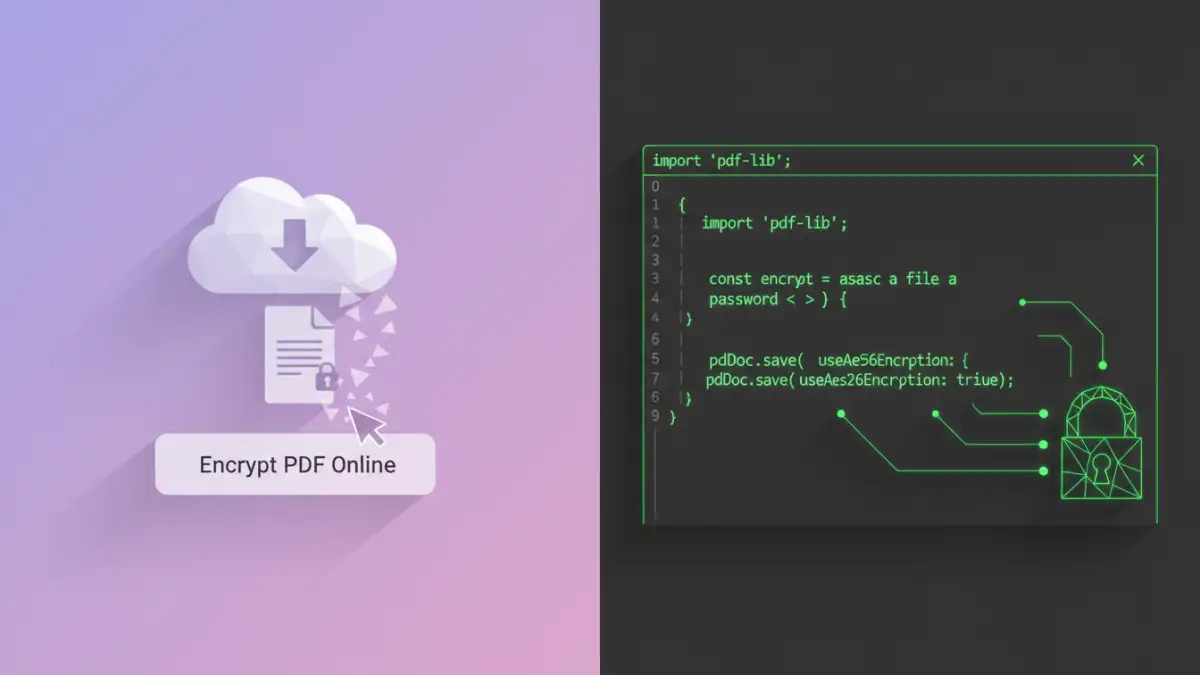
Fortunately, encrypting PDFs is accessible through several methods, ranging from built-in operating system features to dedicated software and online tools. Each method offers different levels of convenience and security, catering to various user needs and technical capabilities.
Using Adobe Acrobat
Adobe Acrobat, the industry standard for PDF manipulation, provides straightforward tools for password-protecting your documents. You can set permissions for viewing, printing, and editing. When you save a PDF in Acrobat, you can choose to encrypt it with a password, ensuring only those with the password can open the file. This is a reliable method for users who already work with Acrobat regularly.
Free Online PDF Encryptors
Numerous free online tools allow you to upload a PDF and encrypt it with a password. These are convenient for quick, one-off tasks and don't require any software installation. However, it's crucial to exercise caution with sensitive documents, as you are uploading your file to a third-party server. Always ensure the service is reputable and has a clear privacy policy.
Desktop Software Solutions
Beyond Adobe Acrobat, various other desktop applications offer advanced PDF encryption features. These can include batch processing, more granular control over permissions, and support for stronger encryption algorithms. For businesses or individuals who frequently handle sensitive documents, investing in dedicated software can provide a more secure and efficient workflow.
Integrating Encryption into Workflows
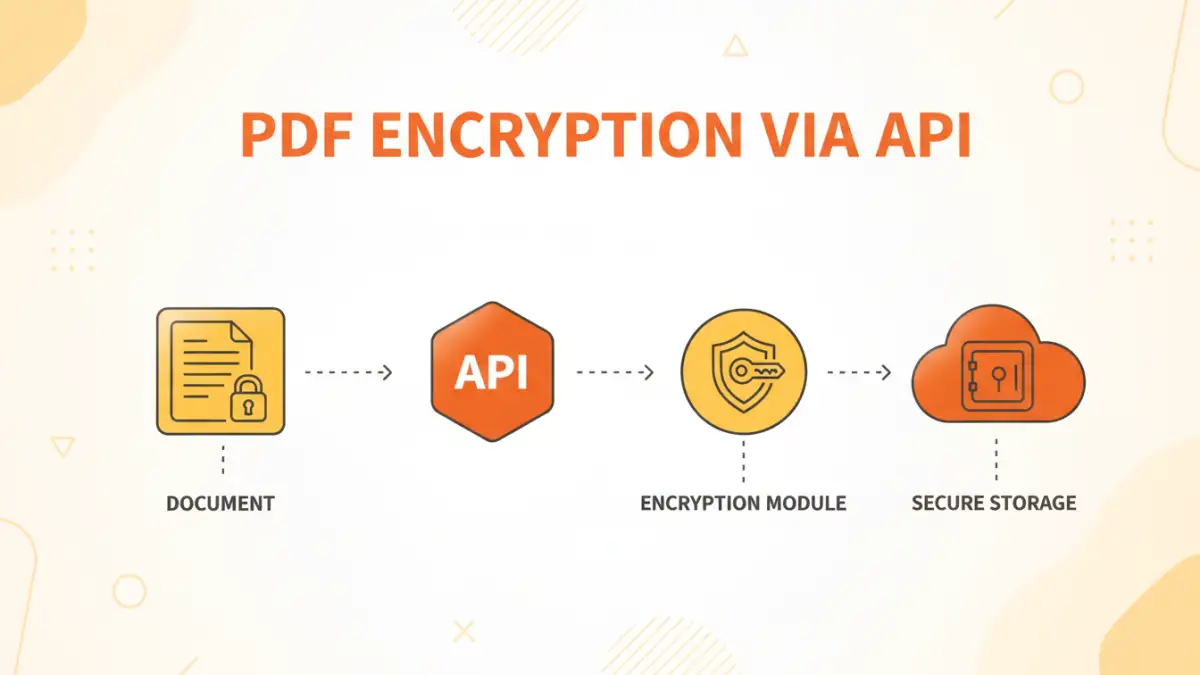
For developers and businesses looking to automate document security, integrating PDF encryption into their applications or workflows is essential. This is where the concept of encrypting PDFs API comes into play. By using an API, you can programmatically add password protection or apply encryption to PDFs as part of a larger process, such as a secure file upload system.
This allows for seamless integration into custom applications, content management systems, or e-commerce platforms. For instance, a platform might automatically encrypt user-uploaded documents before storing them, ensuring that the data is protected from the moment it's received. This approach is far more scalable and efficient than manual encryption methods for high-volume operations.
Best Practices for Secure Uploads
Beyond just encrypting your PDFs, several best practices can further enhance the security of your file uploads. These practices help create a robust security ecosystem around your data.
- Use Strong, Unique Passwords: Avoid simple or easily guessable passwords. Combine uppercase and lowercase letters, numbers, and symbols. Consider using a password manager to generate and store strong, unique passwords for each service.
- Choose Reputable Tools and Services: When using online tools or third-party APIs for encryption, thoroughly research their security measures and privacy policies. Opt for services that use modern encryption standards like AES-256.
- Limit Permissions: When encrypting, set the most restrictive permissions necessary. For example, if a user only needs to view a document, do not grant them printing or editing rights.
- Educate Users: If you are implementing a secure file upload system for others, ensure they understand the importance of encryption and how to use the features correctly. Clear instructions can prevent security lapses.
- Regularly Review Security Policies: Stay updated on the latest security threats and best practices. Periodically review your encryption methods and access controls to ensure they remain effective.
Comparison Table: PDF Encryption Methods
| Method | Ease of Use | Security Level | Cost | Best For |
|---|---|---|---|---|
| Adobe Acrobat Pro | High | High (AES-256) | Paid Subscription | Regular PDF users, comprehensive control |
| Free Online Tools | Very High | Varies (often AES-128/256) | Free | Quick, one-off encryption of non-sensitive files |
| Dedicated Desktop Software | Medium to High | Very High (AES-256+) | Paid (One-time or Subscription) | Frequent handling of sensitive documents, batch processing |
| API Integration | Requires Development Effort | High (AES-256) | Varies (API service costs) | Automated workflows, custom applications, secure file upload systems |