
A few months ago, our HR department faced a daunting task: securely distributing thousands of individualized annual compensation statements as PDFs. Doing this one-by-one was not an option. It was a classic enterprise problem that required a robust, scalable solution for securing documents in bulk, highlighting the critical need for efficient security workflows.
This is a common scenario where manual processes fail. When you're dealing with hundreds or thousands of sensitive files, you need a strategy to automate document security. It's not just about adding a password; it's about doing so reliably, consistently, and without introducing human error. Let's explore how to tackle this challenge effectively.
Table of Contents
The Enterprise Challenge: Why Bulk Security Matters
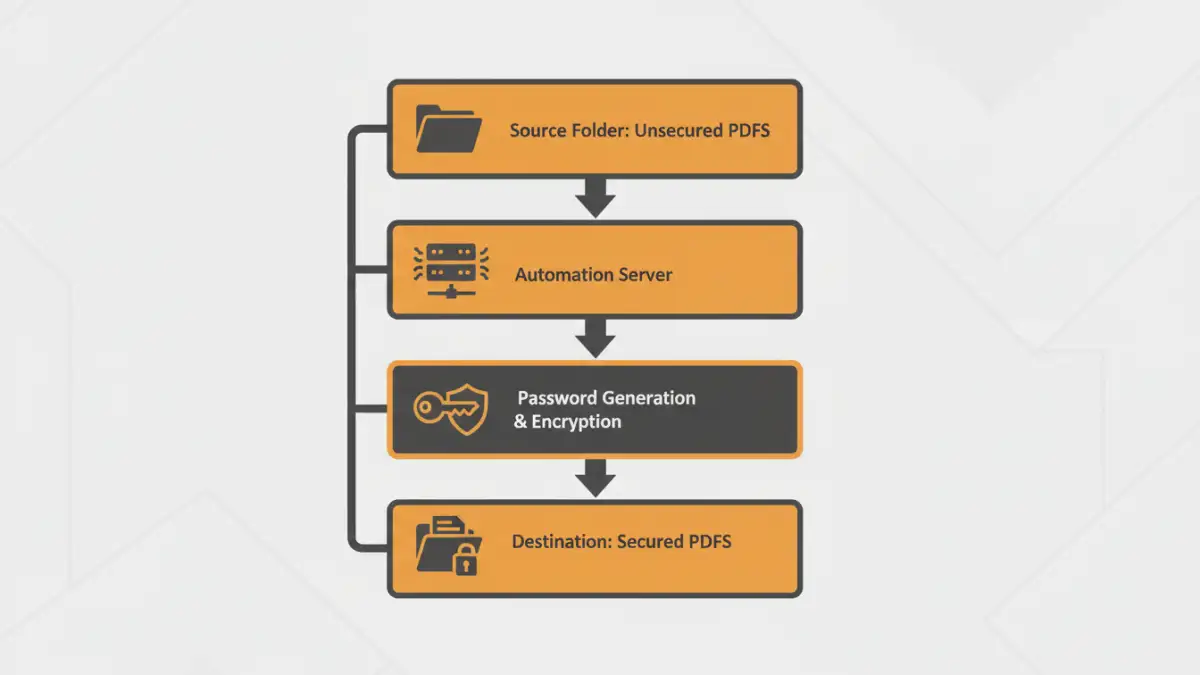
In a large organization, documents are generated at an incredible rate. Financial reports, legal contracts, employee records, and client data all require protection. Manually securing each file is inefficient and prone to inconsistencies, creating significant security gaps.
The primary drivers for automating this process are risk mitigation and compliance. Regulations like GDPR, HIPAA, and CCPA impose strict requirements on protecting personal data. A data breach resulting from an unsecured document can lead to severe financial penalties and reputational damage. Therefore, implementing a system for large scale file protection is a core business necessity, not just an IT project.
Core Methods for Automating PDF Security
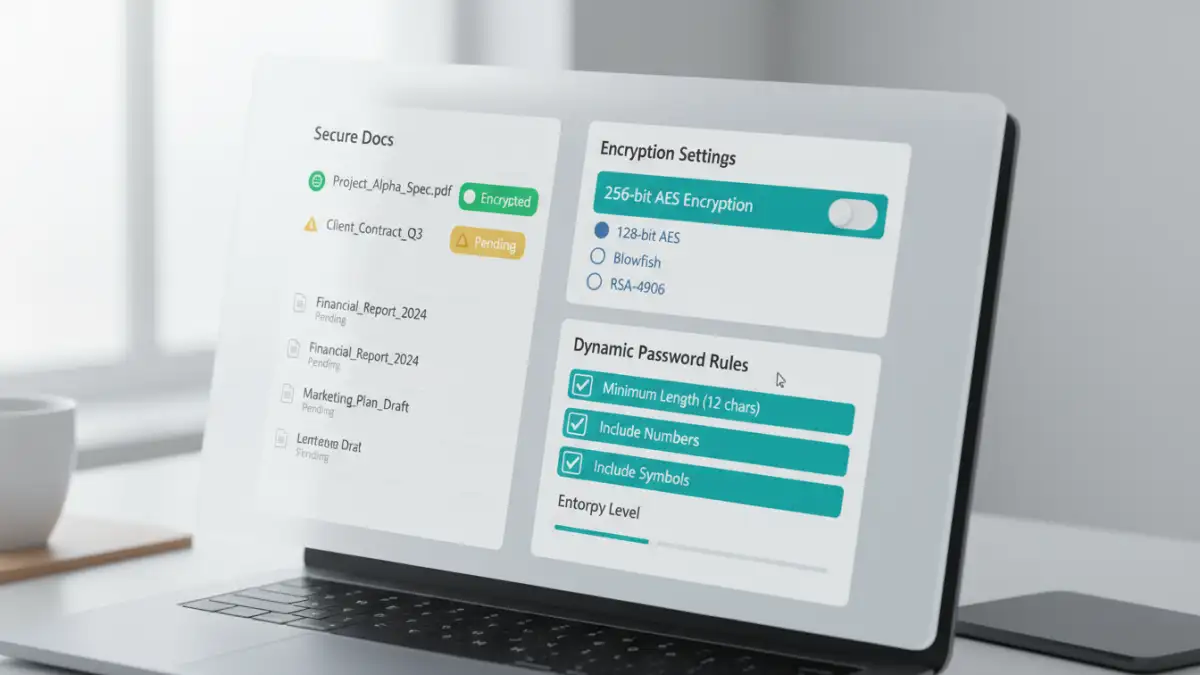
When it comes to applying passwords to many PDFs at once, you have several options, each suited for different technical comfort levels and infrastructure. The goal is to move from manual, one-off tasks to a streamlined, automated workflow.
Scripting with Command-Line Tools
For development and IT teams, command-line interface (CLI) tools are a powerful choice. A utility like QPDF, for example, is a versatile open-source tool that can handle PDF encryption through simple commands. You can wrap these commands in a shell script (Bash on Linux/macOS or PowerShell on Windows) to iterate through a directory of files.
This approach is highly customizable. You can script logic to generate unique passwords for each file based on a naming convention or data from a CSV file. While it requires technical expertise, it offers complete control and can be integrated into larger automated workflows, such as a nightly job that secures all reports generated that day.
Programming Libraries (Python & Java)
For even greater flexibility, developers can use programming libraries. Python has excellent libraries like `PyPDF2` or `pdfrw` that allow you to programmatically read, modify, and encrypt PDF files. This method is ideal for building custom applications or integrating PDF security directly into your existing software.
For instance, I once built a small Python service for a finance team that watched a specific network folder. Whenever a new invoice PDF appeared, the service would read the client ID from the filename, look up a corresponding password in a secure database, apply 256-bit AES encryption, and move the secured file to an outgoing email queue. This is a prime example of how to automate document security seamlessly.
Choosing the Right Encryption Standard
Not all encryption is created equal. When securing PDFs, you'll typically choose between 128-bit and 256-bit AES encryption. While 128-bit is secure for most general purposes, 256-bit AES is the gold standard recommended for highly sensitive data, such as financial records, legal documents, and personal health information.
Most modern enterprise PDF tools and libraries support 256-bit AES. It's crucial to select this standard to ensure you meet compliance requirements and provide the strongest possible protection against brute-force attacks. Also, consider setting both a user password (to open the document) and an owner password (to restrict printing, copying, or editing) for layered security.
Best Practices for Implementation
Successfully rolling out a system for batch pdf password protection involves more than just writing a script. It requires a thoughtful strategy to ensure security and usability.
First, establish a clear password policy. How are passwords generated? Are they unique per document or per recipient? How are they communicated securely? Avoid sending passwords in the same email as the document itself. Use a separate, secure channel like an SMS message or a dedicated password portal.
Second, implement robust logging and error handling. Your automated process should log every file it processes, noting success or failure. If a file can't be encrypted, the system should trigger an alert for manual review. This audit trail is essential for troubleshooting and proving compliance.
Solution Comparison for Bulk PDF Encryption
| Method | Technical Skill | Scalability | Flexibility | Best For |
|---|---|---|---|---|
| Manual Protection (e.g., Acrobat Pro) | Low | Very Poor | Low | Securing a handful of files occasionally. |
| Command-Line Tools (e.g., QPDF) | Medium | High | Medium | IT admins and developers needing a quick, scriptable solution. |
| Programming Libraries (e.g., Python) | High | Very High | Very High | Building custom applications and deep integration into existing systems. |
| Dedicated Enterprise PDF Tools | Low to Medium | High | High | Business teams needing a user-friendly interface with powerful automation features. |