Just last week, a project manager on my team sent a frantic message. He was locked out of a critical, encrypted ZIP archive containing final deliverables for a client, and the password—scribbled on a sticky note—was nowhere to be found. We eventually resolved it, but the incident highlighted a widespread and inefficient practice: the ad-hoc, insecure way many of us handle passwords for individual files.
From password-protected PDFs and Excel spreadsheets to encrypted archives, we create these digital locks to protect sensitive data. The problem arises when we have no system to manage the keys. This leads to lost time, immense frustration, and significant security vulnerabilities.
Table of Contents
The Chaos of Scattered File Passwords
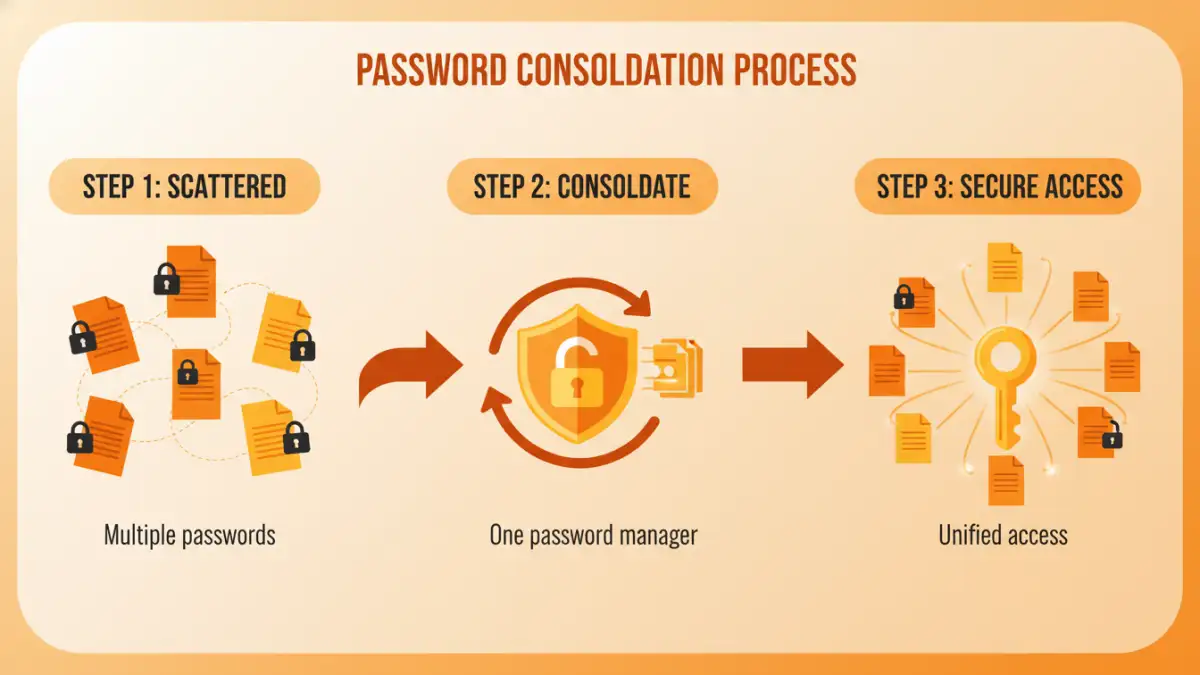
When you don't have a single source of truth for your document passwords, you invite chaos. Every protected file becomes a potential roadblock. This decentralized approach creates several tangible problems that I've seen impact teams of all sizes.
Security Risks You Might Be Ignoring
The most common "methods" for storing file passwords are also the least secure. A plain text file on your desktop named `passwords.txt`, a sticky note on your monitor, or an entry in a non-encrypted spreadsheet are invitations for a data breach. If your device is compromised, an attacker gains immediate access to every credential you've carelessly stored.
Furthermore, this lack of organization encourages poor password hygiene. People tend to reuse the same simple password for multiple documents, meaning one compromised password can unlock a trove of sensitive information. A proper system encourages the use of strong, unique passwords for each file.
Productivity Hits and Collaboration Killers
The time wasted searching for a lost password is a significant productivity drain. Think about the minutes or even hours spent hunting through old emails, messaging colleagues, or trying different password combinations. When working in a team, this problem multiplies. A key team member being unavailable can halt progress on a project if they are the only one who knows the password to a critical file.
Centralized Password Security: The Solution
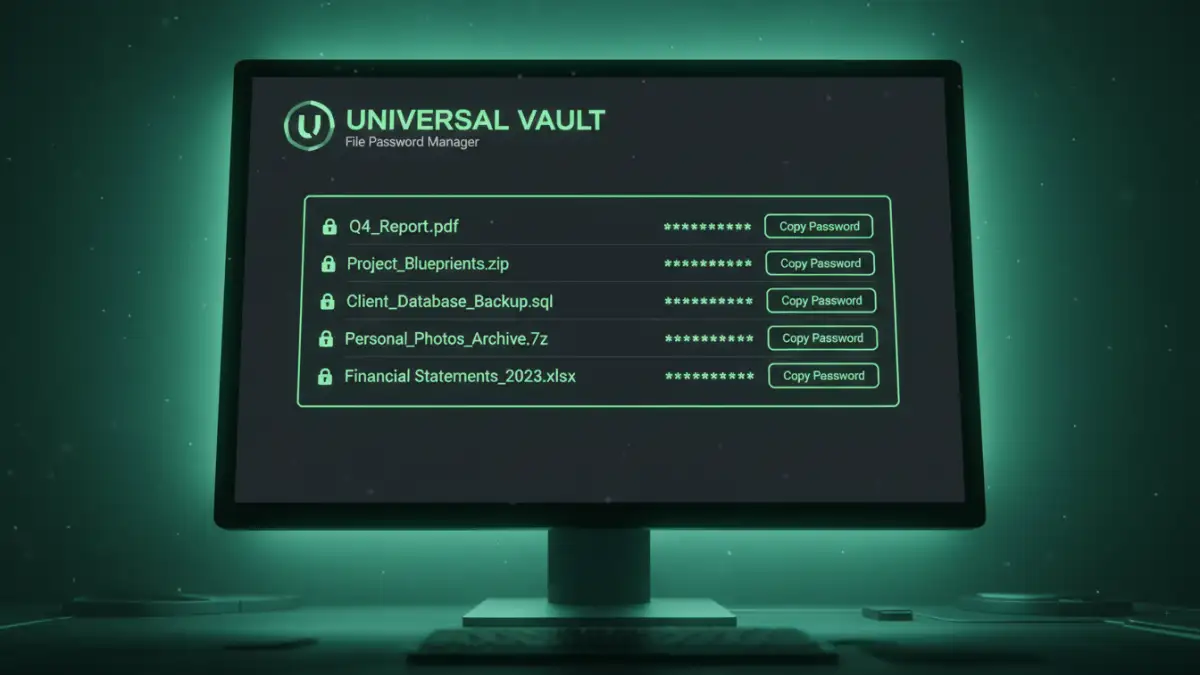
The solution is to treat your file passwords with the same seriousness as your online account credentials. This means using a dedicated, encrypted vault as a universal file password manager. Instead of dozens of passwords scattered across different locations, you have one secure database to store them all.
This approach transforms your workflow. Need the password for the Q3 financial report? Simply open your password manager, search for "Q3 Financials," and copy the password. It's fast, efficient, and incredibly secure. The entire system is protected by a single, strong master password—the only one you ever have to remember.
Choosing Your Document Password Organizer
Not all tools are created equal. The right choice depends on whether you're an individual or part of a team, and the level of security you require. Here are the most common and effective options.
Dedicated Password Managers
For both individuals and teams, a dedicated password manager like 1Password, Bitwarden, or KeePass is the gold standard. These applications are designed from the ground up for security. They use strong, end-to-end encryption to protect your data. You can create custom entries for files, often using secure note fields or custom field types to store the password alongside details like the file's name, location, and purpose.
Secure Team Wikis or Knowledge Bases
For corporate environments, a secure knowledge base like Confluence or a well-structured Notion setup can work, provided strict access controls are in place. The key is to ensure the page containing passwords is restricted to only the necessary personnel. While more flexible than password managers, they often lack specialized features like password generation and may require more manual security configuration. This approach is better suited for team-level coordination rather than individual password management.
Implementing Your Centralized System
Once you've selected a tool, it's time to build a system that is easy to use and maintain. A good system is one that people will actually follow. Here’s a straightforward plan to get started.
- Select and Set Up Your Tool: Choose a reputable password manager. Create a strong, unique master password and enable two-factor authentication (2FA) for maximum security.
- Establish a Naming Convention: Create a consistent format for your entries. For example: `[Project Name] - [File Name] - [Version/Date]`. This makes searching for a specific password quick and intuitive.
- Migrate Existing Passwords: Go through your old files and consolidate all existing passwords into your new system. This is the most tedious part, but it's a crucial one-time effort.
- Enforce the New Policy: For teams, communicate the new process clearly. All new password-protected files must have their credentials immediately stored in the central vault. No exceptions.
Best Practices for Long-Term Security
Setting up your system is just the beginning. To ensure its continued effectiveness and security, adopt these best practices.
- Generate Strong, Unique Passwords: Use your password manager's built-in generator to create long, random passwords for every new file you encrypt. Avoid using dictionary words or personal information.
- Utilize Tags and Folders: Organize your file passwords using tags (e.g., #finance, #legal, #client-xyz) or folders. This makes it easier to manage credentials for specific projects or departments.
- Conduct Regular Audits: Periodically review the passwords stored in your vault. Remove credentials for old, archived projects that are no longer needed. Ensure access permissions are up-to-date for team members.
- Protect Your Master Password: Your master password is the key to your entire kingdom. Make it long, memorable, and never store it digitally. Your security is only as strong as this one credential.
File Password Storage Method Comparison
| Storage Method | Security Level | Accessibility | Best For |
|---|---|---|---|
| Sticky Notes / Paper | Very Low | Low (Physical only) | Not recommended for anything sensitive |
| Unencrypted Text Files | Very Low | High (but insecure) | Absolutely not recommended |
| Team Wiki (e.g., Confluence) | Moderate | High (Team-based) | Internal team collaboration with strict access controls |
| Dedicated Password Manager | Very High | High (Cross-platform) | The most secure and efficient method for individuals and teams |