
You’ve been there: a critical PDF lands in your inbox, but when you try to copy a paragraph or fill out a form field, you’re met with a permissions error. The document is locked down, and the original creator is unreachable. It’s a common roadblock that can bring productivity to a halt. While there are plenty of tools out there, some of the most ingenious solutions aren’t in a software manual; they’re buried in community support threads.
Table of Contents
Understanding the Problem: PDF Permissions Explained
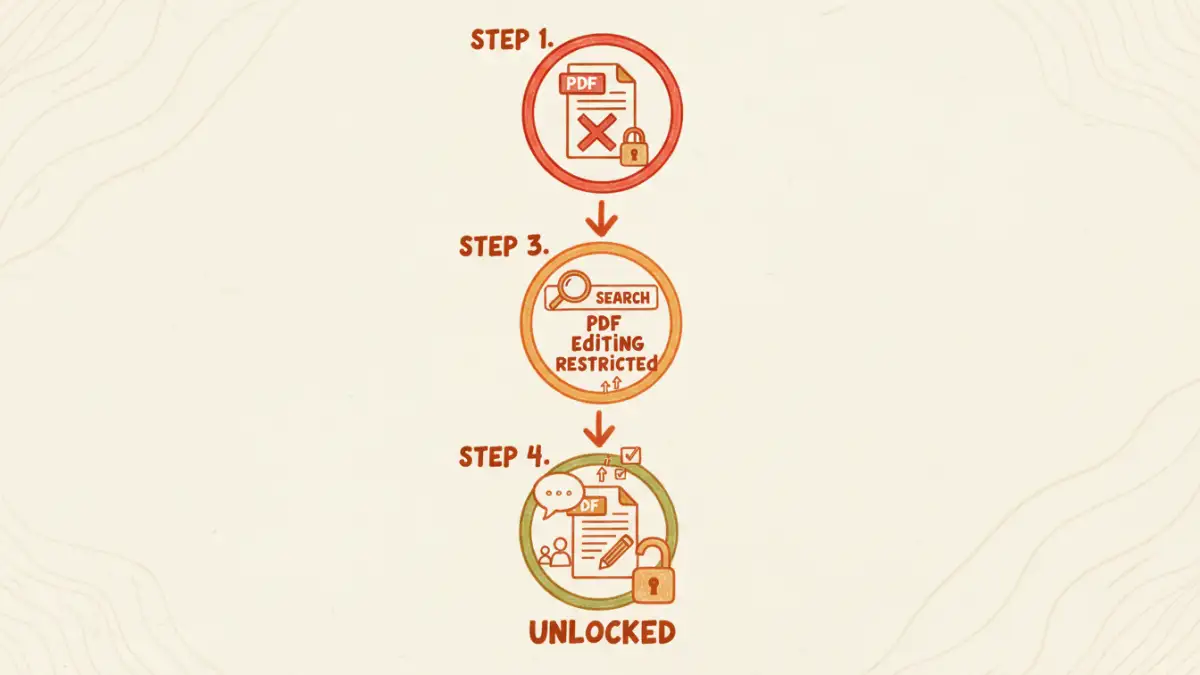
Before diving into forums, it's crucial to understand what you're up against. PDF security typically involves two types of passwords. Misunderstanding the difference is often the first hurdle. One password protects the document from being opened at all, while the other restricts specific actions once it's open.
Owner vs. User Passwords
A 'User Password' (or 'Open Password') is like a key to the front door; you need it just to view the document's contents. If you don't have this, your options are extremely limited, and ethically, you should always try to get it from the original author. The 'Owner Password' (or 'Permissions Password'), on the other hand, is the one that causes the most headaches. It allows you to open and read the file but prevents you from performing actions like printing, copying text, editing content, or adding comments. Most of the 'pdf editing restricted' errors stem from an Owner Password.
Why Online Forums Are Your Secret Weapon
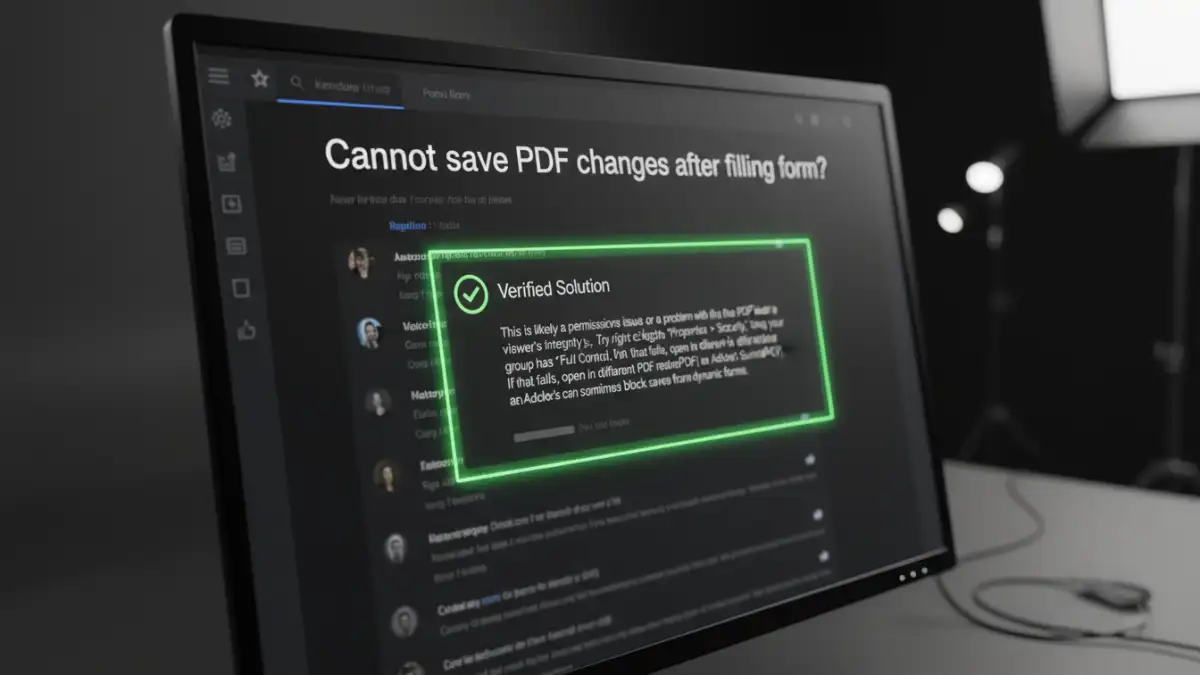
Software documentation tells you how a tool is *supposed* to work. Online forums tell you how to make it work when it doesn't. These communities, from Reddit's r/techsupport to Stack Exchange and Adobe's own user forums, are treasure troves of real-world experience. The solutions are often provided by people who have faced the exact same niche problem.
I once worked on a project where we received technical manuals from a vendor as PDFs. They were locked for editing, but we needed to annotate them with our internal notes. The standard tools failed. After some digging, I found a months-old thread on a small tech forum where a user detailed a workaround using a specific command-line utility. It was an obscure solution that saved my team dozens of hours. This is the power of community-sourced knowledge.
How to Effectively Search for Solutions
Simply typing your problem into a search engine is a good start, but knowing how to search within forums is a skill. The more specific your query, the better the results. Vague searches lead to generic, often unhelpful, articles.
Formulating the Right Query
Instead of searching for "unlock PDF," try being more descriptive. Include the exact error message you're seeing. For example, a query like "cannot save pdf changes after filling form Adobe Reader" is far more effective. Mention the software and version you're using (e.g., Acrobat Pro DC, Foxit, macOS Preview). This context helps you find threads relevant to your specific environment.
Identifying Trustworthy Advice
Not all advice is good advice. When you find a promising thread, look for signs of a reliable solution. Check for answers with a high number of upvotes or a "marked as solution" badge. Pay attention to comments where other users confirm that the method worked for them. A detailed, step-by-step explanation is usually more trustworthy than a simple, one-line answer. Be cautious of suggestions that ask you to download unknown software from suspicious links.
Common Solutions You'll Find in Community Threads
After years of turning to these communities, I've noticed a few common solutions that pop up repeatedly for solving pdf permission errors. These are the go-to methods that users often recommend for overcoming restrictions set by an Owner Password.
One of the most frequently suggested workarounds is the 'browser trick.' Users will advise you to open the restricted PDF in a web browser like Google Chrome or Microsoft Edge. From there, you use the browser's built-in print function but select 'Save as PDF' as the destination instead of a physical printer. This process often creates a new, unrestricted version of the file because the browser's PDF writer doesn't always carry over the original document permissions.
Another popular recommendation involves using command-line tools like QPDF. While this requires a bit more technical comfort, forum users often provide the exact commands needed to decrypt a file (provided you have the user password, if one is set). This method is favored by developers and power users because it's powerful, free, and doesn't involve uploading your sensitive documents to a third-party website.
Forum-Sourced Solution Comparison
| Method | How It Works | Pros | Cons |
|---|---|---|---|
| Browser 'Print to PDF' | Uses the browser's print engine to create a new, unrestricted PDF. | Free, no extra software needed, generally safe. | May not preserve interactive elements like form fields or hyperlinks. |
| Online Unlocker Tools | You upload the file to a website that processes it and removes restrictions. | Very easy and fast for simple cases. | Major privacy and security risk; not for sensitive documents. |
| Command-Line Software (e.g., QPDF) | Runs a local script to rebuild the PDF without the permission flags. | Powerful, secure (offline), and highly effective. | Requires comfort with the command line; has a learning curve. |
| Virtual Printer Drivers | Installs a 'printer' that saves the output as a new PDF file. | Works with almost any application that can print. | Can be bundled with adware; requires software installation. |