
Sending a client a draft of a project always comes with a slight knot in my stomach. It's that moment of vulnerability where your hard work—your intellectual property—is out of your hands. Will they like it? Will they ask for a million revisions? Or worse, will they take the draft and disappear without paying the final invoice? This concern is a core part of freelancer document security.
A few months ago, I was finalizing a comprehensive technical documentation project for a new client. The contract stipulated 50% upfront and 50% on final delivery. To get approval, I needed to send them the complete, formatted document for review. This is where I decided to implement a robust but simple protection strategy, and it turned into a genuine pdf password success story that has since become standard practice in my workflow.
Table of Contents
The Challenge: Balancing Previews with Protection
The primary challenge for any creative professional is showcasing work without losing control of it. Sending low-resolution JPEGs or watermarked images works for designers, but for writers, consultants, or architects, the deliverable is often the document itself. An unprotected PDF can easily be copied, printed, or used without your permission.
My goal was clear: I needed a way for the client to view the document in its entirety for review purposes, but prevent them from printing, editing, or copying the text until the final payment was processed. This is a critical aspect of protecting creative work and ensuring you're compensated fairly for your expertise and effort.
Exploring Security Options for Freelancers
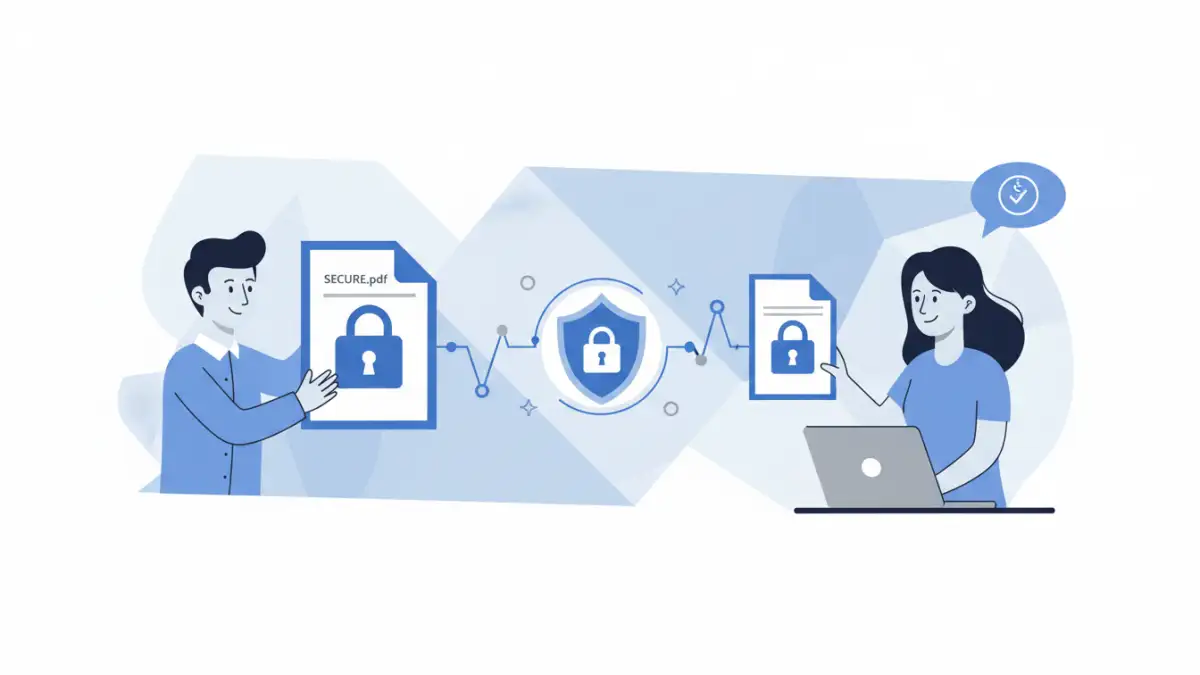
I began by looking into the most common methods for creating a secure PDF for clients. My technical background meant I was familiar with encryption, but I needed a solution that was professional, easy for a non-technical client to handle, and reliable. I broke my search down into a few categories.
Built-in Operating System Tools
Both macOS and Windows offer a "Print to PDF" function that includes basic password options. On a Mac, the option is right in the print dialog under the 'Security Options' button. You can set a password to open the document and another to restrict printing or copying. While free and accessible, these options can sometimes be bypassed by certain PDF viewers, so I considered it a baseline level of security.
Online PDF Services
Next, I looked at the dozens of websites that offer to password-protect PDFs for free. They are incredibly convenient; you just upload your file, set a password, and download the protected version. However, this convenience comes with a significant trade-off: privacy. Uploading sensitive client work to a third-party server felt like an unnecessary risk. I had no real guarantee of how my data was being handled or if it was deleted after the session.
My Chosen Protection Method: The Two-Password System
Ultimately, I settled on using dedicated desktop software—in my case, Adobe Acrobat Pro—but many other applications like Foxit PhantomPDF or PDF-XChange Editor offer similar features. These tools provide granular control over document permissions, which was exactly what I needed for true intellectual property protection.
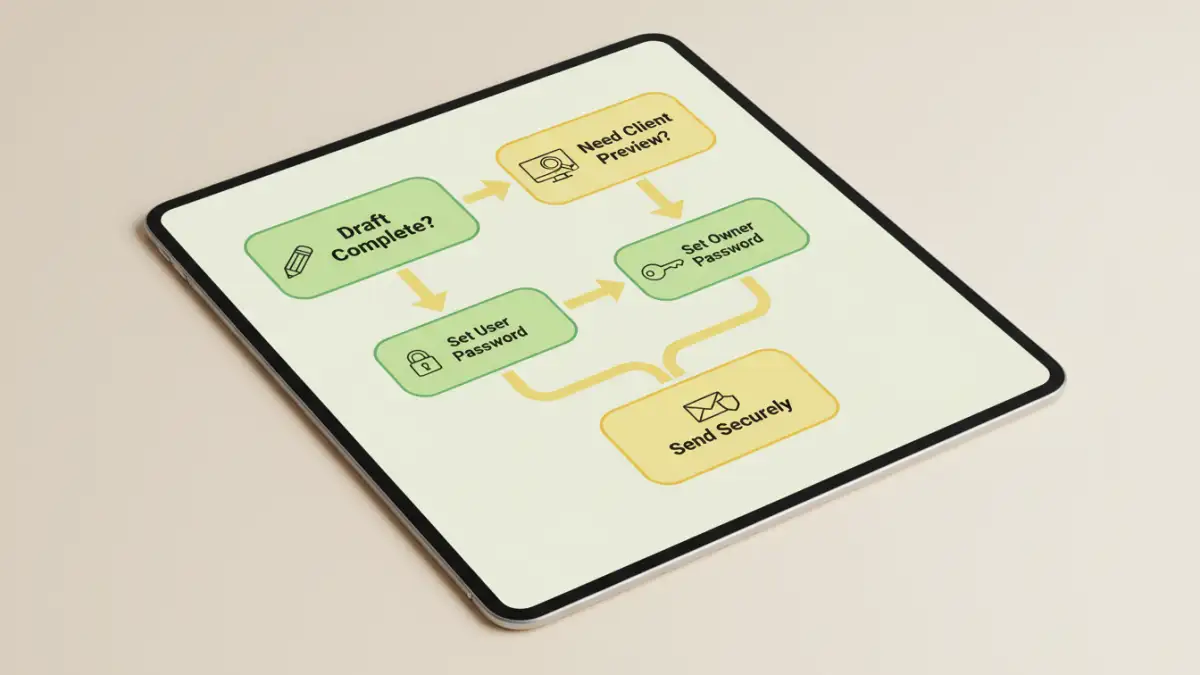
My strategy involved using two distinct passwords:
- User/Open Password: This is the password I provided to the client. It allowed them to open and read the document, ensuring they could perform their review. I sent this password in a separate email or message for added security, rather than in the same email as the file attachment.
- Owner/Permissions Password: This was a password I created and kept to myself. This password is the key to unlocking the document's restrictions. With it, I disabled printing, editing, and copying content. The client's viewer would show these options as grayed out and inaccessible.
This two-tiered approach struck the perfect balance. The client had the access they needed for their part of the process, and I retained full control over the asset. It was professional, secure, and didn't require the client to jump through any complicated technical hoops.
The Outcome and Best Practices for Client Handover
I sent the password-protected PDF to the client, explaining the review process and the limitations on the file. They appreciated the professionalism and had no issues opening the document with the password I provided. They completed their review, requested a few minor changes, and approved the draft.
Once the final invoice was paid, the final step was simple. I opened the document on my end, used my owner password to remove all restrictions, and sent them the fully unlocked, production-ready file. The process was seamless and eliminated any anxiety about payment. It reinforced trust and established a clear, secure boundary for the project handover.
This experience solidified my approach to freelancer document security. By taking a few extra minutes to properly secure a PDF, I protect my income, my work, and my peace of mind. It’s a small step that makes a massive difference in professional client management.
PDF Security Method Comparison for Freelancers
| Method | Security Level | Ease of Use | Cost | Best For |
|---|---|---|---|---|
| OS "Print to PDF" | Basic | Very Easy | Free | Quick, low-risk internal documents. |
| Online PDF Tools | Variable | Very Easy | Free (with ads/limits) | Non-sensitive files where privacy is not a major concern. |
| Desktop PDF Software | High | Moderate | One-time fee or Subscription | Professional client work and intellectual property protection. |
| Document Sharing Platforms | High | Easy | Subscription | Collaborative projects with version control and access logs. |