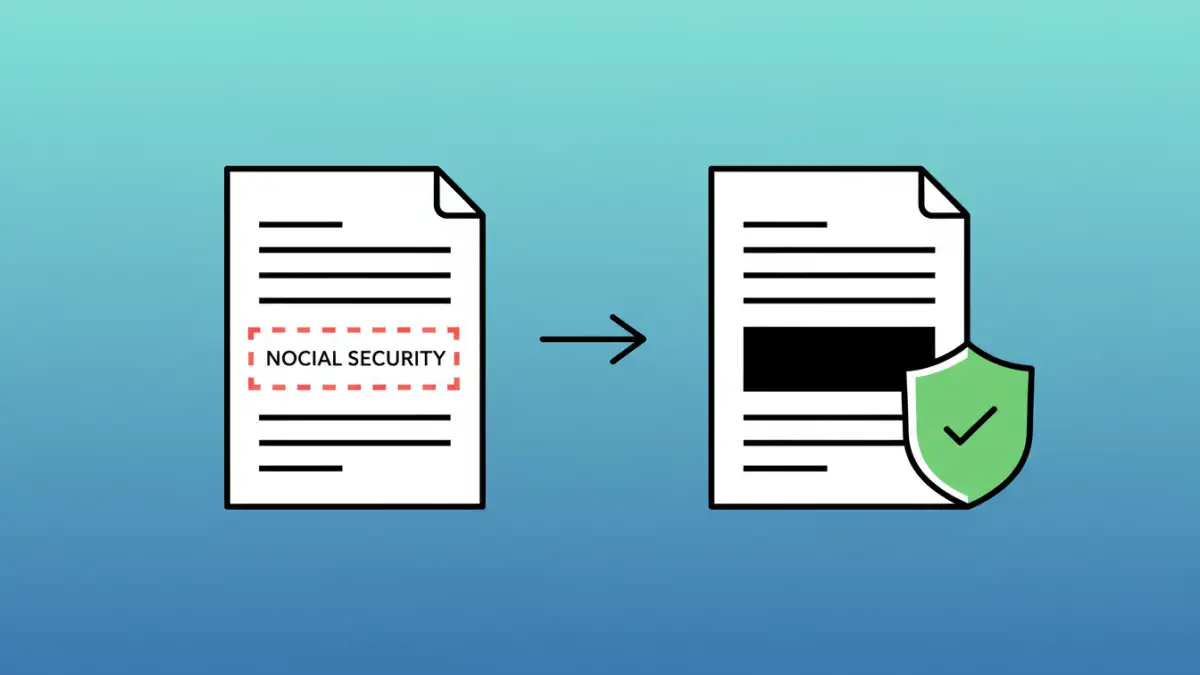
I once got an urgent call from a legal firm I consult for. They thought they had properly redacted a sensitive contract before sending it to opposing counsel. They hadn't. Someone simply copied the text from under the black boxes they had drawn on the PDF. It was a simple, yet potentially catastrophic, mistake that highlights a common misunderstanding about document security.
Simply covering text with a black shape is not redaction. True redaction is the digital equivalent of permanently cutting information out of a physical document. For legal professionals, the distinction isn't just technical—it's a matter of professional responsibility and client confidentiality.
Table of Contents
Understanding True Redaction vs. Covering Text
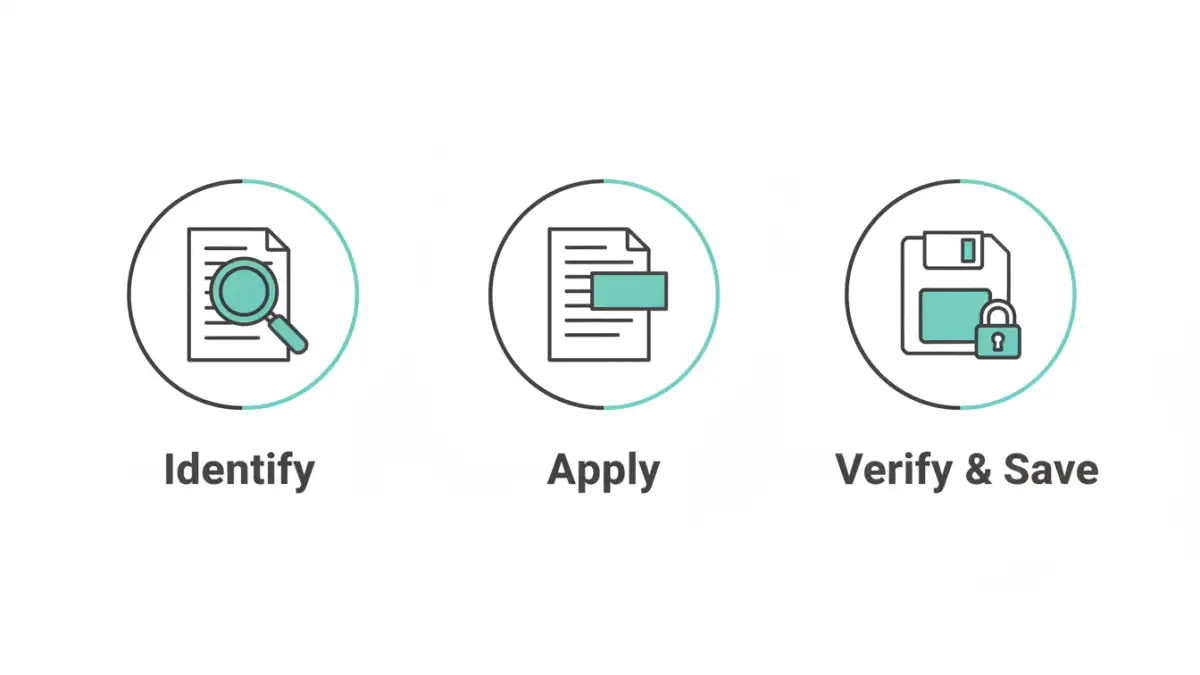
Many people believe that using a drawing tool to place a black rectangle over text in a PDF is sufficient. This is a dangerous assumption. A PDF file is a layered object; that black box is often just another layer placed on top of the original text, which remains fully intact underneath.
Proper, permanent redaction software doesn't just add a visual layer. It fundamentally alters the document's code by removing the underlying text, images, and associated metadata. Once saved, the information is gone forever and cannot be recovered by copying, searching, or inspecting the file's source.
The Dangers of Improper Redaction Methods
The risks of faulty redaction are significant. The most obvious is the simple copy-and-paste failure, as my legal client experienced. Anyone can highlight the blacked-out area, copy it, and paste the 'hidden' text into another application. Furthermore, the document's metadata might still contain sensitive information, and search functions can often find the 'redacted' words.
Key Features of a Secure PDF Redaction Tool
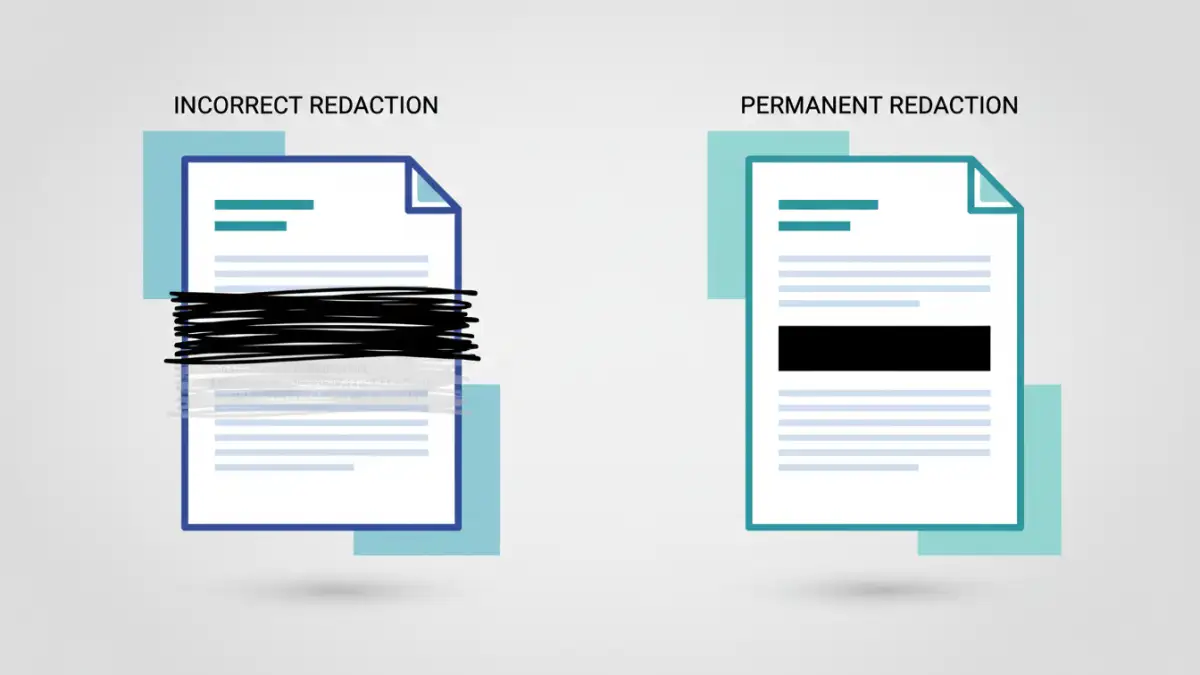
When evaluating software for legal document redaction, I focus on a specific set of non-negotiable features. These go beyond basic PDF editing and are crucial for maintaining security and compliance.
Guaranteed Permanent Data Removal
This is the cornerstone of any reliable tool. The software must explicitly state that it scrubs the data from the file, not just obscures it. Look for terms like "permanent redaction" or "secure removal." The tool should remove the text, any associated vector information, and clean up the surrounding code to ensure no digital artifacts are left behind.
Efficient Search-and-Redact Capabilities
Manually scanning a 200-page deposition for every instance of a name or account number is inefficient and prone to error. A quality tool allows you to search for specific text, phrases, or even patterns (like Social Security numbers or dates of birth using regular expressions) and apply redactions to all instances at once. This feature alone saves countless hours and dramatically reduces the risk of human error.
Evaluating Different Types of Redaction Software
The market has various solutions, each with its own security profile. The best choice often depends on the firm's size, budget, and internal security policies. Not all tools are created equal, especially when handling privileged information.
Desktop Software Suites
Platforms like Adobe Acrobat Pro DC and Foxit PhantomPDF are the industry standard for a reason. They offer robust, reliable, and permanent redaction features. Since the processing happens locally on your machine, you never have to upload sensitive documents to a third-party server, which is a major security advantage. While they come with a subscription cost, the investment is justifiable for anyone serious about legal document redaction.
Cloud-Based Online Tools
Online PDF editors offer convenience and accessibility from any device. However, they introduce a significant security question: where does your document go? When you upload a file, it's processed on their servers. It's imperative to read their terms of service and privacy policy to understand how your data is handled, stored, and protected. For highly sensitive client data, I almost always advise against using free, ad-supported online tools.
My Process for Vetting Redaction Tools
Before recommending any software, I put it through a simple but effective testing process to validate its claims. You don't need to be a software engineer to do this; you just need to be methodical.
- The Redaction Test: Create a sample PDF with sensitive phrases. Use the tool to redact those phrases and save a new version of the file.
- The Copy-Paste Check: Open the new, redacted PDF. Try to select the blacked-out area and copy-paste it into a text editor like Notepad. If any text appears, the tool has failed.
- The Search Check: Use the PDF viewer's search function (Ctrl+F) to look for the words you redacted. If the search finds any results, the data is still present in the file. The tool has failed.
- The Metadata Review: Check the document's properties (File > Properties) to ensure no sensitive information remains in the title, author, or keyword fields. A good tool will offer to scrub this metadata as well.
A tool that passes all these checks is likely a true permanent redaction software. This simple validation can prevent a major data breach and protect your firm's reputation.
Feature Comparison of Redaction Tool Types
| Tool Type | Security Level | Typical Cost | Best For |
|---|---|---|---|
| Desktop Software (e.g., Acrobat Pro) | Very High (Offline Processing) | Subscription-based ($$) | Law firms, corporate legal, government agencies |
| Professional Cloud-Based Tools | Moderate to High (Check Encryption/Privacy Policy) | Subscription-based ($) | Teams needing collaboration on less sensitive documents |
| Free Online Tools | Low (Third-Party Server Risk) | Free (Often Ad-Supported) | Non-confidential, personal use only |
| Open-Source Software | Variable (Depends on Maintenance) | Free | Tech-savvy users who can verify code and manage updates |