
A user recently reached out, completely stumped. They had a secure, HTTPS-enabled website, but a critical PDF viewer embedded on the page was broken, showing a blank space and a shield icon in the browser's address bar. The console logs screamed with errors about insecure content. The culprit? A classic case of mixed content, where an insecure resource was being loaded on a secure page.
This is a surprisingly common issue, especially with complex assets like PDFs that might pull in their own resources like fonts or images. Modern browsers are aggressive about security, and they will block these insecure elements to protect users, leading to a broken user experience. Understanding how to diagnose and fix this is a crucial skill for any web developer.
Table of Contents
What Exactly is a Mixed Content Error?
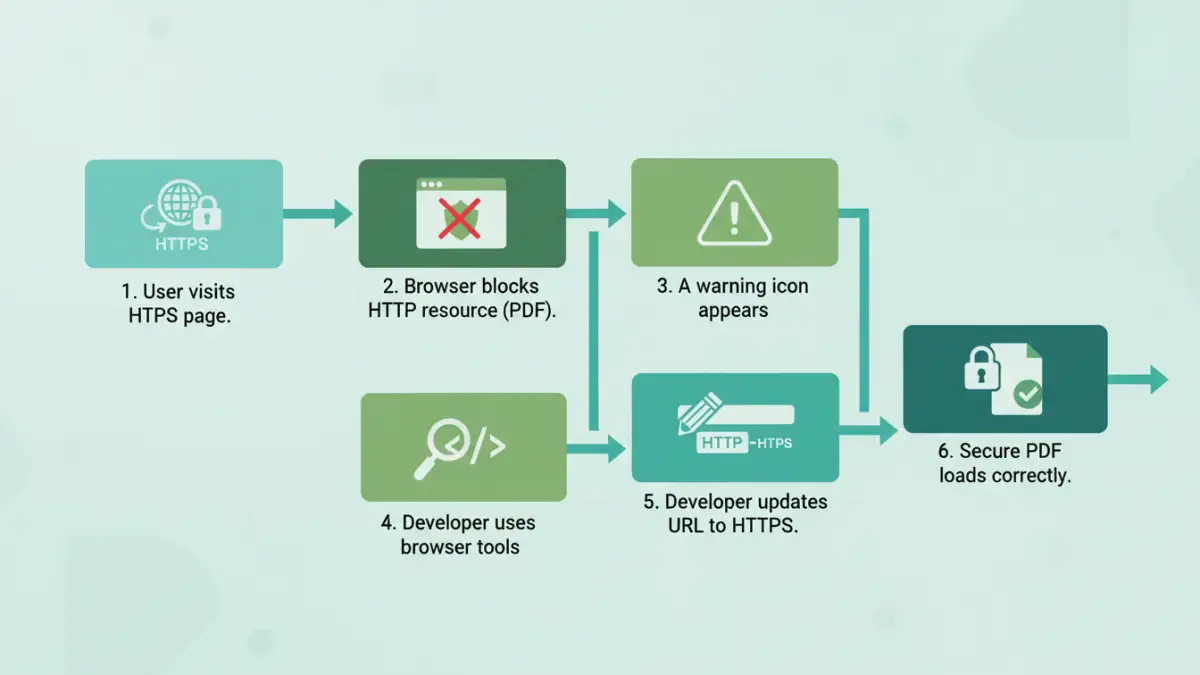
A mixed content error occurs when an HTML page loaded over a secure HTTPS connection attempts to load a resource (like an image, script, stylesheet, or in our case, a PDF or its components) over an insecure HTTP connection. Browsers see this as a security risk. An attacker could potentially intercept the insecure HTTP traffic, read it, or modify it—a "man-in-the-middle" attack—even though the main page is secure.
To protect users, browsers will either display a prominent document security warning or, more commonly, simply block the insecure resource from loading altogether. This is why your PDF viewer might appear broken or why a PDF not loading fully in Chrome is a frequent complaint. The browser is doing its job, but it leaves you with a non-functional part of your website.
Why Secure PDFs Are Uniquely Vulnerable
PDFs can be more than just static documents. They can contain interactive elements, scripts, and references to external resources like fonts or images. If the PDF itself, or the JavaScript library used to render it, was created with hardcoded HTTP links to these resources, you'll trigger a mixed content error when you embed it on your HTTPS site.
I once worked on a legacy system that generated PDFs on the fly. The template used to build these PDFs had an image logo pulled from an old server using an `http://` URL. For years, it worked fine on the old HTTP site. But the moment we migrated to HTTPS, every single generated PDF broke when viewed in the browser. The browser was blocking the insecurely loaded logo, which caused the entire PDF rendering to fail.
Active vs. Passive Mixed Content
Browsers categorize mixed content into two types. Passive content includes resources that can't modify the rest of the page, like images, audio, or video. Browsers might load these with a warning. Active content, like scripts (`
Step 1: Diagnosing the Problem with Browser Tools
You can't fix a problem you can't find. Fortunately, every modern browser comes with powerful developer tools that make spotting insecure requests easy. The first step is always to open the developer console.
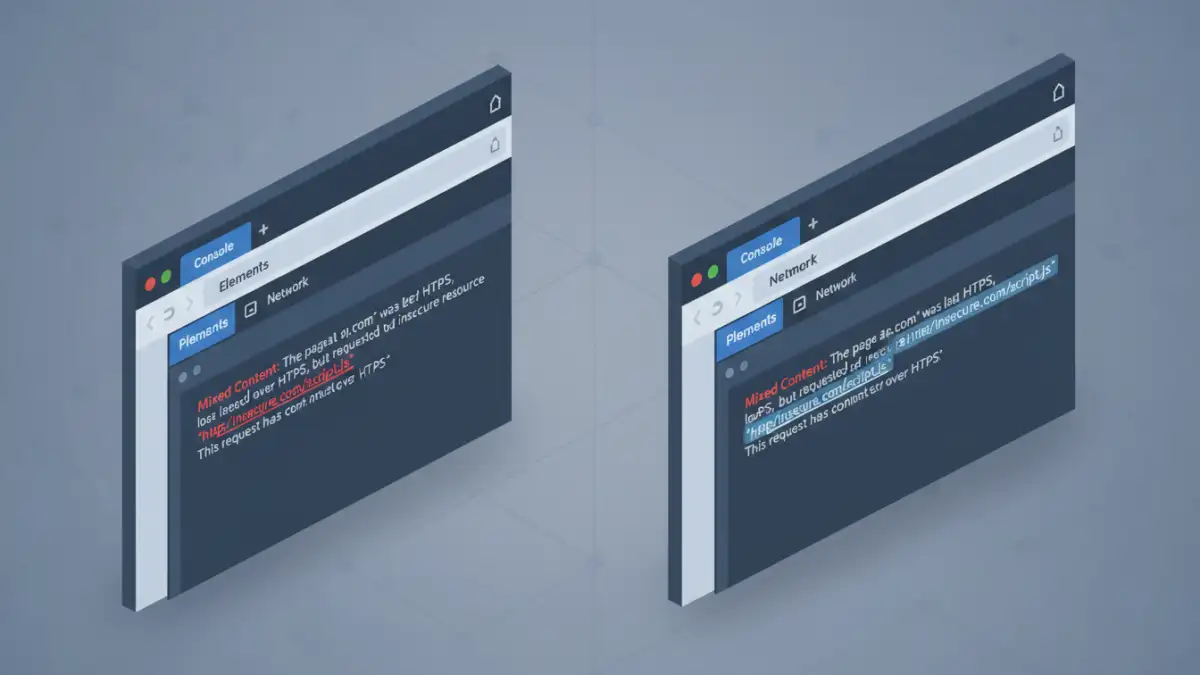
In Chrome, Firefox, or Edge, you can right-click on the page and select "Inspect," then navigate to the "Console" tab. When you load a page with mixed content, the console will light up with explicit errors. These messages will tell you exactly which resource was blocked and why. Look for phrases like "Blocked loading mixed active content" or "This request has been blocked; the content must be served over HTTPS." The error message will include the full HTTP URL of the offending resource.
Inspecting with the Network Tab
The "Network" tab in your developer tools is another invaluable resource. After opening it, reload your page. You can filter the requests to see everything that was loaded. You can often sort by protocol or look for requests that have a "blocked" status. This gives you a complete list of all assets the page tried to fetch, making it easy to spot the insecure `http://` ones among the secure `https://` requests.
Step 2: Common Fixes for Mixed Content Issues
Once you've identified the insecure URL, fixing it is usually straightforward. The goal is to ensure every single resource is loaded over HTTPS. This is the only way to resolve a secure pdf mixed content issue for good.
The simplest fix is to find the source code where the resource is being called and change the URL from `http://` to `https://`. If the resource is available over HTTPS, this single change will solve the problem. After making the change, clear your cache and reload the page to confirm the fix.
If you control the server hosting the resource, ensure it's configured to serve content over HTTPS with a valid SSL certificate. If it's a third-party resource, check their documentation. Most modern services support HTTPS by default. If they don't, you should consider finding an alternative service that prioritizes security.
Proactive Prevention and Best Practices
Fixing errors is good, but preventing them is better. A powerful tool for preventing mixed content issues is the Content Security Policy (CSP). A CSP is an HTTP response header that you configure on your web server. It allows you to define a whitelist of sources from which your site is allowed to load resources.
A simple but highly effective CSP directive is `upgrade-insecure-requests`. When you add this header, you instruct the browser to automatically treat all of your site's insecure URLs (those over HTTP) as if they were requested over HTTPS. The browser will attempt to upgrade the request to `https://` before fetching it. This can fix a large number of mixed content errors automatically, without you needing to change any code. It's a fantastic safety net.
Solution Comparison for Mixed Content Errors
| Solution | Implementation Effort | Effectiveness | Best For |
|---|---|---|---|
| Manual URL Update | Low (if source is known) | High (for specific issues) | Small sites or one-off fixes. |
| Content Security Policy (CSP) | Medium (requires server config) | Very High (proactive prevention) | All modern websites as a security baseline. |
| Server-Side Proxy | High (requires development) | High (for legacy systems) | When you can't control the third-party resource. |
| Database Search & Replace | Medium (requires caution) | High (for database-driven content) | Fixing legacy content stored in a CMS. |