You click on a link to an important, password-protected PDF—a bank statement, a legal document, or a confidential report—and instead of the expected password prompt, Firefox presents you with a blank page or a cryptic error message. It's a common and frustrating scenario that can halt your workflow right in its tracks.
This usually happens because of an issue with Firefox's built-in PDF viewer, known as PDF.js. While convenient, it can sometimes struggle with specific types of encryption or get tripped up by browser settings or conflicting extensions. Fortunately, there are several straightforward ways to diagnose and fix the problem.
Table of Contents
Understanding Why Firefox Fails with Secure PDFs
Firefox uses an open-source, JavaScript-based PDF reader called PDF.js to render documents directly in the browser. This eliminates the need for external plugins like Adobe Reader, offering a seamless experience. However, this integration is also the source of occasional conflicts when dealing with protected files.
The primary issue often stems from the complexity of PDF encryption. Not all encryption methods are created equal. Some documents use older, standard encryption that PDF.js handles perfectly, while others might employ more modern or proprietary security features that the built-in viewer isn't equipped to interpret. This can lead to a rendering failure, where the browser doesn't even know to ask for a password.
Common Causes of PDF Rendering Failures
Beyond encryption compatibility, several other factors can cause a firefox pdf viewer not working error. A corrupted browser cache can store a broken version of the file, preventing it from loading correctly on subsequent attempts. Additionally, browser extensions, particularly ad-blockers or security suites, can mistakenly interfere with the scripts needed for PDF.js to function, blocking the document from loading.
Initial Troubleshooting Steps

Before diving into more complex solutions, let's start with the simplest and most common fixes. I've found that these initial steps resolve the issue for a majority of users I've helped. These actions are non-destructive and only take a few minutes to complete.
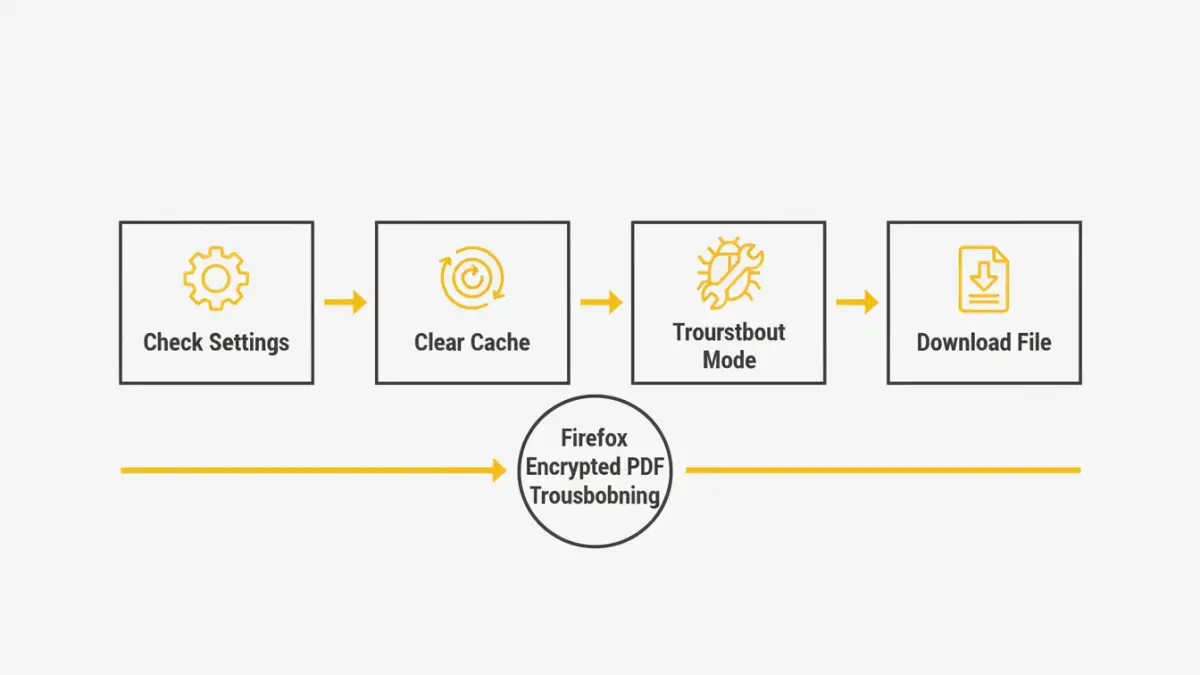
Step 1: Verify Firefox's PDF Handling Settings
Sometimes, the problem is a simple misconfiguration. You need to ensure Firefox is set as the default application for handling PDFs. If it's set to 'Save File' or use another application, it won't attempt to open it in the browser.
- Type
about:preferencesinto the Firefox address bar and press Enter. - In the 'General' panel, scroll down to the 'Applications' section.
- Find 'Portable Document Format (PDF)' in the list.
- Click the dropdown menu next to it and select 'Open in Firefox'.
- Close the settings tab and try opening the PDF again.
Step 2: Clear Your Browser Cache and Cookies
A corrupted cache is a frequent culprit. Clearing it forces Firefox to re-download a fresh copy of the PDF instead of loading a potentially broken version from its temporary storage.
- Click the menu button (three horizontal lines) and go to 'History' > 'Clear Recent History'.
- In the dropdown for 'Time range to clear', select 'Everything'.
- Make sure the checkboxes for 'Cookies' and 'Cache' are selected. You can uncheck others like 'Browsing & Download History' if you wish to keep them.
- Click the 'OK' button to clear the data.
Advanced Firefox Solutions
If the basic steps didn't work, the issue might be rooted in a conflicting extension or a deeper browser setting. These next solutions are designed to isolate and address those more stubborn problems.
Step 3: Test in Troubleshoot Mode
Firefox's Troubleshoot Mode (formerly Safe Mode) temporarily disables all extensions, themes, and custom settings. This is the perfect way to determine if an add-on is causing the conflict. If the password protected pdf firefox opens correctly in this mode, an extension is almost certainly the problem.
- Click the menu button, select 'Help', and then click 'Troubleshoot Mode'.
- A confirmation dialog will appear. Click 'Restart'.
- Once Firefox restarts in Troubleshoot Mode, try to open the encrypted PDF again.
- If it works, you'll need to re-enable your extensions one by one to identify the one causing the issue.
Step 4: Update Firefox to the Latest Version
The developers behind PDF.js are constantly improving its compatibility and fixing bugs. An outdated version of Firefox might have a known issue with the type of encryption used in your document. Ensuring your browser is up-to-date is a critical step.
Go to the Firefox menu > 'Help' > 'About Firefox'. The browser will automatically check for and download any available updates. After updating, restart Firefox and test the PDF again.
Workarounds and Best Practices
If all else fails, or if you frequently work with highly secure or complex PDFs, it may be time to accept the limitations of an in-browser viewer. The most reliable solution is often to handle the file outside of Firefox.
The simplest workaround is to right-click the link to the PDF and choose 'Save Link As...'. Download the file to your computer and open it with a dedicated desktop PDF application like Adobe Acrobat Reader or Foxit Reader. These applications have more robust support for all types of encryption and security features. While it adds an extra step, it's a guaranteed way to access your file when the browser fails.
PDF Handling Method Comparison
| Method | Reliability | Convenience | Security Considerations |
|---|---|---|---|
| Open in Firefox (PDF.js) | Moderate | High | Generally safe, but relies on browser's security sandbox. |
| Download & Open Locally | Very High | Low | Depends on the security of your desktop PDF reader and OS. |
| Use a Third-Party Browser Extension | Variable | High | Introduces a third-party dependency; requires trusting the extension developer. |
| Open in Another Browser (e.g., Chrome) | High | Moderate | Relies on a different PDF engine which may have better compatibility. |