You've just received a critical, password-protected PDF—a financial report, a legal contract, or confidential project specs—but when you click the download link, Chrome simply refuses to save it. You might see a warning, or worse, nothing happens at all. It's a frustrating scenario I've seen trip up even technically savvy colleagues.
This isn't necessarily a bug; it's often a feature. Google Chrome's robust security protocols are designed to protect you from malicious files, but sometimes they can be a bit overzealous. When Chrome can't scan the contents of a file because it's encrypted, it may err on the side of caution and block the download.
Table of Contents
Understanding Why Chrome Blocks Secure PDFs
At its core, the problem often stems from a conflict between security and accessibility. Chrome's Safe Browsing feature actively scans downloads for malware, phishing attempts, and other unwanted software. A password-protected PDF is essentially an opaque, encrypted container. Since Chrome can't peek inside to verify its contents are safe, its security algorithm may flag it as a potential risk.
Think of it like a security guard at a building entrance. If a visitor arrives with a locked briefcase and refuses to open it for inspection, the guard's protocol might be to deny entry. Chrome is acting as that security guard for your computer. This protective measure is generally a good thing, but it becomes an obstacle when you're dealing with legitimate, secure documents.
Common Culprits Behind the Download Failure
While Chrome's security is the primary reason, several factors can contribute to a secure PDF not downloading. Identifying the specific cause can help you find the quickest solution.
Overzealous Security Protocols
The most frequent issue is Chrome's 'Enhanced Protection' mode under Safe Browsing. This setting provides the highest level of security but is also the most likely to block downloads it can't analyze. The file's encryption is a major red flag for this mode, leading to an automatic block.
Conflicting Browser Extensions
I've often traced strange browser behavior back to extensions. Ad blockers, privacy guards, or antivirus extensions can interfere with the download process. They might mistakenly identify the encrypted PDF as a tracking element or a malicious script, preventing it from being saved to your device.
Server-Side Configuration
Sometimes, the problem isn't on your end. The web server hosting the PDF might be configured with certain HTTP headers (like `Content-Disposition` or `X-Content-Type-Options`) that conflict with how Chrome handles secure downloads. This is less common for the end-user to diagnose but can be the root cause in corporate environments.
How to Safely Download Your Protected PDF
Before you start changing your browser's core security settings, try these less invasive methods first. They often resolve the issue without exposing you to unnecessary risks.
Method 1: Use an Incognito Window
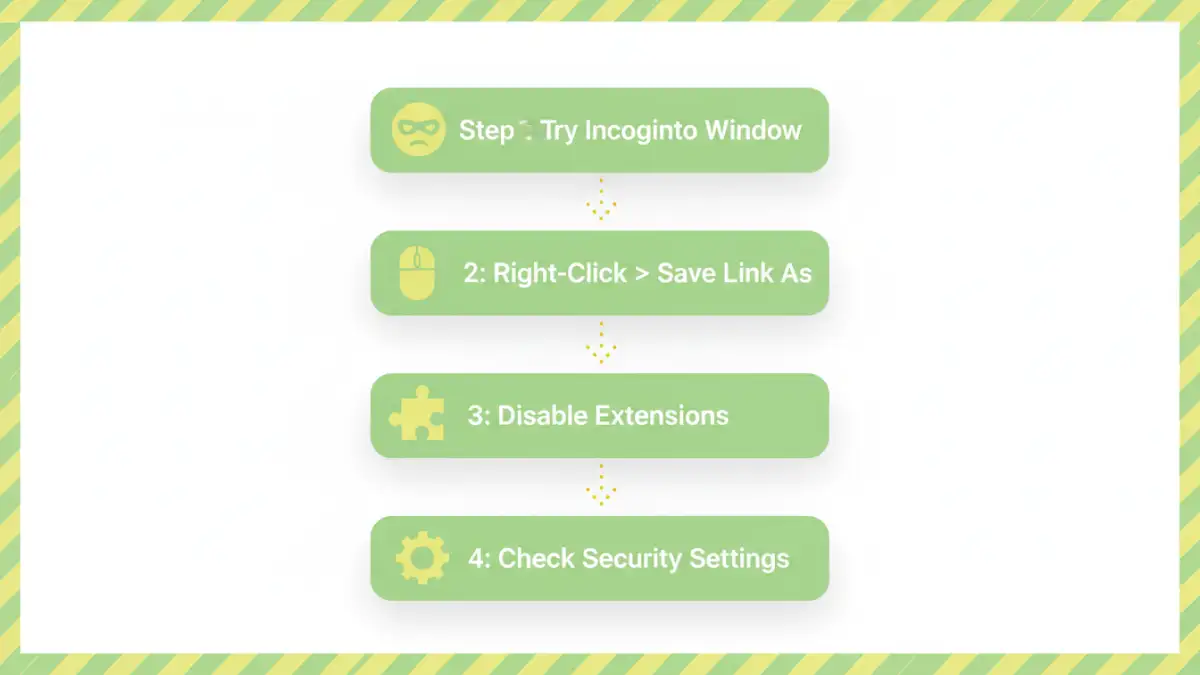
Opening an Incognito window is the simplest first step. This mode typically runs with all extensions disabled, which helps rule out any interference. Simply copy the download link, open a new Incognito window (Ctrl+Shift+N or Cmd+Shift+N), and paste the link there. If the download works, an extension is almost certainly the culprit.
Method 2: Right-Click and 'Save Link As'
This is another quick trick that can sometimes bypass the standard download process. Instead of left-clicking the download button or link, right-click it and select 'Save link as...'. This can occasionally trigger a different download mechanism that successfully saves the file.
Method 3: Temporarily Use a Different Browser
If Chrome is the problem, see if another browser handles the download differently. Firefox, Edge, or Safari have their own security protocols that might not flag the encrypted PDF. This is a great way to confirm the issue is specific to your Chrome configuration and get the file you need immediately.
Adjusting Chrome's Security Settings (With Caution)
If the above methods fail, you can venture into Chrome's settings. I must stress that you should only do this if you trust the source of the PDF completely. Disabling security features, even temporarily, increases your risk of exposure to malware.
To adjust your settings:
- Navigate to Settings > Privacy and security > Security.
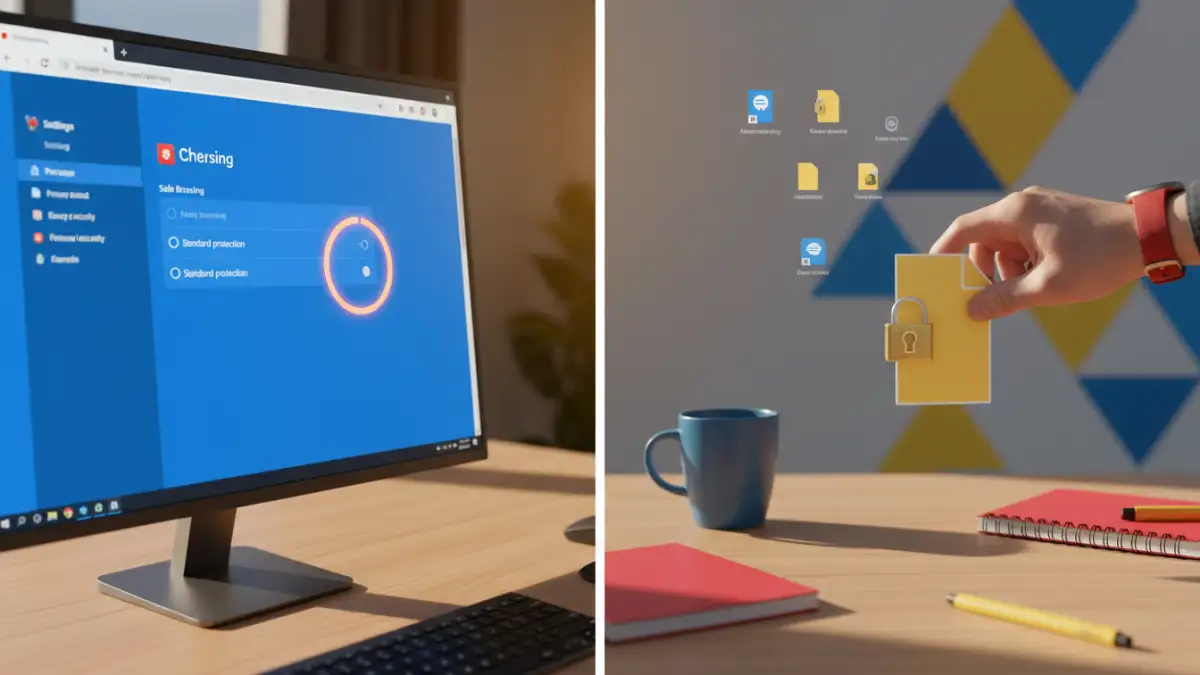
- Under the 'Safe Browsing' section, you will see different levels of protection. If you are on 'Enhanced protection', try switching to 'Standard protection'.
- After changing the setting, restart Chrome and try the download again.
- Crucially, remember to revert your settings back to their previous, more secure state once you have your file. Leaving your browser on a lower security setting is not recommended.
For a specific file you trust, you might also see an option to 'Keep' the file after Chrome blocks it. A download bar may appear at the bottom of the screen with a 'Discard' button and a dropdown arrow. Clicking the arrow may reveal a 'Keep' option. Only use this if you are 100% certain the file is safe.
Preventive Measures and Best Practices
To avoid the issue of a chrome blocking pdf download in the future, communication is key. If you are the one sending password-protected PDFs, consider providing them in a password-protected ZIP archive instead. Most systems and browsers handle ZIP files more predictably. You can also host the file on a trusted cloud service like Google Drive or Dropbox and share a link, as their platforms are designed to handle secure files without triggering browser alarms.
As a recipient, if you regularly receive secure files from a specific source, you can sometimes add that site to a 'safe' list in your antivirus or security software, though Chrome itself does not have a simple download whitelist for this purpose. The best practice remains to use the least invasive troubleshooting steps first before resorting to lowering your security settings.
Troubleshooting Quick-Fix Comparison
| Method | How It Works | Pros | Cons |
|---|---|---|---|
| Incognito Window | Disables extensions that may be interfering. | Quick, easy, and maintains security. | May not work if the issue is core to Chrome's settings. |
| 'Save Link As' | Uses a direct save command that can bypass some checks. | Very simple to try. | Low success rate for security-based blocks. |
| Use Another Browser | Leverages a different browser's security logic. | Effective for isolating the problem to Chrome. | Requires having another browser installed. |
| Adjust Chrome Security | Lowers the Safe Browsing protection level. | Often solves the problem directly. | HIGH RISK: Increases vulnerability to malware. Must be temporary. |
| Check with Sender | Asks the sender to provide the file differently (e.g., in a ZIP). | The safest long-term solution. | Requires waiting for a response from someone else. |