You've just received a critical, password-protected document, but when you try to open it in your browser, nothing happens. The page might be blank, the content garbled, or the password field is not working. It's a frustrating situation I've seen countless times, and the culprit is often hiding in plain sight: one of your browser extensions.
These add-ons, while useful, can inadvertently interfere with the scripts that render secure documents. Before you assume the file is corrupted, it's worth investigating a potential document security conflict right within your browser.
Table of Contents
Why Do Browser Extensions Cause Viewing Errors?
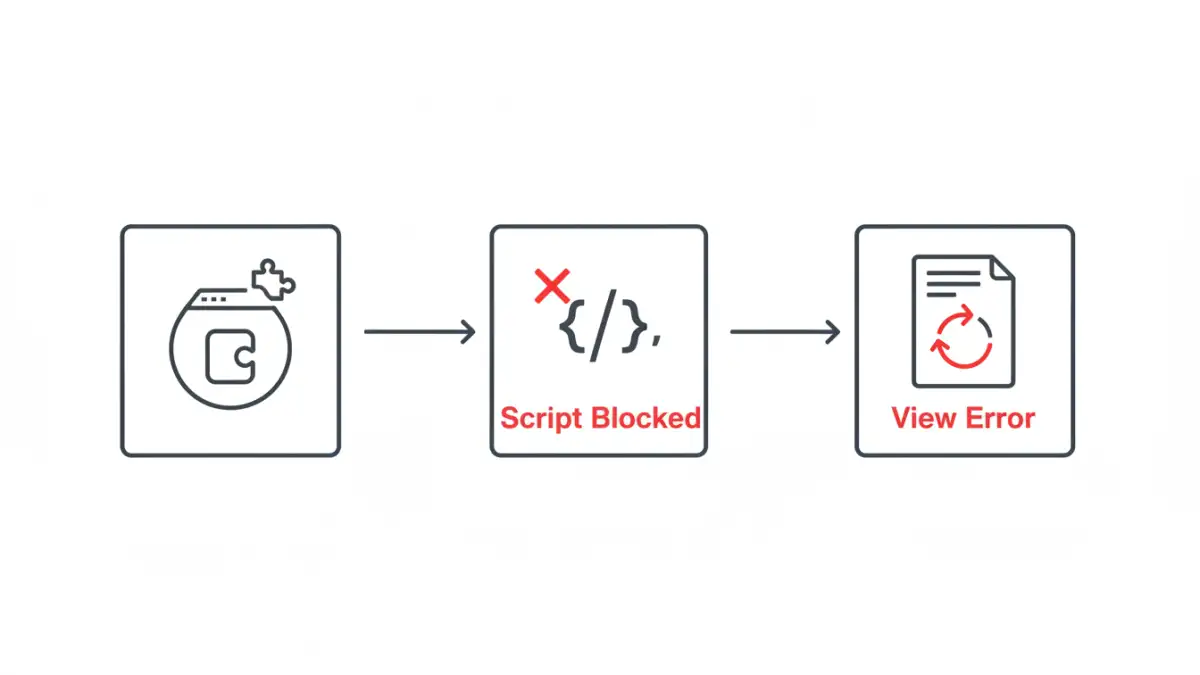
Browser extensions enhance functionality by injecting their own code—like JavaScript and CSS—into the web pages you visit. An ad blocker, for example, analyzes the page's structure to identify and hide elements it thinks are advertisements. A grammar checker reads text fields to offer suggestions.
This process can go wrong when viewing a document in a secure, proprietary viewer. The extension might mistakenly identify a crucial part of the document viewer as an ad, a pop-up, or a tracker. An ad blocker blocking PDF elements is a classic example. When the extension modifies or blocks this code, the viewer breaks, leading to secure document view errors where content fails to load or interactive elements like password fields disappear.
Common Culprits and Their Impact
While any extension can be at fault, some types are more likely to cause issues. I've found that ad blockers are the number one cause, as their entire purpose is to alter page content. Privacy-focused extensions that block scripts, password managers that try to autofill fields, and even some accessibility tools can also create a document security conflict by interfering with the viewer's intended operation.
How to Diagnose the Problem Extension
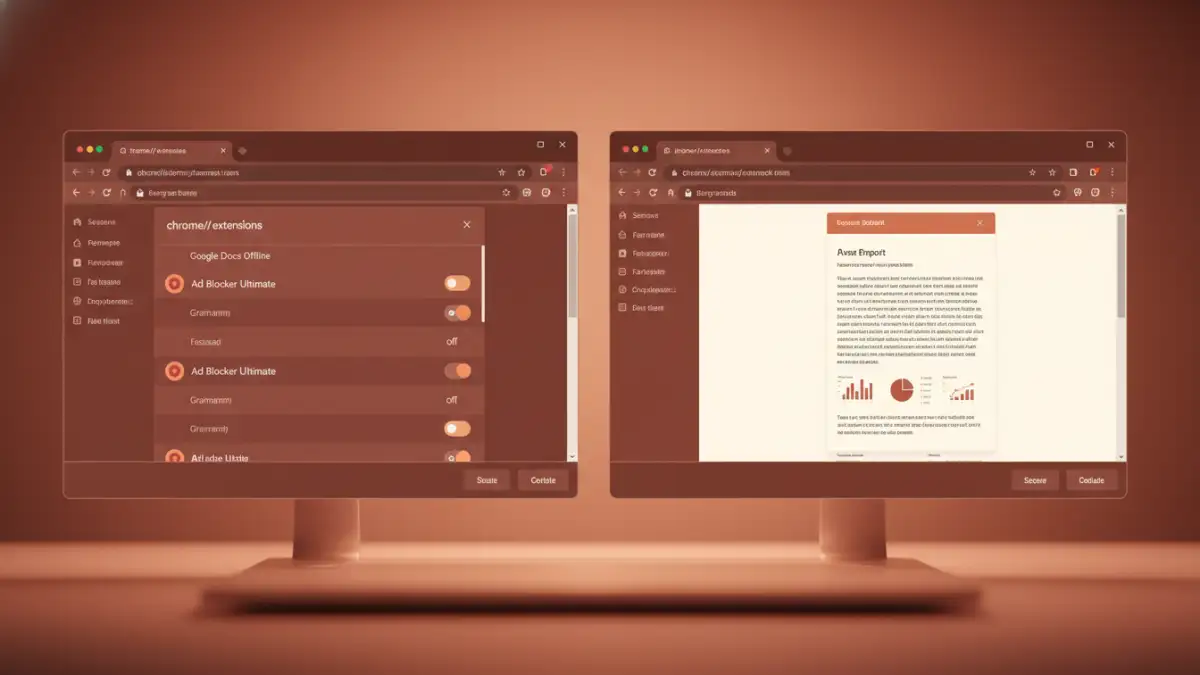
Finding the specific extension causing the problem is a process of elimination. The goal is to see if the document loads correctly in a 'clean' environment, free from any third-party modifications. This is the fastest way to confirm your hypothesis before you start changing settings.
The Incognito Mode Test
The simplest diagnostic tool is your browser's private or incognito mode. By default, most browsers disable all extensions in this mode. Open a new incognito window (usually Ctrl+Shift+N on Chrome or Ctrl+Shift+P on Firefox) and try to access the secure document again. If it loads perfectly, you have a 99% confirmation that an extension is the root cause. If the problem persists, the issue may lie with the document itself or the browser's core settings.
Step-by-Step Solutions to Fix the Conflict
Once you've confirmed an extension is the problem, you have a few options to resolve it. You can choose a quick, temporary fix or a more permanent solution that prevents the issue from recurring on that specific website.
Method 1: Manually Disable Browser Extensions
This method helps you pinpoint exactly which extension is causing the trouble. It takes a few minutes but gives you complete clarity.
- Navigate to your browser's extensions management page (e.g., `chrome://extensions` in Chrome or `about:addons` in Firefox).
- Disable all your extensions using the toggle switches.
- Reload the secure document page. It should now work correctly.
- Enable the extensions one by one, reloading the page after each one. When the document fails to load again, you've found the problematic extension.
Once identified, you can either keep it disabled when accessing secure documents or move to the next method to create a specific exception.
Method 2: Whitelist the Website
Most ad blockers and security extensions allow you to create an 'allowlist' or 'whitelist' of trusted websites. Adding the document viewer's URL to this list tells the extension not to run on that specific page. This is the best long-term solution, as it fixes the problem without forcing you to disable the extension entirely. Look for an option like "Don't run on pages on this site" or a settings panel where you can add the domain manually.
Best Practices for Preventing Future Errors
Dealing with these conflicts can be disruptive, but a few good habits can minimize their occurrence. As a developer, I'm very particular about the add-ons I install, as each one is another potential point of failure.
First, be minimalist with your extensions. Only install what you truly need and regularly use. Periodically review your installed extensions and remove any you no longer need. Second, keep your extensions updated. Developers often release patches to fix compatibility issues. Finally, for highly sensitive or complex documents, consider using a dedicated desktop application instead of a browser-based viewer. This completely removes the risk of extension interference.
Troubleshooting Method Comparison
| Method | How It Works | Pros | Cons |
|---|---|---|---|
| Incognito Mode | Opens a session where extensions are disabled by default. | Very fast for diagnosis; no settings changed. | Temporary fix; not practical for regular access. |
| Disable Extensions Manually | Turn extensions off one by one to isolate the culprit. | Pinpoints the exact source of the conflict. | Time-consuming if you have many extensions. |
| Whitelist the Site | Adds the document's URL to an exception list in the extension. | Permanent solution; lets you keep the extension active elsewhere. | Requires finding the setting within a specific extension. |
| Use a Desktop Viewer | Opens the document in a native application like Adobe Reader. | Immune to browser issues; often more feature-rich. | Requires software installation; less convenient for quick views. |