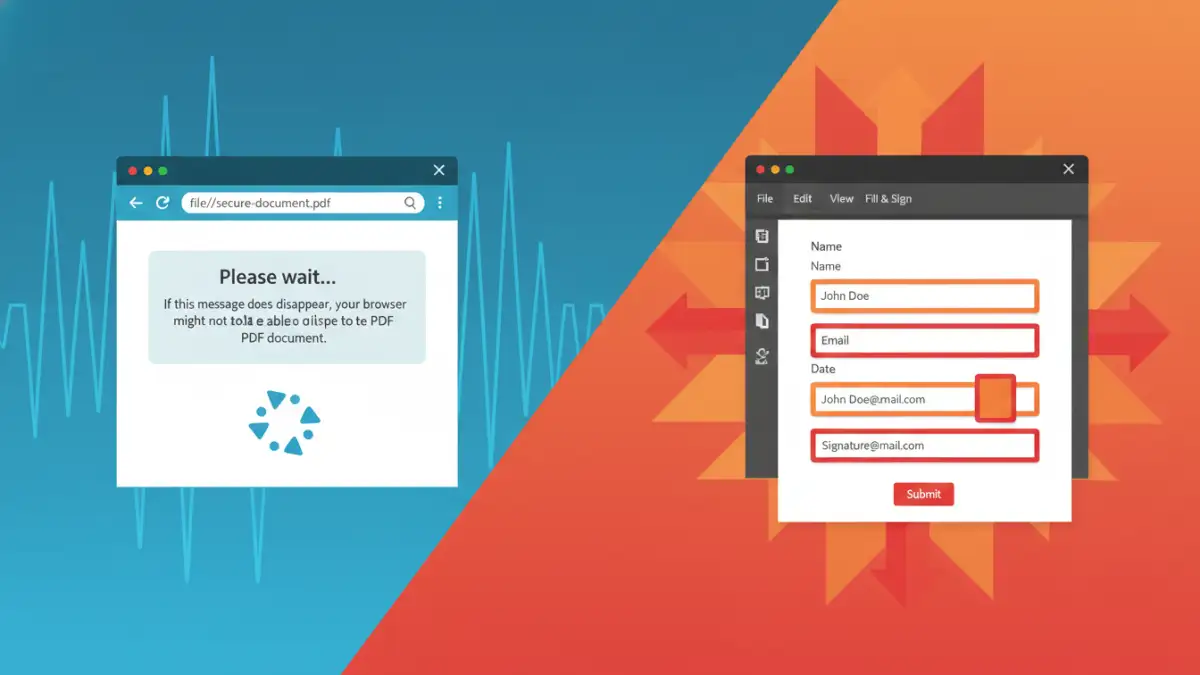
You've just received a critical form from a government agency or your bank, but when you open it in Chrome or Firefox, all you see is a blank page with the message: 'Please wait... If this message is not eventually replaced by the proper contents of the document, your PDF viewer may not be able to display this type of document.' It's a frustrating roadblock, especially when deadlines are looming.
This isn't a random glitch; it's a specific compatibility issue. I've helped countless colleagues and clients navigate this exact problem. The good news is that the fix is straightforward once you understand what's happening behind the scenes.
Table of Contents
Understanding the 'Please Wait' PDF Error
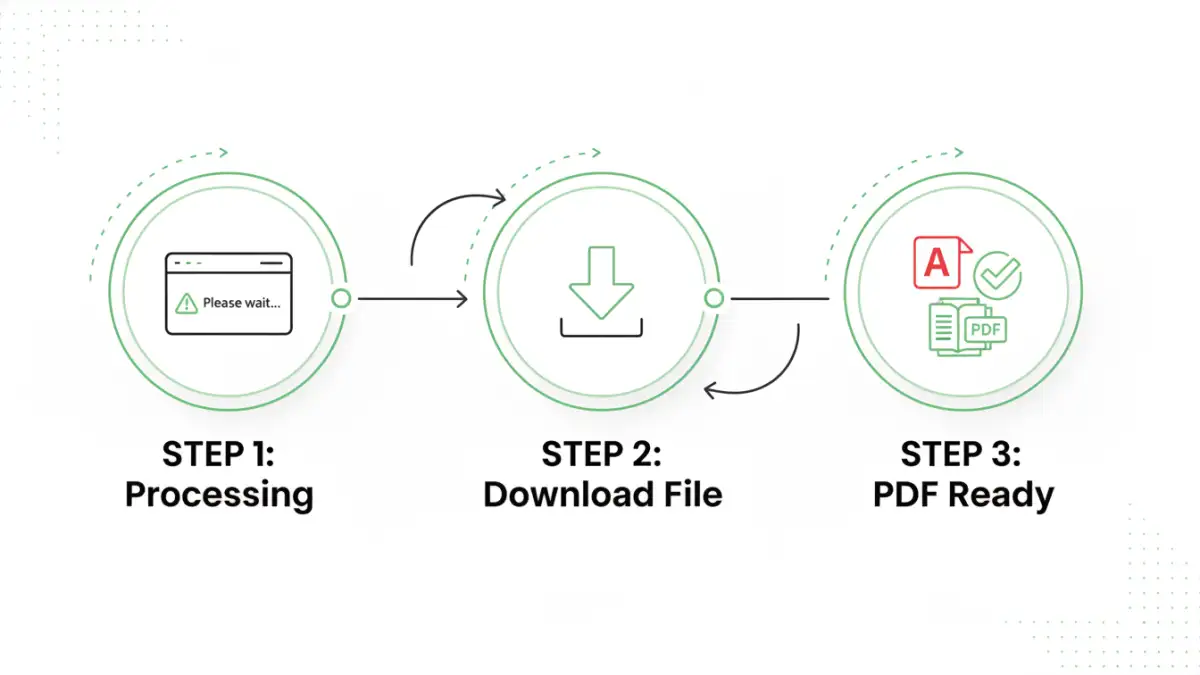
When you encounter this message, you're not dealing with a standard, flat PDF. The document you're trying to open is most likely a special type of interactive form known as a Dynamic XFA PDF. This specific format is what causes the common secure PDF error browser issue.
Modern web browsers like Chrome, Firefox, and Edge have excellent built-in PDF viewers that can handle the vast majority of documents. However, they are not designed to render these complex, application-like forms. Their internal engines lack the necessary components to process the XML-based structure of XFA, resulting in the generic 'Please wait...' placeholder.
What Are XFA Forms?
XFA stands for XML Forms Architecture, a proprietary technology developed by Adobe. These forms are 'dynamic,' meaning their layout can change based on the data you enter. For example, a field might expand, or new sections might appear as you fill it out. This functionality is powerful but requires a specific rendering engine—the one found in Adobe's own software, not in standard browser viewers.
These are commonly used for official documents like tax forms (e.g., from the IRS), complex application forms, and other secure documents where interactivity is crucial. The browser's viewer simply doesn't know how to interpret this dynamic behavior.
The Quick and Reliable Fix: Use Adobe Acrobat Reader
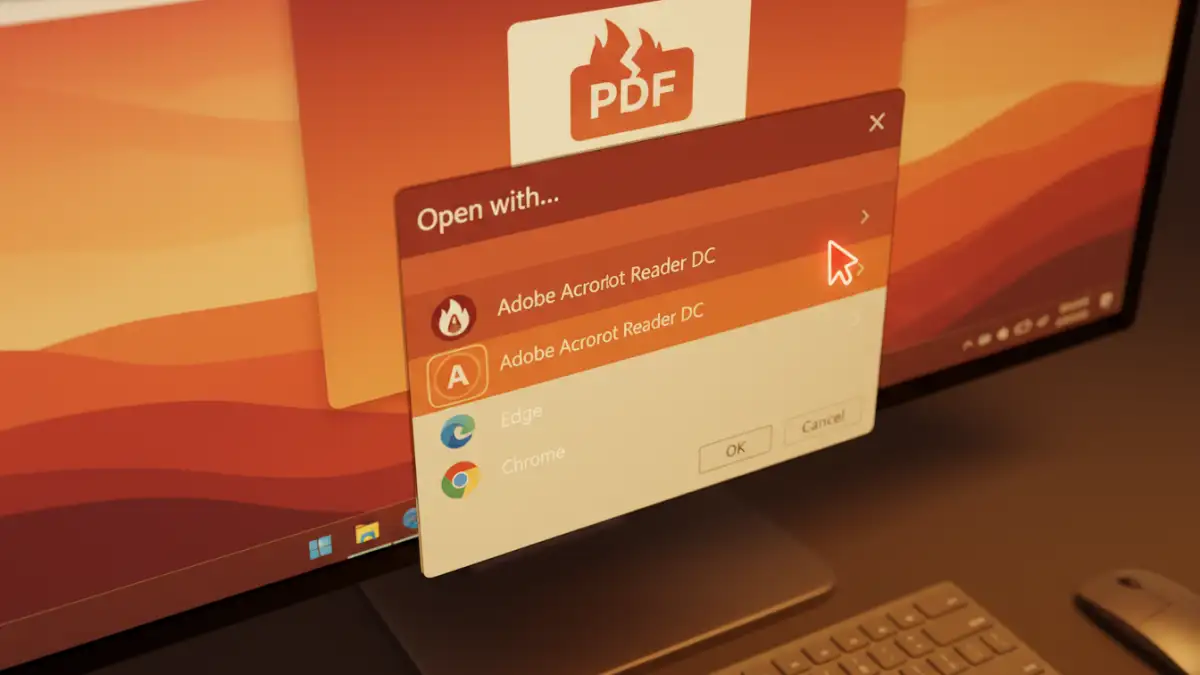
The most effective and recommended solution is to bypass the browser's PDF viewer entirely. Instead of trying to view the file directly in the browser tab, you need to open it with a dedicated application that fully supports XFA technology.
- Download the PDF File: Do not click to open it in a new tab. Right-click the link and choose 'Save link as...' or 'Save target as...'. If the PDF is already open in a browser tab showing the error, look for a download icon (usually an arrow pointing down) and save the file to your computer, for instance, in your 'Downloads' folder.
- Install Adobe Acrobat Reader DC: If you don't already have it, download the free Adobe Acrobat Reader DC from the official Adobe website. This is the industry-standard software for viewing, printing, signing, and annotating PDFs, and it has full support for XFA forms.
- Open the File Directly: Navigate to where you saved the PDF file on your computer. Right-click the file, select 'Open with,' and choose Adobe Acrobat Reader DC. The form should now load correctly, displaying all its interactive fields and content.
The Adobe Reader Advantage
Using Adobe Reader not only solves the immediate problem but also ensures full functionality. You'll be able to fill in fields, use dropdown menus, check boxes, and save your progress correctly, which might not be possible even if you found a workaround in the browser. For any interactive PDF not opening in Chrome or other browsers, this should always be your first step.
Browser-Specific Steps and Workarounds
While using Adobe Reader is the best method, you might want to configure your browser to handle these files more smoothly in the future. In the past, browser plugins made this easy, but modern browsers have phased them out for security reasons. Now, the focus is on changing download settings.
Configuring Chrome and Edge (Chromium-based)
You can instruct Chrome and Edge to download PDFs automatically instead of trying to open them. This saves you a step.
- Go to Settings in your browser.
- Navigate to 'Privacy and security' > 'Site Settings'.
- Scroll down and click on 'Additional content settings' > 'PDF documents'.
- Select the option 'Download PDFs' instead of 'Open PDFs in Chrome/Edge'.
With this setting, clicking a PDF link will automatically save the file, making it ready for you to open in Adobe Reader. This helps prevent the frustrating secure form error from appearing in the first place.
Firefox Configuration
Firefox offers more granular control over how file types are handled.
- Go to Settings in Firefox.
- In the 'General' panel, scroll down to the 'Applications' section.
- Find 'Portable Document Format (PDF)' in the list.
- In the 'Action' dropdown menu, change it from 'Open in Firefox' to 'Save File' or 'Use Adobe Acrobat Reader DC' if the option is available.
This change ensures that when you click a PDF link, Firefox will either save it or launch the correct external application directly.
Best Practices for Handling Interactive PDFs
Dealing with adobe pdf browser issues can be a recurring problem if you frequently work with secure forms. Adopting a few best practices can save you time and prevent future headaches.
First, always assume that a complex form from an official source (government, legal, financial) will require Adobe Reader. Make it a habit to download these files first rather than opening them in the browser. Second, keep Adobe Acrobat Reader updated. Adobe regularly releases security patches and feature updates that ensure compatibility and protect your system.
Finally, if you are the one creating and sending PDFs, consider your audience. If the advanced interactive features of a dynamic XFA form are not absolutely necessary, consider saving the document as a standard, static PDF. This will guarantee that everyone can view it without needing specific software, leading to a much smoother experience for all recipients.
PDF Viewer Compatibility Comparison
| PDF Viewer | XFA Form Support | Pros | Cons |
|---|---|---|---|
| Google Chrome / MS Edge Viewer | No | Fast, built-in, no installation needed. | Fails to render dynamic XFA forms. |
| Firefox Viewer | No | Integrated into the browser, convenient. | Cannot display interactive XFA content. |
| Adobe Acrobat Reader DC | Yes (Full Support) | The official standard, supports all features. | Requires separate installation and updates. |
| Third-Party Online Tools | Partial / Unreliable | No installation required, accessible anywhere. | Potential privacy/security risks with sensitive data. |
| Mac Preview App | No | Built into macOS, fast and simple. | Incompatible with XFA; can corrupt form data. |