
Nothing stalls productivity quite like a seemingly simple technical glitch. You click on a critical, password-protected PDF, enter the correct password, and... it asks again. And again. This frustrating cycle is a common issue when viewing encrypted PDFs directly in web browsers like Chrome or Firefox.
This isn't just a minor annoyance; it can block access to important documents like financial statements, legal contracts, or confidential reports. As an engineer who has helped countless colleagues navigate these quirks, I've found that the solution is often simpler than you'd think. It's usually not a problem with the password but with how the browser's built-in PDF viewer handles certain types of encryption.
Table of Contents
Understanding the PDF Password Prompt Loop
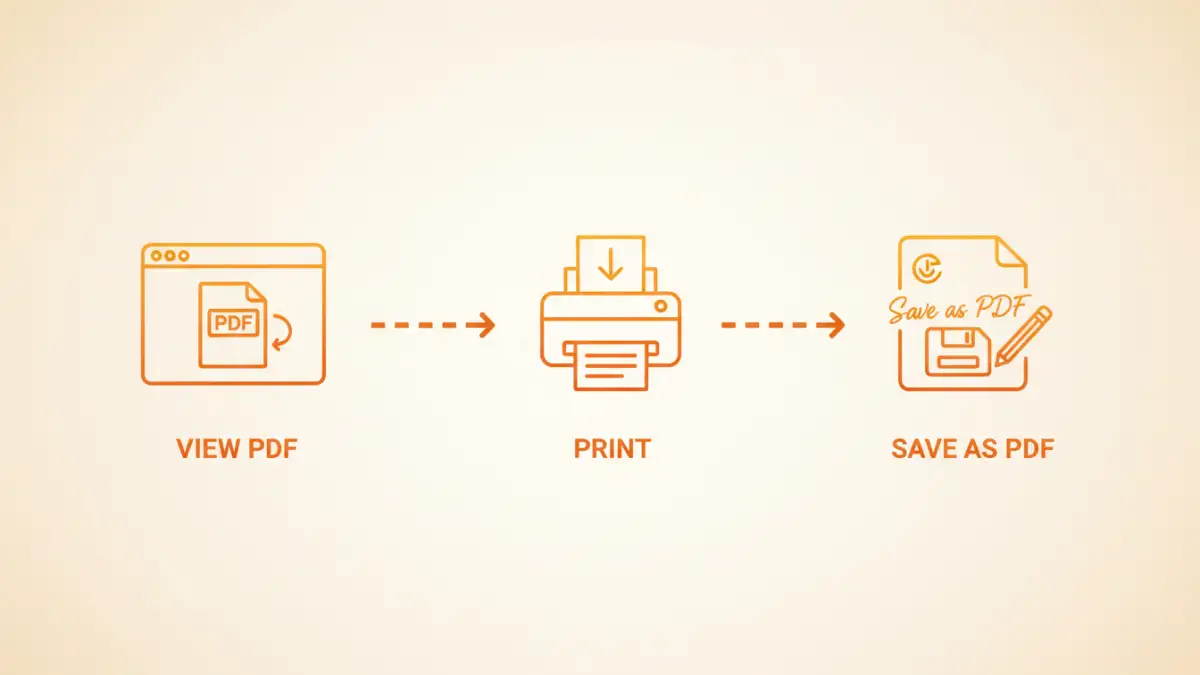
Before diving into fixes, it helps to understand what's happening behind the scenes. PDF files can have two types of passwords: a 'user password' required to open and view the file, and an 'owner password' that restricts actions like printing, copying, or editing. The dreaded loop often occurs with files protected by an owner password.
Browser-based PDF viewers are lightweight and designed for convenience, not for handling complex permission sets. When they encounter a PDF with an owner password, they may successfully open it but then get confused by the printing or editing restrictions, causing them to repeatedly ask for a password that has already been provided. This is the core of the pdf password prompt loop.
Owner vs. User Passwords: The Key Difference
A 'user' or 'open' password is a straightforward gatekeeper—you need it to see the content at all. An 'owner' or 'permissions' password is more nuanced. You can often open the document without it, but you'll be blocked from performing certain actions. Many browsers struggle to interpret these restrictions correctly, leading to the password prompt issue even when you just want to view the file.
Simple Browser-Based Solutions
For most cases where you know the password but are stuck in a loop, the easiest solution involves using the browser's own functionality against itself. The goal is to create a new, unrestricted version of the PDF.
The 'Print to PDF' Trick
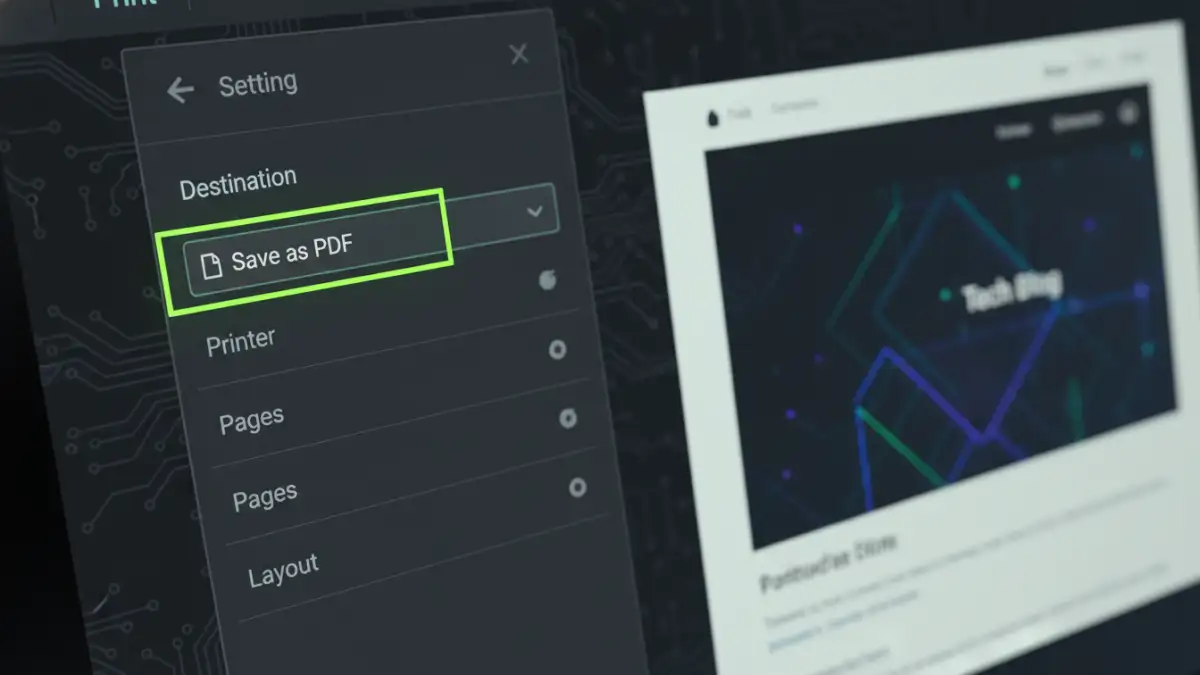
This is my go-to method and works almost every time. Since the browser can technically open the file (even if it's misbehaving), you can use its print function to generate a clean, password-free copy. This works because the print function creates a new file from the rendered content, effectively stripping away the old permission settings.
- Open the PDF: Drag the password-protected PDF file into an open Chrome or Firefox window.
- Enter the Password: Type the password when prompted. You might have to do this once or twice to get the document to display.
- Open the Print Dialog: Once the document is visible, press Ctrl+P (on Windows) or Cmd+P (on Mac) to open the print dialog.
- Change the Destination: In the print settings, find the 'Destination' or 'Printer' dropdown menu and select 'Save as PDF'.
- Save the New File: Click 'Save' and choose a new name for the file. This newly saved PDF will be a clean copy without any password prompts or restrictions.
This technique effectively resolves the issue because you're not modifying the original encrypted file; you're creating a brand-new one based on the printable output.
Troubleshooting for Chrome and Firefox
While the 'Print to PDF' trick is universal, sometimes browser-specific settings can contribute to the problem. If the browser keeps asking for a pdf password even after trying the print method, a few tweaks might be in order.
Fixing the Chrome PDF Password Bug
Google Chrome's integrated PDF viewer is generally reliable, but it can be the source of this problem. A corrupted cache or conflicting extension can interfere with how it handles encrypted files. A quick first step is to clear your browser's cache and cookies. If that fails, try opening the PDF in an Incognito window, which loads without extensions. If it works there, an extension is likely the culprit.
Addressing the Firefox Password Loop
Firefox uses its own PDF viewer called pdf.js. Like Chrome's viewer, it can stumble on certain encryption types. If you're facing a Firefox password loop, ensure your browser is fully updated, as Mozilla frequently pushes patches for such issues. You can also temporarily disable and re-enable the built-in viewer via Firefox's settings (Settings > General > Applications, and check the action for 'Portable Document Format (PDF)'). Sometimes, simply resetting this setting can resolve the conflict.
When Browser Fixes Aren't Enough
What if the encrypted PDF won't open at all, or the print trick fails? This can happen with more complex encryption standards or if the file is corrupted. In these scenarios, a browser-based solution won't cut it, and you'll need to turn to more robust tools.
Dedicated desktop software like Adobe Acrobat Pro offers comprehensive support for all types of PDF security. These applications understand the nuances between owner and user passwords and can properly remove restrictions if you have the correct credentials. While they are often paid solutions, they provide a reliable fallback when browser methods fail. For a one-off issue, a free trial might be all you need to resolve the problem and save a clean copy of your document.
Solution Comparison for Password-Protected PDFs
| Method | Pros | Cons | Best For |
|---|---|---|---|
| Browser 'Print to PDF' | Free, fast, no extra software needed. | Only works if you can open the file; only removes owner password restrictions. | Quickly fixing the common password prompt loop. |
| Online PDF Tools | Convenient and accessible from anywhere. | Major privacy/security risks with sensitive documents; file size limits. | Non-confidential files when you're away from your primary computer. |
| Desktop Software (e.g., Adobe Acrobat) | Highly reliable, handles all types of encryption, offers more features. | Often requires a paid subscription; more complex to use. | Heavily encrypted, sensitive, or business-critical documents. |
| Clearing Browser Cache | Simple to do, can fix multiple site issues. | May not solve the root problem; logs you out of websites. | A first step in general browser troubleshooting. |