A photographer friend of mine once shared a nightmare scenario. He sent a client a link to a full gallery of proofs, only to find them posted on social media before final payment or edits were even discussed. This incident drove home a point I've always valued in my own software work: intellectual property needs robust protection, especially during the review phase.
That's when I helped him develop a simple yet effective system using a tool most of us already have. Instead of insecure gallery links, we created a workflow to package his proofs into a single, protected document. This approach not only prevents unauthorized sharing but also adds a layer of professionalism to the client proofing process.
Table of Contents
Why Standard Photo Sharing Fails for Proofing
Sending a zip file of low-res JPEGs or a link to a cloud gallery seems easy, but it comes with significant risks. Once those files are on a client's machine or accessible via a simple link, you lose all control. They can be easily shared, posted, or even printed without your permission, which undermines your work and business.
Client proofing security is about managing access until the project is complete and fully paid for. The goal isn't to distrust clients, but to implement a professional process that protects both parties. A proper system ensures the images are used only for their intended purpose: review and selection.
The Problem with Unprotected Digital Files
Unprotected files are vulnerable. A simple right-click-and-save is all it takes for an image to be copied. Furthermore, links can be forwarded to friends and family, leading to your work being distributed far beyond the intended recipient. This creates a messy situation where feedback comes from multiple sources and your images are out in the wild prematurely.
My Core Method: The Secure PDF for Photographers
My solution is to consolidate the proofing images into a single, password-protected PDF file. This container approach has several benefits. It presents the photos in a clean, sequential format, prevents easy saving of individual images, and most importantly, allows you to encrypt the entire package with a password.
Creating a secure PDF is a straightforward process. Most professional photo editing software and dedicated PDF applications offer this functionality. The key is to not just create the PDF, but to configure its security settings correctly to restrict access and actions.
Step-by-Step Guide Using Adobe Acrobat
While other tools exist, Adobe Acrobat Pro provides the most comprehensive options for security. Here's the basic workflow I recommend:
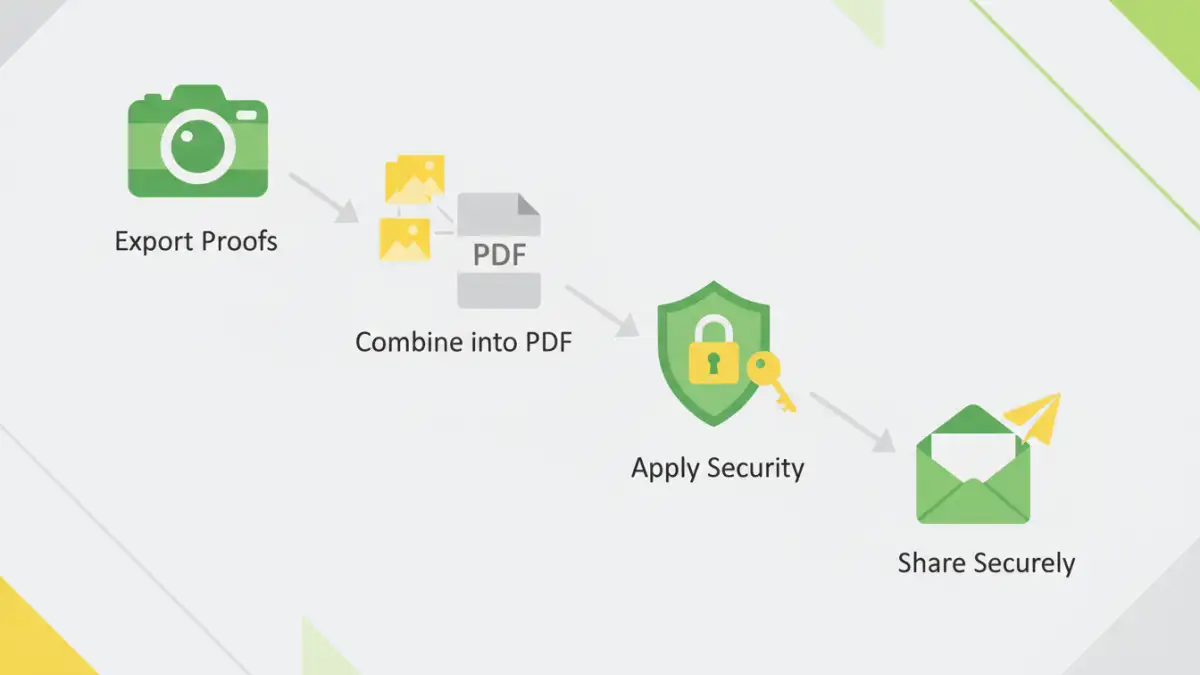
- Export Proofs: Export your watermarked, low-resolution proofs as JPEGs from your editing software like Lightroom or Capture One.
- Combine Files: In Acrobat, use the 'Combine Files into a Single PDF' tool. Add all your exported JPEGs and arrange them in the desired order.
- Set Security: Go to 'File' > 'Properties' > 'Security'. Change the Security Method to 'Password Security'.
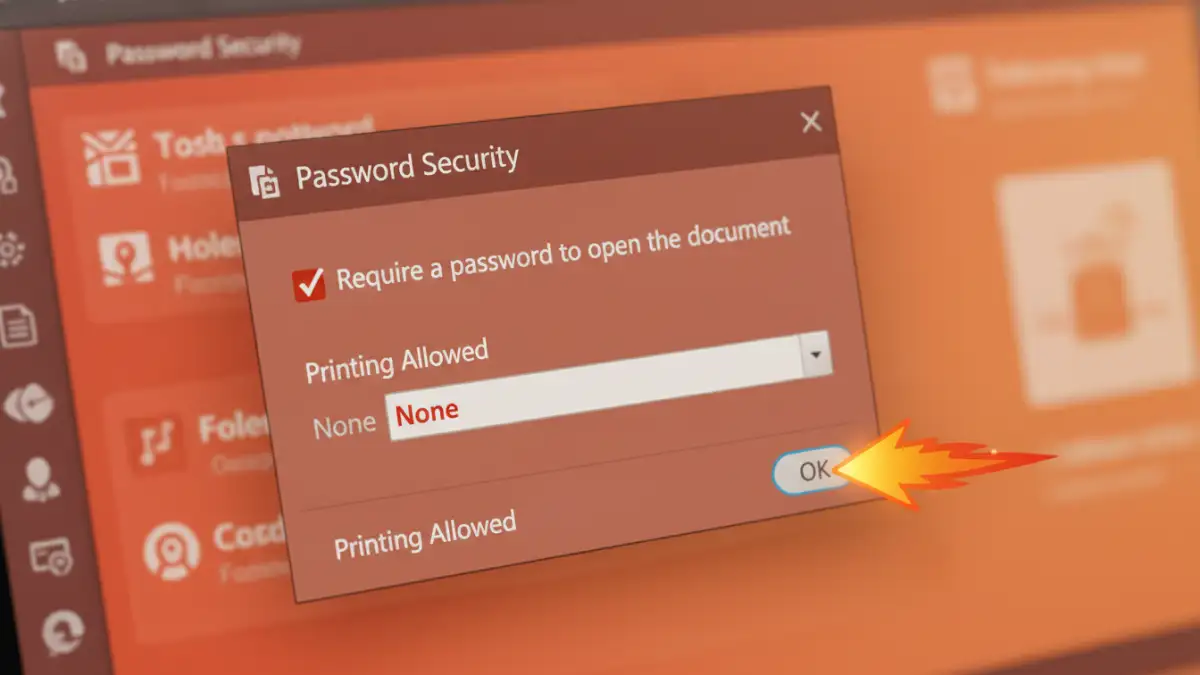
- Configure Permissions: In the settings dialog, check the box for 'Require a password to open the document'. Set a unique, strong password for your client. This is the most critical step to password protect photos inside the document.
- Restrict Editing and Printing: You can also set a 'Permissions' password to restrict actions like printing, copying text and images, or editing the document. This adds another layer of control.
- Save and Send: Save the new secure PDF and send it to your client, sharing the password separately via a different channel (like a text message or phone call) for enhanced security.
Advanced PDF Security Features Beyond Passwords
While a password is a great first line of defense, modern PDF tools offer more granular controls. Taking advantage of these can further safeguard your work. These settings help prevent clients from extracting images or making unauthorized prints from the proofing document.
For example, you can disable the ability to copy and paste content from the PDF entirely. This makes it much harder for someone to lift an image from the file. Combining this with a visible watermark on each photo creates a formidable barrier against misuse.
Using Permissions and Watermarks
Permissions are your best friend for client proofing security. In your PDF security settings, you can specifically disallow printing or allow it only at a low resolution. You can also block any changes to the document, ensuring the proofs are viewed exactly as you intended. To truly encrypt PDF files effectively, you should always review these permissions.
Digital watermarking is also crucial. While you should already be applying a visible watermark in your editing software, adding a text layer in the PDF itself with the client's name or 'PROOF' can be an effective deterrent. It makes the images less appealing for social media sharing and reinforces their draft status.
Best Practices for Client Communication
Technology is only half the battle. How you communicate this process to your client is just as important. Frame it as a standard part of your professional service designed to protect their investment and ensure a smooth review process, not as a sign of distrust.
When you send the file, provide clear, simple instructions on how to open it. Send the password in a separate communication for security. This small extra step shows you are serious about protecting the work you've created for them. Most clients appreciate this level of professionalism and organization.
PDF Security Features Comparison
| Security Feature | What It Does | Best For | Limitations |
|---|---|---|---|
| Open Password (User) | Requires a password to view the document. | Basic access control, preventing unauthorized viewing. | Can be shared along with the file. |
| Permissions Password (Owner) | Restricts actions like printing, copying, or editing. | Preventing misuse of proofs (e.g., printing, image extraction). | Can be bypassed by some advanced software. |
| Visible Watermark | Overlays text or a logo on each image. | Discouraging social media sharing and unauthorized use. | Can sometimes obscure parts of the image if not applied carefully. |
| 128-bit/256-bit AES Encryption | Scrambles the file's content, making it unreadable without the key. | Ensuring the file cannot be accessed by brute force. | Dependent on the strength of the password. |
| Digital Signatures | Verifies the authenticity of the document's creator. | High-value commercial projects or legal contexts. | Generally overkill for standard client proofing. |