A few years ago, I helped my parents organize their paperwork. Tucked away in a dusty file cabinet were decades of life: birth certificates, property deeds, a hand-written will, and old insurance policies. It struck me then—what if something happened and I needed to access these immediately? What if a fire or flood destroyed them? This scenario is what pushed me to create a better, more resilient system for my own family.
The goal isn't just to store files; it's about creating a secure, accessible archive that protects your family's legacy and provides peace of mind. As a software engineer, I naturally gravitated towards a digital solution, but one built on layers of security. It’s a project every family should consider, and it's more straightforward than you might think.
Table of Contents
Why Family File Security is Non-Negotiable
The need for a robust system goes beyond simple organization. In an emergency, having immediate access to medical directives, powers of attorney, or insurance information can be critical. Without a plan, loved ones are left scrambling, adding immense stress to an already difficult situation. A disorganized physical system is vulnerable to loss, theft, and environmental damage.
Conversely, a purely digital system without proper security creates different risks. Unencrypted files stored on a cloud service or a local computer are targets for cybercriminals. The key is to find the right balance—the convenience of digital access combined with the robust protection of modern encryption. This ensures you can share sensitive documents only with the people who need them, when they need them.
Building Your Digital Vault: Core Components
Creating a secure digital vault doesn't require a complex, custom-built server in your basement. It involves using trusted, widely available tools in a thoughtful way. Think of it as assembling a kit with a few essential parts that work together to protect your most important information.
Encrypted Cloud Storage
Standard cloud storage like Google Drive or Dropbox is convenient, but for sensitive files, you need an extra layer of security. The best approach is to use a service that offers end-to-end (or zero-knowledge) encryption. This means that even the service provider cannot access your files. Services like Sync.com or pCloud are built with this principle in mind. Alternatively, you can encrypt personal files yourself before uploading them to a standard cloud service, giving you full control.
A Reliable Password Manager
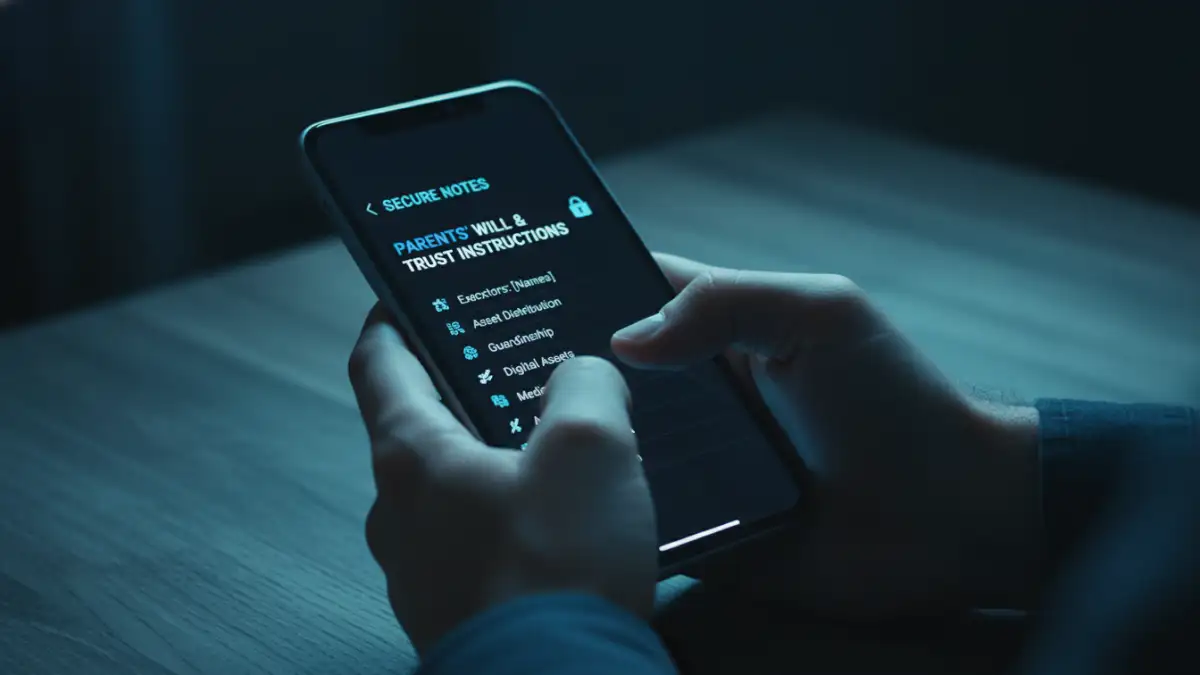
A password manager is the cornerstone of any good digital security plan. Beyond storing passwords, tools like 1Password, Bitwarden, or Dashlane offer 'Secure Notes' or 'Vault' features. This is an excellent place to store information that isn't a document—things like security alarm codes, safe combinations, or instructions for accessing other accounts. Many also allow you to share specific items with a trusted family member or set up an emergency access contact who can request access to your vault after a specified waiting period.
A Step-by-Step Guide to Implementation
Getting started is the hardest part. Breaking the process down into manageable steps makes it much less daunting. Set aside a weekend to tackle this project, and you'll have a functional system in place.
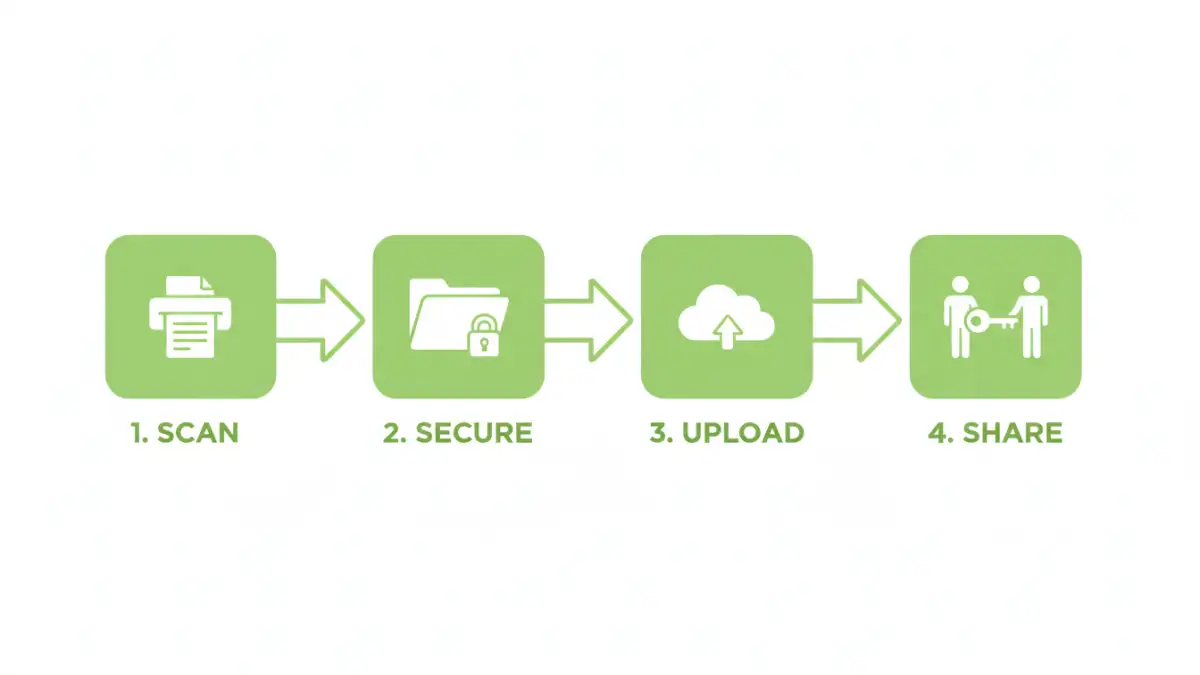
- Gather and Digitize: Collect all your essential physical documents. This includes wills, trusts, deeds, titles, birth/marriage certificates, passports, social security cards, and major insurance policies. Use a good quality scanner or a scanner app on your phone to create high-resolution digital copies (PDF is usually the best format).
- Organize and Name Files: Create a logical folder structure (e.g., 'Financial', 'Legal', 'Personal IDs'). Use a clear, consistent naming convention for your files, like 'Lastname_Firstname_Birth_Certificate_2024.pdf'. This makes finding documents effortless.
- Encrypt Everything: This is the most critical step. Use a tool like VeraCrypt (free, open-source) or the built-in encryption features of your operating system to create an encrypted archive (a .zip or .7z file). Alternatively, encrypt individual documents. For example, you can password protect a will directly within Adobe Acrobat or Microsoft Word before uploading. This ensures that even if your cloud storage is compromised, the files themselves remain unreadable.
- Upload and Share Access: Upload your encrypted archive or files to your chosen secure cloud service. Now, how do you share access? Do not email the password. Instead, share the password with your designated person (spouse, executor) in person or through your password manager's secure sharing feature. The goal is to separate the location of the files from the key to unlock them.
Long-Term Maintenance and Best Practices
Your digital vault is not a 'set it and forget it' system. It requires periodic maintenance to remain useful and secure. Treat it like any other important aspect of your financial or legal planning.
The Annual Review
At least once a year, review the contents of your vault. Have you bought a new property? Updated your will? Has a new child been born? Add new documents and remove outdated ones. Check that your designated emergency contact still has the correct access information and that the password you set is still strong. This is also a good time to ensure your backups are working correctly.
Educating Your Emergency Contacts
It's not enough to simply give someone a password. Walk your designated contact through the process of accessing the files. Ensure they understand where the files are stored, how to retrieve the password from the password manager, and what software they might need to decrypt the files. A short, written instruction sheet stored with your password manager information can be invaluable.
Comparison of Secure Document Sharing Methods
| Method | Security Level | Ease of Access (Emergency) | Cost |
|---|---|---|---|
| Encrypted Cloud Storage (e.g., Sync.com) | High (Zero-Knowledge) | Moderate (Requires login and password) | Low (Free or subscription) |
| Password Manager Vault (e.g., 1Password) | Very High | High (with emergency access feature) | Low (Subscription) |
| Self-Encrypted Archive on Standard Cloud | Very High (You control the key) | Moderate (Requires decryption software) | Low (Free tools available) |
| Encrypted USB Drive (Physical) | High (when encrypted) | Low (Requires physical handoff) | Low (One-time purchase) |