
Manually securing dozens, or even hundreds, of PDF files is a tedious and error-prone task. I've seen teams spend entire afternoons just applying passwords one by one, a process that drains productivity and opens the door to inconsistent security practices. It’s a common bottleneck, especially for departments like legal, finance, and HR that handle large volumes of sensitive information daily.
This manual grind is precisely the problem we set out to solve. After months of development and testing, we're thrilled to introduce a powerful new productivity feature designed to eliminate this repetitive work: batch password protection for your documents.
Table of Contents
The Productivity Bottleneck of Manual Security
For any organization that values data protection, applying security measures to documents is non-negotiable. However, the traditional method of opening each file, navigating to the security settings, entering a password, and saving it creates a significant operational drag. This process doesn't scale well when you're dealing with more than a handful of files.
The risk of human error also increases with volume. An employee might forget to secure a file, use the wrong password, or apply inconsistent permissions, leaving sensitive data vulnerable. This lack of standardization can become a serious compliance issue, especially in regulated industries.
Inconsistent Security Policies
One of the biggest challenges I've observed with manual security is maintaining a uniform policy. When different people are securing documents, they might apply slightly different rules. For instance, one person might restrict printing while another forgets to. This inconsistency undermines the entire purpose of a unified security strategy, creating weak links in your data protection chain.
Introducing Our Batch Password Protection Feature
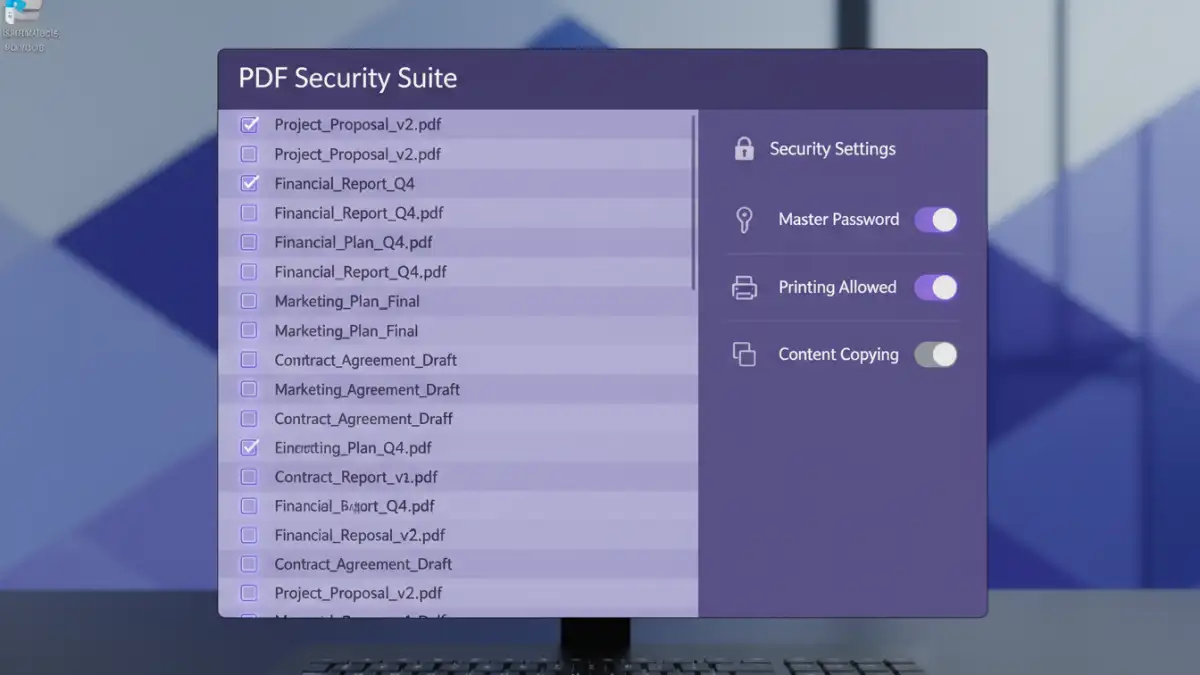
Our new batch processing capability is designed to transform your workflow. Instead of a one-by-one approach, you can now apply uniform security settings to an entire folder of PDF documents in a single operation. This is a core component of a scalable pdf document security strategy.
This feature allows for true bulk pdf encryption. You select a group of files, define your desired security parameters—such as an open password or specific user permissions—and execute the command. The system then methodically applies these settings to every single file in the batch, ensuring every document is protected exactly as you intended.
How It Works: A Simple Workflow
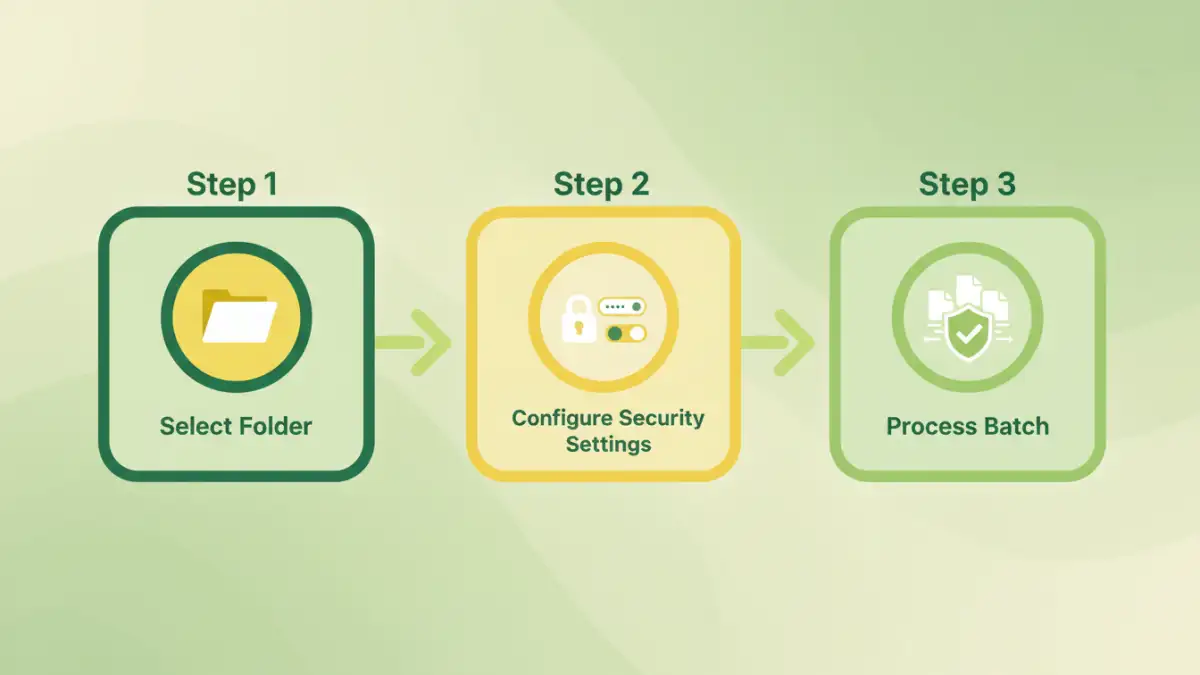
We designed the user experience to be as intuitive as possible, reflecting a simple three-step process. First, you select the source folder containing all the PDFs you need to secure. Second, you configure the security profile. This includes setting a master password and toggling permissions for actions like printing, copying content, or editing. Finally, you click 'Process,' and the tool handles the rest, providing a summary report upon completion.
Key Benefits of Securing Multiple Files at Once
The most immediate benefit is a massive boost in efficiency. What once took hours can now be accomplished in minutes. This frees up your team to focus on more strategic tasks instead of repetitive, low-value administrative work. It's a classic example of how automation can directly impact productivity.
Enhanced Efficiency and Time Savings
Consider a scenario where an accounting team needs to secure 200 quarterly reports before distribution. Manually, at two minutes per file, this would take over six hours of dedicated work. With our batch feature, the entire process can be completed in under five minutes. The time savings are substantial and directly translate to reduced operational costs.
Standardized Security Across All Documents
With batch processing, you eliminate the risk of inconsistent security. By defining a single security template for a batch, you guarantee that every document receives the exact same level of protection. This standardization is crucial for maintaining compliance with internal policies and external regulations like GDPR or HIPAA. It ensures there are no gaps in your document security framework.
Practical Use Cases for Batch Processing
The applications for this new productivity feature span across numerous industries and departments. Any team that handles sensitive documents in volume can benefit immediately.
- Legal Departments: Secure thousands of case files, discovery documents, and client communications with a uniform password policy before sharing them with external counsel.
- Human Resources: Apply batch password protection to employee records, payroll information, and performance reviews to ensure confidentiality and compliance with privacy laws.
- Finance and Accounting: Protect financial statements, invoices, and audit reports before they are archived or sent to stakeholders.
- Research & Development: Secure proprietary research data, patent filings, and technical specifications in bulk to prevent intellectual property theft.
In each of these scenarios, the ability to secure multiple files at once not only saves time but also strengthens the overall security posture of the organization by ensuring no document is left unprotected.
Feature Comparison: Single File vs. Batch Processing
| Aspect | Single File Security | Batch Processing Security |
|---|---|---|
| Time Investment | High; scales linearly with file count | Low; near-constant time regardless of file count |
| Consistency | Prone to human error and variation | Guaranteed uniform security policy |
| Scalability | Poor; becomes unmanageable with large volumes | Excellent; easily handles thousands of files |
| Error Risk | High (missed files, wrong passwords) | Minimal (automated, systematic process) |
| Ideal Use Case | Securing one or two ad-hoc files | Protecting entire project folders, archives, or datasets |