
A project manager I know was recently at a breaking point. Her team was coordinating with a dozen external vendors on a large construction project, and every single deliverable—from blueprints to contracts—arrived as a password-protected PDF. Each vendor used a different password, and the team was wasting hours a day just trying to find the right credential to open a file, often resorting to insecure spreadsheets or frantic Slack messages.
This kind of chaos is more than just an annoyance; it's a significant bottleneck and a security risk. It prompted me to help her design a more intelligent approach. You don't need a complex enterprise solution to solve this. With the right process and a few simple tools, you can create a robust system for managing protected PDF files that saves time and keeps your sensitive data secure.
Table of Contents
The Challenge of Juggling Encrypted Documents
When you're dealing with just one or two protected files, it's easy enough to remember a password or look it up. But when that number climbs to twenty, fifty, or even hundreds across a project, the manual approach falls apart. The core problems are friction and risk. Every time someone needs a document, they have to stop what they're doing and hunt for a password.
This friction leads people to create insecure workarounds. I've seen it all: passwords on sticky notes, in unencrypted text files on a shared drive, or stored in a globally accessible spreadsheet named "Passwords.xlsx." These methods expose sensitive credentials to anyone who gains access to the system, completely defeating the purpose of the original encryption. The goal is to make access both seamless for authorized users and impossible for everyone else.
Building a Centralized Password Management System

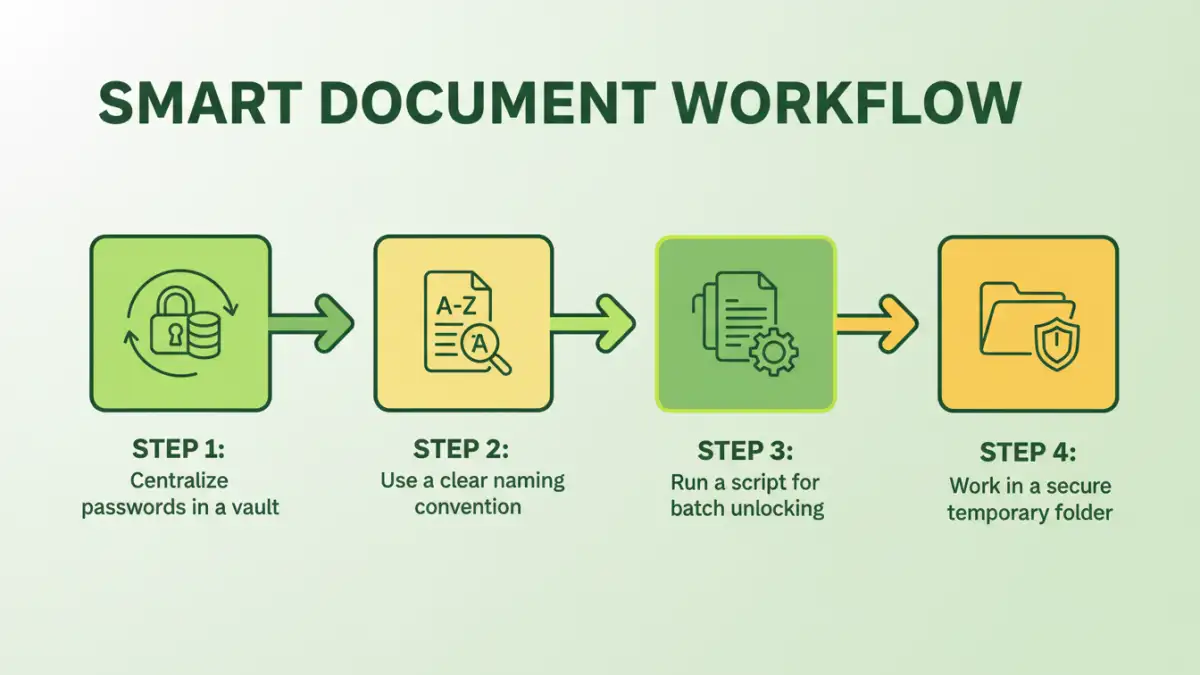
The foundation of any good system is a single, secure source of truth. Instead of scattering passwords across emails and spreadsheets, you need a centralized vault. This is where you can effectively organize encrypted files and their corresponding credentials without compromising security.
Choosing the Right Password Manager
A modern password manager is the perfect tool for this. Applications like 1Password, Bitwarden, or KeePass allow you to create secure, shared vaults for your team. You can store not just the password but also associated metadata, like the vendor name, project ID, or expiration date of the document. Look for a tool that offers robust tagging and custom fields, as this will be crucial for organization.
For instance, you can create a vault dedicated to a specific project. Within that vault, each entry can correspond to a specific vendor or document series. Using the secure notes feature, you can add context, such as who provided the password and what permissions it grants. This turns your password manager into a comprehensive database for your secure project files.
Creating a Naming Convention
Once you have a vault, consistency is key. Establish a strict naming convention for both the files and their corresponding password entries. A logical structure makes it incredibly easy to find what you need. A good format might be: `[ProjectID]_[VendorName]_[DocumentType]_[Date]`. For example: `PROJ123_ArchCorp_Blueprints_2023-10-26`.
The entry in your password manager should have the exact same title. Now, when a team member needs to open that specific file, they can simply copy its name, paste it into the password manager's search bar, and instantly get the correct password. No more guesswork or hunting required.
Automating the Unlocking and Re-securing Process
Centralizing passwords is a huge step forward, but we can make the process even smarter. For teams that need to access and work with dozens of these files at once, manually unlocking each one is still tedious. This is where a little bit of automation can provide a massive productivity boost. This is the core of an effective system for managing protected PDF files at scale.
You can use simple scripts to perform batch operations. For example, a Python script can read a CSV file exported from your password manager (containing file names and passwords) and automatically unlock an entire folder of PDFs, placing the decrypted versions in a temporary, secure working directory. This allows your team to work with the files freely without interruption.
Once the work is done, another script can be used to re-apply passwords before the documents are archived or shared again. You could even apply a single, standardized internal password to the entire batch, simplifying future access for the internal team while maintaining security for external distribution.
Best Practices for a Secure Document Workflow
Implementing a system like this requires more than just tools; it requires good habits and clear guidelines. These document workflow tips will help ensure your system remains secure and efficient over the long term.
- Use Role-Based Access: Only give team members access to the vaults and passwords they absolutely need. Most password managers allow you to set granular permissions.
- Never Share Passwords in Plain Text: Make it a strict policy that passwords are never shared via email, chat, or text. Direct people to the shared vault instead.
- Audit Regularly: Periodically review who has access to your password vaults. Remove access for former employees or team members who have changed roles immediately.
- Train Your Team: A system is only as good as the people who use it. Hold a brief training session to walk everyone through the process, explaining the naming convention and how to use the password manager.
By combining a centralized tool, a logical process, and simple automation, you can transform a chaotic and insecure workflow into a streamlined and secure system. It eliminates the daily frustration and lets your team focus on their actual work.
Tool Comparison for Document Password Management
| Method | Security Level | Efficiency | Best For |
|---|---|---|---|
| Manual (Sticky Notes/Memory) | Very Low | Very Low | 1-2 personal files, not for teams |
| Unsecured Spreadsheet | Very Low | Low | Not recommended for any sensitive data |
| Encrypted Spreadsheet | Medium | Medium | Small teams with a high trust level and technical discipline |
| Dedicated Password Manager | High | High | Most teams; excellent for security and organization |
| Automated Scripting System | Very High | Very High | Teams dealing with a large volume of secure project files |