It’s a scenario I’ve seen play out countless times with colleagues and clients. You dig up an old, critical project file, a signed contract, or an important manual, only to be stopped by a password prompt. Your mind goes blank. That password, set months or even years ago, is completely gone. It’s a frustrating digital dead-end that can bring productivity to a halt.
Before you resign yourself to losing that data, there are several practical approaches you can try. Not all PDF passwords are created equal, and understanding the type of lock you're dealing with is the first step toward finding the right key.
Table of Contents
Understanding the Two Types of PDF Passwords
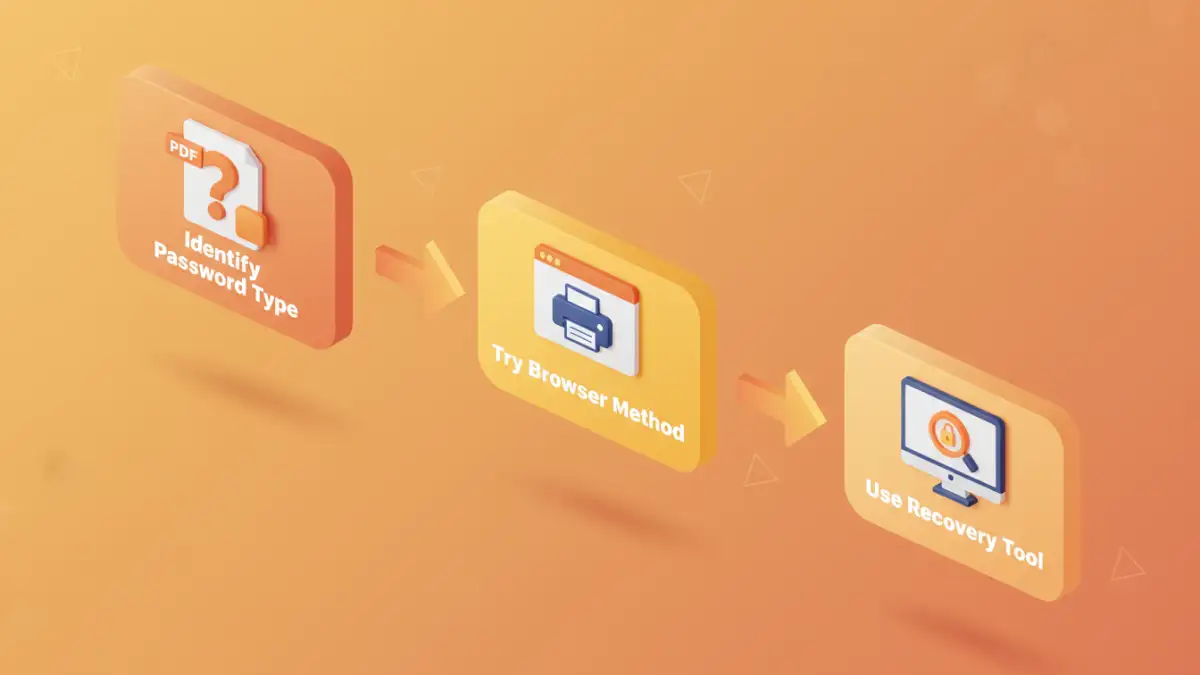
The first thing to determine is what kind of protection you're up against. In the world of PDFs, there are two primary types of passwords, and the recovery method depends entirely on which one was used.
The Owner Password (Permissions Password)
This is the more common and, thankfully, easier one to handle. An owner password doesn't prevent you from opening the file. Instead, it restricts actions like printing, copying text, editing the document, or adding comments. If you can open the PDF but can't do anything with it, you're dealing with an owner password.
The User Password (Open Password)
This is the tougher nut to crack. A user password encrypts the entire file and prevents anyone from opening it without the correct credentials. If you can't even view the document's contents, it's locked with a user password. Recovering from this is significantly more complex and often requires specialized software.
Simple Methods for Owner Passwords
If you're dealing with a forgotten permissions password, you're in luck. There are a couple of straightforward tricks that often work because they essentially create a new, unrestricted copy of the document.
The Browser 'Print to PDF' Method
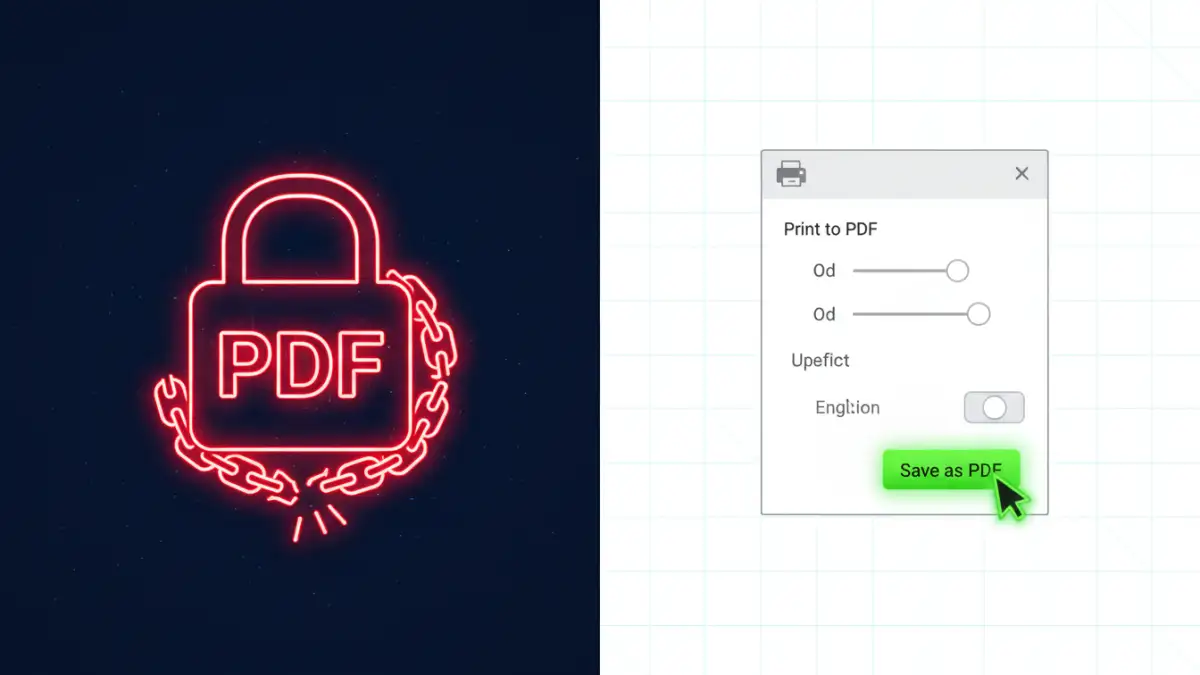
This is my go-to first step and it works surprisingly often. Modern web browsers like Google Chrome, Firefox, and Microsoft Edge have a built-in function to "print" any webpage or viewable document as a new PDF. Since you can already open the file, the browser can render its contents and save them into a fresh file without the original restrictions.
- Open the password-protected PDF in your web browser. You can usually do this by dragging and dropping the file into an open browser window.
- Once the document is displayed, press Ctrl+P (on Windows) or Cmd+P (on Mac) to open the print dialog.
- In the 'Destination' or 'Printer' dropdown menu, select "Save as PDF".
- Click 'Save' and choose a new name and location for the file.
The new PDF you just created should be a perfect copy of the original, but without any of the printing or editing restrictions. This is a clean, software-free solution for a forgotten document password of the owner type.
Using Google Drive or Other Cloud Viewers
Similar to the browser method, uploading the file to a cloud service like Google Drive can sometimes strip away owner-level permissions. Simply upload the PDF to your Google Drive, open it in the built-in viewer, and then use the download or print option to save a new version. The service processes and re-renders the file, often creating a clean copy in the process.
Using Online PDF Password Recovery Tools
When the browser trick doesn't work, numerous websites offer to unlock PDF file services. You upload your document, their server processes it, and you can download the unlocked version. They are convenient and often free for basic tasks.
However, a word of caution from an engineering perspective: privacy. When you upload a document to a third-party server, you lose control over that data. I would never recommend using these services for PDFs containing sensitive personal, financial, or proprietary information. For non-sensitive files, they can be a quick fix, but always read their privacy policy first. Reputable services will state that they delete your files from their servers after a short period.
Advanced Solutions for User Passwords
What if you can't open the file at all? This is where you need more powerful tools. When you've truly forgotten a user password, the only option is to try and recover it using dedicated desktop software. These applications use computational methods to guess the password.
The two primary techniques are:
- Brute-Force Attack: The software tries every possible combination of letters, numbers, and symbols. This can take an incredibly long time—from hours to years—depending on the password's length and complexity.
- Dictionary Attack: The software tries words from a list (a "dictionary"), including common passwords, names, and variations. This is much faster if the password is a common word or phrase.
Using this type of software requires a local installation and can be resource-intensive, but it's the only viable path for recovering strongly encrypted files when the password is lost.
Best Practices for Future Password Management
The best way to solve this problem is to prevent it from happening again. Instead of relying on memory, use a password manager. These tools securely store all your passwords in an encrypted vault. You only need to remember one master password to access the rest.
When you create a password for a new PDF, you can generate a long, complex, and random one using the manager and save it with a descriptive name like "Project Alpha Contract PDF - 2023." This way, you never have to worry about a forgotten document password again. It's a fundamental security practice I recommend to everyone.
PDF Password Recovery Method Comparison
| Method | Pros | Cons | Best For |
|---|---|---|---|
| Browser 'Print to PDF' | Free, fast, no software needed, secure (file stays local) | Only works for Owner (permissions) passwords | Quickly removing restrictions on printing or copying |
| Online Tools | Convenient, easy to use, often free | Major privacy and security risks, file size limits | Non-sensitive documents with Owner passwords |
| Desktop Software | Can recover User (open) passwords, powerful | Often paid, can be slow, requires technical knowledge | Critical documents with a forgotten User password |
| Password Manager | Prevents future password loss, highly secure | Requires setup and adoption of a new tool | Proactively managing all document passwords |