Dealing with slow network speeds can turn simple tasks like sharing a PDF document into a frustrating ordeal. Whether you're sending a report to a client or collaborating on a project with colleagues, persistent delays can disrupt workflows and impact productivity. I've encountered this many times, especially when working with distributed teams or in environments with limited bandwidth.
The challenge often lies in the size of PDF files, which can be deceptively large, and the inherent limitations of network infrastructure. Fortunately, there are several effective strategies and troubleshooting steps we can employ to overcome these obstacles and ensure smooth pdf file sharing, even when the network is struggling.
Table of Contents
Understanding Network Performance Factors
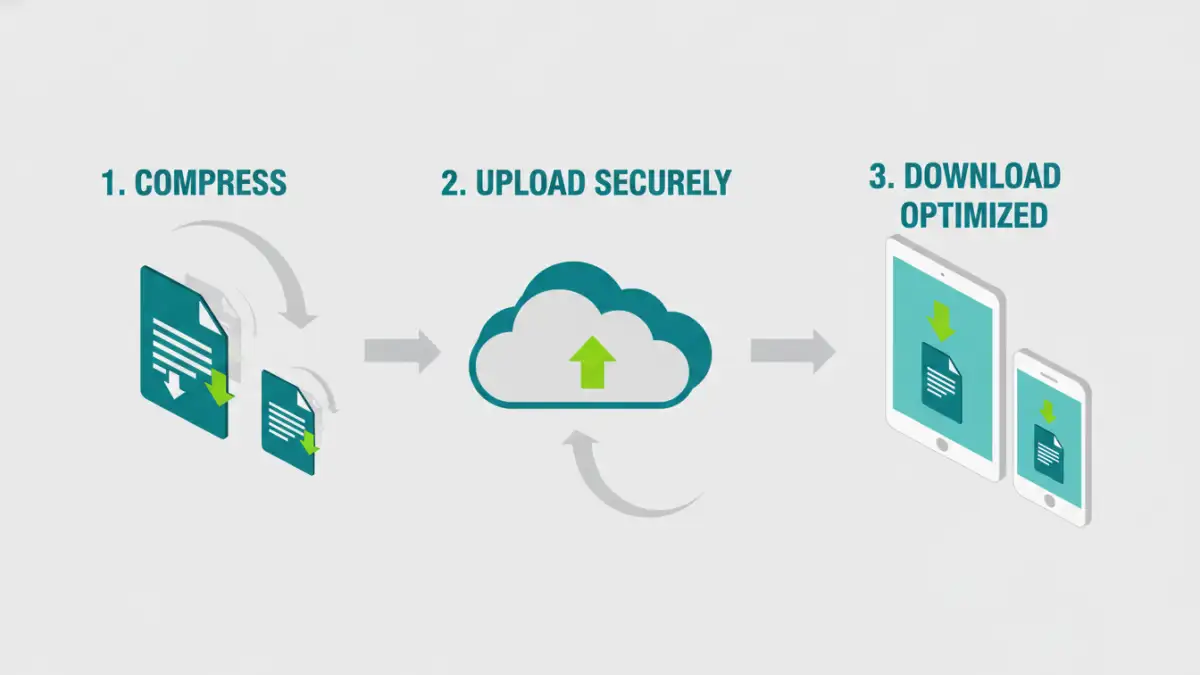
Before diving into solutions, it's crucial to understand what contributes to slow file transfers. Network congestion is a primary culprit. When too many devices or applications are vying for bandwidth, it creates a bottleneck, slowing down all data traffic. This is especially true for larger files like PDFs.
Another factor is the physical distance and the quality of the network infrastructure. Older routers, long cable runs, or unreliable Wi-Fi signals can all degrade performance. Understanding these basics helps us pinpoint where the problem might lie.
Bandwidth and Latency Explained
Bandwidth refers to the maximum amount of data that can be transferred over a network connection in a given time. Latency, on the other hand, is the time it takes for a data packet to travel from its source to its destination. High latency can make transfers feel sluggish, even with adequate bandwidth, as each segment of the file transfer experiences delays.
Optimizing PDF Files for Transfer

Often, the simplest solution is to reduce the size of the PDF file itself. Large PDFs can contain high-resolution images, embedded fonts, or unnecessary metadata that bloat their file size. By optimizing these elements, we can significantly improve transfer speeds.
Many tools are available to help with this. You can use built-in features in PDF software or dedicated online services to compress your documents. This process often involves downsampling images, removing redundant data, and optimizing font embedding.
Compression Techniques
PDF compression works by intelligently reducing the data needed to represent the document. Common methods include image compression (like JPEG for photos or ZIP for graphics), removing duplicate objects, and subsetting fonts (embedding only the characters used in the document). Choosing the right compression level is key – you want to reduce size without sacrificing readability or essential detail.
Network Troubleshooting Steps
When optimization isn't enough, it's time to look at the network itself. A systematic approach can help identify and resolve network issues. Start with the simplest checks and move towards more complex ones.
First, try transferring the file at a different time when network traffic might be lower. If possible, test the transfer speed using a reliable speed test tool. Also, consider if the issue is specific to PDFs or affects all file types; this can indicate whether the problem is with the file or the network.
Local Network Checks
On your local network, rebooting your router and modem can often resolve temporary glitches. If using Wi-Fi, try moving closer to the router or connecting via an Ethernet cable for a more stable connection. Ensure no other large downloads or uploads are consuming bandwidth simultaneously.
Alternative Sharing Methods
Sometimes, the best way to circumvent slow network issues is to use alternative sharing methods. Instead of direct email attachments, consider cloud storage services or file transfer platforms designed for larger files.
Services like Google Drive, Dropbox, OneDrive, or specialized large file transfer services (like WeTransfer) often handle large files more efficiently and can be more reliable over unstable connections. These platforms typically offer better compression and resilience against network interruptions.
Best Practices for Smooth Sharing
To avoid future pdf file sharing headaches, adopt some best practices. Always consider the recipient's network conditions. If you know they have slow internet, send a smaller, optimized version or use a cloud link.
Regularly review your network setup and consider upgrades if performance is consistently poor. Educate your team on file optimization techniques. Implementing these habits can save a lot of time and frustration.
Comparison Table: PDF Sharing Strategies on Slow Networks
| Method | Pros | Cons | Best For |
|---|---|---|---|
| PDF Compression | Reduces file size, improves transfer speed. | May slightly reduce quality, requires extra step. | Most PDF sharing scenarios. |
| Cloud Storage Links | Handles large files, accessible anywhere, version control. | Requires an account, recipient needs internet access. | Collaboration, large file distribution. |
| Direct Email (Optimized PDF) | Simple and direct for smaller files. | Email size limits, can be slow for large PDFs. | Small, non-critical documents. |
| Dedicated File Transfer Services | Designed for large files, often faster, tracking options. | May have limits on free tiers, requires external service. | Very large files, business use. |
| Network Troubleshooting | Addresses underlying network issues, improves overall speed. | Can be complex, may require IT support. | Persistent slow speeds affecting all file types. |