Working with password-protected documents can be frustrating, especially when you encounter unexpected roadblocks. I've often seen colleagues get stuck trying to access an important encrypted PDF, only to realize the issue isn't with the password itself, but with the underlying network connectivity that's preventing the security handshake from completing. This guide aims to help you diagnose and resolve these common problems.
Secure PDF access relies on a stable connection to verify credentials or download necessary security components. When this connection falters, even a correctly entered password won't grant you entry. Understanding the interplay between your network and document security is key to resolving these frustrating pdf access issues.
Table of Contents
Understanding the Basics of Secure PDF Access
Secure PDF access typically involves one of two primary mechanisms: password protection applied directly to the file, or document management systems that control access via a network. In the case of simple password protection, the PDF reader software handles the decryption locally. However, if the PDF is part of a larger system, or requires an online license verification, network connectivity becomes paramount.
How Network Impacts Security
When a PDF requires online authentication, your device needs to communicate with a server. This communication could be for license checks, user authentication, or downloading specific security certificates. Any interruption in this communication channel, whether due to a faulty Wi-Fi, a misconfigured firewall, or a server outage, will prevent secure PDF access. It's not always about the password; it's about the system's ability to confirm you're authorized.
Common Network Connectivity Problems

Several network-related issues can interfere with your ability to access secure PDFs. These range from simple, everyday glitches to more complex configuration problems. Identifying the specific type of network connectivity problem is the first step toward a resolution.
Wi-Fi and Internet Stability
The most frequent culprit is an unstable or unavailable Wi-Fi connection. If your internet connection is intermittent, packets of data needed for the security handshake might be lost, leading to failed access. Similarly, a complete loss of internet means no communication with any online services that the PDF might rely on.
Firewall and Proxy Restrictions
Corporate or personal firewalls, as well as proxy servers, are designed to control network traffic. Sometimes, these security measures can be overly aggressive and block the specific ports or protocols required for secure PDF access. This often happens in office environments where network policies are strict.
VPN Interference
While Virtual Private Networks (VPNs) are crucial for security in many contexts, they can sometimes interfere with local network services or specific application connections. If you're using a VPN and experiencing pdf access issues, try disabling it temporarily to see if that resolves the problem.
Step-by-Step Troubleshooting Methods
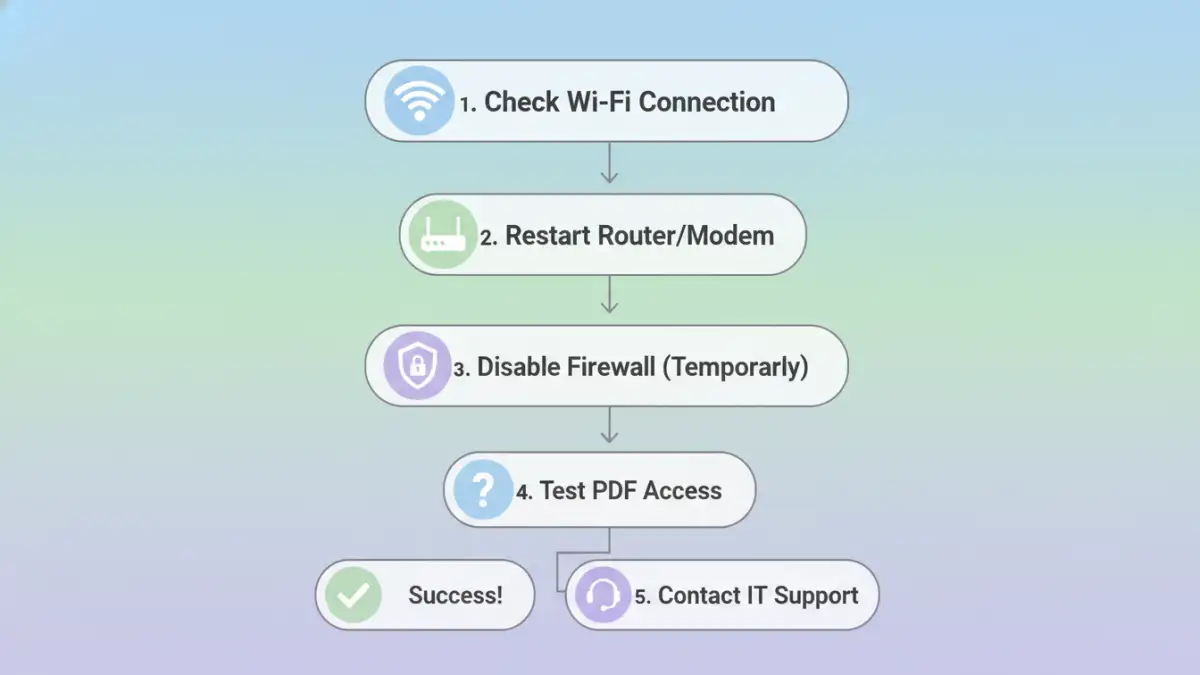
When you encounter problems accessing a secure PDF, a systematic approach to troubleshooting network connectivity is essential. Start with the simplest checks and gradually move to more complex solutions.
Basic Connectivity Checks
First, ensure your internet connection is active and stable. Try browsing other websites or using other online applications. If these work, the issue might be specific to the PDF access. Restarting your router and modem can often resolve temporary glitches. Ensure your device's Wi-Fi is enabled and connected to the correct network.
Check PDF Reader and Permissions
Sometimes, the PDF reader software itself might have issues communicating with the network or might need an update. Ensure you are using the latest version of your PDF reader. Also, verify that the software has the necessary permissions to access the network, especially if it's running in a restricted environment.
Firewall and Antivirus Settings
Temporarily disable your firewall and antivirus software to see if they are blocking the access. If disabling them resolves the issue, you'll need to configure these programs to allow your PDF reader or the specific service it relies on. Remember to re-enable them afterward for continued protection.
Advanced Solutions and Best Practices
For persistent issues, or in more complex environments, advanced troubleshooting might be necessary. These steps often require a deeper understanding of network configurations.
Testing Different Networks
If possible, try accessing the secure PDF from a different network, such as a public Wi-Fi hotspot or a mobile hotspot from your phone. This helps determine if the problem is specific to your current network environment.
Consulting IT Support
In a corporate setting, network issues are often managed by an IT department. If you suspect a firewall, proxy, or network policy is the cause, reaching out to your IT support team is the most efficient way to get it resolved. They can check server logs and network configurations.
Verifying Document Server Status
If the secure PDF relies on a specific online service or document management system, check if that service is experiencing an outage. The provider often has a status page or social media updates regarding known issues.
Comparison Table: Network Troubleshooting Methods
| Method | Pros | Cons | When to Use |
|---|---|---|---|
| Restart Router/Modem | Simple, quick, resolves many common glitches | May not fix complex configuration issues | Initial step for any connectivity problem |
| Check Wi-Fi Connection | Essential for wireless access | Doesn't address wired or software-specific issues | When other devices on the network also have issues |
| Temporarily Disable Firewall/Antivirus | Quickly identifies if security software is the blocker | Requires re-enabling; potential security risk if left off | When basic checks fail and specific software access is blocked |
| Test on Different Network | Isolates whether the issue is network-specific | Requires access to alternative networks | To differentiate between local network issues and broader problems |
| Contact IT Support | Expert diagnosis and resolution for corporate networks | Can involve wait times; requires clear problem description | For persistent issues in managed environments or complex configurations |
Addressing secure PDF access failures often boils down to systematically checking your network environment. By following these steps, you can effectively troubleshoot and resolve most connectivity-related issues, ensuring you can access your important documents without further frustration.