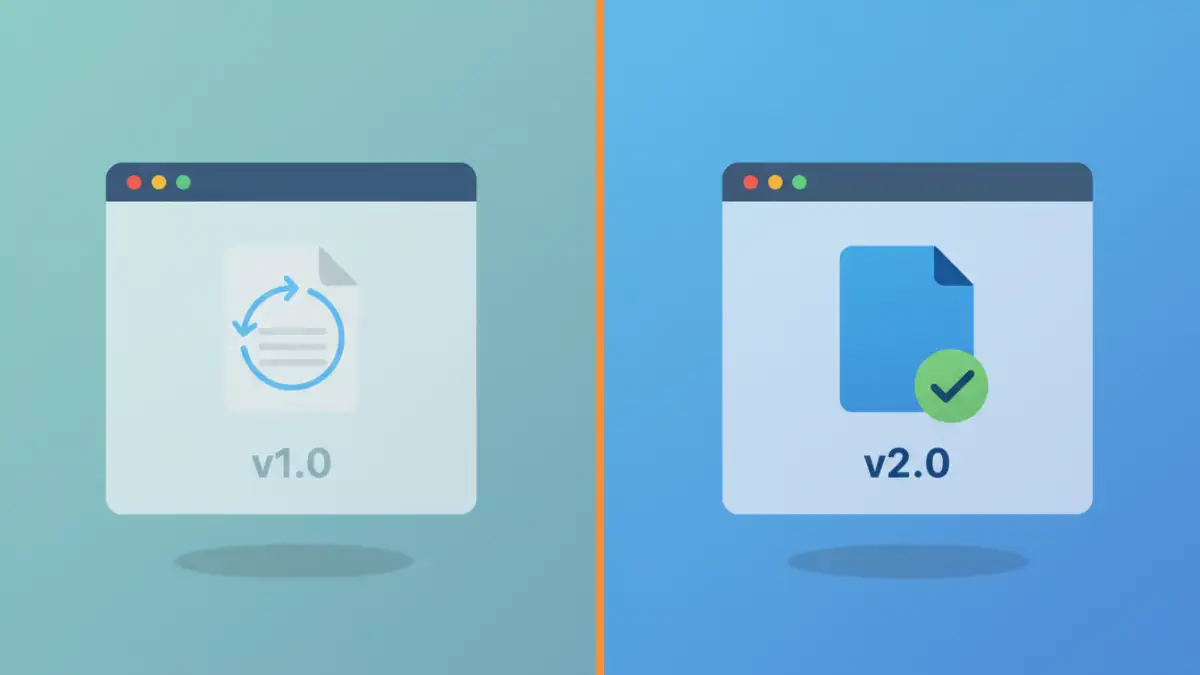
I was helping a colleague in the finance department who was pulling their hair out. They had just updated a sensitive quarterly report, uploaded it to their secure portal, but every time they clicked the link, the browser stubbornly displayed last quarter's version. This wasn't just an annoyance; it was a potential compliance risk. This is a classic example of a file version mismatch caused by aggressive browser caching, a problem that frequently trips people up when dealing with secure or frequently updated files.
The browser's attempt to be helpful by speeding up your experience can sometimes work against you, especially with password-protected or access-controlled documents. Understanding why this happens is the first step to quickly resolving it and ensuring you're always looking at the correct file.
Table of Contents
What Is Browser Caching and Why It Affects Secure Files?
At its core, browser caching is a performance feature. When you visit a website or access a file, your browser downloads copies of assets—images, stylesheets, and even documents like PDFs—and stores them on your local machine. The next time you access that same resource, the browser can load it from the local cache instead of re-downloading it, which is significantly faster.
However, this efficiency creates problems when a file on the server is updated but has the same name or URL. The browser, trying to be smart, sees the familiar URL and says, "I have this already!" and serves you the old, cached copy without ever checking the server for a newer version. This leads to the frustrating experience where the browser is showing an old PDF version despite a new one being available.
The Role of Caching Headers
Web developers use something called 'HTTP cache headers' to give browsers instructions on how to cache specific files. These headers can tell a browser to cache a file for a day, a year, or not at all. For static assets like logos that rarely change, long cache times are great for performance. But for dynamic or sensitive documents that are updated regularly, incorrect cache headers can cause significant issues.
Why Secure Documents Are Tricky
Secure documents add another layer of complexity. Sometimes, servers are configured to send aggressive caching instructions to reduce load, not realizing that these documents might be updated frequently. The secure nature of the file doesn't inherently change how a browser caches it; the browser only cares about the URL and the caching instructions it receives from the server.
Recognizing the Symptoms of a Caching Problem
Identifying a caching issue is usually straightforward once you know what to look for. The most common symptom is a clear file version mismatch. You know for a fact that a new version of a document has been uploaded, but you're still seeing the old one. This can manifest in several ways:
- Data in a report is outdated.
- Text or images you know were changed are still the same.
- A colleague can see the new version on their computer, but you can't.
- The file's 'last modified' date appears incorrect when viewed in the browser.
If you experience any of these, a caching problem is the most likely culprit. It's not that the server is failing; it's that your browser isn't even asking the server for the new file.
Step-by-Step Fixes for Outdated Documents
When you need to see the latest version of a file right now, you have several reliable methods to bypass the cache. Here are the most effective techniques, from simplest to most thorough.
Method 1: The Hard Refresh
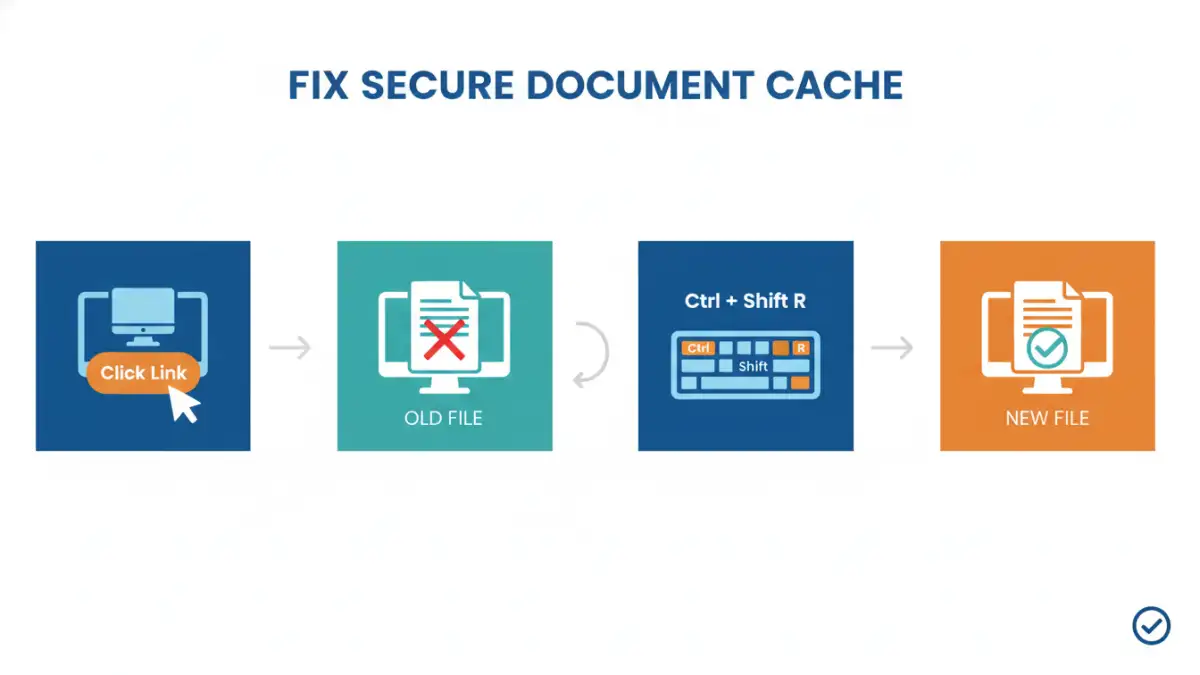
A standard refresh (clicking the refresh button or pressing F5) often isn't enough because it may still load some elements from the cache. A 'hard refresh' forces the browser to ignore its cache for the current page and re-download everything from the server. This is the quickest way to force refresh a secure file.
- On Windows/Linux: Press Ctrl + Shift + R or Ctrl + F5.
- On Mac: Press Cmd + Shift + R.
This single command solves the problem about 80% of the time in my experience. It's the first thing I tell anyone who reports seeing an old file.
Method 2: Clear Cache for One Site
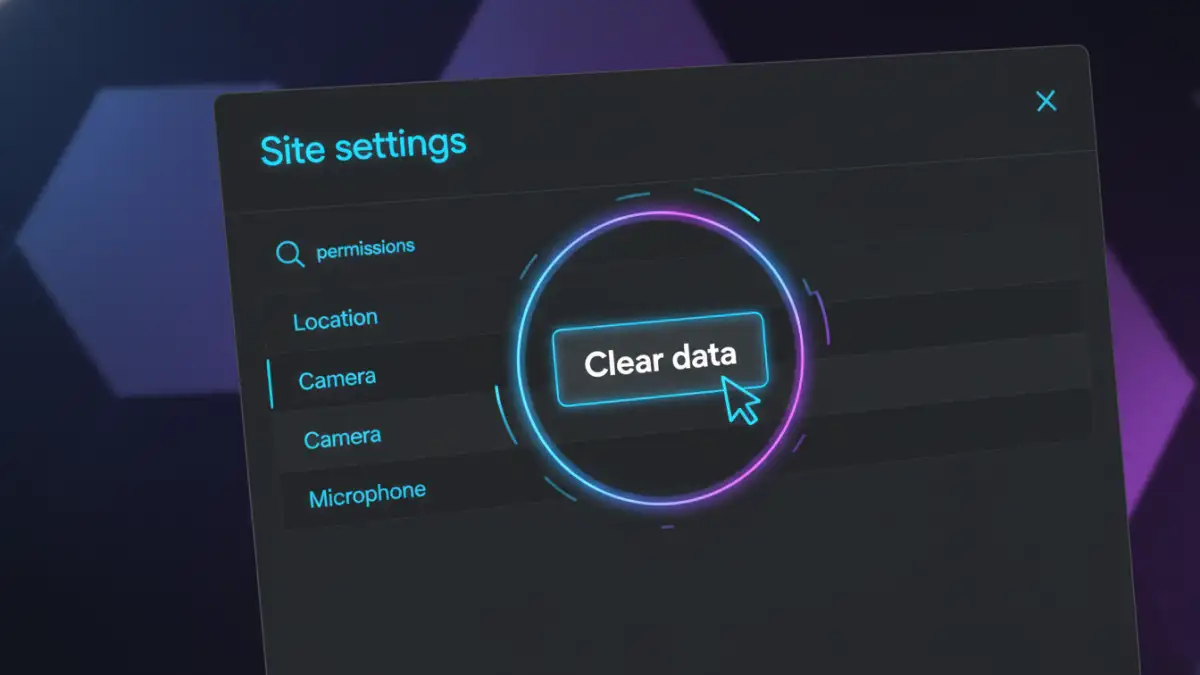
If a hard refresh doesn't work, the next step is to surgically remove the cached data for just the website you're on. This avoids the inconvenience of clearing your entire browser cache, which would log you out of all other websites. To clear cache for one site in Google Chrome:
- Click the lock icon in the address bar.
- Select 'Site settings'.
- On the settings page, click 'Clear data'.
- Confirm the action. Go back to the page and refresh it normally.
This is a more targeted approach that is highly effective when a simple hard refresh fails, especially if multiple files from the same domain are cached incorrectly.
For Developers: Preventing Caching Issues at the Source
While users can fix the issue on their end, the best solution is preventing it from happening in the first place. If you manage the server or application hosting the secure documents, you can implement strategies to control the secure document cache behavior.
One common technique is 'cache busting'. This involves adding a unique query string, like a version number or a timestamp, to the file's URL (e.g., `document.pdf?v=1.1`). When the file is updated, you change the query string (`document.pdf?v=1.2`). To the browser, this looks like a completely new URL, forcing it to download the file fresh from the server and bypassing the cache entirely. You can also configure server-side cache-control headers (`Cache-Control: no-cache, no-store, must-revalidate`) to explicitly tell browsers not to store a local copy of sensitive files.
Comparison of Cache Clearing Methods
| Method | How It Works | Pros | Cons |
|---|---|---|---|
| Hard Refresh (Ctrl+Shift+R) | Forces the browser to re-download all assets for the current page. | Very fast and easy; solves most common issues. | May not clear all types of cached data; page-specific. |
| Clear Cache for One Site | Deletes all stored data (cache, cookies) for a specific domain. | Targeted and effective; doesn't affect other websites. | Requires a few more clicks; logs you out of that specific site. |
| Incognito/Private Mode | Opens a temporary session with no pre-existing cache or cookies. | Excellent for testing; guarantees a fresh download. | Temporary; doesn't fix the underlying cache issue in your main browser. |
| Developer Tools (Disable Cache) | Prevents caching as long as the developer tools panel is open. | Guaranteed to work; great for debugging. | Requires technical knowledge; only active when tools are open. |