
Working with password-protected documents can be frustrating, especially when those protections unexpectedly fail, particularly across a network. Whether it's a colleague unable to open a shared file or a system process failing due to an inaccessible encrypted resource, these glitches can halt productivity. Understanding the common pitfalls and having a systematic approach to resolving them is key to maintaining smooth operations.
Table of Contents
Understanding Common Failures
Document encryption failures can stem from various sources, often a combination of software, user error, and environmental factors. The most frequent culprit is incorrect password entry, but this is often just the tip of the iceberg. Sometimes, the encryption software itself might have a bug or compatibility issue with the operating system or other applications.
Password Management Issues
A significant portion of encryption problems arises from how passwords are managed. Users might forget complex passwords, use outdated ones, or encounter issues with password expiration policies. If the password used during encryption is lost or corrupted, the document becomes inaccessible. This highlights the importance of robust password management strategies and secure storage for encryption keys.
Network-Specific Issues

When dealing with document encryption over a network, additional layers of complexity are introduced. Network latency, permission issues, or even firewall configurations can interfere with the encryption and decryption processes. A file that opens perfectly on a local machine might fail when accessed from a network share due to these environmental factors.
Permissions and Access Control
Network shares often have granular permission settings. If the user account attempting to access an encrypted file lacks the necessary read or execute permissions for the file or the folder it resides in, the encryption process might appear to fail. This is distinct from a password failure but can present similarly to an end-user.
Interference from Network Security Software
Antivirus software, intrusion detection systems, or other network security tools can sometimes misinterpret legitimate encryption/decryption processes as malicious activity. They might quarantine the file, block access to it, or interfere with the encryption software's operation, leading to apparent failures.
Step-by-Step Troubleshooting
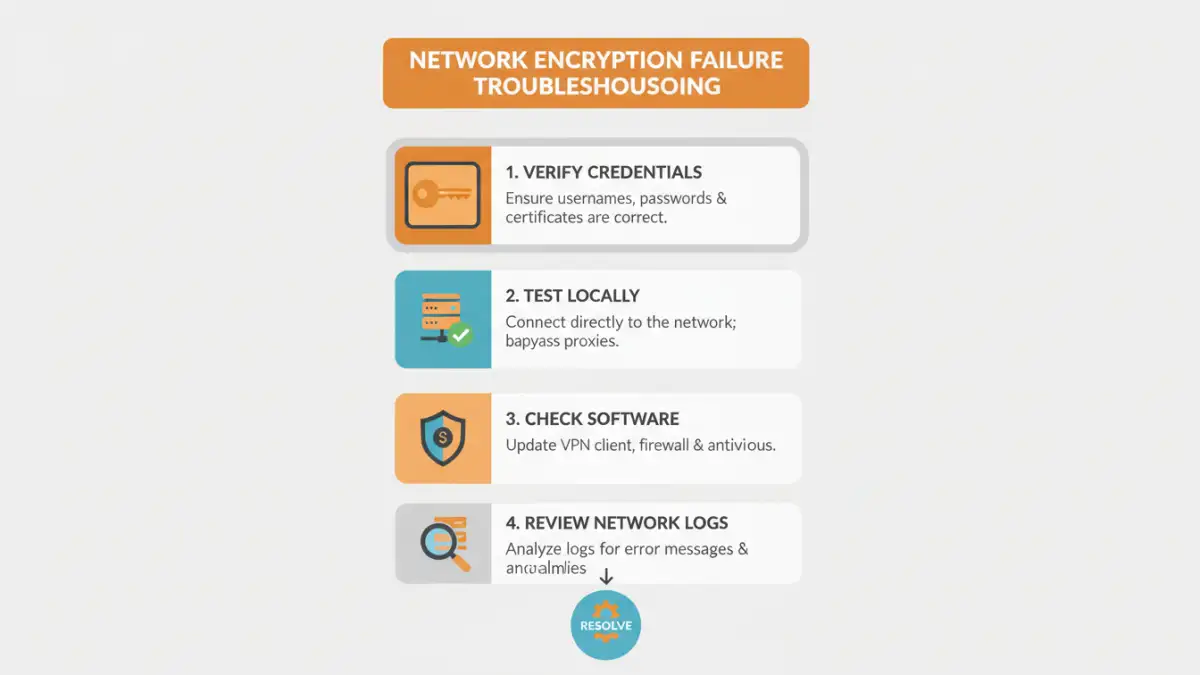
When faced with a document encryption failure on a network, a methodical approach is crucial. Start with the simplest potential causes and gradually move to more complex ones. This systematic process helps pinpoint the exact issue without causing unnecessary disruption.
1. Verify Credentials and Access
The first step is always to confirm the correct password is being used. If the document is on a network share, verify that the user has the appropriate network permissions to access the file and its containing folder. Try accessing other files on the same share to rule out broader network access issues.
2. Test Locally
Attempt to copy the encrypted file from the network location to a local drive on your machine and try to open it there. If it opens successfully locally, the issue is almost certainly network-related (permissions, latency, security software interference). If it still fails locally, the problem likely lies with the file itself or the encryption software/method used.
3. Check Encryption Software and Versions
Ensure the encryption software is up-to-date and compatible with the operating system. Sometimes, a mismatch in encryption versions between the encrypting and decrypting machines can cause problems, especially with older or proprietary encryption schemes. Verify that both ends are using compatible software or standards.
4. Examine Network Security Logs
If network interference is suspected, review the logs of your antivirus, firewall, or other network security appliances. Look for any blocked access attempts, quarantined files, or suspicious activity related to the encrypted document or the software used to access it.
5. Consider File Corruption
In rare cases, the encrypted file itself might have become corrupted, either during transmission over the network or due to storage media issues. If you have a backup or an unencrypted version available, this can help diagnose if the issue is with the specific encrypted file. Data recovery tools might be an option for severely corrupted files.
Preventative Measures and Best Practices
Preventing document encryption failures is often more efficient than fixing them. Implementing a few best practices can significantly reduce the likelihood of encountering these issues, especially in a networked environment. Consistent application of these principles ensures smoother operations and better data security.
Standardize Encryption Methods
Where possible, standardize on a few reliable encryption tools or methods across the organization. This reduces compatibility issues and simplifies troubleshooting. Educate users on the correct procedures for encrypting and sharing files, emphasizing secure password practices.
Maintain Up-to-Date Software and Permissions
Regularly update all encryption software, operating systems, and network security tools. Ensure network permissions are correctly configured and reviewed periodically. Clear documentation of encryption policies and procedures is vital for all users.
Comparison Table: Encryption Methods and Network Considerations
| Method | Pros | Cons | Network Impact |
|---|---|---|---|
| Built-in OS Encryption (e.g., BitLocker, FileVault) | Integrated, strong security | OS-dependent, can be complex to manage across networks | Requires OS support, can impact network drive performance if not configured correctly |
| Third-Party Encryption Software (e.g., VeraCrypt, AxCrypt) | Feature-rich, cross-platform options | Requires installation, potential licensing costs | Can be firewall-sensitive, version compatibility is key |
| Cloud Storage Encryption (e.g., OneDrive, Google Drive) | Seamless integration, automatic syncing | Relies on provider security, potential for vendor lock-in | Dependent on internet connection, potential for sync conflicts |
| Container-based Encryption (e.g., Encrypted Zip/RAR) | Widely compatible, simple to use | Less robust for dynamic file access, requires re-compression/extraction | Can be slow for large files over network, requires correct archive utility |