You click a link to a PDF, and instead of a clean document, you're met with a garbled mess of text, a blank white page, or a frustrating error message. It’s a common hiccup that can disrupt your workflow, especially when you're trying to access an important invoice, report, or manual. Most of the time, the problem isn't with the PDF file itself but with how the browser is trying to render it.
As a software engineer, I've seen this issue pop up in various forms. The Firefox built in PDF viewer, which is powered by a JavaScript library called PDF.js, is incredibly convenient but can occasionally stumble on complex or uniquely formatted documents. Fortunately, fixing these rendering problems is usually straightforward once you know where to look.
Table of Contents
Understanding Why PDF Display Errors Happen
Before diving into solutions, it helps to understand why a PDF not displayed correctly in Firefox is a recurring issue for some users. The browser's viewer is designed for speed and convenience, but this approach sometimes conflicts with the vast complexity of the PDF format. Unlike a simple image, a PDF can contain layers, special fonts, vector graphics, and complex scripts.
The Role of PDF.js
Firefox uses an open-source project called PDF.js to render PDF files directly in the browser without needing a plugin like Adobe Reader. This technology is fantastic for accessibility and security, as it sandboxes the document within the browser. However, it's essentially a re-implementation of a PDF reader in web technologies, and sometimes it can't perfectly interpret every proprietary or non-standard feature a PDF might contain.
Common Triggers for Display Errors
Several factors can cause the viewer to fail. A corrupted browser cache might be serving a broken version of the file. The web server hosting the PDF could be misconfigured, sending incorrect information to the browser. In other cases, a secure pdf rendering issue arises from complex encryption or dynamic forms that PDF.js doesn't fully support. Finally, conflicts with browser extensions or hardware acceleration can also be the culprit.
Immediate Troubleshooting Steps
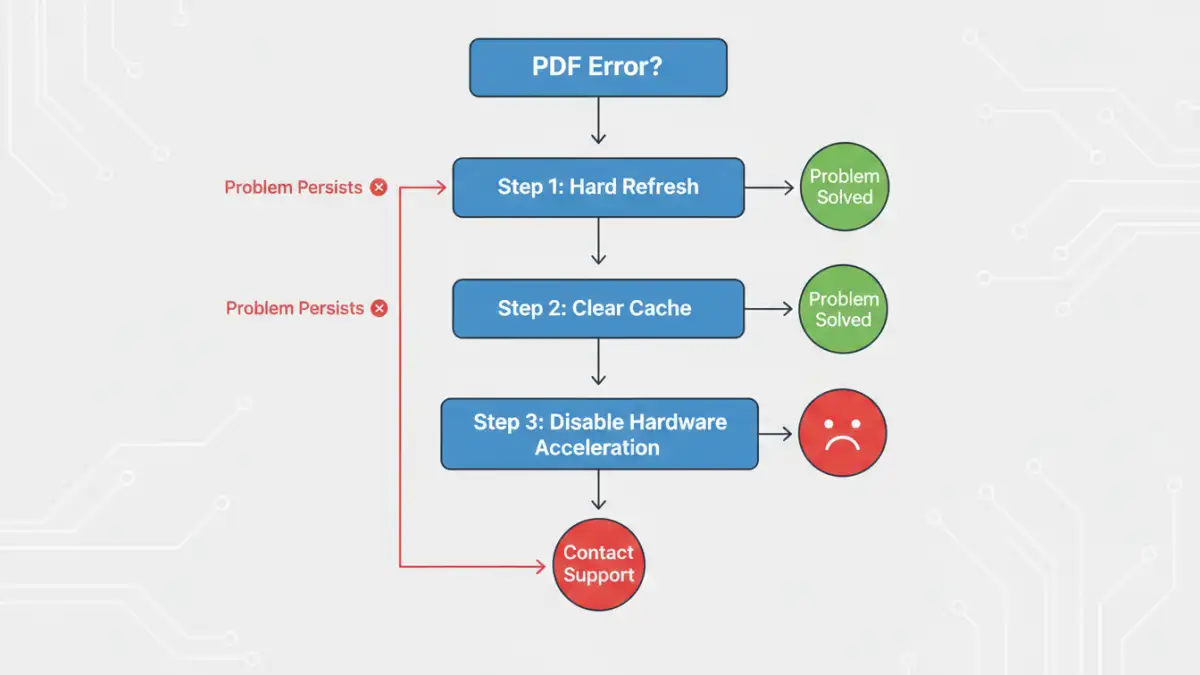
When you encounter a broken PDF, start with the simplest solutions. These steps resolve the majority of temporary glitches and rendering issues without requiring you to dig deep into settings. Think of it as the 'turn it off and on again' approach for browser documents.
Step 1: The Simple Refresh or Hard Refresh
The first action should always be a simple page reload (F5 or Ctrl+R). If that doesn't work, a 'hard refresh' forces the browser to re-download all assets for the page, bypassing the local cache. You can do this by pressing Ctrl+Shift+R on Windows/Linux or Cmd+Shift+R on a Mac. This often fixes issues where a partially downloaded or cached file is causing the problem.
Step 2: Clearing Your Browser's Cache
If a hard refresh fails, the next step is to clear the browser's cache more thoroughly. A corrupted file can get 'stuck' in the cache, and Firefox will keep trying to load the broken version. To clear it, go to Settings > Privacy & Security > Cookies and Site Data > Clear Data. Make sure to check 'Cached Web Content' and click 'Clear'. Then, try loading the PDF again.
Advanced Firefox Settings to Adjust
If the quick fixes don't work, the problem may lie within Firefox's configuration. These advanced steps involve changing browser settings that directly impact how content is rendered. It’s here we can often solve a persistent firefox pdf viewer document error for good.
Disabling Hardware Acceleration
Hardware acceleration uses your computer's GPU to speed up rendering, but it can sometimes conflict with graphics drivers and cause display artifacts. To disable it, go to Settings > General and scroll down to the 'Performance' section. Uncheck 'Use recommended performance settings' and then uncheck 'Use hardware acceleration when available'. You'll need to restart Firefox for the change to take effect.
Resetting PDF Handling Settings
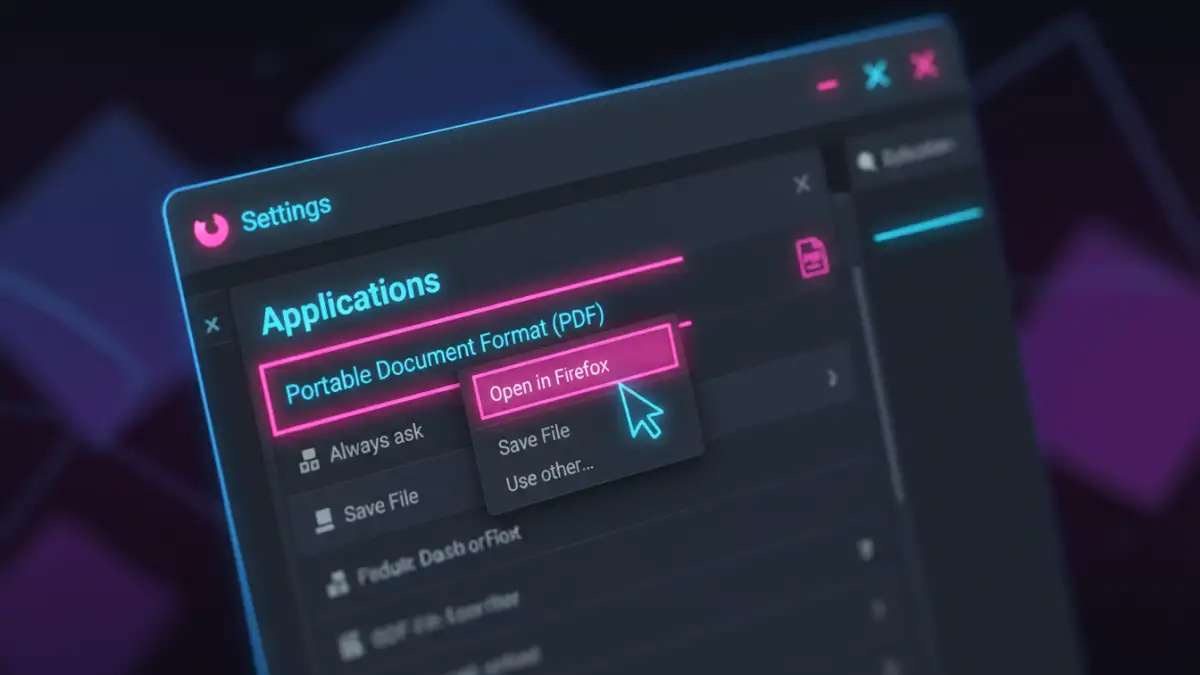
Firefox allows you to control how it handles different file types. It's possible this setting was accidentally changed. In the Settings menu, search for 'PDF' in the search bar. In the 'Applications' section, find 'Portable Document Format (PDF)' and ensure the action is set to 'Open in Firefox'. If it's set to something else, change it back. This ensures the built-in viewer is being used as intended.
Alternative Methods for Viewing Problematic PDFs
Sometimes, a particular PDF is simply incompatible with PDF.js due to its complexity or non-standard encoding. In these cases, rather than continuing to troubleshoot PDF.js, it's more efficient to use a different tool for that specific file.
The most reliable workaround is to download the file and open it with a dedicated desktop application. Right-click the link to the PDF and select 'Save Link As...'. Once saved to your computer, you can open it with a robust program like Adobe Acrobat Reader, Foxit Reader, or SumatraPDF. These applications are built specifically for the PDF format and can handle virtually any file you throw at them.
Troubleshooting Method Comparison
| Method | Complexity | When to Use | Potential Downside |
|---|---|---|---|
| Hard Refresh (Ctrl+Shift+R) | Very Low | First step for any display glitch. | May not fix persistent cache issues. |
| Clear Browser Cache | Low | When a hard refresh fails or multiple pages have issues. | Logs you out of websites and removes site data. |
| Disable Hardware Acceleration | Medium | For garbled text, black boxes, or graphical artifacts. | Can slightly decrease browser performance on other sites. |
| Change PDF Handler Setting | Medium | When PDFs download automatically instead of opening. | Doesn't fix rendering issues, only opening behavior. |
| Use Desktop PDF Reader | Low | For complex, interactive, or very large PDFs that fail in-browser. | Requires an extra step of downloading the file. |