
I recently worked with a small business owner who was confident in his file security. He'd password-protected every sensitive client contract. The problem? His network was breached, and because the files themselves weren't encrypted, the protection was bypassed relatively easily. The password was just a lock on the door, but the contents of the room were still completely exposed once someone got inside.
This scenario highlights a common misconception. A password is a form of authentication—it verifies who you are. Encryption is a form of protection—it scrambles the data itself, making it unreadable without the correct key. Relying on just one is like locking your front door but leaving all the windows wide open. A truly secure strategy requires both.
Table of Contents
Passwords vs. Encryption: Understanding the Difference
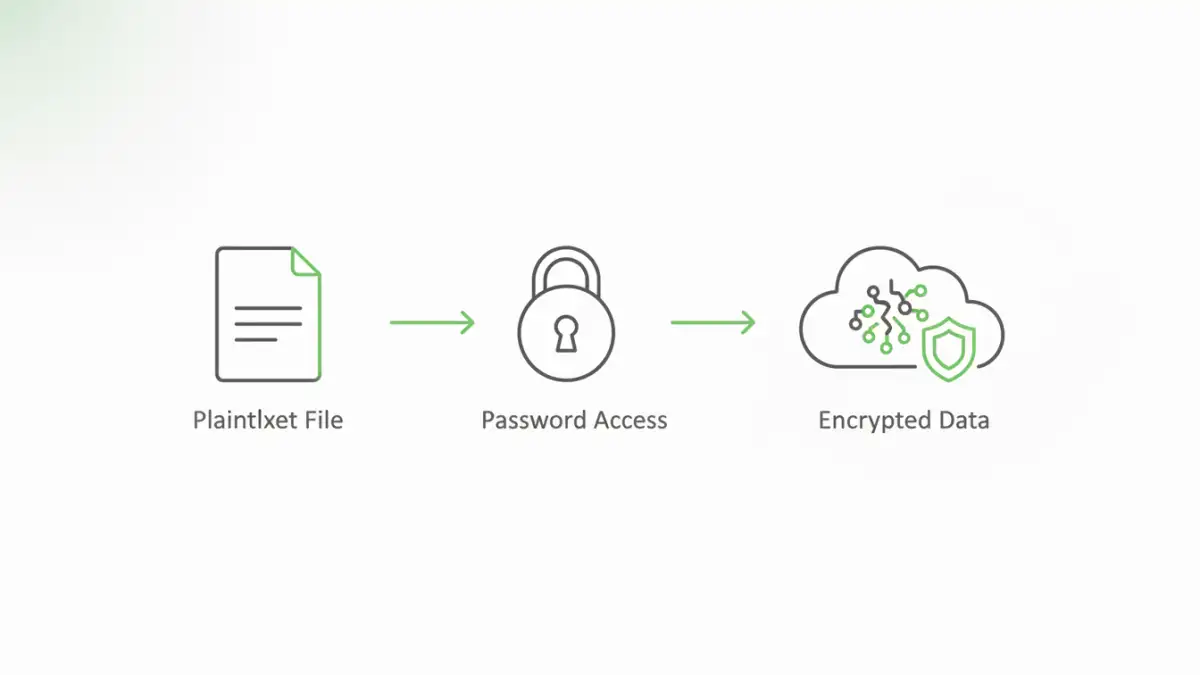
It's easy to confuse these two terms, but they serve distinct functions in protecting your data. Think of a password as the key to a filing cabinet. Anyone with the key can open it and read everything inside. If they pick the lock or find a spare key, the contents are compromised.
Encryption, on the other hand, is like writing every document in that cabinet in a secret code that only you can decipher. Even if someone breaks into the cabinet, the documents are just gibberish. To read them, they need the specific cipher key (often derived from your password) to translate the code back into plain text. This is why a robust document security password encryption strategy is so effective; it requires an attacker to both bypass the lock and crack the code.
The Role of Passwords: The First Line of Defense
A password's primary job is access control. It confirms your identity before granting you permission to open a file, log into a system, or access an application. A strong, unique password is a critical first step, but it's vulnerable to phishing, brute-force attacks, and malware like keyloggers.
The Power of Encryption: The Ultimate Safeguard
Encryption transforms your readable data (plaintext) into an unreadable format (ciphertext) using a complex algorithm. The only way to convert it back is with the correct decryption key. Modern encryption standards like AES-256 are considered virtually unbreakable by current computing power, making them the ultimate safeguard for your data at rest.
Implementing a Layered Security Approach
A layered security approach means you don't rely on a single point of failure. By combining a password with encryption, you create multiple protection layers. If one layer is breached, the next one is there to stop the threat. The password protects the encryption key, and the encryption protects the data itself.
This is the principle behind full-disk encryption systems like BitLocker (Windows) and FileVault (macOS). When you log in with your password, the system uses it to unlock the encryption key that decrypts your entire hard drive. Without the password, the drive's contents remain a scrambled mess.
Practical Methods to Protect Your Files
You don't need to be a security expert to encrypt and password protect your files. Many common applications and operating systems have these features built-in. Here are a few practical ways to get started.
Using Microsoft Office and Adobe Acrobat
Both Microsoft Office (Word, Excel, PowerPoint) and Adobe Acrobat have built-in security features. You can easily add a password that encrypts the document upon saving.
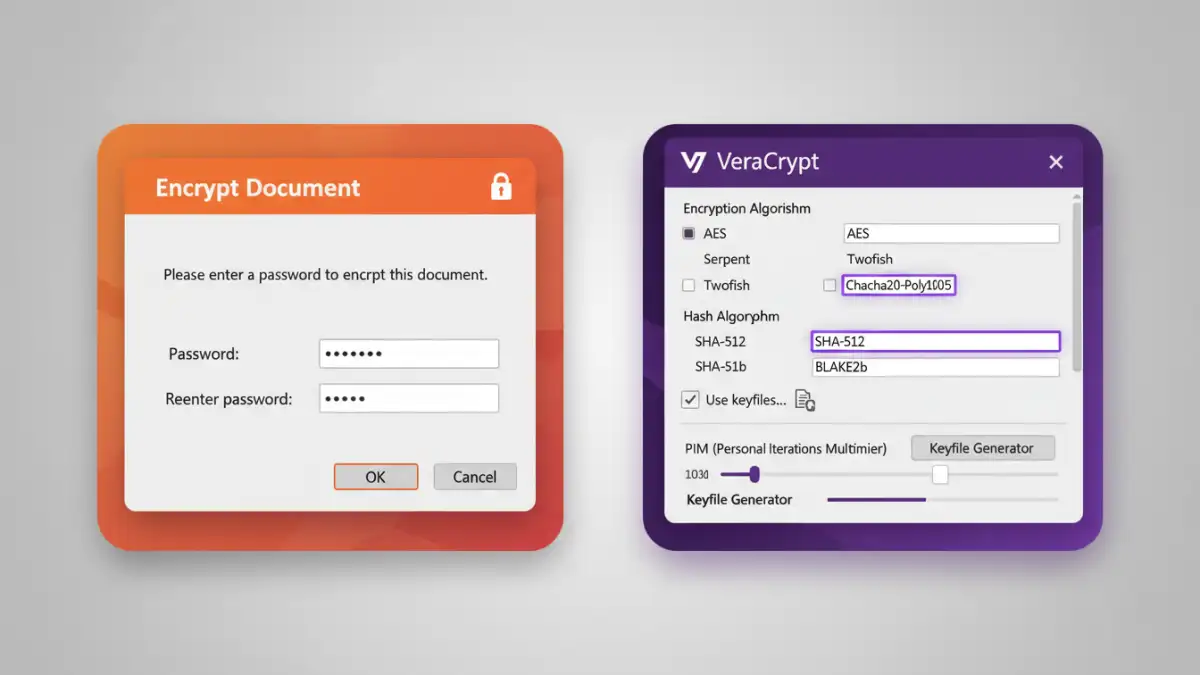
- In Microsoft Word: Go to `File > Info > Protect Document > Encrypt with Password`.
- In Adobe Acrobat Pro: Go to `File > Protect Using Password`, then select from viewing or editing restrictions.
When you set a password this way, the application uses it to generate an encryption key. This is a simple yet effective way to secure individual documents before sharing them.
Creating Encrypted Archives (ZIP/7z)
Another excellent method is to place multiple files or folders into a compressed, encrypted archive. Tools like 7-Zip (free) or WinRAR allow you to create a password-protected archive. When you do, you can also select an encryption method, such as AES-256.
This technique is fantastic for bundling sensitive project files together or for securely backing up data. The single archive file is encrypted, and anyone who wants to extract the contents must provide the password first.
Advanced Tools and Techniques
For those needing even higher levels of security, dedicated encryption software provides more control and features. Tools like VeraCrypt allow you to create encrypted virtual disks—files that act like a secure hard drive on your computer. You mount the container with a password, and any file you save inside it is automatically encrypted on the fly.
This is ideal for creating a secure sandbox for all your sensitive work. When you're done, you dismount the container, and it becomes a single, inert, and fully encrypted file again. This method ensures that even if your computer is compromised, the data within the container remains inaccessible without the password and/or keyfile.
Key Security Layer Comparison
Choosing the right combination of security measures depends on your specific needs. The table below compares different approaches to help you decide which is best for your situation.
| Security Method | Protection Level | Ease of Use | Best For |
|---|---|---|---|
| Password Protection Only | Low | Very Easy | Casual, low-risk files to deter snooping. |
| Encryption Only (e.g., Full Disk) | High | Easy (Set & Forget) | Protecting all data on a device from physical theft. |
| Password + Built-in Encryption (Office/PDF) | Medium-High | Easy | Securing individual documents before sharing them via email. |
| Encrypted Archives (7-Zip) | High | Moderate | Bundling multiple files for secure transfer or backup. |
| Dedicated Encryption Software (VeraCrypt) | Very High | Advanced | Creating a highly secure, isolated environment for sensitive work. |