
It’s a scenario I’ve seen play out more than once: a colleague is minutes away from a major presentation, but a critical PowerPoint file is locked, and the password is nowhere to be found. Panic sets in. While PowerPoint’s encryption is strong, designed to protect sensitive information, it becomes a significant hurdle when you're the one locked out. Fortunately, not all hope is lost.
Depending on the type of protection applied to the file, there are several avenues you can explore to regain access. Understanding the difference between a password to open and a password to modify is the first crucial step in determining your course of action.
Table of Contents
Understanding PowerPoint Password Types
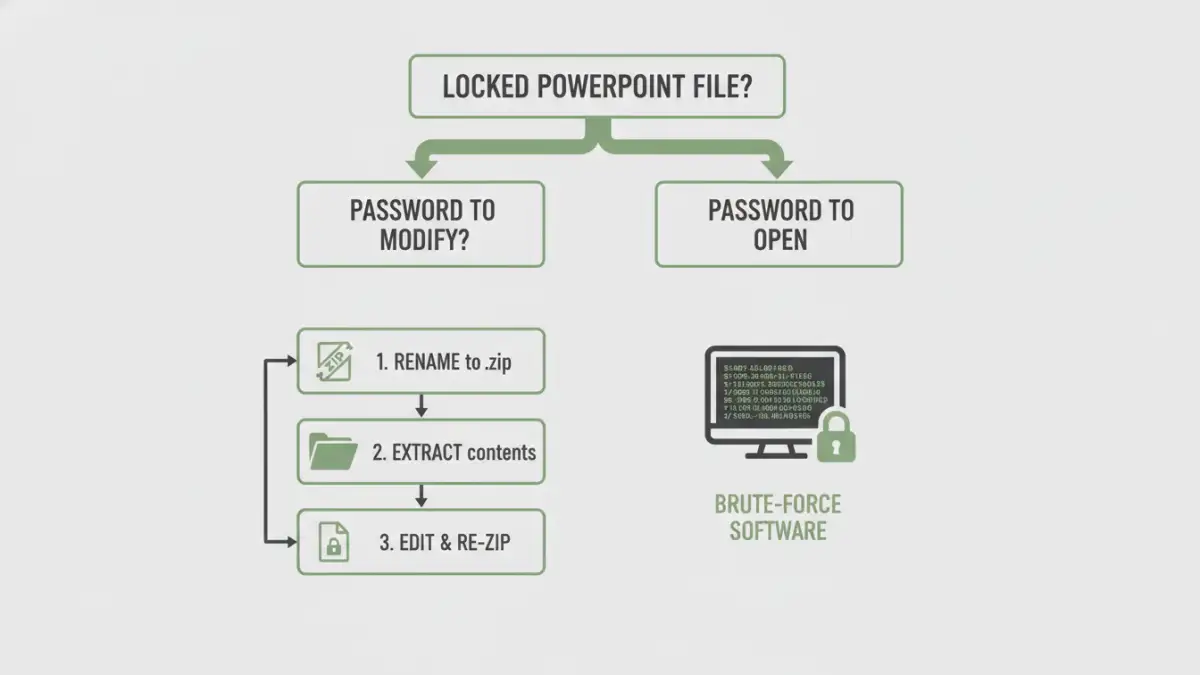
Before attempting any recovery method, it's essential to identify which type of password is protecting your file. PowerPoint primarily uses two kinds, and the recovery strategy depends entirely on which one you're dealing with.
Password to Open
This is the most secure type. It encrypts the entire presentation, and you cannot view any part of the file without the correct password. The encryption standards used here (like AES-256) are robust, meaning there is no simple trick or backdoor to bypass it. Recovering from this situation typically requires brute-force methods to guess the password.
Password to Modify
This is a much weaker form of protection. It allows anyone to open and view the presentation in read-only mode but requires a password to make and save changes. This password doesn't encrypt the file's content, but rather stores a hashed value within the file's XML structure. Because it's not true encryption, this password is significantly easier to remove.
Methods to Regain Access to a Locked PowerPoint

Once you know the password type, you can choose the appropriate method. Let's start with the approach for the less secure 'Password to Modify'.
Method 1: The ZIP Renaming Trick for 'Modify' Passwords
This technique sounds technical, but it’s surprisingly straightforward and effective for removing a 'Password to Modify'. It works because modern Office files (.pptx, .docx, .xlsx) are essentially ZIP archives containing XML files and other data.
- Create a Backup: Always work on a copy of your file. Never perform these steps on your only original.
- Change the File Extension: Rename your presentation file from `MyPresentation.pptx` to `MyPresentation.zip`. You may need to enable file extension visibility in your operating system's settings.
- Extract the Archive: Use a tool like 7-Zip or the built-in Windows/macOS utility to extract the contents of the ZIP file into a new folder.
- Locate and Edit the XML: Navigate into the extracted folders to `ppt/presentation.xml`. Open this file in a text editor like Notepad++ or VS Code.
- Remove the Password Tag: Search the XML content for a tag that looks like `<p:modifyVerifier ... />`. This tag contains the password hash. Carefully select and delete the entire tag, from `<p:` to ` />`.
- Re-archive and Rename: Save the modified `presentation.xml` file. Now, select all the extracted files and folders and re-compress them into a new ZIP archive. Finally, rename this new ZIP file's extension back to `.pptx`.
If done correctly, you should now be able to open and edit the presentation without being prompted for a modify password. This is a great example of how understanding file structures can help solve practical problems.
Method 2: Online Recovery Tools (Use with Caution)
Numerous websites offer to unlock PPTX file passwords. While they can be tempting due to their simplicity, I advise extreme caution. Uploading a sensitive or confidential presentation to an unknown third-party service is a significant security risk. Your data could be stored, scanned, or misused without your knowledge. If the presentation contains no sensitive information and you're in a bind, it might be an option, but it should be a last resort.
Using Specialized Recovery Software
When you've lost the file password needed to open the presentation, the ZIP trick won't work. The file's content is encrypted, and your only real option is to use specialized desktop software designed to recover the password itself. These tools don't 'remove' the encryption; they work tirelessly to 'guess' the password.
These applications employ several techniques:
- Brute-Force Attack: This method tries every possible combination of letters, numbers, and symbols. It is exhaustive but can take an extremely long time, from hours to years, depending on the password's complexity.
- Dictionary Attack: This is more efficient, trying words and phrases from a pre-compiled list (a 'dictionary'). It's effective against common words or simple passwords.
- Mask Attack: If you remember parts of the password (e.g., it started with 'Q4' and ended in '23'), you can configure a mask attack. This significantly reduces the search space and speeds up recovery time.
These tools are often paid and require some technical knowledge to configure for optimal performance, such as leveraging a GPU for faster processing. They are the professional's choice when a forgotten PowerPoint password stands in the way of critical business.
Prevention: Best Practices for Password Management
Dealing with a locked file is stressful. The best solution is prevention. As a software engineer, I rely on systematic approaches to manage credentials, and the same principles apply here.
My primary recommendation is to use a reputable password manager like Bitwarden or 1Password. When you set a password on a document, immediately save it as an entry in your password manager. Name it clearly (e.g., 'Q3 Financials PowerPoint Password') and add relevant tags. This creates a secure, centralized, and searchable vault for all your document passwords, ensuring you never have to go through a stressful recovery process again.
Additionally, for collaborative environments, consider using cloud-based platforms like SharePoint or Google Workspace. These systems manage access through user permissions rather than individual file passwords, which is a more robust and manageable security model for teams.
PowerPoint Password Recovery Method Comparison
| Method | Effectiveness | Security Risk | Cost | Best For |
|---|---|---|---|---|
| ZIP Renaming Trick | High (for 'Modify' passwords only) | Low | Free | Removing editing restrictions on non-encrypted files. |
| Online Tools | Varies | Very High | Free / Freemium | Non-sensitive files when you have no other option. |
| Desktop Software | High (for 'Open' passwords) | Low | Paid | Recovering passwords for encrypted, critical presentations. |
| Password Manager | N/A (Prevention) | Low | Free / Subscription | Proactively preventing password loss for all documents. |