You've finally done it. After some searching and maybe a bit of technical wizardry, you've gained access to that locked VBA project. It's a common scenario—an old file from a former colleague, a project you forgot the password to, or a tool you need to update. While getting past the password prompt feels like the finish line, it's actually just the starting point.
The real work begins now. Simply leaving the project unlocked is a security risk and a missed opportunity for improvement. What you do next determines the project's future security, stability, and maintainability. Let's walk through the essential steps to take after you successfully regain access to your VBA code.
Table of Contents
Immediate Security Actions
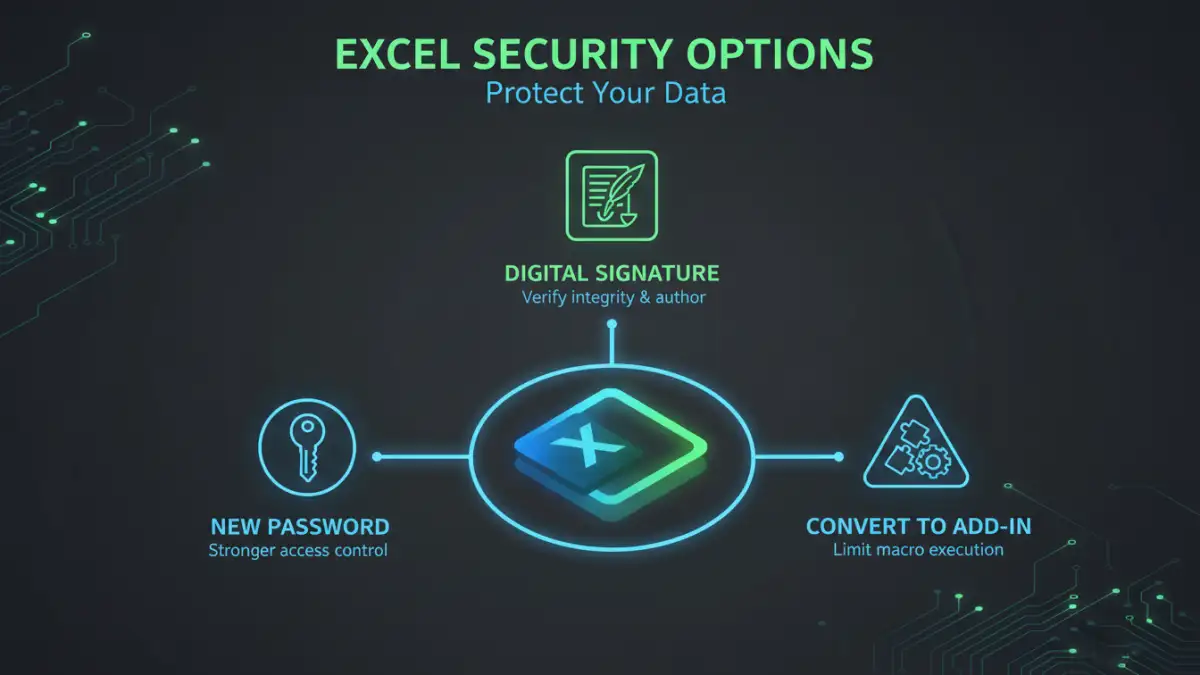
The very first thing you should do is secure the project again. Leaving it unprotected, even temporarily, can expose it to accidental changes or unauthorized access, especially in a shared environment. Your immediate goal is to regain control and ensure the code is safe.
Reset the VBA Project Password
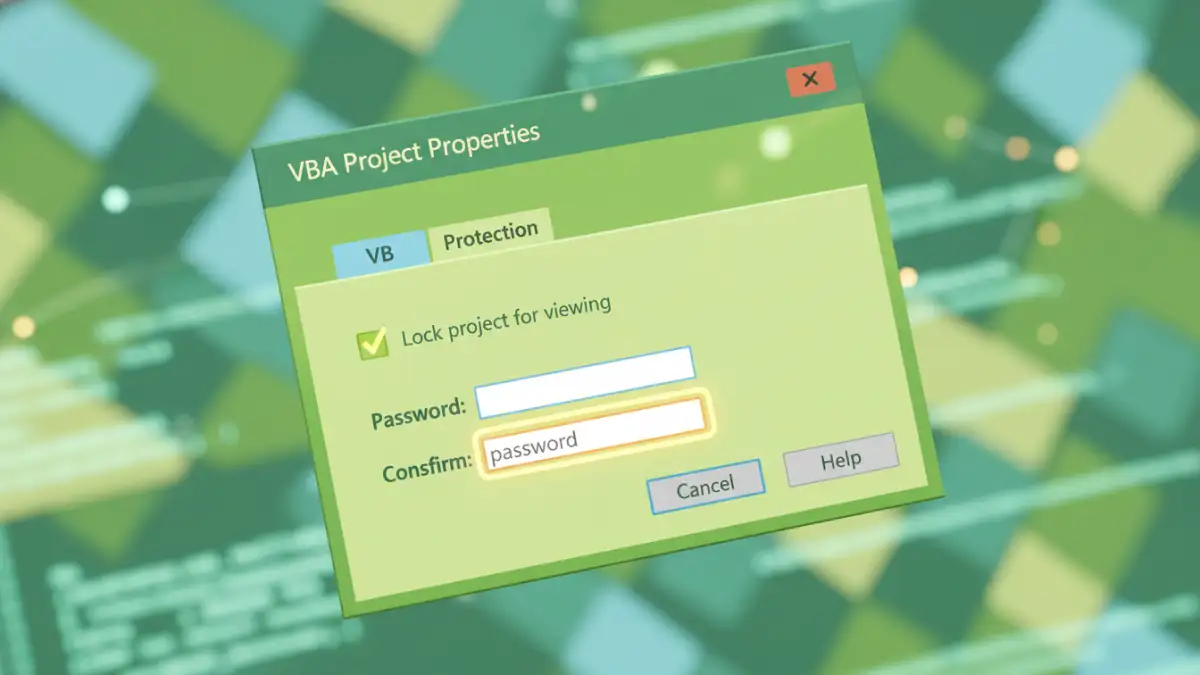
Don't leave the project unlocked. The most straightforward action is to set a new, strong password immediately. This prevents anyone else from accessing the code while you work on it. To do this, open the VBA Editor (Alt + F11), go to Tools > [Project Name] Properties, and navigate to the Protection tab. Check the box to "Lock project for viewing" and enter a new, memorable password.
Audit for Unexpected or Malicious Code
If you inherited this file or used a third-party tool to unlock it, you must perform a security audit. Carefully review the code for anything suspicious. Look for hidden modules, strange function calls (especially to external libraries like `kernel32`), or code that accesses the file system or network in unexpected ways. This is a critical step to ensure the integrity of the workbook and your system.
Code Review and Documentation
With the project secured, you can now focus on understanding and improving the code itself. Often, password-locked projects haven't been touched in years, making them a black box. This is your chance to shed some light on what's happening under the hood.
Understand and Document the Code
Go through each module and procedure, adding comments to explain its purpose, inputs, and outputs. If you're unfamiliar with the project's logic, use the debugger (F8 to step through code) to watch it execute line by line. I’ve found that creating a simple flowchart or document outlining the main processes can be incredibly helpful for complex projects. This documentation is invaluable for future maintenance.
Refactor and Clean Up
Legacy code is often inefficient or outdated. Look for opportunities to refactor. This could involve combining redundant procedures, removing unused variables, or updating methods to be more efficient. For example, you might replace old `On Error Resume Next` statements with more structured error handling blocks. A clean codebase is easier to debug, update, and secure.
Implementing a New Security Strategy
A simple password is just one layer of security. Now that you have full access, you can implement a more robust and professional security model. This is especially important for tools distributed to other users.
Consider your audience. Is this a personal tool, or will it be used by a team or an entire department? The answer will guide your security choice. For widely used applications, a more formal approach like a digital signature is often the best path forward. The process to remove a VBA password is just the first step; building a solid security plan is the next.
Using Digital Signatures
Instead of a simple password, you can digitally sign your VBA project. A digital signature confirms that the macro came from you and has not been altered since you signed it. This allows users to trust your code and run it without disabling their macro security settings. You can create a self-signed certificate using the Selfcert.exe tool included with Microsoft Office or obtain an official certificate from a Certificate Authority.
Distributing as an Add-In
If the VBA project is a utility or a set of tools, consider converting it into an Add-In (e.g., .xlam for Excel). Add-Ins load their code into memory without exposing it directly in the VBA Editor of the user's workbook. While the Add-In file itself can still be password-protected, this approach separates your code from the user's data, making it cleaner and more secure.
Long-Term VBA Project Maintenance
Finally, think about the future. A little planning now can save a lot of headaches later. Establishing a maintenance plan ensures the project remains functional, secure, and accessible to those who need it.
Version Control and Backups
Don't rely on saving different versions of the file with names like `Project_v2_final_final.xlsm`. Use a proper version control system like Git. You can export your VBA modules as text files (.bas, .cls) and commit them to a repository. This gives you a complete history of changes and a secure backup. At a minimum, keep regular, dated backups in a secure location.
Password Management
If you choose to use a password, store it securely. Don't write it on a sticky note or in a plain text file. Use a reputable password manager to store the VBA project password along with a note about what the project is for. This ensures that you or your team can always access the code when needed without having to go through the recovery process again.
VBA Project Security Options
| Security Method | Primary Benefit | Best For | Implementation Difficulty |
|---|---|---|---|
| New VBA Password | Simple and quick to implement. | Personal tools or small, trusted teams. | Easy |
| Digital Signature | Verifies author identity and code integrity. | Tools distributed to a wider audience. | Moderate |
| Compiled Add-In (.xlam, .ppam) | Separates code from user data, hides code by default. | Reusable utilities and toolbars. | Moderate |
| Code Obfuscation | Makes code difficult for humans to read and reverse-engineer. | Protecting proprietary algorithms. | Advanced |