
It's a situation I've seen cause genuine panic for developers and analysts alike: you inherit a critical Excel workbook or an old Access database, and the VBA project containing essential business logic is locked. The original developer is long gone, and nobody remembers the password. Without access to that code, updates and bug fixes are impossible.
Fortunately, all is not lost. While the protection seems robust, there are well-established methods for getting back into your code. Over the years, I've had to employ these techniques a few times to rescue legacy projects. Let's walk through the most reliable approaches, from a hands-on manual method to automated tools.
Table of Contents
Understanding VBA Project Protection
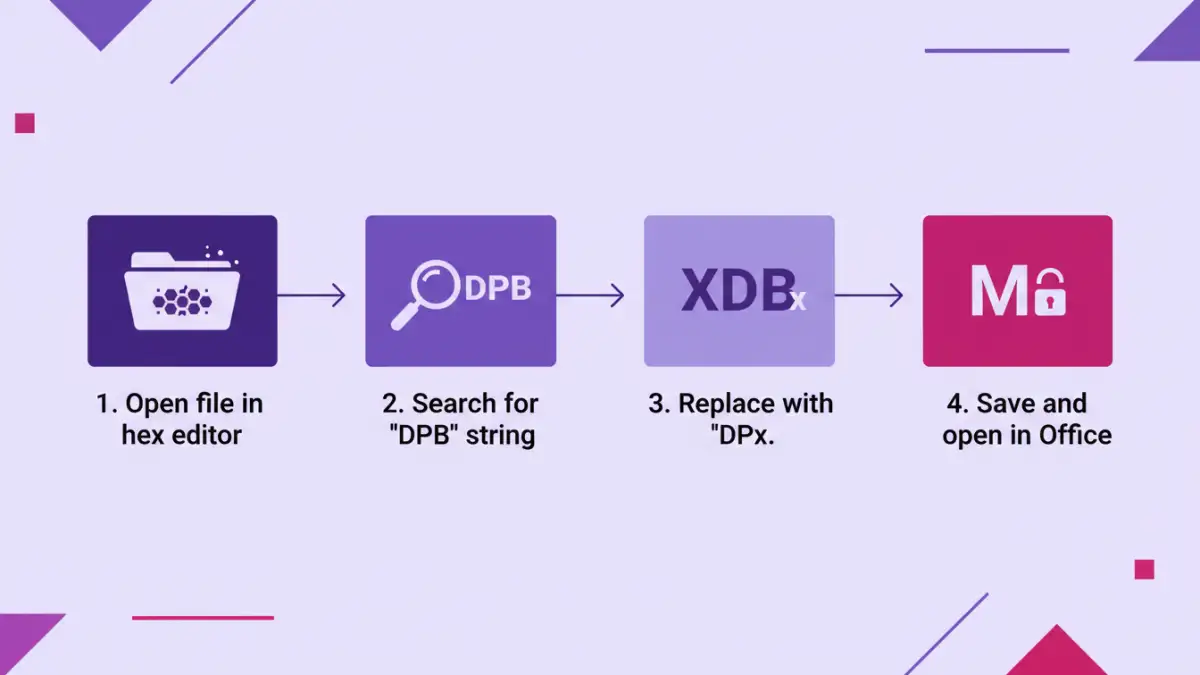
Before we dive into the methods, it's helpful to understand what we're dealing with. When you set a password on a VBA project in an Office application like Excel, Word, or Access, you're not encrypting the code itself in a cryptographically secure way. Instead, you're setting a flag and a password check that the Visual Basic Editor (VBE) uses to grant or deny access.
This distinction is crucial. Because it's more of a gatekeeper mechanism than true encryption, it can be manipulated. The password check can be bypassed by modifying a few bytes in the file's binary structure. This is the principle behind the most common manual technique.
Why This Vulnerability Exists
The VBA password system is a legacy feature that hasn't changed much in decades. Its primary purpose was to prevent casual users from accidentally viewing or modifying code, not to provide military-grade security against a determined developer. This is why a direct modification of the file's binary data can be so effective.
The Manual Recovery Method: Using a Hex Editor

This is my preferred method because it requires no special software other than a free hex editor and gives you a great understanding of what's happening under the hood. It feels a bit like digital lockpicking. The process involves finding a specific key-value pair in the file's binary and changing it to trick Office into thinking the password is correct.
Important: Always work on a copy of your file. Never perform these steps on your only original document. A mistake with a hex editor can corrupt the file permanently.
Step-by-Step Guide
- Get a Hex Editor: If you don't have one, download a free, reputable hex editor like HxD or Frhed. These tools allow you to view and edit the raw binary data of any file.
- Open a Copy of Your File: Launch your hex editor and open a copy of your .xls, .doc, .xlsm, or .docm file. You'll see a daunting screen of hexadecimal numbers.
- Search for the Password Key: Use the search function (usually Ctrl+F) to find a specific text string. The string you're looking for is
DPB. This is the key that precedes the stored password hash in the file. - Modify the Key: Once you find the
DPBstring, simply replace it with something else. I always useDPx. By changing this key, you're essentially invalidating the password check. The Office application will see the malformed key, throw a controlled error, and grant you access. - Save and Close: Save the changes in your hex editor and close the application.
- Open in Office: Now, open the modified file in its native application (e.g., the .xlsm file in Excel). You will likely see an error message, something like "Invalid key". Click 'OK' or 'Yes' to any prompts that appear.
- Access the VBA Editor: Press Alt+F11 to open the Visual Basic Editor. The project should now be unlocked. Go to the project properties (Tools > [ProjectName] Properties), navigate to the 'Protection' tab, uncheck the 'Lock project for viewing' box, and set a new, memorable password. Save the file to make the changes permanent.
This process works reliably on most older Office file formats (like .xls) and many modern ones. It's a powerful way to unlock vba project access without specialized tools.
Automated Software Solutions
If editing binary files feels too risky or time-consuming, several third-party tools can do the job for you. These applications are essentially an excel vba password cracker that automates the hex editing process or uses other known vulnerabilities to bypass the protection instantly.
These tools can be very effective, especially for more complex cases or when you need to process multiple files. They often have a simple interface where you just upload the file, and it provides you with the unlocked version or the password itself. However, be cautious about where you get this software. Only use reputable, well-reviewed tools to avoid downloading malware. Some are paid, but they can be worth the small cost if they save a critical project.
Prevention and Best Practices for VBA Passwords
Having to recover vba project password data is a reactive process. The best strategy is a proactive one. If you're managing projects with protected VBA, implementing a password management system is non-negotiable. This prevents the problem from happening in the first place.
Use a password manager like Bitwarden or 1Password to store the VBA project passwords securely. Document them alongside the project files in your version control system's notes or a secure internal wiki. For team projects, ensure that more than one person has access to the password vault. This simple discipline can save you hours of stress and technical workarounds down the road.
VBA Password Recovery Method Comparison
| Method | Pros | Cons | Best For |
|---|---|---|---|
| Hex Editor Method | Free, no software to install (besides editor), educational | Can be intimidating, risk of file corruption if done incorrectly | Developers comfortable with low-level file editing |
| Third-Party Software | Fast, easy to use, automated process | Can cost money, risk of malware from untrusted sources | Users who need a quick, non-technical solution |
| Brute-Force Attack | Can find the original password | Extremely slow (days or weeks), requires specialized tools | Situations where knowing the original password is required |
| Internal Password Policy | Prevents the problem from happening | Requires team discipline and setup | All professional development environments |