
Working with password-protected documents can be frustrating, especially when you need to share them but want to restrict certain actions. As someone who's spent over a decade building and securing software, I've encountered countless scenarios where understanding the finer points of document security, particularly with PDFs, is crucial. PDFs are ubiquitous for sharing information, but their static nature can sometimes be a double-edged sword if not handled with appropriate security measures.
This is where PDF encryption and user permissions come into play. They aren't just buzzwords; they are essential tools for safeguarding sensitive information and ensuring it's used only as intended. Whether you're a business professional, a legal practitioner, or simply someone who values their digital privacy, grasping these concepts is vital.
Table of Contents
Understanding the Basics of PDF Security
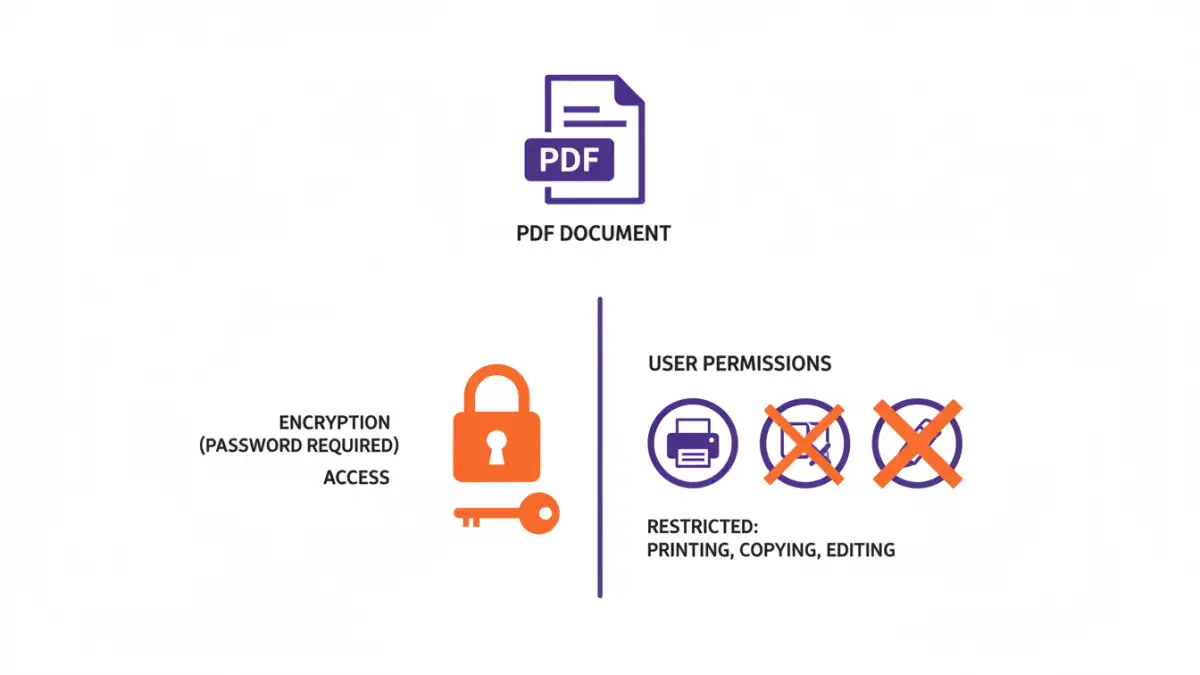
At its core, securing a PDF involves two primary mechanisms: encryption and permission controls. Encryption scrambles the content of the file, making it unreadable without the correct key (usually a password). Permission controls, on the other hand, don't prevent opening the file but dictate what actions a user can perform once they've accessed it.
Key Concepts
When we talk about pdf encryption user permissions, we're referring to the combined set of controls that dictate both who can access the document and what they can do with it. This layered approach ensures that even if a file is accessed by someone unauthorized, their ability to misuse the information is significantly limited. It's about maintaining integrity and confidentiality.
What is PDF Encryption?
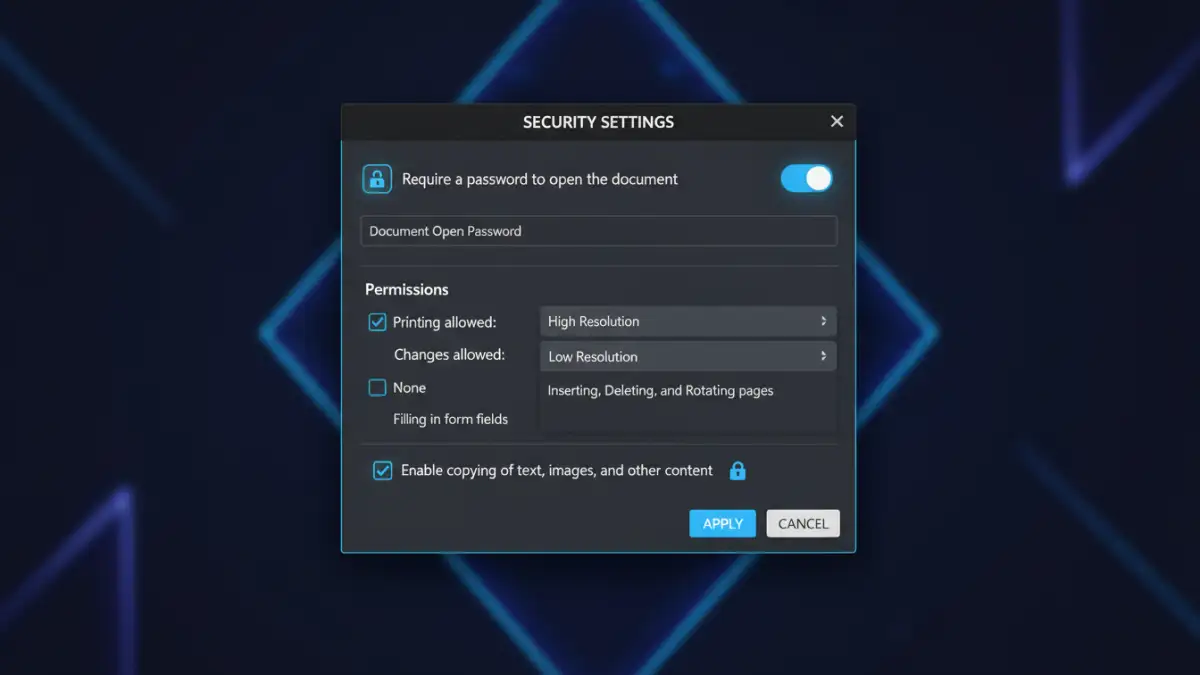
PDF encryption is the process of encoding the data within a PDF document to prevent unauthorized access. The most common form uses passwords. When a PDF is encrypted with a password, anyone attempting to open it must provide the correct password. Without it, the document remains inaccessible, offering a strong first line of defense.
Modern PDF encryption typically uses robust algorithms like AES (Advanced Encryption Standard), ensuring a high level of security. This is far more secure than older, weaker encryption methods. My experience shows that for truly sensitive data, using strong encryption is non-negotiable.
Defining User Permissions
Beyond simply opening a file, users often need to perform specific actions like printing, copying text, editing content, or annotating. User permissions, also known as restrictions, allow the document owner to grant or deny these specific rights. This is incredibly useful for controlling how a document is used after it's been shared.
For instance, you might want to allow a client to read a report but prevent them from printing or copying its contents. This is a common requirement in legal and financial contexts, where data integrity and controlled distribution are paramount. Setting these permissions is as critical as setting the password itself.
Methods for Encrypting PDFs
Fortunately, encrypting PDFs and setting permissions is accessible through various means. Most PDF reader and creator software, like Adobe Acrobat, offer built-in features for this. You typically navigate to the security settings of a document to apply passwords and define user restrictions.
Online tools and specialized software also provide these functionalities, often with user-friendly interfaces. When choosing a method, consider the complexity of your needs and the sensitivity of the data. For simple password protection, built-in tools are often sufficient. For more advanced control over encrypted file access, dedicated software might be necessary.
Best Practices for Document Security
When implementing pdf encryption user permissions, a few best practices can significantly enhance your security posture. Always use strong, unique passwords that are difficult to guess. Avoid using easily discoverable information like names, dates, or common words.
Furthermore, be judicious with the permissions you grant. Only allow actions that are absolutely necessary for the recipient. Regularly review and update your security settings, especially for documents that are frequently shared or updated. Understanding data encryption legal requirements in your industry is also crucial for compliance.
Comparison Table: PDF Security Features
| Feature | Description | Impact on User | Security Level |
|---|---|---|---|
| Open Password | Required to open and view the PDF | Blocks access entirely | High |
| Permissions Password | Required to change security settings or passwords | Restricts owner-level control | Medium |
| Printing Restriction | Prevents users from printing the document | Limited sharing utility | Medium |
| Copy/Paste Restriction | Prevents users from copying text or images | Limits content reuse | Medium |
| Editing/Annotation Restriction | Prevents users from modifying the document content | Ensures document integrity | High |
Extra tips before you try to pdf encryption user permissions
First, confirm what kind of protection you are dealing with. Some PDFs require a password to open (user password), while others only restrict printing/copying/editing (owner password). The safest approach depends on which one you have.
For sensitive documents, prefer offline tools and avoid uploading confidential files to unknown websites. If you must use an online tool, read the privacy policy and delete uploaded files immediately after processing.
- Try a different PDF viewer (some apps cache old permissions)
- Re-download the file (corruption can cause false password errors)
- Check caps lock / keyboard layout for password entry
- Differentiate “permission password” vs “open password” prompts
- If it is not your file, request access from the owner