You’ve just received an important document for a project—a contract, a report, or financial data—but when you try to open it, a password prompt blocks you. It's a common and often frustrating situation, especially when deadlines are tight. This security measure is designed to protect sensitive information, but it can create a hurdle for the intended recipient.
As someone who frequently handles secure documents in a technical environment, I've seen this scenario play out many times. The solution isn't always about "breaking" the lock, but understanding why it's there and following the right steps to gain access legitimately and efficiently.
Table of Contents
Understanding the Two Types of PDF Passwords
Before you do anything, it’s helpful to know that PDFs can have two different kinds of passwords. Identifying which one you're dealing with clarifies the situation and the solution. They serve very different purposes, and one is much easier to work with than the other.
The User Password (Document Open Password)
This is the password you're most likely encountering. It's an "all or nothing" security layer. You cannot view, print, or do anything with the document's contents until you enter this password correctly. It encrypts the entire file, making it unreadable without the key. If you've received a file with this lock, you have no choice but to obtain the password.
The Owner Password (Permissions Password)
This type of password is more about control than secrecy. You can open and view a PDF with an owner password, but you might be restricted from performing certain actions like printing, copying text, or editing the document. The sender uses this to maintain the integrity of the file. Sometimes, you might not even realize an owner password is in place until you try to copy a sentence and find the option is grayed out.
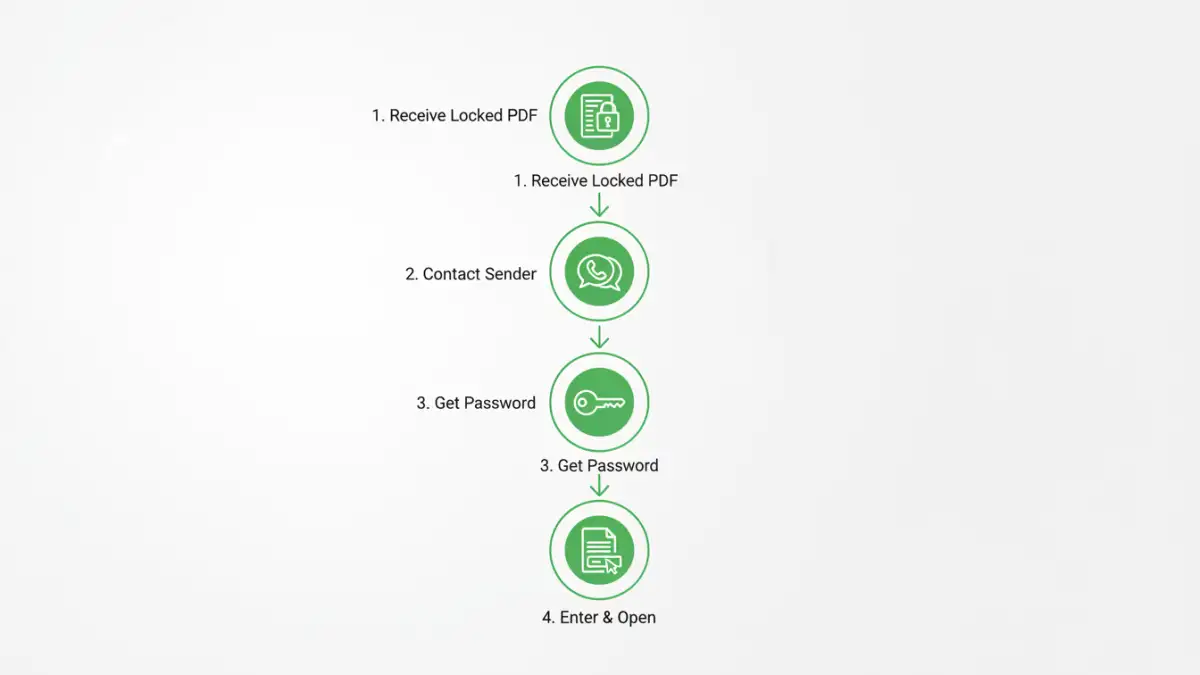
The First and Most Important Step: Ask for the Password
This might seem obvious, but it's the only truly correct and ethical first step. The document was encrypted for a reason, likely to protect sensitive information during transit. Bypassing this protection without consent could have legal or professional consequences.
Simply contact the sender. A quick email or message is usually all it takes. Often, the sender provides the password in a separate communication channel (like a text message or phone call) for enhanced security. This two-channel approach prevents an unauthorized person who intercepts the email from also getting the key to open it.
How to Manage a PDF Once You Have the Password
Once you have the password and have confirmed you have the right to do so, you might want to remove the password for convenience, especially if you need to access the file frequently or share it with other authorized colleagues. Here are a few legitimate ways to manage a password-protected file after you've successfully opened it.
Removing the Password with Adobe Acrobat Pro
If you have a subscription to Adobe Acrobat Pro, the process is straightforward. After you open a password protected pdf using the correct password, you can permanently remove the security setting.
- Open the PDF in Adobe Acrobat Pro and enter the password when prompted.
- Go to File > Properties, or use the shortcut (Ctrl+D on Windows, Cmd+D on Mac).
- In the "Document Properties" window, navigate to the Security tab.
- In the "Security Method" dropdown, select No Security.
- You will be prompted to enter the owner password to confirm the change. Save the document, and the password will be removed.
Using the "Print to PDF" Method for Permissions Passwords
This clever workaround is effective for PDFs that have an owner (permissions) password but not a user (open) password. Since you can view the document, you can essentially create a new, unrestricted copy of it.
- Open the locked PDF in any browser, like Chrome, Firefox, or Edge.
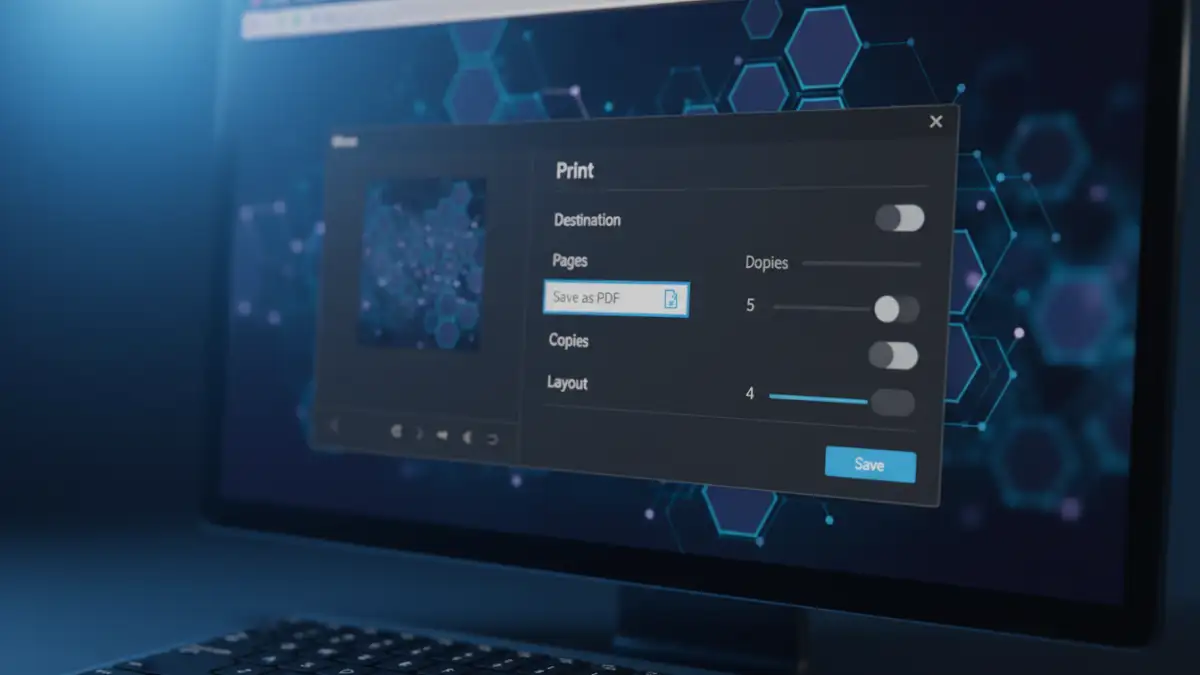
- Click the print icon or press Ctrl+P (Cmd+P on Mac).
- In the print dialog box, change the destination printer to Save as PDF.
- Click "Save" and choose a new name for the file. This newly created PDF will be an identical visual copy of the original but without any of the printing or editing restrictions.
The Risks of Using Password Removal Tools
A quick web search will reveal dozens of online tools and software that claim to unlock PDFs. While some might work on files with weak encryption or just an owner password, using them on a received encrypted file is risky for several reasons:
- Security and Privacy: Uploading a confidential document to a free online service is a major security risk. You have no idea who is viewing your data or how it's being stored.
- Legality and Compliance: The document might be protected under regulations like GDPR or HIPAA. Attempting to bypass its security could be a compliance violation.
- Malware: Many downloadable "password cracker" tools are bundled with malware, adware, or spyware that can compromise your system.
Unless you are the original owner of the document and have simply forgotten your own password, you should avoid these tools entirely when handling files sent by others.
Best Practices for Handling Secured Documents
Working with secure documents is a two-way street. Following a few simple rules can make the process smoother for everyone involved.
For the sender, always communicate the password through a separate, secure channel. For the receiver, always respect the security measures in place. Store the password securely in a password manager if you'll need it again, and never share the unlocked document with unauthorized individuals. Clear communication is the key to making document security work without causing unnecessary friction.
Method Comparison for Accessing Locked PDFs
| Method | Description | Security Risk | Best For |
|---|---|---|---|
| Contacting the Sender | The most direct and ethical approach to get the password. | Very Low | Any received encrypted file. |
| Adobe Acrobat Pro | Uses the known password to remove security settings permanently. | Low (if software is legitimate) | Users who frequently manage secure PDFs. |
| Browser 'Print to PDF' | Creates an unrestricted copy of a file with only an owner/permissions password. | Low | Removing printing/copying restrictions when viewing is already allowed. |
| Online Unlocker Tools | Websites that attempt to remove password protection from an uploaded file. | Very High | Not recommended for sensitive or confidential documents. |