
It’s a situation I've seen play out more than once: a critical Excel macro, the heart of a department's workflow, suddenly needs an update. The problem? The original developer who password-protected the VBA project is long gone, and nobody knows the password. The code is locked away, seemingly forever.
This is a common challenge that can bring productivity to a halt. While many are familiar with setting an office 365 document password to protect a file from being opened, the VBA project password is a different layer of security designed to protect the intellectual property within the code itself. Fortunately, when access is lost, there are ways to regain control.
Table of Contents
Understanding VBA Project Security
Before we dive into recovery, it's important to understand what we're dealing with. A VBA project password doesn't encrypt the file itself; it simply prevents users from viewing or editing the code within the Visual Basic Editor (VBE). This is done to protect proprietary algorithms, prevent accidental changes, or control how macros are used.
The security mechanism for this has been historically weak, which is what allows for recovery. However, it's a double-edged sword. If you can bypass it, so can someone with malicious intent. This is why it's crucial to pair VBA protection with other security measures, especially for sensitive data.
The Common Scenarios for Lost Passwords
Passwords are most often lost due to employee turnover. A developer builds a solution, protects their work, and moves on without documenting the credentials. Another common cause is simply forgetting a password for a file that isn't accessed frequently. In either case, the result is the same: a functional but unmaintainable piece of software.
Distinguishing from File-Level Passwords
It's vital to distinguish between a VBA project password and a file-level password (Password to Open/Modify). The method described here is for the former. If your entire Excel or Word document is encrypted and you cannot open it, this technique will not work. That requires different, more complex recovery tools and is often impossible if modern encryption is used.
The Hex Editor Method: A Technical Walkthrough
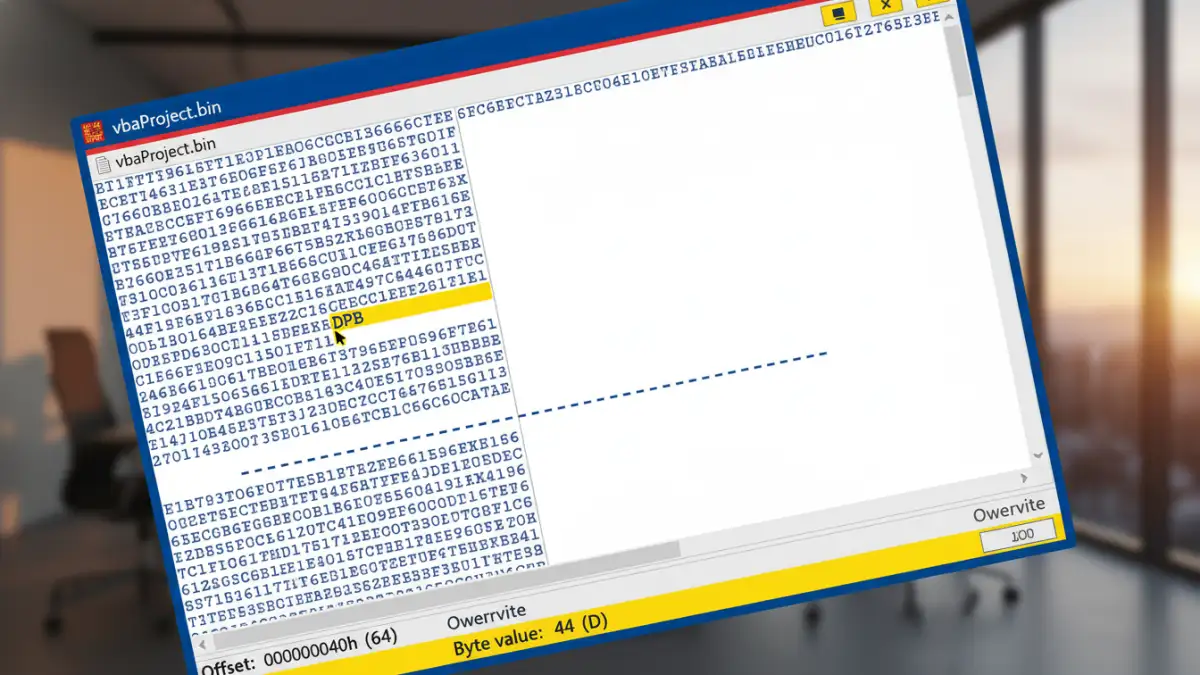
This is my go-to method as it doesn't require third-party software and gives you direct control over the file. It involves modifying a few bytes in the file's binary code to trick Office into thinking the password is correct. Always, and I mean *always*, work on a copy of your file. Never perform this on your only original.
You will need a hex editor for this. HxD is a great free option for Windows, but any reputable hex editor will do the job.
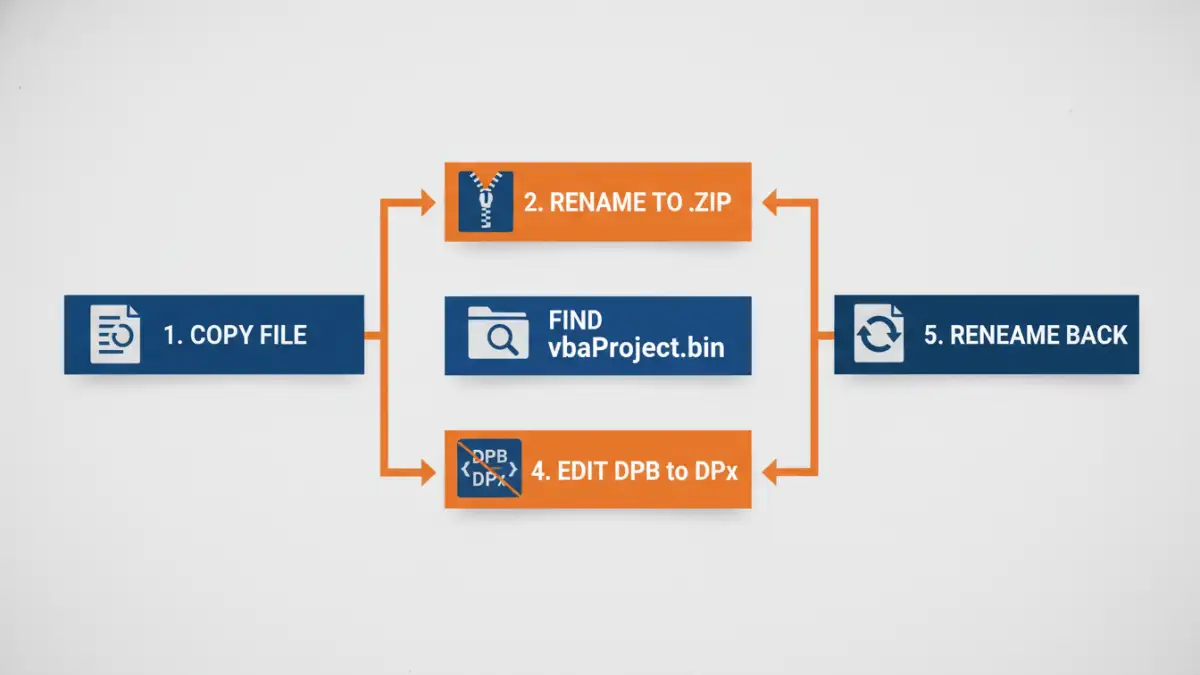
- Create a Backup: First, save a copy of your Excel file (.xls, .xlsm) or Word file (.doc, .docm). This is your safety net.
- Change File Extension: For modern Office files (like .xlsm or .docm), you first need to access their internal structure. Rename the file extension from `.xlsm` to `.zip`. Windows will warn you, but proceed.
- Extract the `vbaProject.bin` file: Open the ZIP file and navigate to the `xl` (for Excel) or `word` (for Word) folder. Inside, you will find a file named `vbaProject.bin`. Extract this single file to your desktop.
- Open in a Hex Editor: Launch your hex editor and open the `vbaProject.bin` file. You'll be greeted with a wall of hexadecimal numbers. Don't be intimidated.
- Find and Replace: Use the search function (usually Ctrl+F) to find the text string `DPB`. This is a key that precedes the encrypted password hash. Replace it with `DPx`. Simply change the `B` to an `x` and save the `vbaProject.bin` file.
- Re-Package the File: Go back to your ZIP file. Drag the modified `vbaProject.bin` file back into the `xl` or `word` folder within the ZIP archive, replacing the original.
- Restore File Extension: Close the ZIP archive and rename the file's extension from `.zip` back to its original form (`.xlsm` or `.docm`).
- Open and Reset: Open the modified Office file. It may show an error message; just click 'OK' or 'Yes' to proceed. Now, open the Visual Basic Editor (Alt+F11). Go to Tools > VBAProject Properties > Protection tab. You'll see the password fields are enabled. Uncheck 'Lock project for viewing', leave the password fields blank, and click OK. Save your file, and you're done. You now have full access.
Alternative Methods and Tools
If editing hexadecimal code feels a bit too close to the metal for you, there are third-party software tools designed for `excel 365 vba unlock` scenarios. These applications automate the process described above. They can be very effective and fast, but they come with caveats.
Be extremely cautious when downloading and using such tools. Many are outdated, and others can be bundled with malware. Always source them from reputable providers and scan them with antivirus software before use. While convenient, they essentially perform the same modification as the hex editor method, so you're paying for a user-friendly interface to a process you can do for free.
Proactive Security Best Practices
Recovering a password is a reactive measure. A better long-term strategy is to manage your VBA project security proactively. This is a core part of maintaining robust systems and avoiding future fire drills.
Implement a Password Management Policy
For any critical business file, passwords should be stored securely in a shared password manager like 1Password or Bitwarden. This ensures that if a developer leaves, the credentials remain with the team. Document not just the password but the purpose of the macro and the file's location.
Consider Code Signing
For a higher level of `latest office vba security`, consider signing your macros with a digital certificate. While this doesn't replace the project password, it verifies that the code comes from a trusted source and hasn't been tampered with. This builds trust with users and helps prevent the execution of malicious macros, adding another layer of defense.
Comparison of VBA Password Recovery Methods
| Method | Complexity | Cost | Security Risk |
|---|---|---|---|
| Hex Editor Method | Medium | Free | Low (if you work on a copy) |
| Third-Party Software | Low | Varies (Free to Paid) | High (risk of malware from untrusted sources) |
| Professional Data Recovery Service | Very Low | High | Low (with a reputable company) |
| Forgetting and Rebuilding | High | Very High (in developer hours) | N/A |