
I recently helped a colleague who was in a panic. He'd locked down a critical project proposal with a password months ago and, of course, couldn't remember it when the deadline loomed. It’s a situation many of us have faced: being locked out of our own work. While Microsoft Word's security is robust, losing access doesn't always mean the file is lost forever.
Regaining access depends entirely on the type of password you set. Some are simple restrictions, while others involve strong encryption. Understanding the difference is the first step to finding a solution.
Table of Contents
Understanding Word's Two Password Types
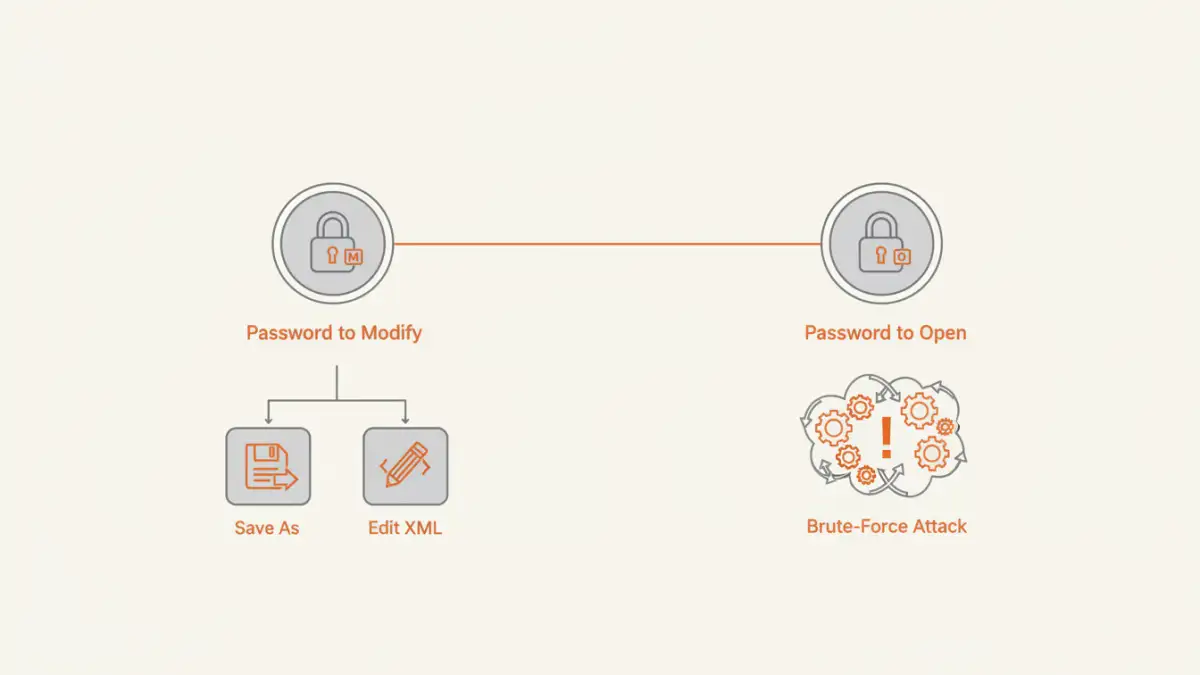
Before attempting any recovery, you need to identify what kind of protection is on the document. Word uses two distinct types of passwords, and the method to bypass them is drastically different. Trying the wrong approach will just lead to frustration.
Password to Modify
This is the less severe of the two. It allows anyone to open and read the document but requires a password to make and save changes. It's more of a strong suggestion than a security barrier, designed to prevent accidental edits. Fortunately, this type of restriction is relatively easy to remove.
Password to Open
This is the serious one. When you set a 'Password to Open', Word encrypts the entire document's contents. Modern versions of Word (2007 and later) use strong AES (Advanced Encryption Standard) encryption. Without the correct password, the file is just a block of unreadable data. Recovering this type of password is a significant technical challenge.
Methods for a 'Password to Modify'
If you can open the document but just can't edit it, you're in luck. There are a couple of straightforward methods to remove this restriction and unlock the docx file for editing.
Method 1: The 'Save As' Technique
The simplest trick is to save the document in a format that doesn't support this specific type of restriction. Rich Text Format (.rtf) is a perfect candidate.
- Open the restricted Word document. You will be prompted for the password to modify, but you can choose to open it as 'Read-Only'.
- Once the document is open, go to 'File' > 'Save As'.
- In the 'Save as type' dropdown menu, select 'Rich Text Format (*.rtf)'.
- Give the file a new name and save it.
- Now, open the new .rtf file you just created. The modification restriction will be gone. You can now save it back to a .docx format if needed.
This works because the .rtf format doesn't retain the specific metadata for modification passwords that Word uses, effectively stripping it during the conversion.
Method 2: Editing the Document's XML (Advanced)
For those comfortable with a more technical approach, you can directly edit the file's underlying XML. A .docx file is essentially a ZIP archive containing various XML files and folders that define the document.
- Make a copy of your document first to avoid accidental data loss.
- Rename the copy of your file, changing the extension from '.docx' to '.zip'. Confirm the change if Windows warns you.
- Open the .zip file with a tool like 7-Zip or the built-in Windows Explorer.
- Navigate inside to the 'word' folder and find the file named 'settings.xml'.
- Extract 'settings.xml' to your desktop and open it with a text editor like Notepad++.
- Search for the tag that starts with
<w:documentProtection...>. Delete the entire tag, from its opening bracket to its closing bracket. - Save the modified 'settings.xml' file.
- Drag the edited 'settings.xml' back into the .zip archive, overwriting the original.
- Rename the file extension back from '.zip' to '.docx'.
When you open the document now, the modification password prompt will be gone.
Tackling an Encrypted 'Password to Open'
If your document won't open at all without a password, you are dealing with encryption. I have to be direct here: there are no simple 'tricks' to bypass strong, modern encryption. The process to recover a forgotten word password for an encrypted file relies on trying to guess the password computationally.
The Reality of Brute-Force Attacks
The primary method used by any word document password remover tool is a brute-force or dictionary attack. These tools systematically try thousands or millions of password combinations per second until they find a match.
- Dictionary Attack: Tries words from a dictionary list. Effective if the password is a common word.
- Brute-Force Attack: Tries every possible combination of letters, numbers, and symbols. This is guaranteed to work eventually, but 'eventually' could mean days, years, or centuries depending on the password's complexity.
- Mask Attack: A more refined brute-force attack where you provide parts of the password you remember (e.g., "it started with 'Project' and ended in '23'"). This drastically reduces the search time.
There are many third-party software tools available that perform these attacks. They often leverage your computer's GPU for faster processing. Be cautious with online tools, as you'd be uploading a potentially sensitive document to an unknown server.
Prevention: The Best Cure for a Forgotten Word Password
As an engineer, I believe the best solution is to design a system that prevents the problem from occurring. Instead of scrambling to recover a lost password, it's far better to have a strategy for managing them.
Use a Reputable Password Manager
This is the single most effective step you can take. A password manager like Bitwarden or 1Password can generate and securely store extremely complex passwords for you. Simply save the document password in your manager when you create it. You'll only need to remember one master password for the manager itself.
Keep a Secure, Offline Record
For supremely critical documents, consider keeping a physical, written copy of the password in a secure location, such as a home safe or a bank deposit box. While it sounds low-tech, it's immune to digital threats and hardware failure.
Create Backups in Accessible Formats
If you are protecting a document for archival purposes, consider also saving an unprotected version in a secure, encrypted container or a physically secure backup drive. This provides a fallback if the primary password is ever lost.
Comparison of Word Password Recovery Methods
| Method | Password Type | Difficulty | Success Rate |
|---|---|---|---|
| 'Save As' to RTF | Modify | Easy | High |
| XML Editing | Modify | Medium | Very High (if done correctly) |
| Dictionary Attack | Open (Encrypted) | Medium (with software) | Low (for strong passwords) |
| Brute-Force Attack | Open (Encrypted) | Medium (with software) | Variable (depends on password complexity and time) |