
Have you ever set a password on a PDF to prevent editing or printing, only to wonder if it's actually secure? It’s a common scenario. You send off a sensitive report or a draft contract, confident that the restrictions you've applied will hold. But the reality of PDF security is far more nuanced than most people realize.
Many believe that setting these restrictions is foolproof, but as a software engineer who has worked on document management systems, I've seen firsthand how easily these can be circumvented. The distinction between protecting a document from being opened versus protecting it from being modified is vast, and understanding this difference is key to genuine document security.
Table of Contents
The Two Types of PDF Passwords
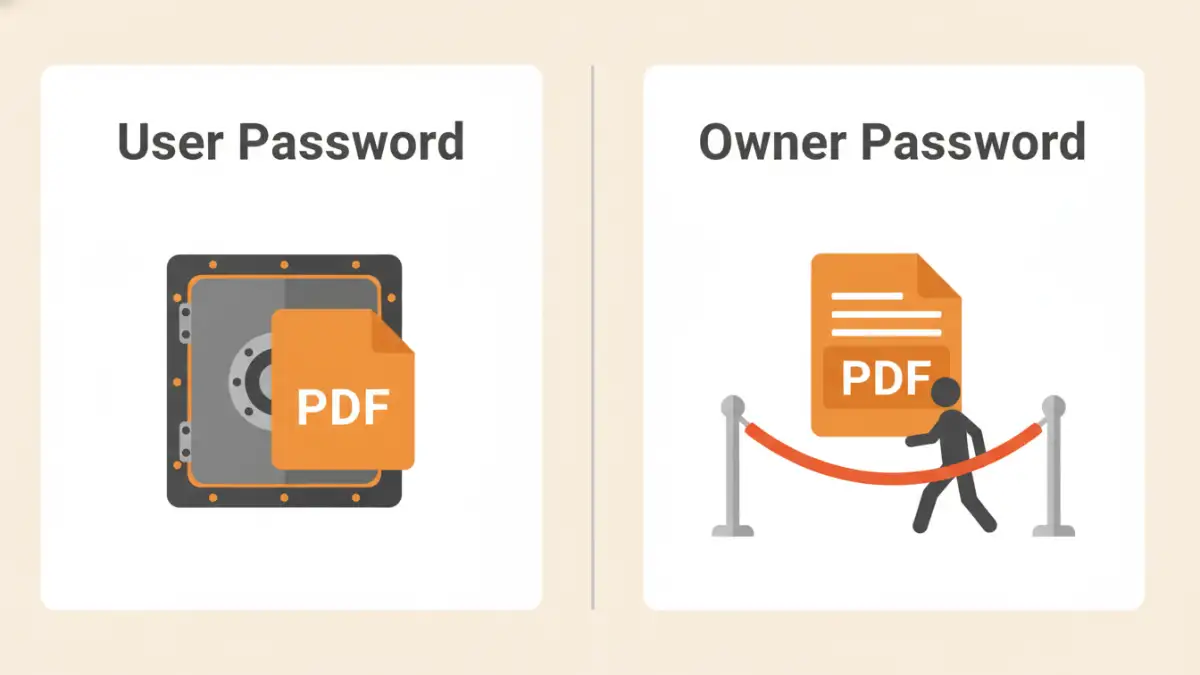
When we talk about PDF security, we're dealing with two fundamentally different types of passwords. Confusing them is a common mistake that can lead to a false sense of security. It's crucial to distinguish between the password that locks the door and the one that just puts up a 'Do Not Touch' sign.
The User Password (Open Password)
This is the password most people are familiar with. It's the key required to open and view the PDF document. Without it, the file's content is encrypted and unreadable. When set correctly using modern encryption standards like AES-256, a strong user password provides robust protection against unauthorized access. This is your primary line of defense.
The Owner Password (Permissions Password)
This is the password that controls what a user can do with the document *after* it's already open. The owner password is used to restrict editing, printing, copying text, or adding comments. It doesn't prevent someone from viewing the file; it's designed to manage permissions. This is where the security model often becomes surprisingly weak.
How Permissions Actually Work (And Where They Fail)
The core issue with the owner password lies in its implementation. When you set a permissions password, the PDF file isn't necessarily re-encrypted in a way that makes copying impossible. Instead, a set of permission flags is added to the file's metadata. These flags are essentially instructions for the PDF viewing software.
A well-behaved application like Adobe Acrobat Reader will read these flags and disable the corresponding functions—the 'Print' button will be grayed out, and you won't be able to select and copy text. However, this is based on an honor system. The software voluntarily enforces the restrictions. The underlying data is often still accessible to any program that chooses to ignore these flags.
Common Methods for Bypassing Permissions
Because the owner password relies on software compliance, it's trivial to bypass for anyone with basic technical knowledge. This is a critical aspect of file access control analysis. The restrictions are more of a guideline than an unbreakable rule.
The Browser 'Print to PDF' Trick
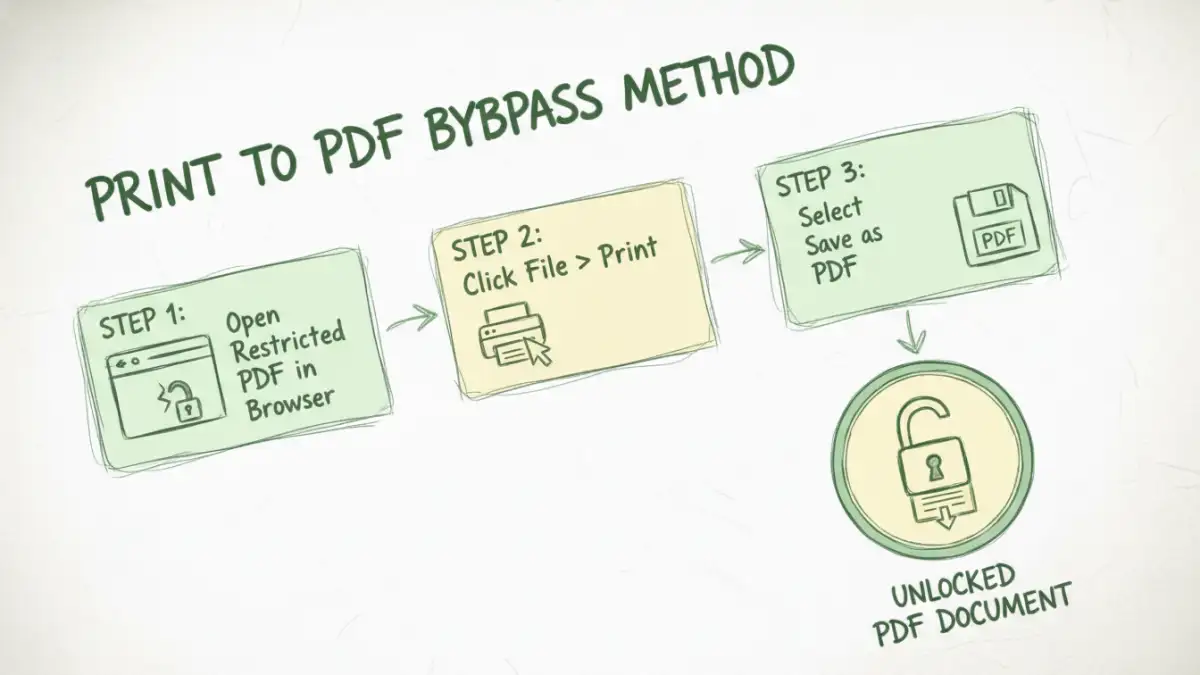
One of the simplest methods involves opening the restricted PDF in a web browser like Chrome or Firefox. These browsers often have their own PDF rendering engines that may not fully respect all permission flags. From there, a user can simply go to the 'Print' menu and choose 'Save as PDF'. This creates a brand new, unrestricted copy of the document, effectively stripping away all the original permissions.
Online PDF Unlocking Tools
A quick search reveals dozens of websites that offer to remove PDF restrictions. Users can upload a file, and the service will process it and provide an unlocked version for download. While effective, this method poses a massive security risk. You are uploading your potentially sensitive document to an unknown third-party server, completely losing control over your data.
Specialized Desktop Software
There are also numerous desktop applications designed specifically to remove PDF restrictions. These tools read the PDF content and rewrite it into a new file without the permission flags. They don't need to 'crack' the owner password; they simply ignore the metadata that enforces the restrictions, making it easy to restrict editing pdf protections ineffective.
Strategies for Real Document Security
If you've realized that pdf permission passwords are not a reliable security feature, what should you do instead? True document permissions security requires a more robust approach that doesn't rely on easily bypassed flags.
First, always use a strong user (open) password with AES-256 encryption. This is non-negotiable for sensitive information. If an unauthorized person cannot open the file in the first place, they can't copy, print, or edit its contents. This is the most effective control you have within the PDF standard itself.
For high-stakes documents, consider solutions outside the standard PDF format. Digital Rights Management (DRM) platforms provide granular control over documents, allowing you to revoke access, track usage, and prevent screenshots. Secure document sharing portals also offer a better alternative, where users view the document in a controlled web environment without ever downloading the source file.
PDF Security Method Comparison
| Security Layer | Strength | How It Works | Best For |
|---|---|---|---|
| Owner Password | Weak | Sets metadata flags that compliant software honors. | Discouraging casual users from accidental edits. |
| User Password (128-bit) | Moderate | Encrypts the entire document; requires a password to open. | General-purpose security for non-critical documents. |
| User Password (AES-256) | Strong | Uses a powerful encryption algorithm to lock the document. | Securing sensitive financial, legal, or personal data. |
| Third-Party DRM | Very Strong | Server-based control over access, printing, and sharing. | Enterprise-level protection for intellectual property. |