I recently received a client contract as a password-protected PDF. The password they provided? "Contract2024". While it might seem like a decent password, it's a perfect example of a common vulnerability. It's predictable, based on public information, and susceptible to dictionary attacks. This got me thinking about how often we rely on passwords for document security without truly understanding what makes them effective.
We assume that a password prompt equals security, but the reality is far more nuanced. The actual protection your document has depends heavily on the password's complexity and, just as importantly, the underlying encryption technology used by the PDF. Let's break down how to perform a quick security check on your own files.
Table of Contents
Why PDF Password Strength Matters
When you protect a PDF, you're typically setting one of two types of passwords. The distinction is crucial for understanding document password security. One password simply restricts access, while the other limits actions like printing or editing. However, if either is weak, your document is at risk.
User vs. Owner Passwords
A 'User Password' (or 'Open Password') is required to open and view the document. This is the first line of defense. An 'Owner Password' (or 'Permissions Password') restricts actions like printing, copying text, or editing the file after it's been opened. You can have an owner password without a user password, meaning anyone can open the file but not modify it. The problem is that many tools can easily strip away the owner password if a user password isn't also set.
The Threat of Brute-Force Attacks
A weak PDF password is an open invitation for brute-force or dictionary attacks. These automated attacks use software to try thousands or even millions of password combinations per second. A simple password like "password123" or "companyname!" can be cracked in moments. The longer and more complex your password, the exponentially harder it becomes for these tools to guess it, making strong passwords your best defense.
A Quick Security Checklist for Your PDF

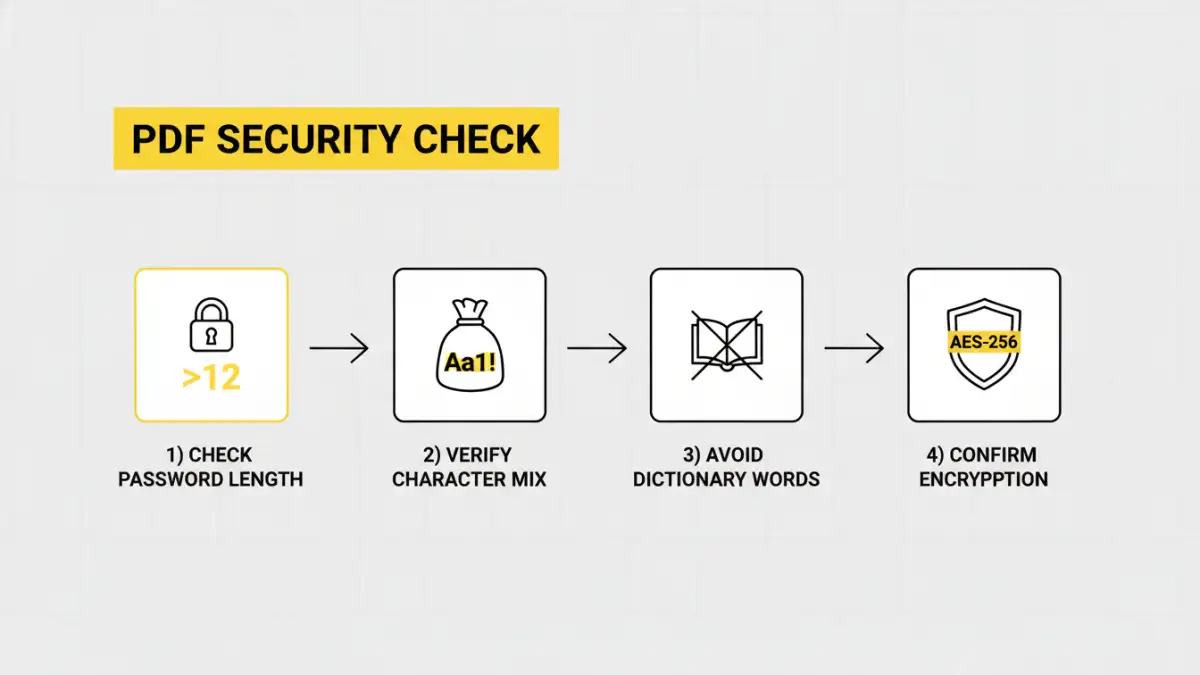
You don't need to be a security expert to evaluate your password's effectiveness. Run through this mental checklist the next time you set a password for a sensitive document. A strong password should meet all these criteria.
- Length is Key: Is the password at least 12-16 characters long? Every additional character significantly increases the time required to crack it. Short passwords are the easiest to break.
- Character Complexity: Does it include a mix of uppercase letters, lowercase letters, numbers, and symbols (e.g., !, @, #, $)? A password using only lowercase letters is far weaker than one that leverages all character types.
- Avoid Predictability: Is the password free of common dictionary words, names, dates, or sequential numbers (like "12345")? Avoid using personal information like your birthdate or pet's name.
- Uniqueness: Are you reusing this password from another account or document? Reusing passwords creates a major security risk; if one account is compromised, the attacker can try that same password everywhere else.
Understanding PDF Encryption Levels
This is where my software engineering background comes into play. A strong password on weak encryption is like putting a bank vault door on a tent. The underlying file encryption strength is just as important as the password itself. PDFs have evolved their encryption standards over the years.
Outdated vs. Modern Encryption
Older PDF versions often used 40-bit or 128-bit RC4 encryption. These standards are now considered obsolete and can be broken relatively easily, sometimes in a matter of hours or days, regardless of password complexity. Modern PDF creators, like recent versions of Adobe Acrobat, use much stronger algorithms like 128-bit or 256-bit AES (Advanced Encryption Standard). AES-256 is the gold standard, used by governments and financial institutions to protect top-secret information.
When you create a password-protected PDF, always check the security settings or properties. Ensure you're using the highest level of encryption available, preferably AES-256. If your software doesn't support it, it's time to update it. Using modern encryption ensures that even if an attacker gets the file, the contents remain a scrambled, unreadable mess without the correct password.
Tools to Analyze PDF Security
How can you check pdf password settings without specialized software? It's often easier than you think. You don't need hacking tools to assess the security level of a PDF you've created.
The most straightforward method is to use your PDF reader. In Adobe Acrobat or Acrobat Reader, you can open the document (if you know the password) and go to `File > Properties > Security`. This dialog box will tell you everything you need to know: the encryption level (e.g., "256-bit AES"), the presence of a user or owner password, and the specific permissions that are allowed or restricted. If you see "40-bit RC4," you know the document's security is outdated, and you should re-create it with a modern tool.
This simple check gives you a clear picture of your document's security posture. It helps you move beyond just setting a password to truly understanding and verifying the protection you've put in place, ensuring your sensitive data remains secure.
Password Complexity vs. Estimated Cracking Time
| Password Example | Character Types Used | Complexity Level | Estimated Time to Crack |
|---|---|---|---|
| secret | 1 (lowercase) | Very Weak | Instantly |
| Secret123 | 3 (upper, lower, numbers) | Weak | Seconds to Minutes |
| S3cur!tyR0ck$ | 4 (all types) | Strong | Centuries |
| My-Correct-Horse-Battery-Staple-7! | 4 (all types) | Very Strong | Thousands of Years |