
A colleague recently called me in a panic. He had an encrypted contract due for review but couldn't remember the password he'd set just a week prior. It’s a situation many of us have faced—a digital lock with a lost key. That sinking feeling is universal, but the good news is that you often have several options before you have to declare the file a total loss.
Depending on the type of password and the security level applied, regaining access can range from surprisingly simple to quite complex. Let's walk through the different types of PDF protection and the practical steps you can take to solve this common problem.
Table of Contents
Understanding PDF Passwords: Owner vs. User
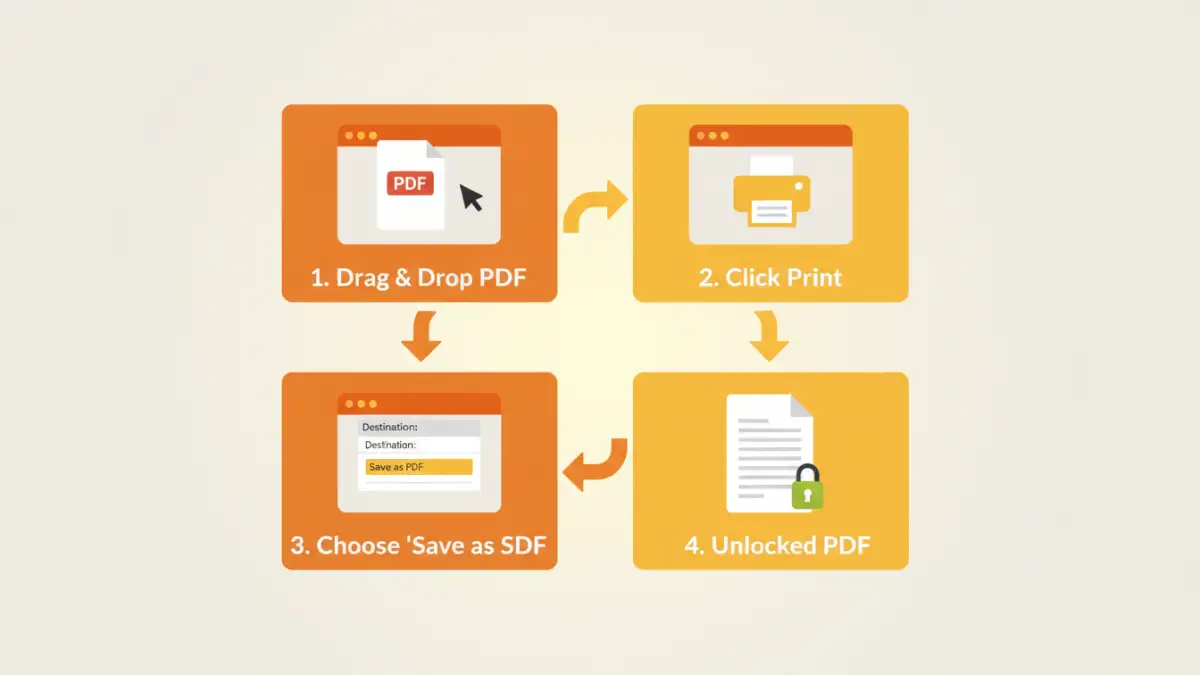
Before trying to unlock a file, it's crucial to understand that PDFs can have two different types of passwords. The method you use depends entirely on which one is protecting your document.
The Owner Password (Permissions Password)
This is the more common and less restrictive type. An Owner Password doesn't prevent you from opening the file; instead, it restricts actions like printing, copying text, editing, or adding comments. If you can open the PDF but can't do anything with it, it's protected by an Owner Password. This is the easier of the two to bypass.
The User Password (Open Password)
This is the serious one. A User Password encrypts the entire document and prevents anyone from opening it without the correct credentials. If you are prompted for a password the moment you try to view the file, you're dealing with a User Password. Recovering this type is significantly more challenging and often requires specialized software.
Immediate Steps to Try First
Before diving into technical solutions, let's cover the basics. Over the years, I've seen these simple checks solve the problem more often than you'd think. Don't skip these steps.
- Check Your Usual Suspects: Try your most common passwords. We are creatures of habit, and it's likely you used a familiar password you rely on for other accounts.
- Look in Your Password Manager: If you use a password manager like 1Password, Bitwarden, or LastPass, do a thorough search. You might have saved it there and forgotten.
- Ask the Sender: If someone sent you the file, the simplest solution is to ask them for the password again. Perhaps they sent it in a separate email or message that you overlooked.
- Check File Properties: Sometimes, hints are left in the file's metadata or in the surrounding context where the file was shared. It's a long shot, but worth a quick look.
Methods to Recover or Remove PDF Passwords
If the simple steps don't work, it's time to move on to more direct methods. Your approach will differ based on whether you're dealing with an Owner or User password.
For Owner Passwords: The Browser Trick
This is a surprisingly effective method for removing restrictions like printing or copying. Because the file isn't encrypted against opening, you can use a web browser's print function to create a new, unrestricted version.
- Drag and drop the locked PDF file into a new tab in a browser like Google Chrome or Microsoft Edge.
- The file will open, as there is no User Password.
- Press Ctrl+P (or Cmd+P on Mac) to open the print dialog.
- In the 'Destination' or 'Printer' dropdown menu, select 'Save as PDF'.
- Click 'Save' and choose a new name for the file. This newly saved PDF will be a copy of the original but without the printing and copying restrictions.
For User Passwords: Using Recovery Tools
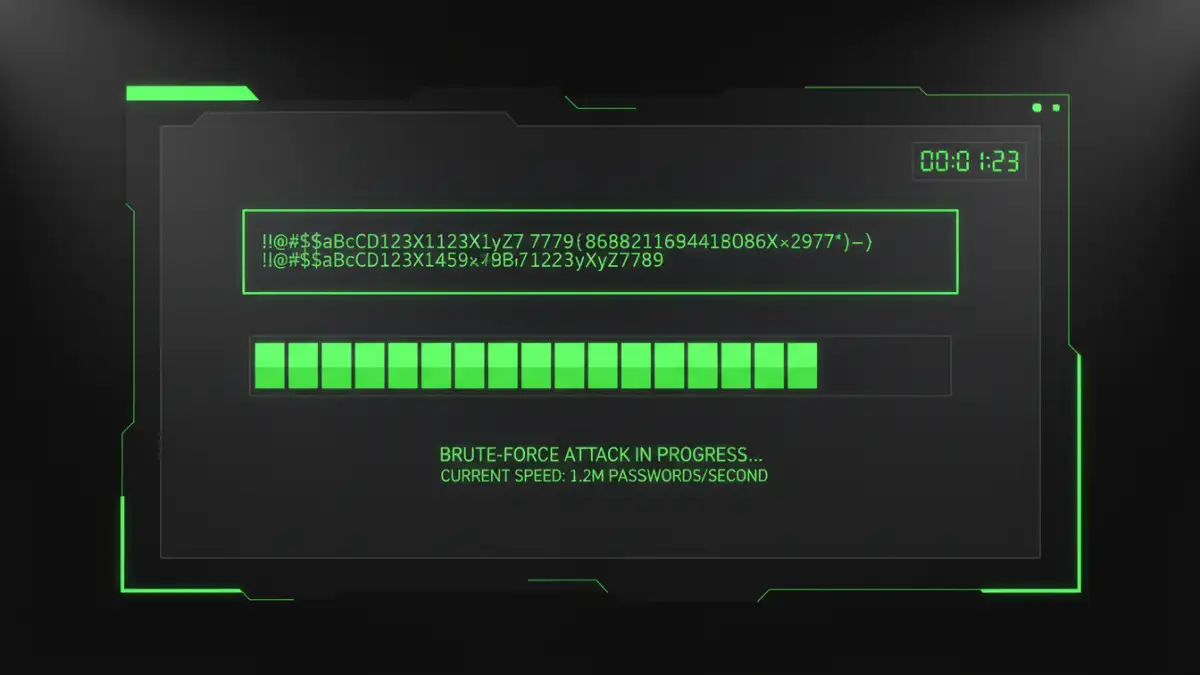
When you've completely lost a PDF password that prevents opening the file, your options are more limited. You'll need a tool to help you find it. These tools work by trying thousands or millions of password combinations in a short time, a process known as a brute-force or dictionary attack.
Online Tools: Websites like Smallpdf or iLovePDF offer services to unlock encrypted PDF files. You upload your document, and their servers attempt to decrypt it. While convenient, this poses a significant security risk. Never upload sensitive or confidential documents to a third-party online service.
Desktop Software: For a more secure approach, a dedicated PDF password recovery tool that runs on your computer is the best option. Applications like Passware or John the Ripper (for advanced users) perform the recovery process locally, ensuring your data never leaves your machine. These tools are often more powerful and offer more customization, such as letting you provide hints about the password (e.g., length, characters used) to speed up the process.
Preventative Measures and Best Practices
The best way to deal with a lost password is to not lose it in the first place. As a software engineer, I rely heavily on systems to manage credentials securely. Adopting these habits can save you a lot of future headaches.
First, always use a reputable password manager. When you set a password for a PDF, immediately save that password in your manager and link it to the document's name or topic. This creates a secure, searchable record.
Second, if you're sharing a protected document, establish a secure method for sharing the password. Avoid sending it in the same email as the document itself. Use a separate, secure channel like a messaging app with end-to-end encryption or share it verbally.
Finally, consider if password protection is always necessary. For less sensitive documents, perhaps other forms of access control are more appropriate. Overusing passwords can lead to credential fatigue and increase the chances of one being forgotten.
PDF Password Recovery Method Comparison
| Method | How It Works | Pros | Cons |
|---|---|---|---|
| Browser 'Print to PDF' | Creates a new, unrestricted copy of the PDF. | Free, fast, no software needed. | Only works for Owner (permission) passwords. |
| Online Recovery Tools | Upload the file to a web service for decryption. | Convenient and user-friendly. | Major privacy risk; not for sensitive data. |
| Desktop Recovery Software | Uses your computer's power to brute-force the password. | Secure, powerful, more configuration options. | Can be slow, often requires payment for full features. |
| Password Manager | Stores your password securely for future retrieval. | Proactive, highly secure, prevents the problem. | Requires setting up and consistently using the tool. |