It's a familiar feeling of dread: an important PDF lands in your inbox, but the sender forgot to include the password. Or maybe you secured a file yourself months ago and now the password is a complete blank. Before you panic, there are several straightforward options you can try to regain access. Not all protected PDFs are created equal, and understanding the type of lock you're dealing with is the first step toward a solution.
As a developer, I often deal with document security and encryption. The key is to approach the problem systematically, starting with the simplest and safest methods before moving to more complex ones. Let's walk through the first things you should do when you need to unlock a protected PDF.
Table of Contents
Understanding PDF Passwords: Owner vs. User
Before you can solve the problem, you need to understand what you're up against. PDF security primarily uses two types of passwords, and the method you use depends entirely on which one is locking your file. It's a critical distinction that many people miss.
The Owner Password
This is the most common type of protection. An owner password restricts permissions—it stops you from printing, copying text, editing the document, or adding comments. However, it doesn't prevent you from opening and viewing the file. If you can open the PDF but can't do anything else, it's protected by an owner password. This is the easier type to handle.
The User (or Open) Password
This is the more formidable lock. A user password encrypts the entire document and prevents anyone from opening it without the correct credentials. If the PDF prompts you for a password the moment you try to open it, you're dealing with a user password. Recovering from a lost user password is significantly more difficult and often requires specialized software.
Your First Line of Defense: The Simple Checks
Sometimes the simplest solution is the right one. Before you download any software or upload your file to a random website, run through this basic checklist. I've seen these simple steps solve the problem more often than you'd think.
- Contact the Sender: If someone sent you the file, this is the fastest and safest option. A quick email or message can save you a lot of time and effort.
- Check Your Communications: Search your email, instant messages, or any project management tools. The password might have been sent in a separate message that you overlooked.
- Try Common Passwords: Think about passwords you or the sender might have used. This could include company names, project codes, relevant dates (like `Q42024`), or simple defaults like `12345` or `password`.
- Check File Properties: In some cases, a hint for the password might be stored in the document's metadata. Right-click the file, go to 'Properties', and check the 'Details' tab. It's a long shot, but worth a look.
Method 1: The Browser 'Print to PDF' Trick
If you're dealing with an owner password (you can open the file but can't print or copy), there's a wonderfully simple trick you can use with most modern web browsers like Chrome, Edge, or Firefox. This method essentially creates a new, unrestricted copy of the PDF.
Here’s how it works:
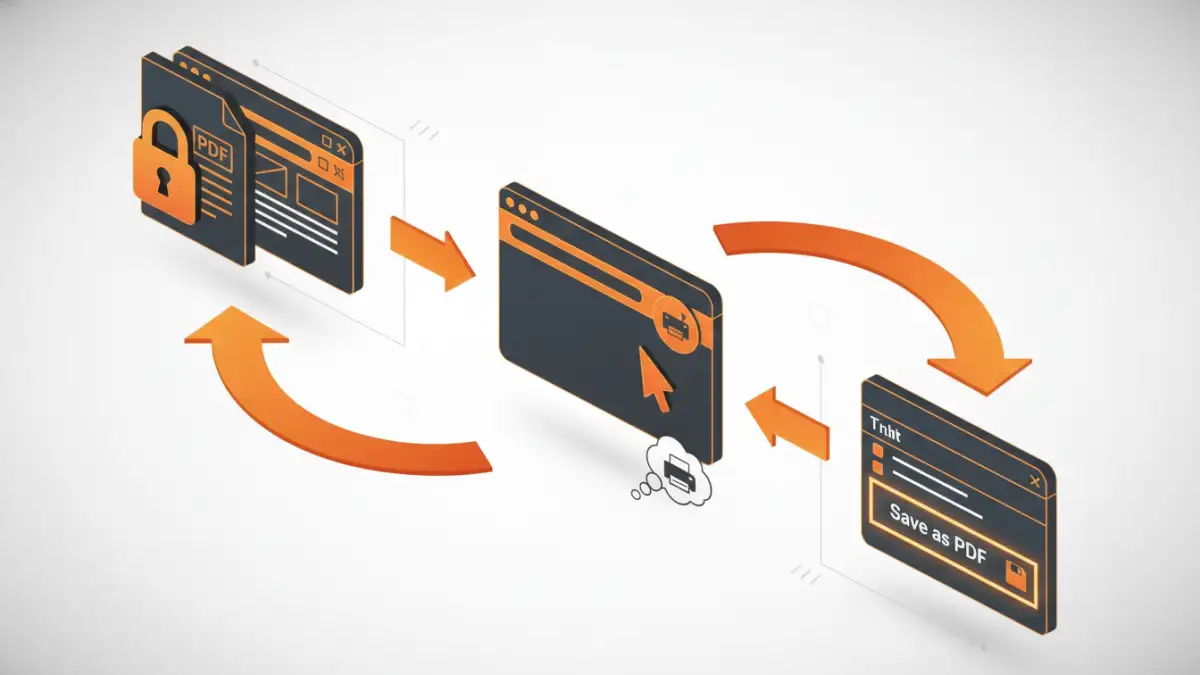
- Drag and drop the locked PDF file directly into an open browser window. The browser's built-in PDF viewer will open the file.
- Click the 'Print' icon, usually located in the top-right corner of the browser window.
- In the print dialog box, change the 'Destination' from your physical printer to 'Save as PDF'.
- Click 'Save' and choose a name and location for your new file.
This new PDF will be a clean, unlocked version of the original, with all printing and copying restrictions removed. It's my go-to first technical step because it's fast, free, and doesn't require uploading your potentially sensitive document to a third-party server.
Method 2: Using Online PDF Password Recovery Tools
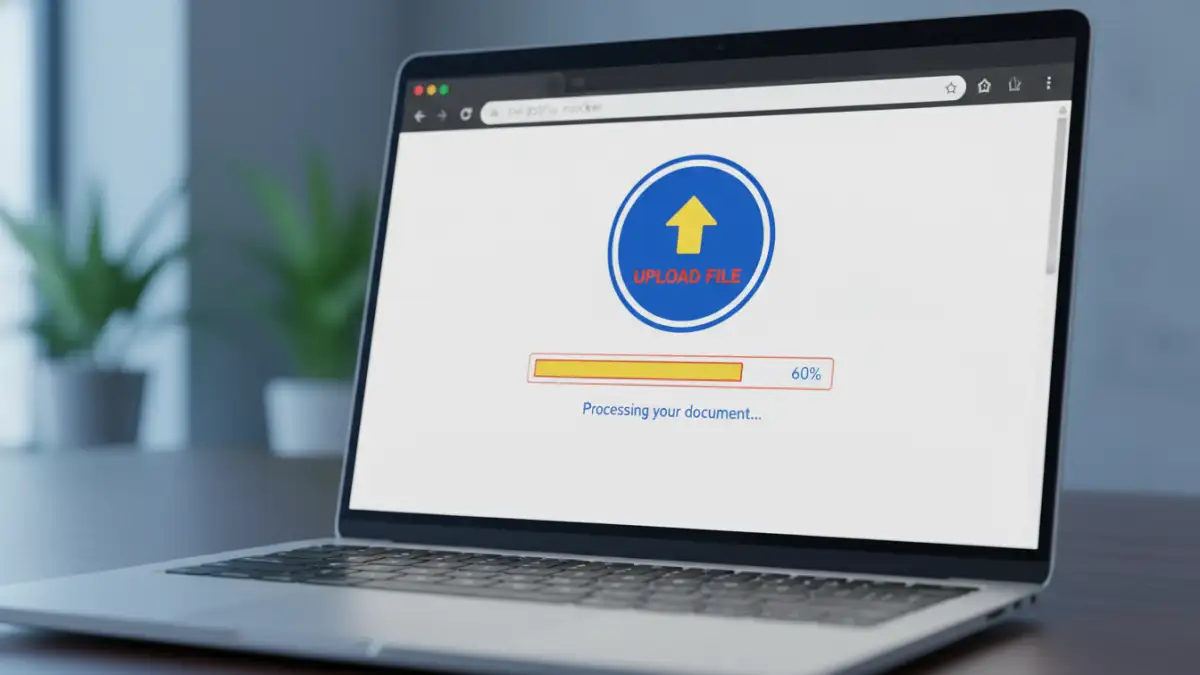
When the browser trick doesn't work or you need a quick solution, online tools can be an option. Websites like Smallpdf and iLovePDF offer utilities to remove PDF passwords. You simply upload your file, their servers process it, and you can download the unlocked version. These tools are designed to handle owner passwords instantly.
However, I always advise caution here. When you upload a document, you are sending your data to a third-party server. If the PDF contains sensitive, confidential, or personal information, this is a significant privacy risk. Always read the tool's privacy policy to understand how they handle your data. For non-sensitive files, they are convenient, but for anything important, I'd recommend avoiding them.
Method 3: Dedicated Desktop Software
If you've truly forgotten a user (open) password, online tools and browser tricks won't help. This is where you need dedicated desktop software. These programs use techniques like brute-force attacks (trying every possible combination) or dictionary attacks (trying words from a list) to guess the password.
This process can be very time-consuming, potentially taking hours, days, or even longer depending on the password's complexity. The effectiveness of this method is entirely dependent on how strong the original password was. A short, simple password might be found quickly, but a long, complex one with symbols and numbers could be practically impossible to crack. This is a last resort, but it's the only real option for a lost user password.
PDF Password Recovery Method Comparison
| Method | Pros | Cons | Best For |
|---|---|---|---|
| Simple Checks | Safest, fastest when it works | Relies on external information | The absolute first step for any situation. |
| Browser 'Print to PDF' Trick | Free, secure, no software needed | Only works on Owner Passwords | Quickly removing print/copy restrictions. |
| Online Tools | Convenient and user-friendly | Major privacy and security risks | Non-sensitive documents with Owner Passwords. |
| Desktop Software | Can recover User (Open) Passwords | Slow, can be costly, not guaranteed to work | Critical documents when you forgot a PDF password and have no other choice. |