
Legacy Excel files often house critical business data, but they can also present unique security challenges. Many older spreadsheets were built with macros that, while functional, can pose significant risks if not properly managed. Furthermore, sensitive information within these files might require robust protection against unauthorized access or data breaches. Addressing these concerns is paramount for maintaining data integrity and compliance.
Over the years, I've encountered numerous situations where outdated Excel files were the weak link in an organization's security chain. These files might contain valuable financial reports, customer lists, or proprietary formulas that, if compromised, could lead to serious consequences. Understanding the nuances of legacy spreadsheet protection, particularly concerning macros and encryption, is key to mitigating these risks effectively.
Table of Contents
Understanding Macro Security
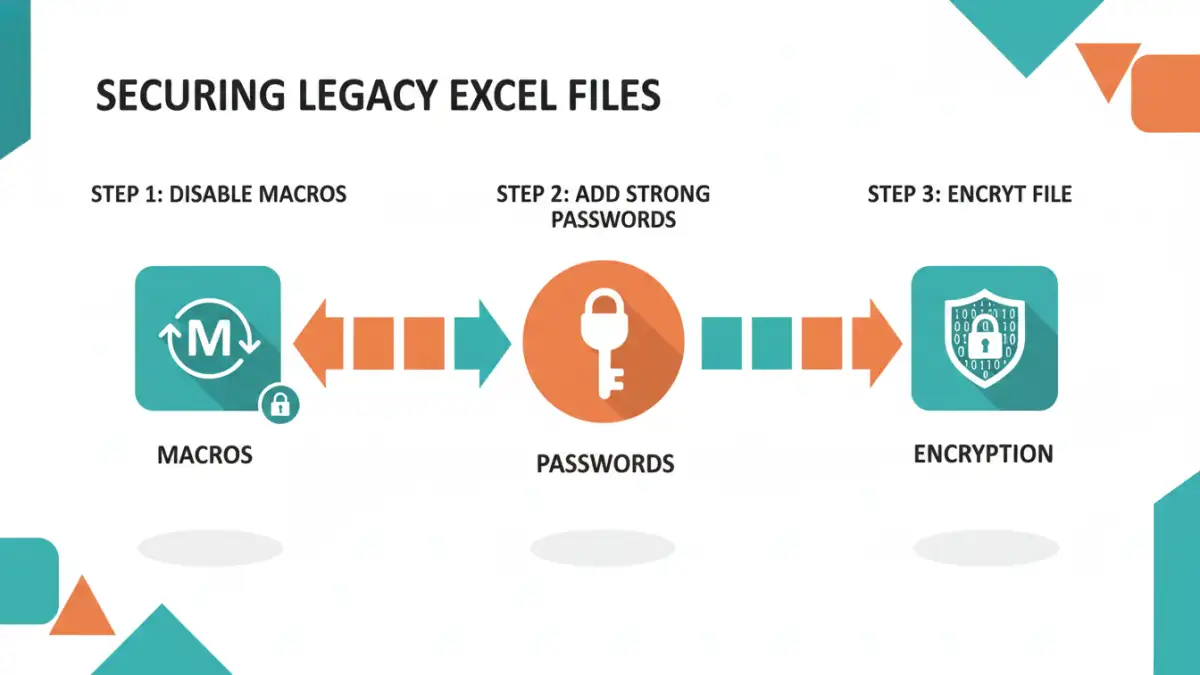
Macros in Excel are powerful tools that automate repetitive tasks, but they can also be a vector for malware. When you open a workbook containing macros, Excel prompts you to enable them. If the macro is malicious, it can execute harmful code on your computer, potentially leading to data theft or system compromise. It's crucial to only enable macros from trusted sources.
Macro Security Settings
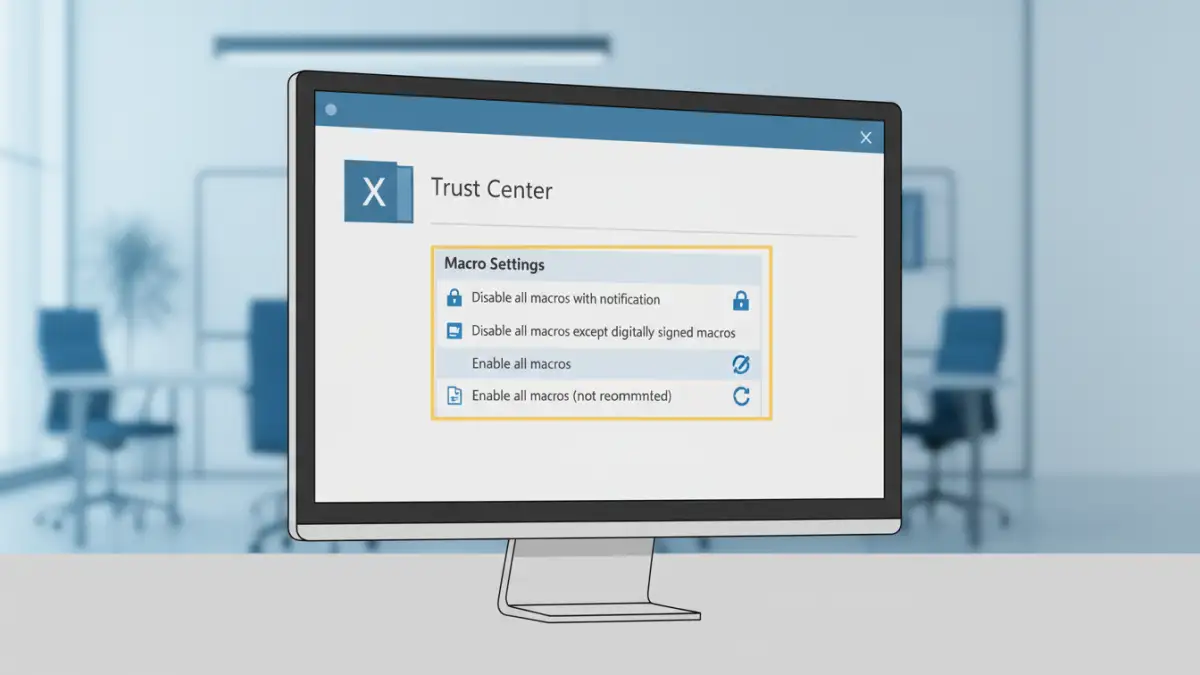
Excel offers built-in macro security settings that allow users to control how macros are handled. These settings range from disabling all macros to enabling them with notification, or trusting all macros (which is highly discouraged). Navigating to File > Options > Trust Center > Trust Center Settings > Macro Settings provides access to these controls. For legacy spreadsheet protection, ensuring these settings are appropriately configured is the first line of defense.
Excel Encryption Methods
Protecting the confidentiality of data within Excel files often involves encryption. Excel provides several ways to encrypt your workbooks, primarily through password protection. Applying a password to a workbook can prevent unauthorized users from opening or modifying the file. This is a fundamental step in ensuring your excel file security.
Password Protection and File Encryption
You can encrypt an Excel file by going to File > Save As > Browse, then clicking 'Tools' and selecting 'General Options' to set a password for opening or modifying the file. While this encrypts the file content, it's important to note that older encryption methods might be vulnerable to brute-force attacks. For more sensitive data, consider using Windows file encryption features or third-party tools that offer stronger encryption algorithms.
Challenges with Legacy Files
Working with legacy spreadsheet protection introduces specific hurdles. Older versions of Excel might use weaker encryption algorithms that are easier to break. Additionally, macros developed years ago might not adhere to current security best practices, making them inherently risky. Migrating or updating these files can be a complex process, often requiring careful analysis of the existing macros and data structure.
The challenge is compounded when the original developer is no longer available, or the documentation for the macros is missing. In such scenarios, a thorough review and potential rewrite of the macro code might be necessary to ensure it's secure and functional with modern Excel versions. This is where understanding both VBA (Visual Basic for Applications) and general excel file security principles becomes vital.
Best Practices for Protection
To enhance excel file security for your legacy spreadsheets, a multi-layered approach is recommended. Regularly review and update your macro security settings. Only enable macros from sources you absolutely trust, and consider digitially signing your own macros to verify their origin. For sensitive data, always use strong, unique passwords for file encryption and consider exploring more advanced encryption solutions if necessary.
Regularly back up your important spreadsheets to a secure location. This not only protects against data loss but also provides a recovery point if a security incident occurs. Educating users about the risks associated with macros and password security can also significantly reduce vulnerabilities. For long-term legacy spreadsheet protection, periodic audits of your security measures are a wise investment.
Comparison Table: Excel Security Methods
| Method | Description | Security Level | Ease of Use | Best For |
|---|---|---|---|---|
| Macro Settings | Controlling macro execution via Trust Center | Medium (relies on user judgment) | Easy | Preventing macro-based malware |
| Password Protection (Open/Modify) | Built-in Excel feature to password-protect files | Medium (older algorithms can be weak) | Easy | Basic confidentiality |
| VBA Code Review/Signing | Auditing macros for malicious code and digitally signing them | High (for trusted macros) | Difficult (requires technical skill) | Ensuring macro integrity |
| File System Encryption (e.g., BitLocker, EFS) | OS-level encryption of the entire file or drive | Very High | Medium (requires setup) | Protecting entire drives or folders containing sensitive files |
| Third-Party Encryption Tools | Specialized software for robust file encryption | Very High | Medium to Difficult | Maximum security for critical data |