
I recently needed to send a set of sensitive financial documents to an accountant. Email is convenient, but sending confidential information without protection is a significant security risk. The simplest solution, and one that's universally compatible, is to compress and encrypt files into a single, secure package. This is where creating a password-protected ZIP file becomes an essential skill for anyone handling private data.
It’s a straightforward process, but one that many people are surprisingly unfamiliar with. Let's walk through the steps to ensure your files are properly secured before you send them anywhere.
Table of Contents
Why Should You Password-Protect a ZIP File?
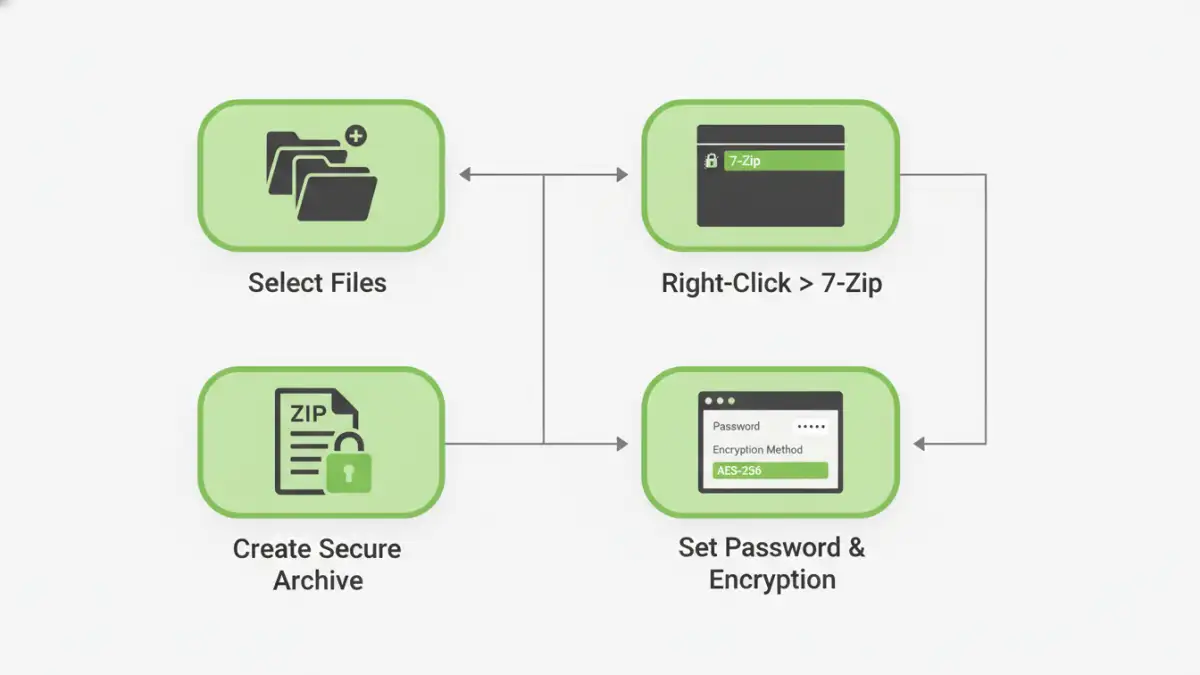
Before diving into the 'how,' it's useful to understand the 'why.' Compressing files into a ZIP archive is primarily for bundling multiple files and reducing their total size. Adding a password, however, introduces a critical layer of security through encryption. This means the contents of the archive are scrambled and can only be accessed by someone who has the correct password.
This is crucial for several reasons. It ensures confidentiality when sending files over insecure channels like email, protects sensitive data stored on a shared drive or in the cloud, and provides a simple method of access control. Whether you're sharing legal contracts, personal records, or proprietary business data, encryption is a non-negotiable step.
The Built-in Windows Method (and Its Limitations)
Many Windows users assume they can create a secure ZIP archive using the built-in 'Send to > Compressed (zipped) folder' option. While this feature is great for basic file compression, it has a major drawback: it does not offer native password protection or encryption. You can create a ZIP file, but you can't secure it without third-party software.
This is a common point of confusion I've seen trip people up. They believe their zipped folder is secure, when in reality, anyone with access to the file can open it. To properly encrypt a zip folder, we need to use a dedicated tool designed for the job. Fortunately, some of the best options are completely free.
How to Create a Secure ZIP Archive with 7-Zip
My go-to recommendation for this task is 7-Zip. It's a free, open-source, and powerful file archiver that offers strong encryption. It's lightweight, trustworthy, and integrates seamlessly into the Windows context menu, making it incredibly easy to use once installed.
Step 1: Download and Install 7-Zip
First, you'll need to install the software. You can download it directly from the official website, 7-zip.org. Be sure to choose the correct version for your system (usually the 64-bit version for modern computers). The installation is quick and straightforward; just follow the on-screen prompts.
Step 2: Create and Encrypt Your ZIP Archive
Once 7-Zip is installed, the process becomes incredibly simple. Here’s how to zip a file with password protection:
- Navigate to the file(s) or folder(s) you want to protect.
- Select all the items you want to include in your archive.
- Right-click on the selected files. In the context menu, hover over '7-Zip' and then click 'Add to archive...'.
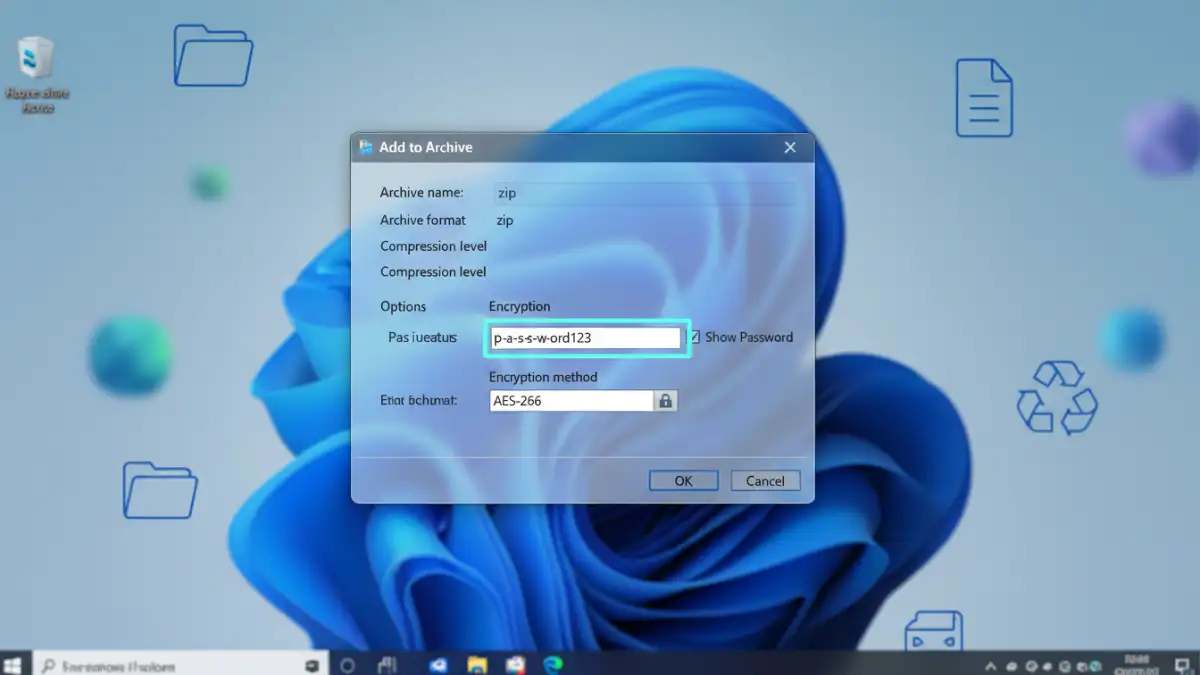
- This opens the 7-Zip configuration window. Here, you'll set the key parameters.
- Archive format: Make sure this is set to 'zip'.
- Encryption: In the bottom-right section, enter and re-enter a strong password.
- Encryption method: Choose 'AES-256'. This is the industry standard for strong encryption and offers excellent security.
- Click 'OK'. 7-Zip will create a new, password-protected ZIP file in the same location.
Anyone trying to open this file will now be prompted to enter the password. Without it, the contents remain inaccessible and secure.
Best Practices for Secure File Handling
Creating the encrypted archive is only half the battle. How you manage the password is just as important for maintaining security. A strong lock is useless if you leave the key under the doormat.
Choosing a Strong Password
Your archive's security is only as strong as its password. Avoid common words, personal information (like birthdays or names), and simple patterns. A strong password should be:
- Long: Aim for at least 12-16 characters.
- Complex: Use a mix of uppercase letters, lowercase letters, numbers, and symbols.
- Unique: Don't reuse passwords from other accounts.
Consider using a passphrase—a sequence of random words—which can be easier to remember but much harder to crack. For example, 'Correct-Horse-Battery-Staple' is far more secure than 'P@ssw0rd1!'.
Sharing the Password Securely
This is the step where many security measures fail. Never send the password in the same email as the ZIP file itself. If an unauthorized person gains access to that email, they will have both the locked file and the key to open it.
Instead, use a separate, secure communication channel. Share the password via a phone call, a text message, or an end-to-end encrypted messaging app like Signal or WhatsApp. This separation of channels drastically reduces the risk of both components being intercepted simultaneously.
Comparison of File Encryption Methods
| Method | Encryption Support | Cost | Best For |
|---|---|---|---|
| Windows 'Send to' | None | Free (Built-in) | Simple file bundling and compression without security needs. |
| 7-Zip | AES-256 (Strong) | Free | Creating a highly secure, password protected zip file for free. |
| WinRAR | AES-256 (Strong) | Paid (Shareware) | Users who need advanced features and are willing to pay for them. |
| BitLocker (Windows Pro) | Full Disk Encryption | Free (Built-in to Pro) | Securing an entire drive or device, not individual file archives. |