Working with critical documents from older software can present unique challenges, especially when it comes to security. Many of us have important files stored in formats like WordPerfect, which might not have the modern security features we expect from current applications. Ensuring the confidentiality of these legacy files is paramount, whether they contain personal information, business records, or historical data. The good news is that there are effective ways to secure these older documents.
When dealing with sensitive information in formats that are no longer actively developed or widely used, applying robust security measures is crucial. This involves understanding the limitations of the original software and supplementing them with universal encryption and password protection techniques. My own experience has shown that a layered approach often yields the best results for preserving the integrity and privacy of such files.
Table of Contents
Understanding the Basics of WordPerfect Security
WordPerfect, a venerable word processing software, has its own methods for protecting documents. Historically, this primarily involved password protection directly within the application. However, older versions might have less sophisticated encryption algorithms compared to today's standards, making them potentially vulnerable if not handled correctly.
Types of Protection
The primary method of old document protection within WordPerfect itself is through password-setting features. This usually involves a dialog box where you can assign a password to prevent unauthorized opening or editing of the document. While simple, the strength of this protection depends heavily on the password chosen and the specific version of WordPerfect used.
Leveraging Built-in WordPerfect Features
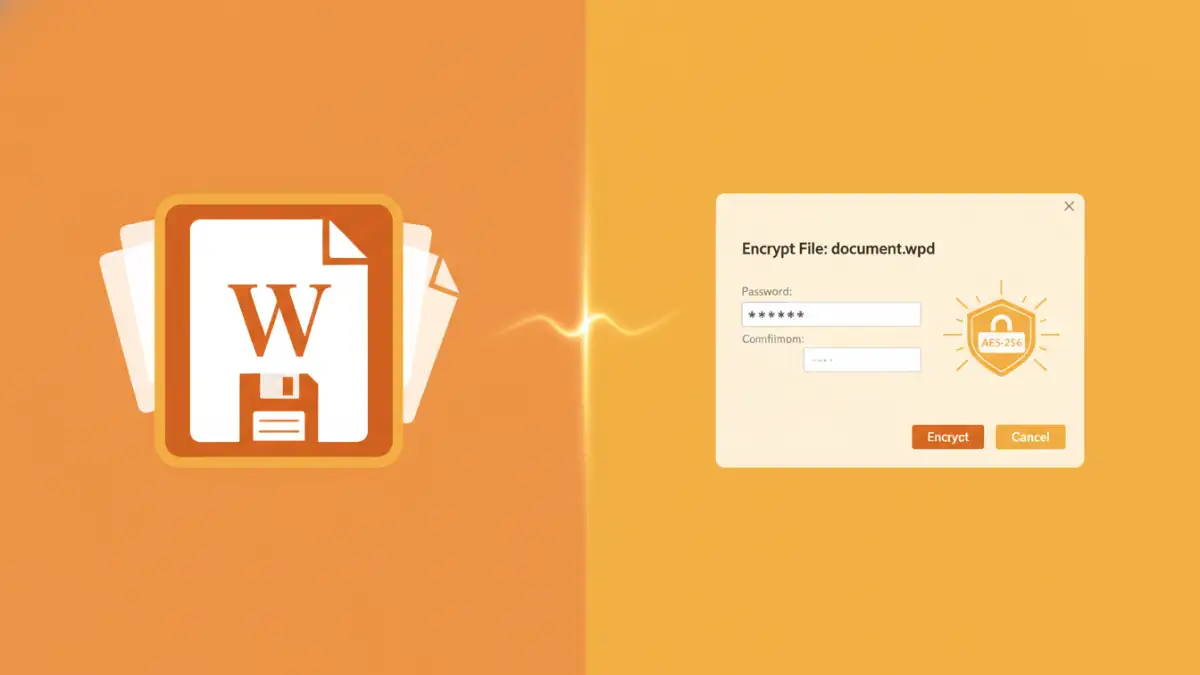
If you're still working with a functional version of WordPerfect, its native password protection is the first line of defense. When saving a document, look for options related to security or password protection. This feature allows you to set a password that must be entered every time the document is opened.
I recall a situation where a legal office needed to access decades-old case files stored in WordPerfect. They used the built-in password feature to secure these documents, which was effective for their internal needs. However, it's important to remember that the encryption strength might not be as robust as modern AES encryption, so for highly sensitive data, additional measures are recommended.
Setting a WordPerfect Password
To set a password in most WordPerfect versions: Go to 'File' > 'Save As'. In the Save As dialog box, look for a 'Save Options' or 'Security' button. Click on it, and you should find an option to 'Password protect' or 'Require password to open'. Enter your desired password, confirm it, and save the document. Make sure to use a strong, unique password.
Using External Encryption Tools
For enhanced wordperfect document security, especially if you're concerned about the encryption strength of older WordPerfect versions or if you don't have WordPerfect installed, external encryption tools are an excellent choice. These tools can encrypt any file, including WordPerfect documents, using strong, modern encryption algorithms.
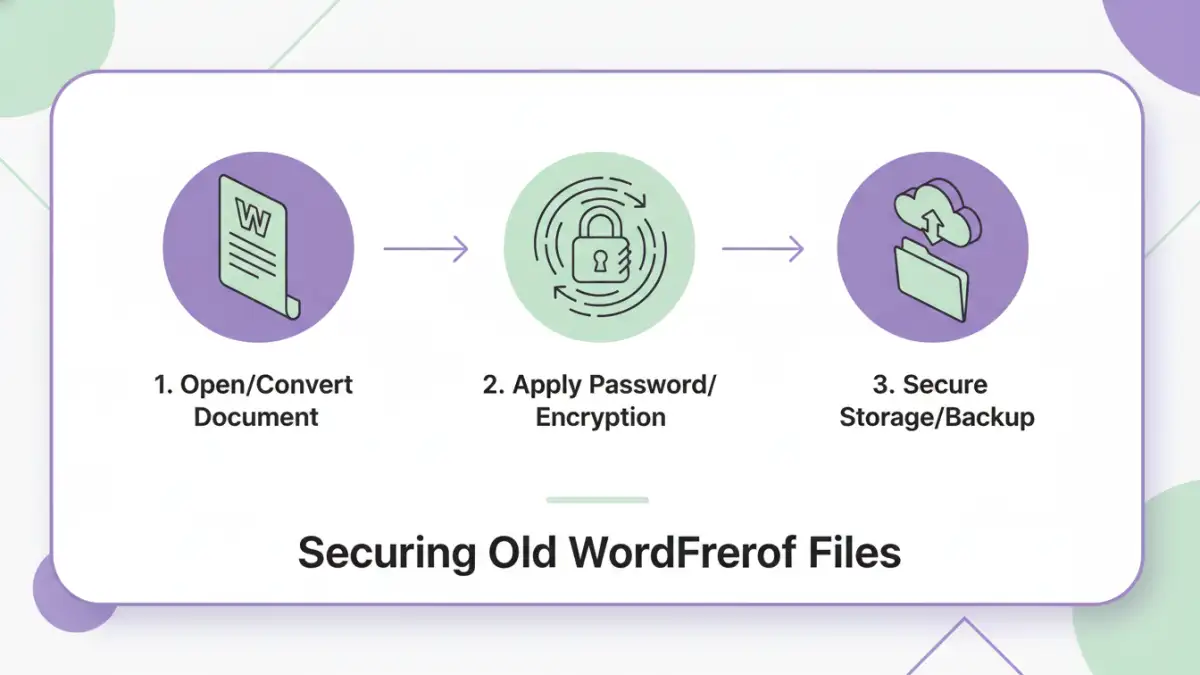
One reliable approach is to convert your WordPerfect document to a more universally accessible format like PDF, and then encrypt the PDF. Many free and paid tools can perform this conversion and subsequent encryption. Alternatively, you can use file archiving software that supports encryption, such as 7-Zip or WinRAR. These tools allow you to create an encrypted archive containing your WordPerfect file.
Encrypting as a PDF
The process often involves opening the WordPerfect document, saving it as a PDF, and then using a PDF encryption tool (like Adobe Acrobat or free online services) to add a password and encryption. This method offers a good balance of accessibility and security.
Archive Encryption
Using tools like 7-Zip: Install 7-Zip, right-click on your WordPerfect file, select '7-Zip' > 'Add to archive...'. In the archive dialog, choose an archive format (like .7z or .zip), select 'AES-256' for encryption, and enter a strong password. This creates a secure, compressed file that requires the password to extract the original document.
Effective Password Strategies
Regardless of whether you use built-in features or external tools, the strength of your security hinges on your password. A weak password, even with strong encryption, is a significant vulnerability. This is where effective wordperfect password management becomes critical.
Creating Strong Passwords
A strong password should be long, complex, and unique. Avoid common words, personal information, or sequential numbers. Consider using a passphrase—a sequence of unrelated words—or a combination of uppercase and lowercase letters, numbers, and symbols. Tools like password managers can help generate and store these complex passwords securely.
Password Management
For legacy file encryption, it's easy to forget passwords over time. Using a reputable password manager can help you store and retrieve your passwords safely without compromising security. This ensures that you can access your secured WordPerfect documents when needed without resorting to weak or easily guessable passwords.
Best Practices for Old Document Protection
Securing old documents requires a thoughtful approach, combining the right tools with sound security habits. It's not just about applying a password; it's about ensuring long-term accessibility and protection.
Regularly review your security measures. If you're using older WordPerfect versions, consider migrating critical documents to more modern, secure formats periodically. Always back up your encrypted files, but ensure the backups are also securely stored. This ensures you don't lose access to vital information due to a forgotten password or data corruption.
Comparison Table: Methods for Securing WordPerfect Documents
| Method | Pros | Cons | Best For |
|---|---|---|---|
| WordPerfect Built-in Password | Directly integrated, simple to use | Weaker encryption on older versions, requires WordPerfect software | Basic protection for non-critical files |
| Encrypting as PDF | Widely compatible format, strong encryption options | Requires conversion step, may alter formatting slightly | Securing documents for sharing or long-term archiving |
| Archive Encryption (e.g., 7-Zip) | Strong encryption (AES-256), file compression | Requires separate software, extra step to access file | Securing individual files or collections of sensitive data |
| Cloud Storage with Encryption | Accessibility from anywhere, often includes version history | Reliance on third-party provider, potential privacy concerns | Convenient access with robust security for active documents |