
A colleague once approached me in a panic. They had inherited a critical Excel workbook with years of complex VBA macros, but the original developer was long gone, and the VBA project was password-protected. They couldn't make a single update. This isn't an uncommon problem, and it highlights the double-edged sword of VBA project protection: it's great for securing code until you're the one locked out.
When faced with this situation, you essentially have two paths: a hands-on manual approach or a dedicated software tool. Each has significant trade-offs in terms of risk, complexity, and speed. Choosing the right one depends on your technical comfort level and the value of the file you're trying to access.
Table of Contents
Understanding VBA Project Protection
Before we try to bypass it, it's useful to understand what a VBA project password does. When you set a password on a VBA project in Excel, Word, or another Office application, you're not encrypting the file itself. Instead, you're setting a flag that tells the Microsoft Office application to restrict access to the Visual Basic Editor (VBE).
This protection is designed to prevent unauthorized viewing or modification of your source code. It's a layer of intellectual property protection. The password check happens within the application, and for many years, the method used to store this access key was relatively simple, which is what allows for the recovery methods we'll discuss.
The Manual Method: A Dive into Hex Editing

For the technically adventurous, the manual method involves directly editing the file's binary code using a hex editor. This is the ultimate 'do-it-yourself' approach and is often discussed in developer forums. It's the classic example of a free vba password recovery technique, but it comes with serious caveats.
The Manual VBA Hex Edit Process
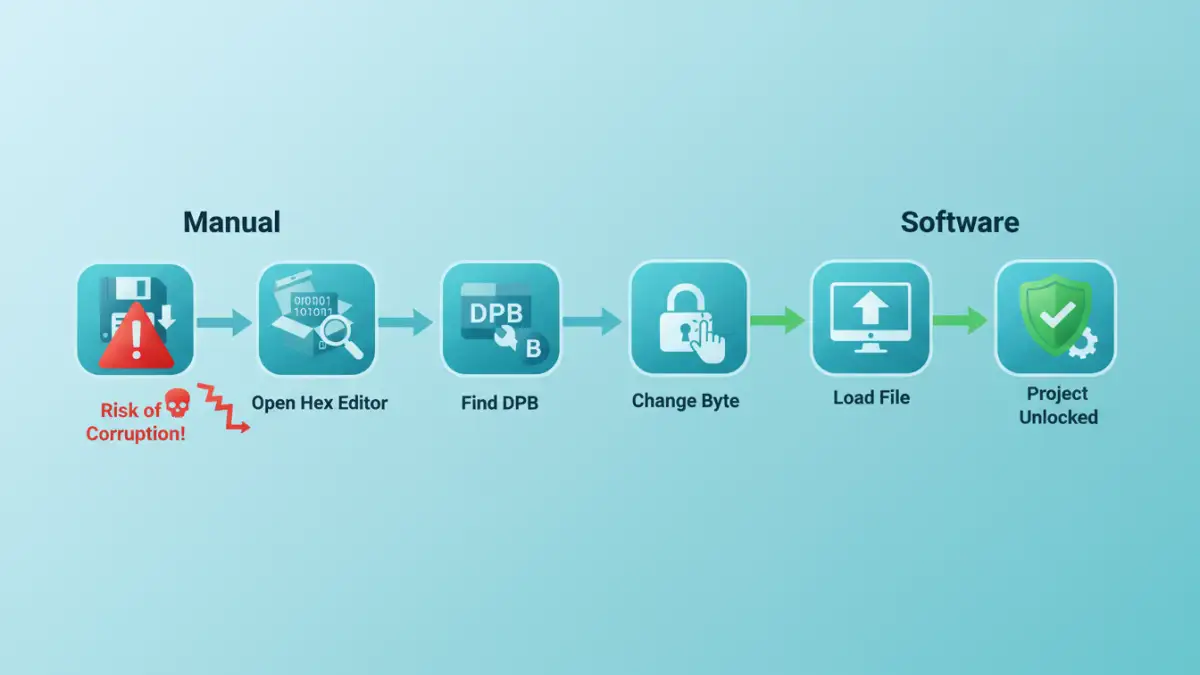
The core of the manual vba hex edit trick relies on finding a specific key-value pair within the file's data and altering it. In essence, you're telling the file that its password check data is invalid, which causes the Office application to ignore it and grant access upon a deliberately failed password check.
The process generally looks like this:
- Create a backup. I cannot stress this enough. One wrong byte change can corrupt your file permanently. Always work on a copy.
- Open the file (e.g., the .xlsm or .docm) in a hex editor application like HxD.
- Search for a specific text string, which is typically 'DPB'.
- Replace this 'DPB' string with something else, like 'DPx'. This invalidates the password check.
- Save the modified file and try to open it in its native Office application. When you attempt to view the VBA project, the application will throw an error but often let you in afterward.
Risks and Limitations
While this sounds straightforward, the reality is fraught with risk. Locating the correct 'DPB' string can be difficult, as there might be multiple instances. Changing the wrong one will, at best, do nothing and, at worst, corrupt the entire workbook. Furthermore, Microsoft occasionally changes its file structures, so this method's reliability can vary between different versions of Office.
The Automated Solution: VBA Password Remover Tools
If hex editing sounds like performing digital surgery with a sledgehammer, you're not wrong. This is where specialized software comes in. A dedicated vba password unlocker software is designed to perform the complex, risky steps automatically in a controlled, safe environment.
How These Tools Work
Most of these tools work on a similar principle to the manual method but with programmatic precision. They parse the file structure, correctly identify the exact bytes corresponding to the VBA password protection, and modify them without disturbing any other part of the file. This automation virtually eliminates the risk of human error and file corruption.
The process is typically reduced to a few clicks: open the software, browse for your locked file, and click an 'Unlock' or 'Recover' button. The tool handles the rest, often creating a new, unlocked copy of your file while leaving the original untouched. This is a much safer workflow.
Choosing the Best VBA Password Remover
When looking for the best vba password remover, consider a few factors. Look for software that is well-maintained and explicitly supports your version of Microsoft Office. Check reviews to ensure it has a high success rate and is from a reputable developer. While paid tools are common, the cost is often negligible compared to the time lost trying to fix a corrupted file or the value of the locked code.
Head-to-Head: Manual vs. Software
Choosing between these two approaches comes down to a simple cost-benefit analysis. The manual method is free in terms of money but expensive in terms of time and risk. One mistake can cost you the entire file. I've seen it happen, and it's a painful lesson in the value of making backups.
Software tools require a financial investment but offer peace of mind, speed, and a near-guaranteed success rate. For any professional environment where the file has business value, using a dedicated tool for vba password recovery files is the only logical choice. The risk of data loss from a failed manual edit is simply too high. For a personal project with no real value, tinkering with a hex editor can be a learning experience, but never on a file you can't afford to lose.
Method Comparison: VBA Password Recovery
| Aspect | Manual Hex Editing | Automated Software Tool |
|---|---|---|
| Complexity | Very High. Requires technical knowledge and precision. | Very Low. Typically a one or two-click process. |
| Risk of File Corruption | High. A single incorrect change can destroy the file. | Extremely Low. Designed to modify only necessary data safely. |
| Time Required | Can take significant time to locate and edit correctly. | Usually takes seconds to a minute. |
| Cost | Free (software is free, but your time and data are not). | Typically requires a one-time purchase or subscription. |
| Best For | Technical users, hobbyists, or non-critical files where data loss is an acceptable risk. | Professionals, businesses, and anyone working with critical or valuable files. |