
Working with sensitive information, whether for personal projects or business operations, demands a robust approach to keeping it safe and accessible only to those who need it. Over my years in software engineering, I've seen firsthand how crucial effective file organization and data protection are. Misplaced or compromised documents can lead to significant issues, from privacy breaches to operational disruptions. Implementing smart folder strategies is a practical and powerful way to bolster your document security.
This approach goes beyond simple folder structures. It involves using intelligent systems and built-in features to automate organization, enhance security, and streamline access. By leveraging these methods, you can create a more resilient and efficient workflow for managing your digital assets, ensuring that your important files are both well-ordered and well-protected.
Table of Contents
Understanding Smart Folders

At its core, a smart folder is a virtual collection of files that are automatically updated based on predefined criteria. Unlike traditional folders that physically store files, smart folders act as dynamic search results. When you set up a smart folder, you define rules – like file type, date modified, or keywords within the content – and the system continuously scans your system to populate the folder with matching files. This means a single file can appear in multiple smart folders without being duplicated.
The real power of smart folders for secure document management lies in their ability to centralize dispersed information. Imagine having a smart folder that automatically gathers all PDF documents modified in the last week, or another that collects all files containing the word "confidential" from your entire drive. This dynamic organization drastically improves efficiency and reduces the chance of important documents being overlooked or lost.
Key Concepts of Smart Folders
The fundamental concept is metadata. Smart folders rely on the metadata associated with your files – information like creation date, modification date, file type, author, tags, and even content keywords. By querying this metadata, smart folders can create highly specific and always up-to-date collections. This is a significant step up from static folders where manual organization is required, and files can easily become outdated or misplaced.
Creating Secure Folder Structures
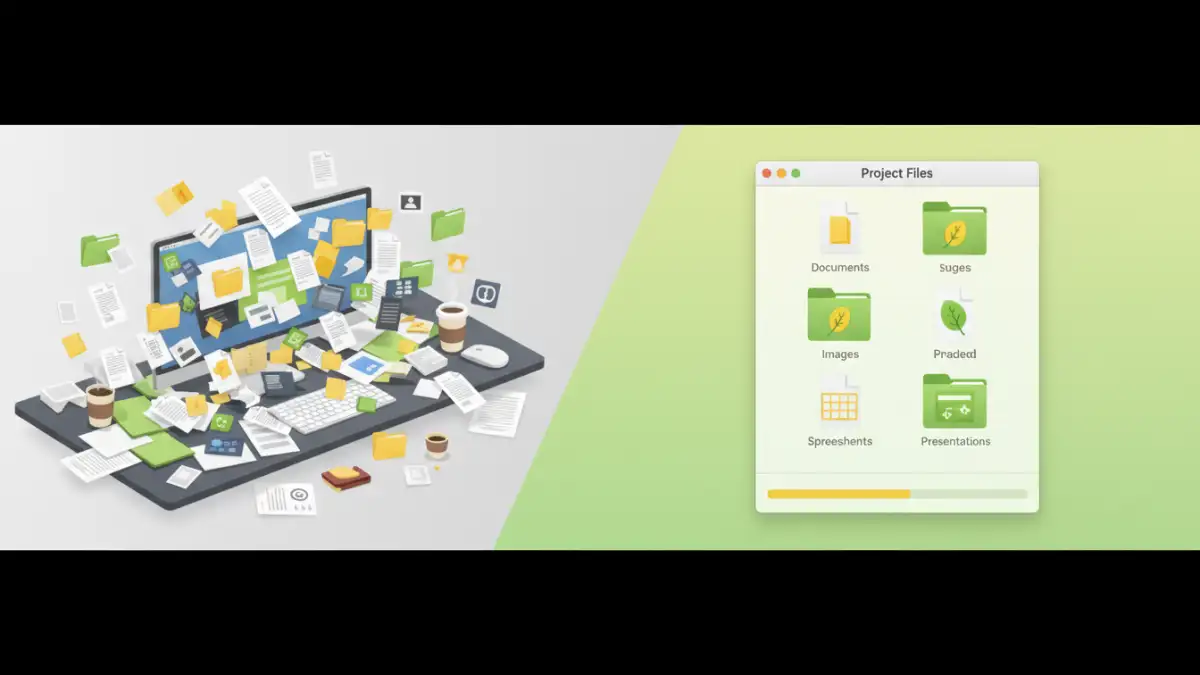
While smart folders are virtual, the underlying files reside in physical locations. Therefore, securing these physical locations is paramount. The first step in any secure document management strategy is to establish a clear, logical hierarchy for your main folders. This could involve separating work documents from personal files, or further segmenting by project, client, or department. Consistency is key here.
Within this structure, you can then implement security measures. For instance, sensitive project folders might have restricted access permissions, requiring specific user logins. Regular backups of these physical folders are also crucial. If a smart folder pulls information from multiple insecure locations, its effectiveness in providing secure document management is compromised. Think of smart folders as intelligent librarians; they need well-organized and protected bookshelves to work from.
Organizing by Sensitivity Level
A highly effective strategy is to create physical folders that correspond to different sensitivity levels. You might have a "Public" folder, a "Internal Use Only" folder, and a "Confidential" folder. You can then create smart folders that draw from these, for example, a smart folder named "Recent Confidential Reports" that pulls all PDFs modified in the last 24 hours from your "Confidential" physical folder.
Leveraging Operating System Features
Both Windows and macOS offer robust built-in tools for creating smart folders, often referred to as "Saved Searches" on Windows or "Smart Folders" on macOS. These features allow you to define complex search criteria and save them as persistent folders. For example, on macOS, you can create a smart folder showing all documents created in the last month, by a specific author, that contain certain keywords. This is incredibly powerful for keeping track of evolving projects.
On Windows, the File Explorer's search functionality can be used to create similar dynamic collections. By using advanced search operators, you can refine your criteria extensively. For instance, you could search for all `.docx` files larger than 1MB, modified after a certain date, and save this search. These saved searches behave like smart folders, providing instant access to relevant files without manual sorting.
Using Tags and Metadata
Operating systems allow you to add tags and custom metadata to files. On macOS, you can right-click a file, select "Get Info," and add tags. Windows allows similar metadata editing through file properties. You can then use these tags as criteria for your smart folders. For example, tagging all important financial documents with a "Finance" tag allows you to create a smart folder that instantly displays all such files, regardless of their physical location.
Advanced Security Measures
Beyond basic organization and OS features, consider integrating advanced security measures. File-level encryption is a critical component. Tools like VeraCrypt allow you to create encrypted containers (which can be treated as virtual drives) or encrypt entire partitions. You can then place sensitive physical folders within these encrypted volumes. Smart folders can then index files within these mounted encrypted volumes, providing a seamless user experience while maintaining strong data protection.
Another layer of security involves access control. Ensure that the physical folders containing your sensitive documents have appropriate permissions set. For instance, on a shared network drive, you can restrict access to specific folders for certain users or groups. Smart folders, being virtual, inherit the access rights of the underlying files. If a user doesn't have permission to view a file, it won't appear in any smart folder they access, even if it matches the criteria.
Password Protection and Encryption
While smart folders themselves don't encrypt files, they can be used in conjunction with password-protected files and encrypted documents. For example, a smart folder could be set to find all `.docx` files that are password-protected. This helps in auditing your security or quickly gathering files that require specific handling. Remember that password protection on individual files is a good first line of defense, but full disk or container encryption offers a more comprehensive solution.
Best Practices for Smart Folders
When implementing smart folder strategies for secure document management, consistency and clarity are paramount. Name your smart folders descriptively so you and others understand their purpose at a glance. Regularly review your smart folder criteria to ensure they remain relevant and accurate. Outdated criteria can lead to irrelevant results or missed documents.
Always remember that smart folders are a layer of organization and access; they do not inherently add security to the files themselves. Therefore, ensure the underlying physical storage locations are secured with appropriate permissions, encryption, and regular backups. Combine smart folders with strong password policies and encryption for a truly robust approach to data protection.
Comparison Table: Folder Organization Methods
| Method | Pros | Cons | Best For |
|---|---|---|---|
| Standard Folders | Simple, intuitive, direct file storage | Manual organization required, can become messy | Basic file management, small numbers of files |
| Smart Folders (Saved Searches) | Dynamic, automated organization, no file duplication, centralizes dispersed files | Relies on accurate metadata, underlying physical folders must be secure | Complex file management, large volumes of data, specific search criteria |
| Cloud Storage Sync Folders | Accessibility across devices, automatic backup/sync | Requires internet connection, potential privacy concerns with provider, storage limits | Collaboration, remote access, cross-device synchronization |
| Encrypted Containers (e.g., VeraCrypt) | Strong file-level encryption, secure virtual drives | Requires mounting/unmounting, potential data loss if container is corrupted, learning curve | Highly sensitive data, ultimate data protection |