A colleague recently sent me a 'protected' Word document containing draft project proposals, asking for a final review. He had set a password to prevent edits, but I was ableto copy the entire contents into a new document in under a minute. This is a common misunderstanding I see all the time: confusing a simple editing restriction with actual security.
These two features in Microsoft Word serve fundamentally different purposes. One is a polite suggestion to 'please don't touch,' while the other is a digital vault. Knowing which to use is critical for protecting your information, whether it's a company template or sensitive financial data.
Table of Contents
The Two Levels of Document Security
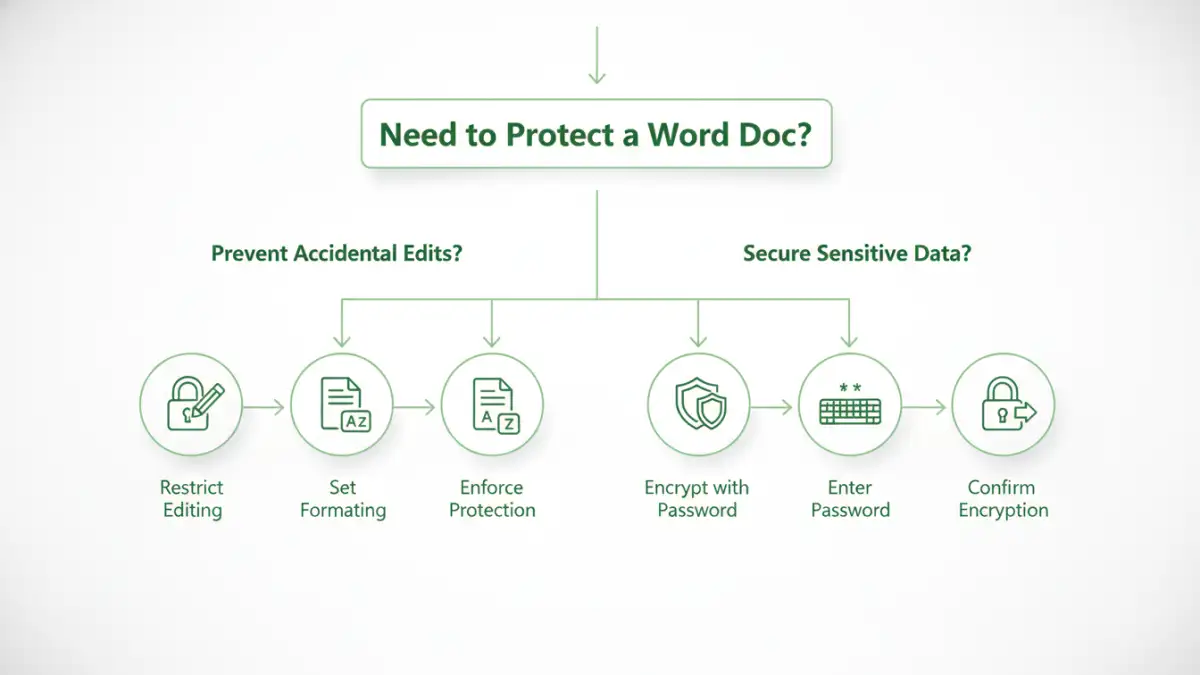
When we talk about protecting a Word file, we are really talking about two distinct concepts. One is about controlling collaboration and preventing accidental changes, while the other is about confidentiality and preventing unauthorized access. They are not interchangeable.
Level 1: 'Restrict Editing' — The Digital Speed Bump
The 'Restrict Editing' feature, which creates a word document read only password, is designed to manage how others interact with your document's content and formatting. It's a barrier, but a very low one. Its primary purpose is to prevent accidental deletions, formatting changes, or edits in a final draft or template.
Think of it as a 'wet paint' sign. It tells people not to touch, but it doesn't physically stop them. Anyone with a bit of technical know-how (or even just a good search engine) can bypass this protection, often by simply copying the content or using simple scripts. It offers zero confidentiality.
Level 2: 'Encrypt with Password' — The Digital Vault
This is the real deal for security. When you encrypt word document files, you aren't just putting up a sign; you are scrambling the entire content of the file using a strong cryptographic algorithm (AES-256 by default in modern Word versions). The only way to unscramble it and make it readable is with the correct password.
Without that password, the file is just a jumble of nonsensical data. This method protects the document's confidentiality from the moment it's saved. If an encrypted file is intercepted or stolen, it remains unreadable and secure. This is the only true form of word document password protection for sensitive information.
How to Apply Each Protection Method
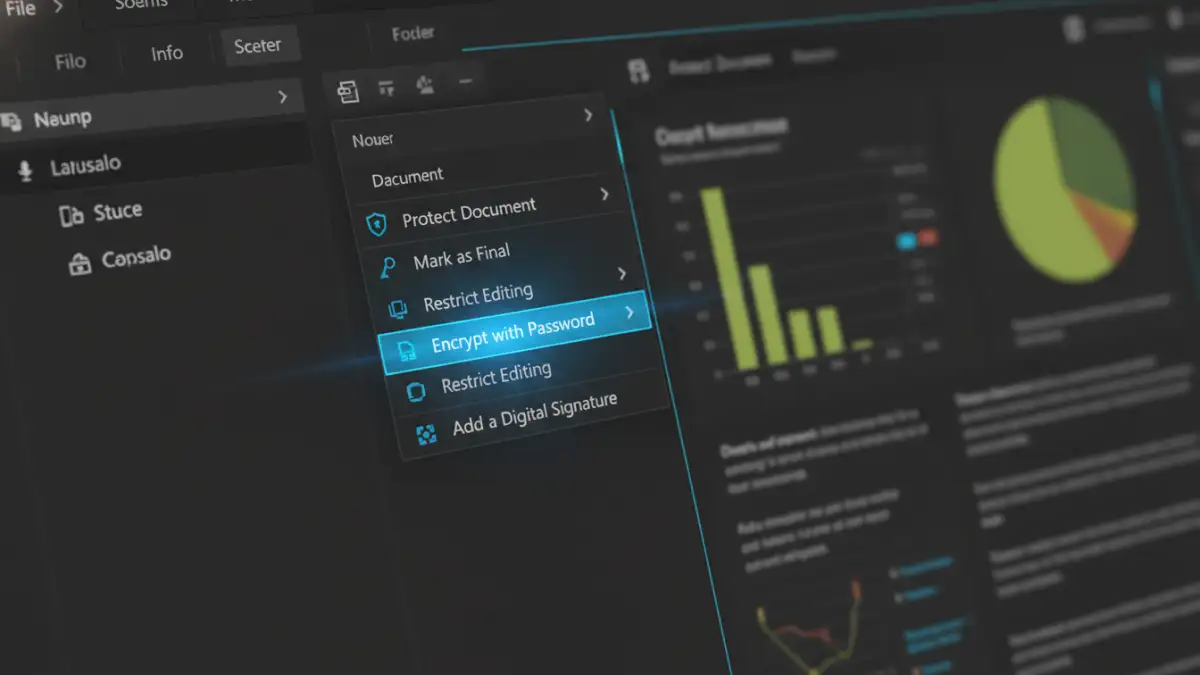
Applying these protections is straightforward, but the paths you take within Word are completely different. It's crucial to follow the right steps for the level of security you actually need.
Applying 'Restrict Editing'
To set up a read-only or editing restriction password, you'll use the tools on the Review tab. This is ideal for controlling document versions or protecting templates from being altered by users.
- Navigate to the Review tab on the ribbon.
- Click on Restrict Editing in the 'Protect' group. A pane will open on the right.
- Check the box under '2. Editing restrictions' and choose the level of restriction you want (e.g., 'No changes (Read only)').
- Click 'Yes, Start Enforcing Protection' and enter a password. Remember, this password only prevents editing within Word; it doesn't secure the content itself.
Applying Full Encryption
For true security, you need to encrypt the file from the 'Info' screen. This is a must for any document containing confidential or proprietary data.
- Click on the File tab to go to the Backstage view.
- Select the Info tab from the left-hand menu.
- Click the Protect Document button.
- From the dropdown menu, select Encrypt with Password.
- Enter a strong password, then re-enter it to confirm. Be warned: if you lose this password, you lose access to the document forever. Microsoft cannot recover it for you.
Practical Scenarios: When to Use Each Method
Understanding the theory is one thing; applying it correctly is another. I've seen teams send sensitive financial projections using only 'Restrict Editing', which was a major security gap. Here’s a simple breakdown of when to use which feature.
Use Restrict Editing in Word for:
- Templates: To ensure users only fill in designated form fields without altering the template's structure.
- Final Drafts for Review: To allow colleagues to add comments but not change the core text before final approval.
- Company Forms: To protect boilerplate legal language while allowing specific sections to be filled out.
Use Encrypt with Password for:
- Contracts and Legal Documents: Any document with legally binding or sensitive clauses.
- Financial Reports: Spreadsheets or documents containing revenue, salary, or budget information.
- Human Resources Files: Employee reviews, personal information (PII), and disciplinary records.
- Business Strategy and IP: Documents containing trade secrets, product plans, or proprietary research.
The Real-World Risks of Confusion
The biggest risk comes from a false sense of security. An employee might believe they've secured a sensitive HR document by applying an editing password, then email it outside the company. An attacker or even an accidental recipient could easily access all the confidential information within.
From a technical standpoint, the 'Restrict Editing' password can often be removed by saving the document in a different format (like .rtf or .xml) and editing a single tag. It's trivial. Full encryption, on the other hand, requires a brute-force attack to crack, which is computationally infeasible for a strong password. Choosing the wrong option is not just a minor mistake; it can be a significant data breach waiting to happen.
Security Method Comparison
| Feature | Restrict Editing (Read-Only Password) | Encrypt with Password (Full Encryption) |
|---|---|---|
| Primary Purpose | Prevent accidental edits, control collaboration | Protect confidentiality, prevent unauthorized access |
| Security Level | Very Low | Very High (AES-256) |
| How It Works | Sets a flag in the document to disable editing features in Word | Scrambles the entire file's content cryptographically |
| Can it be Bypassed? | Yes, easily. Often by copying content or saving in another format. | No, not without the password or immense computing power. |
| Best Use Case | Templates, forms, final review drafts | Sensitive data, contracts, HR files, financial reports |
| Password Recovery | Not applicable as it's easily bypassed. | Impossible. If the password is lost, the file is lost. |