
Working with sensitive financial data, client information, or proprietary business logic in Excel requires more than just neat rows and columns. Ensuring that your spreadsheets are not only well-organized but also secure is paramount in preventing breaches and maintaining confidentiality. Over my years in software engineering, I've seen firsthand how a lack of proper file management can lead to significant security risks and data loss.
This isn't just about setting a password on a single file; it's about a holistic approach to how you store, access, and protect your valuable spreadsheet data. From basic encryption to intelligent folder structures, there are many layers you can implement to significantly bolster your Excel file security.
Table of Contents
Understanding Excel File Security
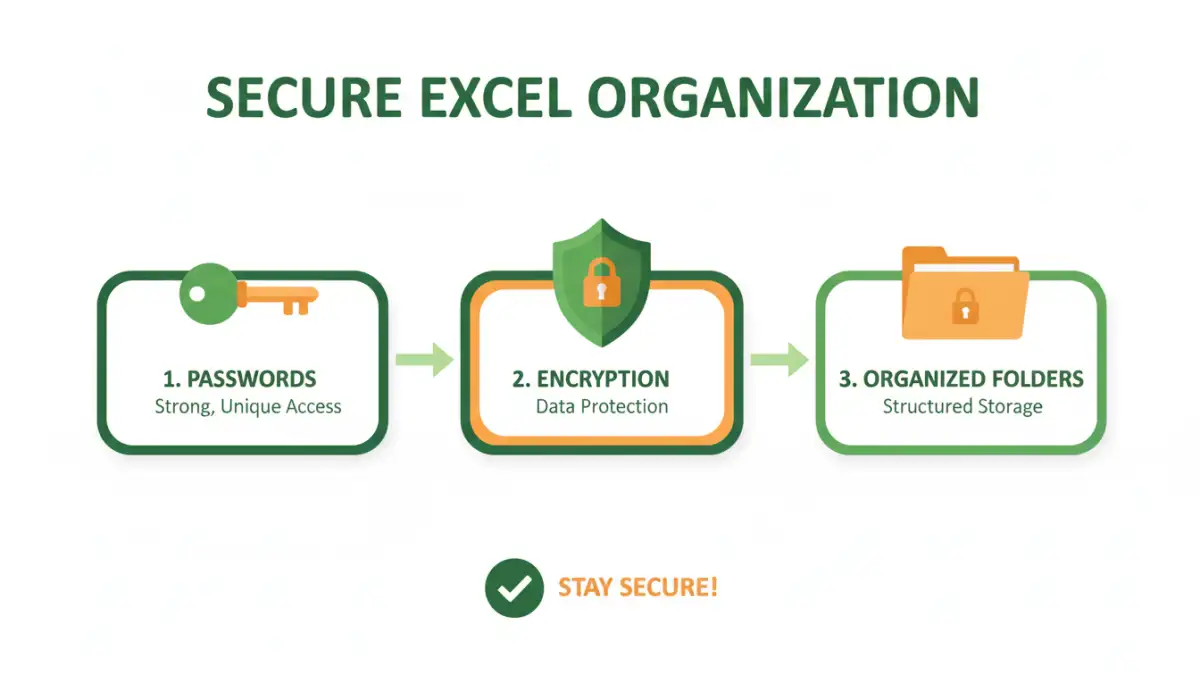
Excel files, like any digital document, can be vulnerable to unauthorized access, accidental deletion, or malicious attacks. Understanding the inherent risks associated with your data is the first step towards implementing effective security measures. This involves considering who needs access, what kind of data you're protecting, and the potential consequences of a breach.
Types of Threats
Common threats include accidental sharing of sensitive files, phishing attacks that trick users into revealing passwords, malware that can encrypt or steal files, and simple human error leading to data exposure. Recognizing these threats helps tailor your approach to secure your spreadsheets effectively.
Basic Protection Methods

Even without complex software, Excel offers built-in features that can significantly enhance the security of your files. These are often the first line of defense and are relatively easy to implement for most users. Taking advantage of these basic tools is a crucial part of secure excel file organization.
Password Protection for Files
The most common method is setting a password to open or modify a workbook. This is accessible via File > Info > Protect Workbook. While this deters casual snooping, it's important to remember that strong passwords are key. Weak passwords can be easily cracked, rendering this protection less effective. For critical data, always opt for complex passwords combining uppercase and lowercase letters, numbers, and symbols.
Sheet and Cell Protection
Beyond file-level security, Excel allows you to protect individual worksheets or specific cells. This is useful when you want to prevent accidental changes to formulas or important data while allowing others to input information in designated areas. You can access this through the 'Protect Sheet' option under the 'Review' tab. This method helps maintain data integrity and prevents unintentional corruption of your spreadsheet's structure.
Advanced Security Techniques
For highly sensitive data, basic password protection might not be enough. More robust methods can provide stronger layers of security, ensuring your data remains confidential even in the face of determined attackers. These techniques often involve external tools or more intricate configurations.
Encryption Tools
While Excel has its built-in password protection, dedicated encryption software can offer stronger encryption algorithms. Tools like VeraCrypt or BitLocker (built into Windows Pro and Enterprise) can create encrypted containers or encrypt entire drives, providing a very high level of security for your files. When storing sensitive Excel files, placing them within an encrypted container adds a significant barrier against unauthorized access.
Restricting Access with Permissions
For files shared within a network or cloud environment (like SharePoint or OneDrive for Business), you can often leverage granular permissions. This goes beyond simple passwords and allows you to define exactly who can view, edit, or delete files. Implementing such access controls is a vital part of comprehensive data security best practices, ensuring only authorized personnel interact with sensitive spreadsheets.
Smart Folder Organization
A well-structured folder system is fundamental to effective file management and contributes to overall security. Grouping files logically makes it easier to track what needs protection and reduces the chance of sensitive data being misplaced or accidentally exposed.
Categorization and Naming Conventions
Establish clear categories for your Excel files (e.g., 'Financial Reports', 'Client Data', 'Project Budgets'). Within these categories, use consistent and descriptive naming conventions. This not only aids in quick retrieval but also helps in identifying sensitive files at a glance. For instance, prefixing sensitive files with 'CONFIDENTIAL_' can serve as a visual reminder of their security requirements.
Separation of Sensitive Data
It's often wise to physically or logically separate your most sensitive files from general working documents. This could mean storing them in a dedicated 'Secure' folder, on an encrypted drive, or within a password-protected archive. This segregation minimizes the attack surface and ensures that common security measures are focused on the most critical assets.
Ongoing Best Practices
Maintaining security is not a one-time task but an ongoing process. Regularly reviewing your security measures and adapting to new threats is crucial for long-term data protection. Good file management habits are essential for keeping your digital assets safe.
Regular Backups
Always maintain regular, secure backups of your important Excel files. Store backups in a separate location, ideally off-site or in secure cloud storage. This protects against data loss due to hardware failure, ransomware, or accidental deletion. Test your backup restoration process periodically to ensure it works.
Awareness and Training
Educate yourself and your team about the importance of data security and the specific measures in place. Understanding potential threats like phishing or social engineering can prevent many security incidents. Regular training reinforces good habits for organizing and protecting spreadsheets.
Comparison Table: Excel Security Methods
| Method | Ease of Use | Security Level | Best For | Considerations |
|---|---|---|---|---|
| File Password Protection | High | Moderate | General documents, preventing casual access | Can be bypassed with strong attacks; remember your password |
| Sheet/Cell Protection | High | Moderate | Maintaining data integrity, preventing accidental edits | Does not prevent file access; only structure changes |
| Encryption Software (e.g., VeraCrypt) | Moderate | Very High | Highly sensitive data, compliance requirements | Requires installation, learning curve, can impact performance |
| Folder Permissions (e.g., SharePoint) | Moderate | High | Collaborative environments, team access control | Depends on platform capabilities; requires administrative setup |
| Secure Naming Conventions | High | Low (Supportive) | General file management, identifying sensitive files | Does not provide actual security, relies on user vigilance |